Best AI Animation Apps in 2026: What to Look For + Top Tools Compared
“Animation app” used to mean one thing: a drawing tool. Frame-by-frame sketching, a timeline, an onion-skin toggle. Apps like FlipaClip and Clip Studio Paint still do that job well, and if you want to hand-draw your animation, that’s the right category.
But a growing part of what people want from an animation app today skips the drawing entirely: describe a scene, a character, or a script, and get a finished, edited animated video back. AI handles the drawing and the motion. This is the AI animation app — a distinct category from traditional animation software, built around prompts and scripts instead of a canvas and a brush, and increasingly bundling voice, lip sync, and editing into the same platform.
So which is the best AI animation app for what you’re making? That depends on the project — a character-driven story needs different strengths than a corporate explainer. This guide breaks down what actually separates a good AI animation app from a gimmick, and a side-by-side comparison of the leading tools — including Anijam, Krikey AI, Canva, and Vyond — so you can match the tool to the job.
What Is an AI Animation App?
An AI animation app is software that generates animated video from a prompt, image, script, or reference — using AI models to handle the drawing, motion, and rendering instead of a human animator doing it frame by frame.
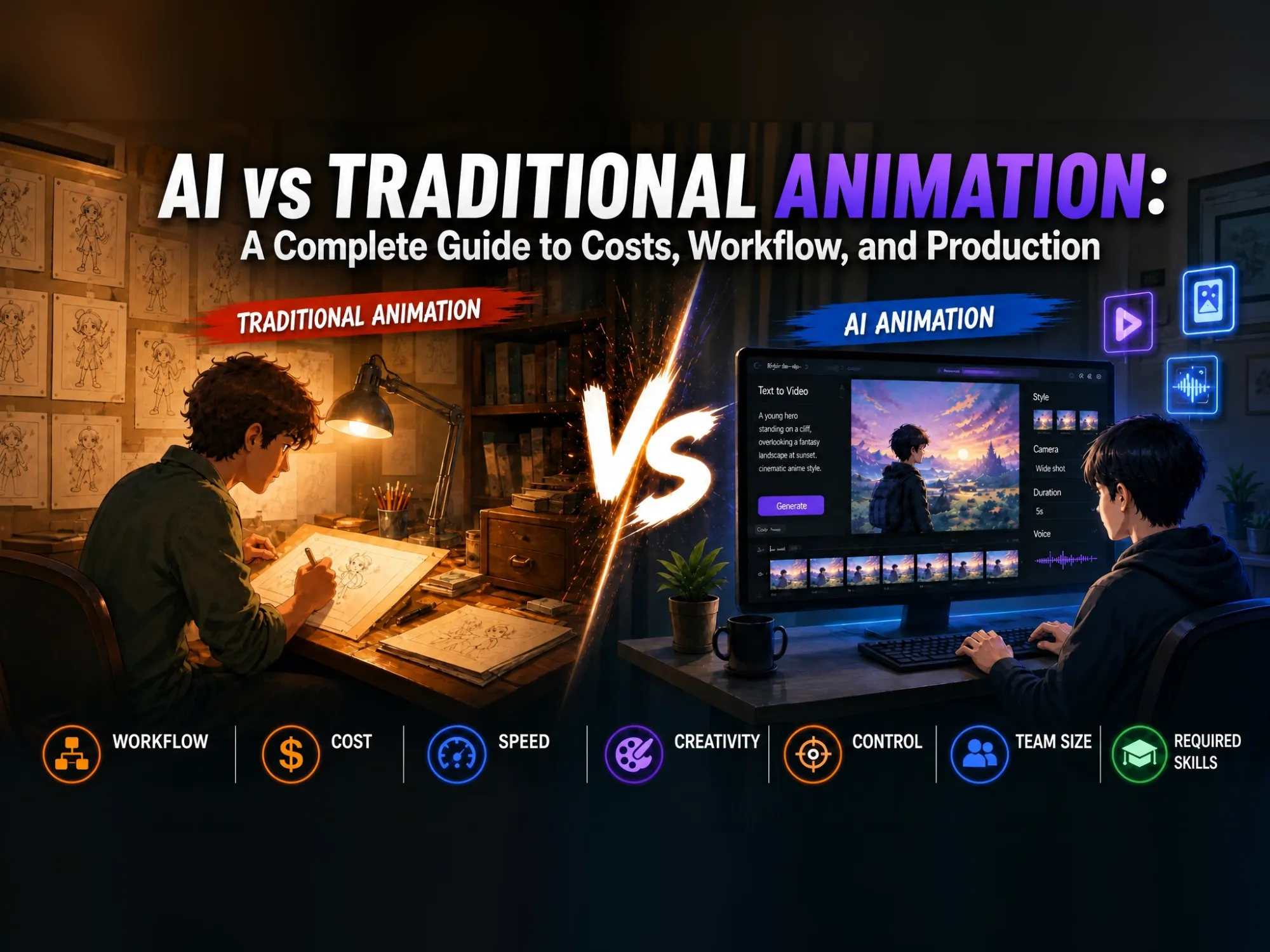
This is the key distinction from traditional animation software:
| Traditional Animation App | AI Animation App | |
|---|---|---|
| Input | Hand-drawn frames | Text, image, script, or audio |
| Skill required | Drawing and animation principles | Clear description and iteration |
| Time per finished clip | Hours to days | Minutes to a couple hours |
| Consistency across scenes | Manual, by the artist | Depends heavily on the tool |
| Output | Raw animation, edited separately | Often includes voice, lip sync, editing |
The category has matured fast. Early AI animation tools produced short, disconnected clips with characters that drifted in appearance from one generation to the next. In 2026, the better tools in this space — Anijam included — are built around agent-style workflows that take a script or idea and manage the entire pipeline: breaking it into scenes, keeping a character consistent across every one of them, generating voice, syncing lips, and assembling a timeline.
What Makes a Good AI Animation App
Not all tools in this category are built for the same job. Before comparing specific apps, it’s worth knowing what actually separates a capable AI animation app from one that looks good in a demo and falls apart in real use.
Character consistency. This is the single biggest differentiator in 2026. Most AI video and image generators still regenerate a character from scratch with each new prompt, causing visible drift in face, outfit, and proportions from scene to scene. A genuine AI animation app locks a character’s design once and reuses it — the same face in scene 40 as in scene 1.
Full pipeline, not just generation. Generating a single animated clip is the easy part now. The harder, more useful part is going from a full script to a finished, edited video with voice and timing — without exporting to three other tools along the way.
Style range. One art style rarely fits every project. A tool that only does one look — say, photorealistic 3D — is limiting if you also want anime, 2D cartoon, or hand-painted styles for different videos.
Voice and lip sync built in. Narration and dialogue are core to most animated video. Apps that separate voice generation from animation generation add friction and cost; apps that combine them save both.
Editing control. Full automation is convenient until one scene is wrong. Look for the ability to regenerate or adjust a single scene rather than restarting the whole project, plus a timeline for pacing and trims.
Templates for a starting point. Blank-page paralysis is real. A gallery of ready-made animation templates — by use case, not just by style — shortens the path from idea to finished video significantly, especially for first-time users.
Flexible input. A single way to start is limiting. Look for a tool that accepts a quick prompt for a single scene, a full script for a multi-scene story, an existing image or piece of concept art you want animated, or even audio to sync motion to — rather than locking you into one workflow for every project.
Best AI Animation Apps in 2026, Compared
Every tool below has a different center of gravity. Some are built for character-driven storytelling, some for corporate explainer videos, some for general-purpose motion. The right pick depends on what you’re actually making.
| App | Built For | Character Consistency | Voice/Lip Sync | Platforms | Free Tier |
|---|---|---|---|---|---|
| Anijam | Story-driven animation, anime, YouTube/social series | Yes — dedicated character-locking engine | Built in, 30+ languages | Web, iOS, Android | Yes (watermarked exports) |
| Krikey AI | 3D avatars, browser-based quick clips | Via avatar/model reuse | Text-to-speech with lip sync | Web (browser-based), iOS, Android | Yes (limited credits) |
| Canva Magic Animate | Adding motion to existing designs and templates | Limited — design-first, not character-first | Not a core focus | Web, Windows, Mac, iOS, Android | Yes, within Canva’s free plan |
| Vyond | Corporate explainer and training videos | Character library with reusable assets | Voice import/generation | Web (full editor); companion iOS/Android app for quick edits | No — paid only |
| Animaker / Renderforest / Powtoon | Template-based marketing and explainer videos | Template-based, not AI-generated characters | Voiceover tools included | Primarily web-based; Renderforest also has iOS/Android apps | Yes (limited/watermarked) |
Anijam — Best for Character-Driven Stories and Anime-Style Series
Anijam AI’s core differentiator is a dedicated character-locking engine: design a character once and it holds up — same face, same outfit, same proportions — across dozens of scenes and multiple videos, instead of drifting the way most AI generators do. That makes it the strongest fit for a YouTube channel, an episodic story, or an anime-style series where the same character needs to reappear reliably.
- Text, script, image, audio, and dedicated character inputs, run through one agent pipeline
- Ghibli, cartoon, 3D cinematic, and stylized styles, not just photorealistic
- Voice generation and lip sync in 30+ languages, built in
- Free tier with watermarked exports; paid plans from roughly $16/month
Krikey AI — Best for Fast 3D Avatar Clips
Krikey AI runs entirely in the browser and is built around 3D avatars rather than a broader style range. It’s a fast way to get a short animated clip with a talking avatar and lip-synced text-to-speech, without much setup.
- Browser-based, minimal onboarding
- Avatar reuse rather than open-ended character design
- Text-to-speech with automatic lip sync
- Free tier with limited credits
Trade-off: style range is narrower than platforms built around a full production pipeline, and it’s less suited to multi-scene narrative content.
Canva Magic Animate — Best for Teams Already Designing in Canva
Magic Animate is an animation feature inside Canva’s broader design suite, not a standalone animation pipeline. If your team already builds slides, social posts, or templates in Canva, it’s the lowest-friction way to add motion to something you’ve already designed.
- Works directly on existing Canva designs and templates
- Free within Canva’s existing free plan
- Design-first, not character-first — not built for a consistent character across a story
Trade-off: it animates what you’ve already designed rather than generating new scenes or characters from a prompt or script.
Vyond — Best for Corporate Training and Explainer Videos
Vyond is built for business use: training modules, internal communications, and product explainers, with a character library and asset styles aimed squarely at office and corporate scenarios. It doesn’t offer a free tier — pricing runs roughly $50–100+/month for a single seat, scaling up for team plans — but the depth of business-context assets built up over years is hard to match for that specific use case.
- Deep library of office scenes, icons, and chart animations
- Character library with reusable assets, not open-ended AI character generation
- Voice import and generation
- No free tier; paid only, priced per seat
Animaker / Renderforest / Powtoon — Best for Template-Based Marketing Videos
These three sit in a similar category: template-driven video makers aimed at marketing and explainer content, with voiceover tools included and free tiers available (typically limited and watermarked). Characters come from template libraries rather than AI-generated designs, so they’re faster to start with but less flexible if you need a specific, original character to carry a story.
- Large template libraries organized by use case
- Voiceover tools included
- Free tiers available, usually limited or watermarked
- Best suited to short marketing and explainer content rather than character-driven narrative
How to Choose the Right AI Animation App
Match the tool to what you’re actually building, not to whichever app you saw first.
Telling a story or building a YouTube/social series with a recurring character → prioritize character consistency above everything else. This is the feature that determines whether your project can scale past one video.
Making a business explainer or training video → prioritize a deep template and asset library for office/product scenarios, and voiceover tools built for a professional, neutral tone.
Making anime-style or stylized story content → prioritize style range and quality specifically in illustrated/anime aesthetics, not just photorealistic 3D.
Testing an idea quickly with no budget → prioritize a free tier that lets you actually finish and preview a project, even with a watermark, before you commit to a paid plan.
Working across languages → prioritize built-in multilingual voice generation with automatic lip sync, so you’re not rebuilding the visuals for every language.
How to Make an Animation Using an AI Animation App
Using Anijam AI as the example: it’s an AI video agent that manages the full pipeline — not just individual clip generation.
Two Ways to Start
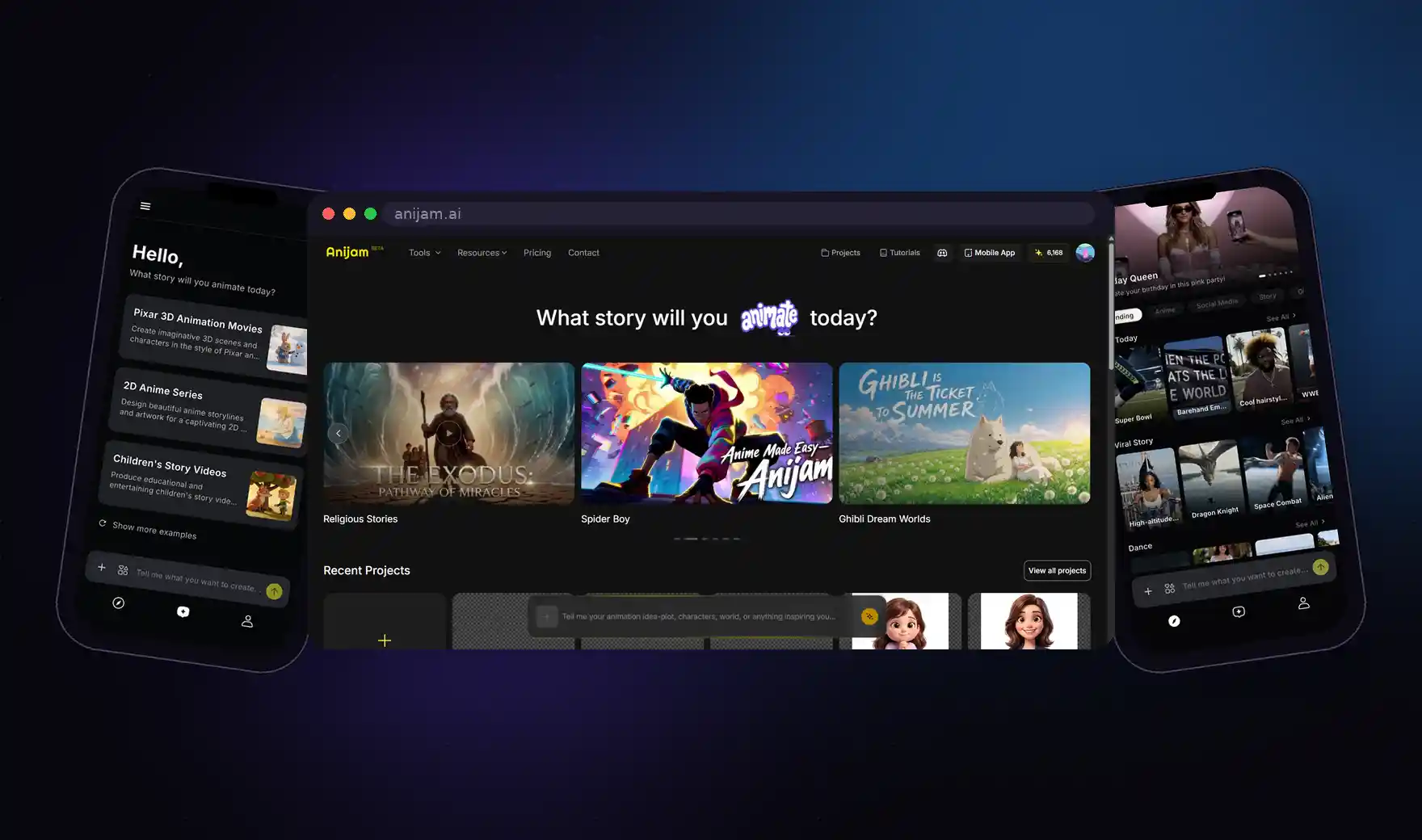
Anijam’s inspiration gallery organizes templates by use case rather than just by style: YouTube intros and shorts, marketing and ad content, social media (Reels, TikTok, Stories), education, business presentations, and occasion-based content like birthdays and holidays. Pick a template that matches your project, swap in your own content, and generate — the fastest path from idea to output for anyone starting from zero.
For more control, Anijam’s tools cover each stage individually:
- Text to Animation — a single prompt becomes a scene
- Script to Animation — a full script is broken into a structured scene plan
- Image to Animation — an existing image is animated
- Audio to Animation — motion generated from voice or music
- Character Animation Toolkit — design a character once, lock it, and reuse it across every scene and every video
Consistent character generation is the feature Anijam leads with, and it’s what makes building a series — a YouTube channel, a multi-part story, an episodic brand campaign — viable with AI instead of a novelty for a single clip.
Rounding out the pipeline: an AI voice generator with 30+ language support, AI lip sync that matches mouth movement to audio automatically in any language, and a built-in timeline/scene editor for adjusting pacing, trimming scenes, and reordering without leaving the platform. Anijam is also accessible from a mobile app, covering the same core workflow for creators working on the go.
Animation Styles
| Style | Best For |
|---|---|
| Ghibli / Hand-painted | Narrative and emotional storytelling |
| Cartoon / Classic 2D | Explainers, social content, kids’ videos |
| 3D Cinematic | Product content, film-style storytelling |
| Minecraft / Block 3D | Gaming content, casual and youth audiences |
The Six-Step Workflow
Step 1: Start From a Template or a Blank Prompt
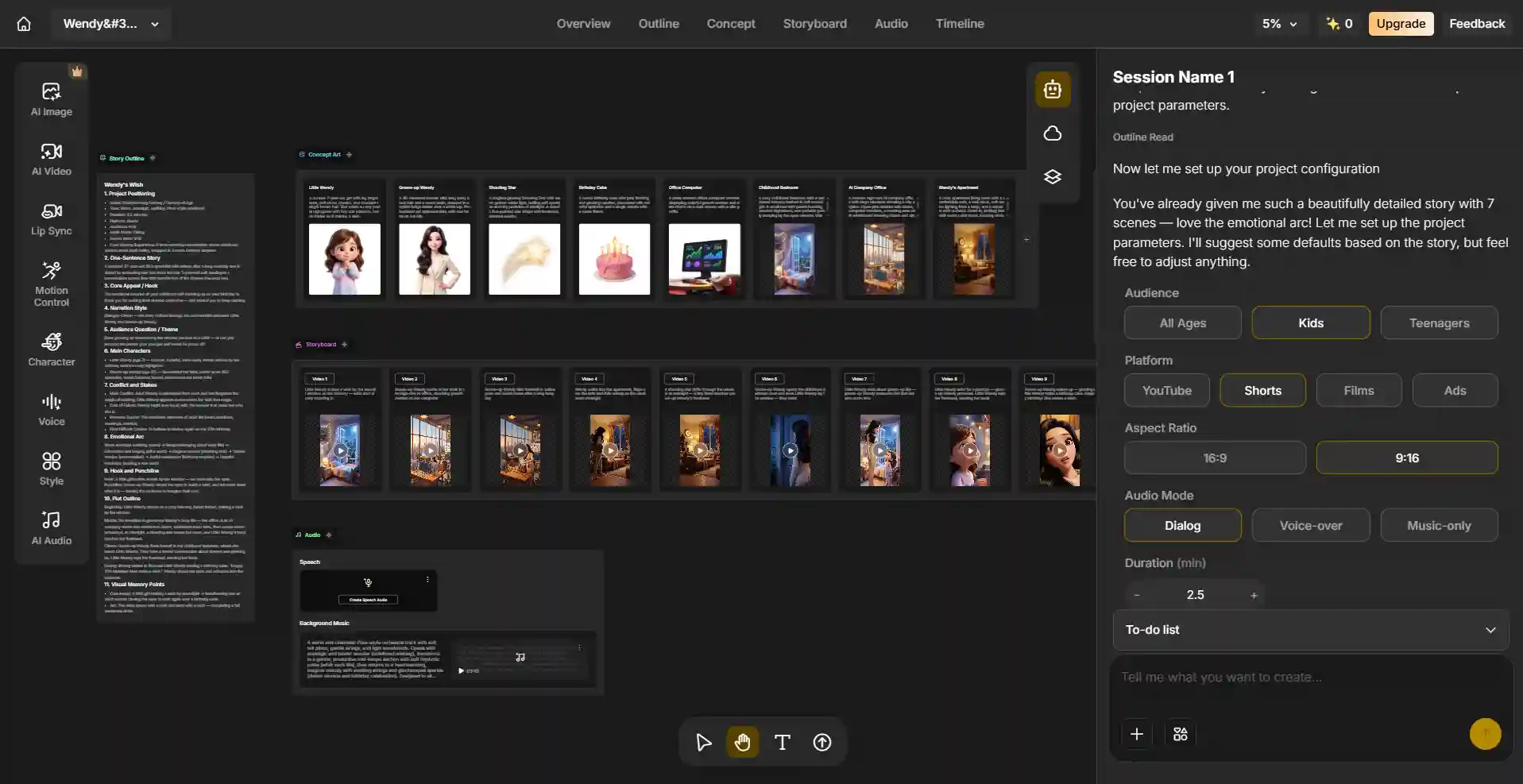
Browse the inspiration gallery for a template matching your use case, or start fresh with a text prompt or full script if you have specific content already written.
Step 2: Set Up Your Character (If Your Project Needs One)
Describe or design your character once in the Character Animation Toolkit. This step takes longer the first time and takes minutes on every subsequent video, since the design carries forward automatically.
Step 3: Generate Your Scenes
For a script-based project, the AI agent breaks the script into a scene-by-scene plan. For a single clip, a prompt is enough. Review each generated scene — if one isn’t right, regenerate just that scene rather than the whole project.
Step 4: Add Voice and Lip Sync
Generate voiceover directly in the platform, choosing tone, pace, and language. Lip sync applies automatically once voice is attached to a character.
Step 5: Edit the Timeline
Adjust scene duration, trim weak openings, reorder scenes, and set pacing. Vary scene length deliberately — dense concept or story beats need more time on screen than quick transitions.
Step 6: Export
Free-tier exports include a watermark; paid plans remove it and include commercial usage rights (check your specific plan’s terms before publishing commercially).
Final Thoughts
“Animation app” means something different in 2026 than it did five years ago. If you want to draw frame by frame, the traditional tools still do that job well. If you want to describe a story, a character, or a scene and get a finished, edited animated video back — that’s the AI animation app category, and the tools in it now handle far more of the pipeline than early versions did: consistent characters, voice, lip sync, and editing, not just a single generated clip.
There’s no single best AI animation app for every use case. Vyond and Powtoon still win on business-explainer asset libraries, Canva Magic Animate is the easiest add-on if you already design there, and Krikey AI is a fast pick for quick 3D avatar clips. But if the project is a character-driven story, an anime-style series, or a YouTube/social channel where the same character needs to hold up across dozens of scenes, that’s the specific gap Anijam’s AI video agent was built to close.
Start with one character. One template. One finished video. That’s the unit everything else builds from.
Frequently Asked Questions
What’s the difference between an AI animation app and an AI video generator?
A lot of overlap, but general AI video generators (built primarily for photorealistic or semi-realistic motion) often aren’t optimized for illustrated styles or character consistency across multiple scenes. An AI animation app is typically purpose-built for stylized visuals and — in the better tools — a character that stays consistent across an entire project.
How much does an AI animation app cost?
Most tools use credit-based pricing: a free tier with watermarked, limited-resolution exports, and paid plans roughly $10–60/month depending on volume and resolution.
Can AI animation apps keep a character consistent across a whole video series?
This varies significantly by tool, and it’s the biggest practical differentiator in the category right now. Standard AI generators tend to regenerate a character’s appearance from scratch with each new scene, causing visible drift. Purpose-built character-locking features — like Anijam’s — solve this by defining a character once and referencing that same design automatically in every scene generated afterward.
Do I need animation or drawing skills to use an AI animation app?
No. The workflow is prompt- and script-based. You describe scenes and characters in plain language, and the AI handles the visual execution. This is the core distinction from traditional animation software, which still requires drawing skill.
What resolution and export formats do AI animation apps support?
Most support standard MP4 export, with resolution tied to your plan — commonly 720P on free tiers and 1080P (or higher via upscaling) on paid plans. Check aspect ratio flexibility too if you’re publishing to both YouTube (16:9) and Shorts/Reels/TikTok (9:16).
by Wendy
Wendy is a passionate writer and AI video enthusiast at Anijam, exploring creative ways to bring stories to life with AI-powered image and video tools. She shares practical tips, prompt ideas, and insights to help creators turn their imagination into engaging visual content.