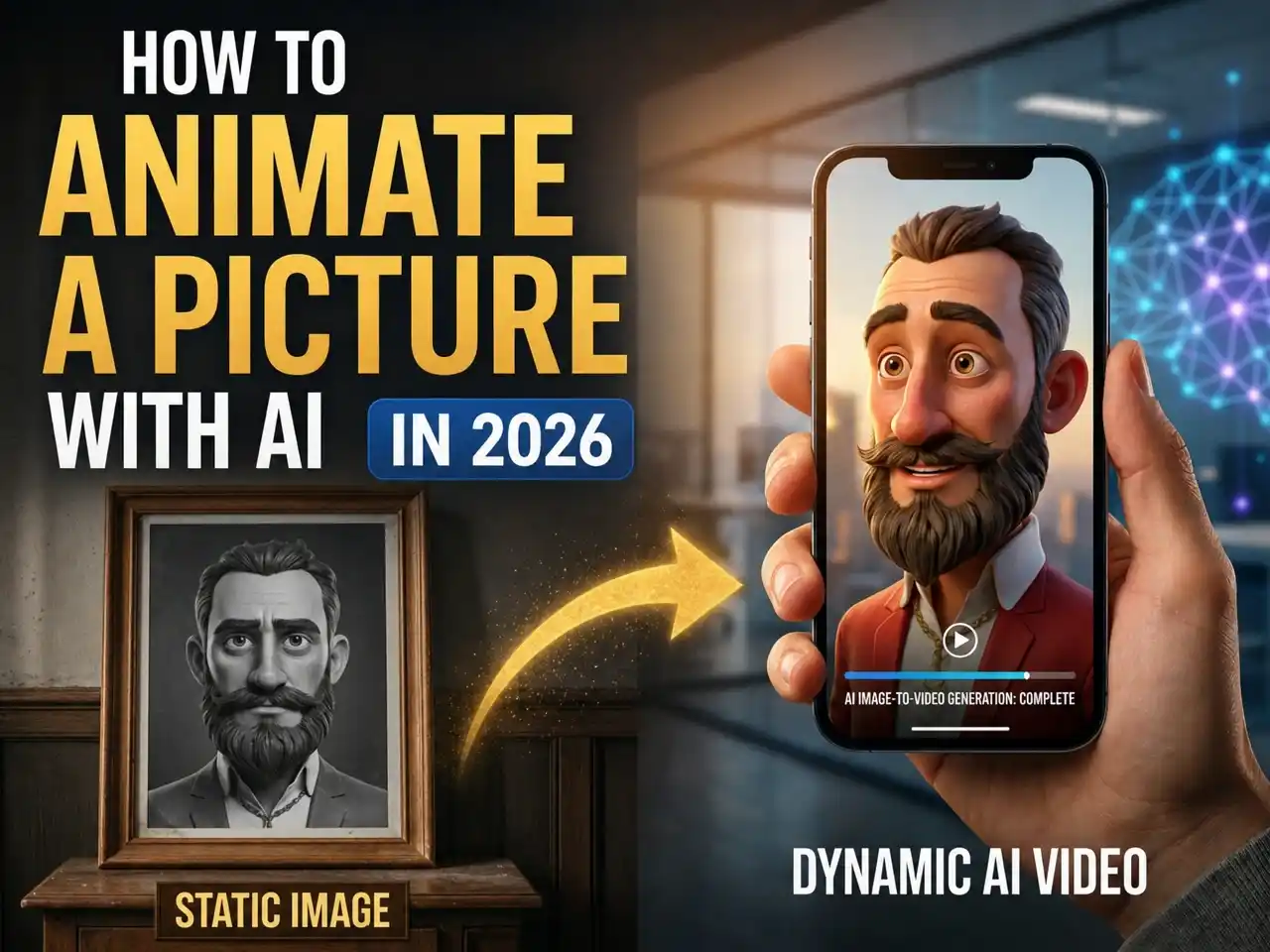
How to Animate a Picture with AI in 2026
The photo freezes for a moment. But what if that moment could breathe, blink, and move?
In 2026, animating a picture no longer requires a professional animator, expensive software, or weeks of work. With AI, anyone can turn portraits, old family photos, artwork, or product images into engaging, animated videos in seconds.
What Does It Mean to Animate a Picture?
Animating a picture means turning a still image into a moving video by adding motion, expressions, camera movement, or environmental effects. AI photo animation is not simply adding a zoom effect or a preset filter to an image. It is a fundamentally intelligent process.
Unlike traditional animation, where every frame is created manually, modern AI image animator can automatically generate realistic movement from a single image.
Common examples include:
| prompt | Picture | AI animate video |
|---|---|---|
| Making a portrait blink or smile | 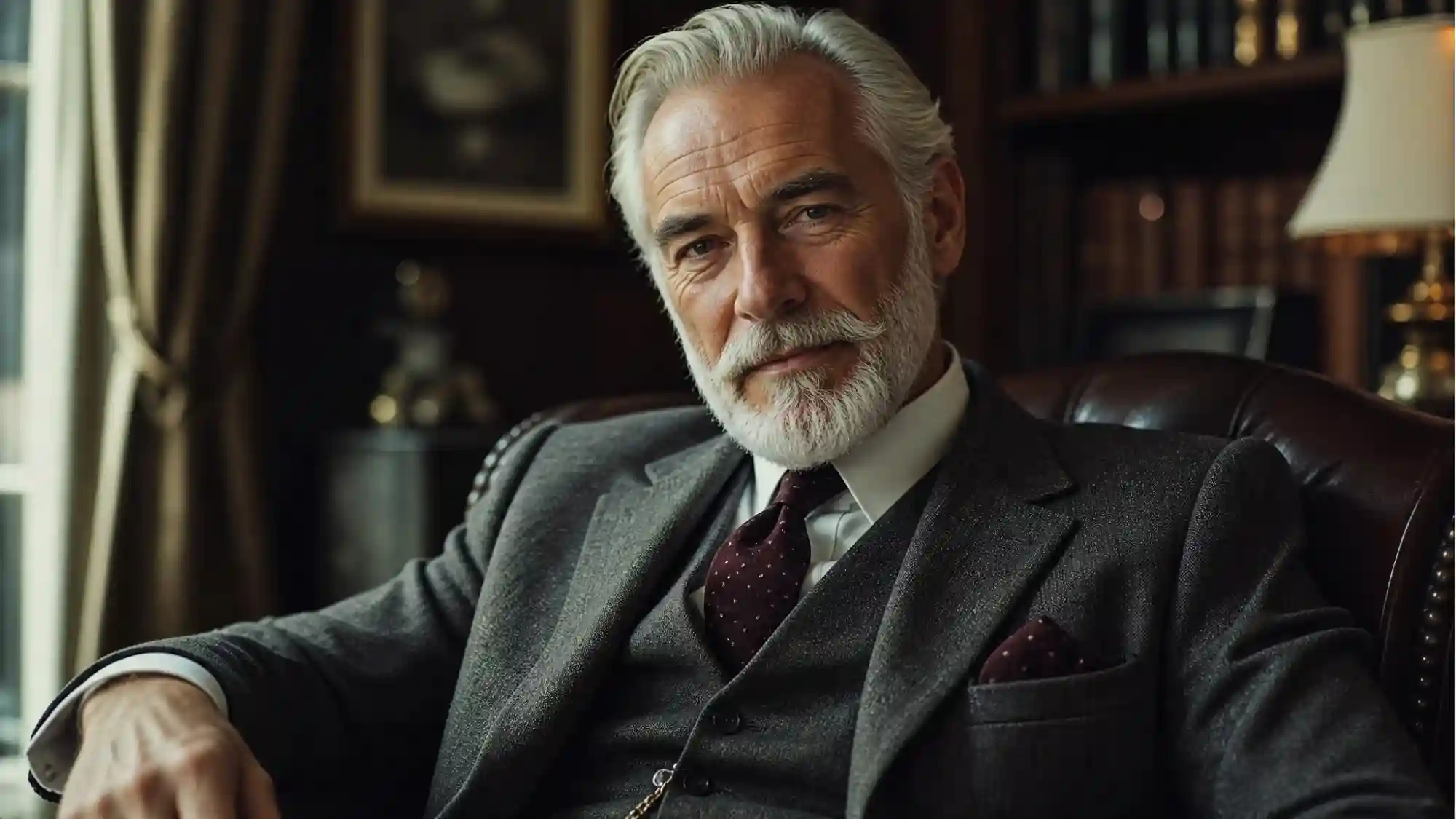 | |
| Turning landscapes into cinematic scenes | 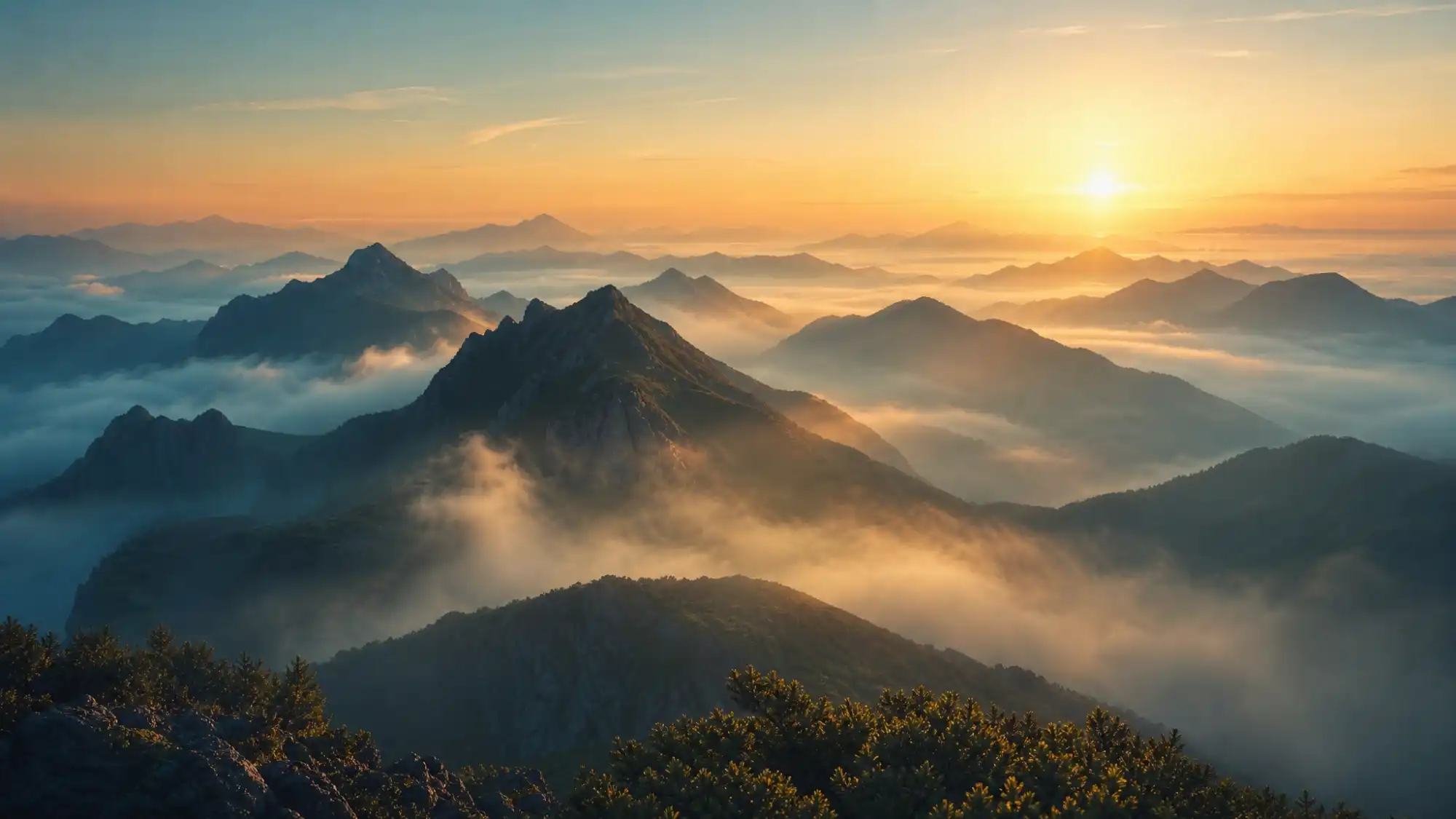 | |
| Animating old family photos | 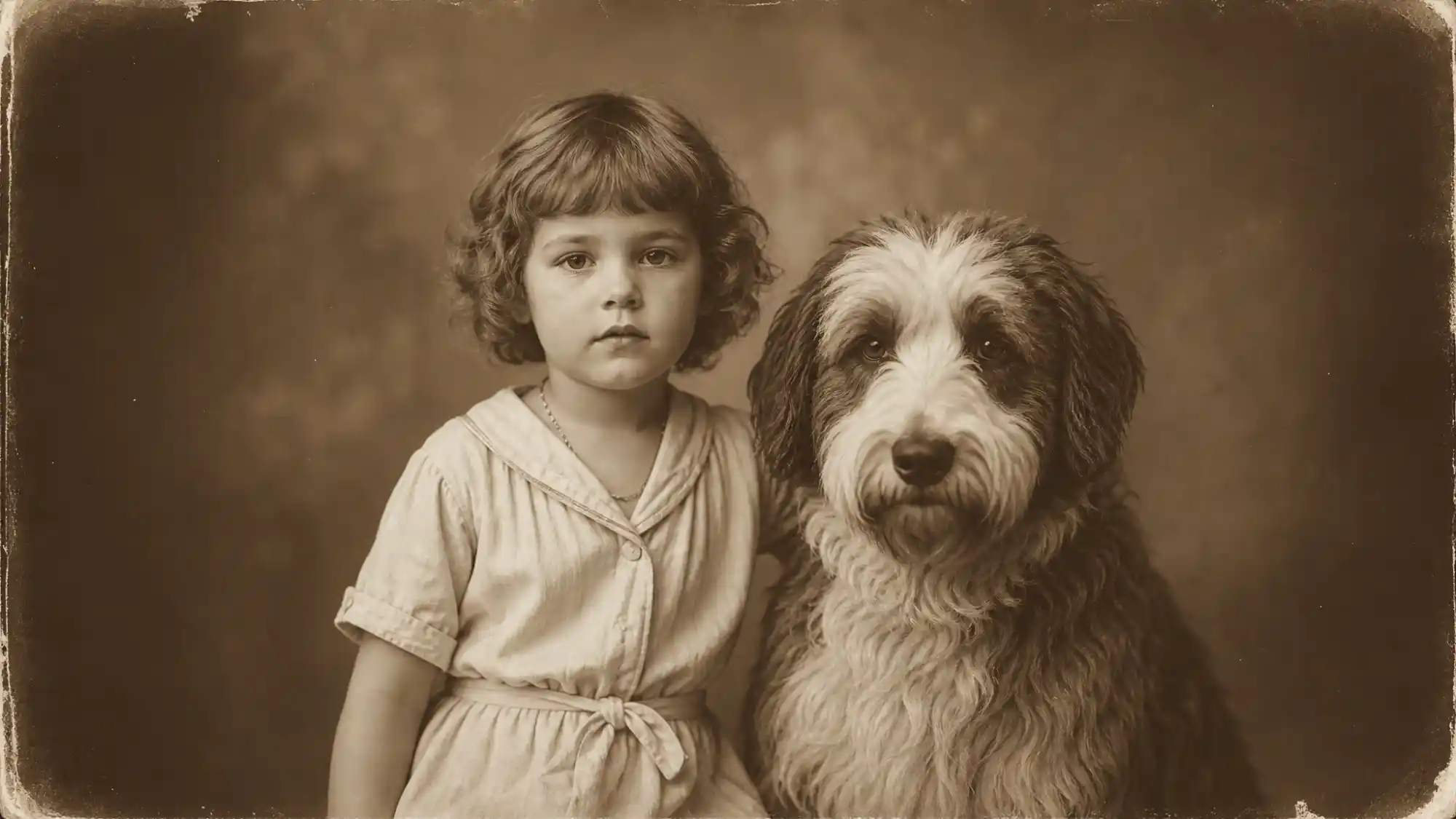 | |
| Creating product videos from static images | 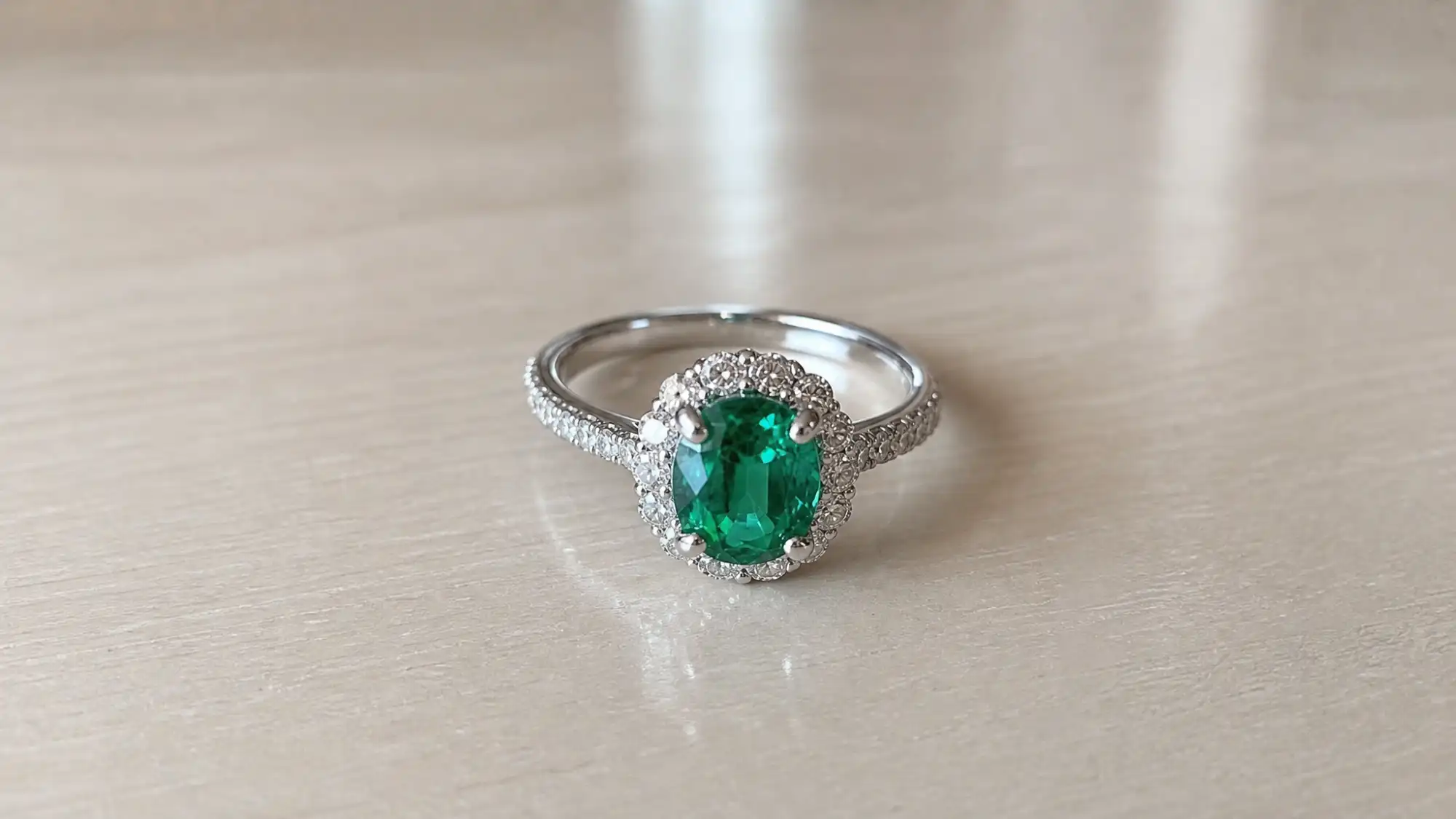 |
How AI Animates a Picture
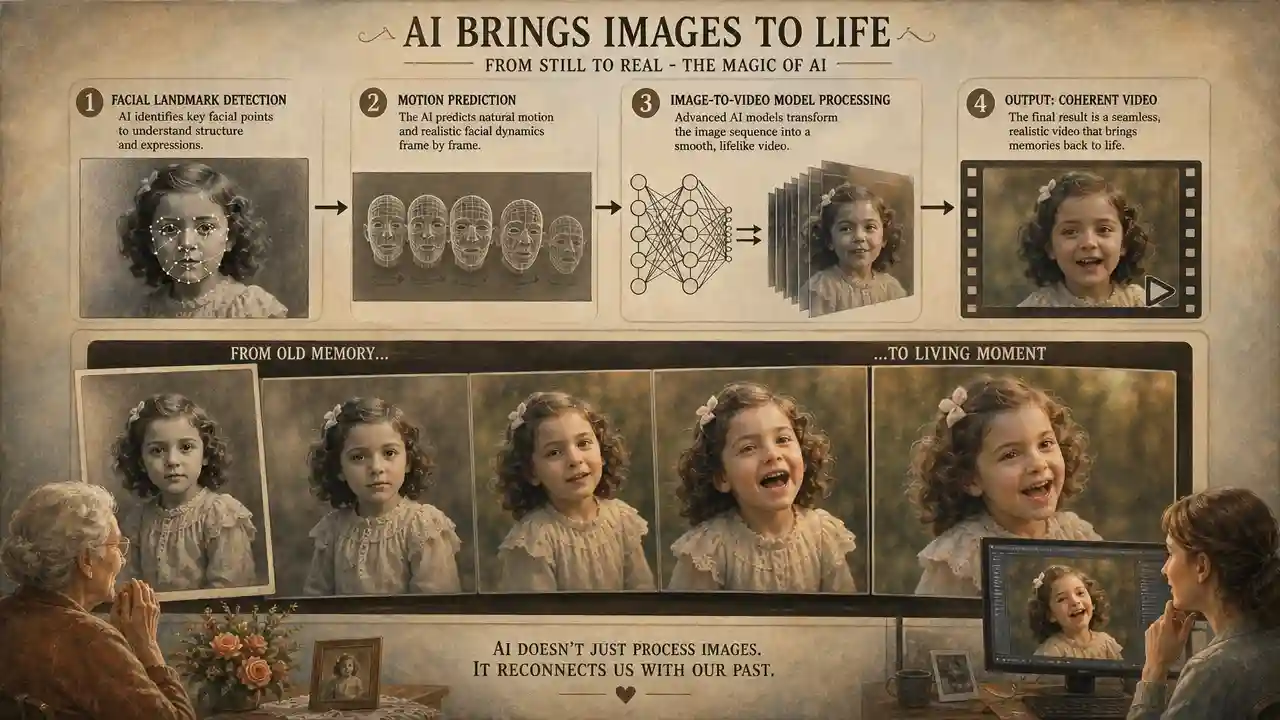
Instead of moving the entire image uniformly, AI analyzes individual elements in the scene and predicts how they would naturally move in the real world.
Motion Prediction
AI generation focuses on analyzing visual content to predict how various elements will move naturally in the real world. The AI generates new video frames based on these predictions, creating the illusion of natural movement.
Facial Landmark Detection
When animating portraits, AI first identifies important facial landmarks such as the eyes, mouth, nose, and jawline. By understanding the structure of the face, the model can generate realistic expressions. This is why modern AI can bring old family photos and static portraits to life with surprisingly realistic results.
Image-to-Video Generation Models
Recent breakthroughs in image-to-video AI have dramatically improved animation quality. These models are trained on massive datasets containing millions of videos and images. As a result, they learn how movement typically behaves in different situations and can generate entirely new frames that did not exist in the original image.
Motion Control and References
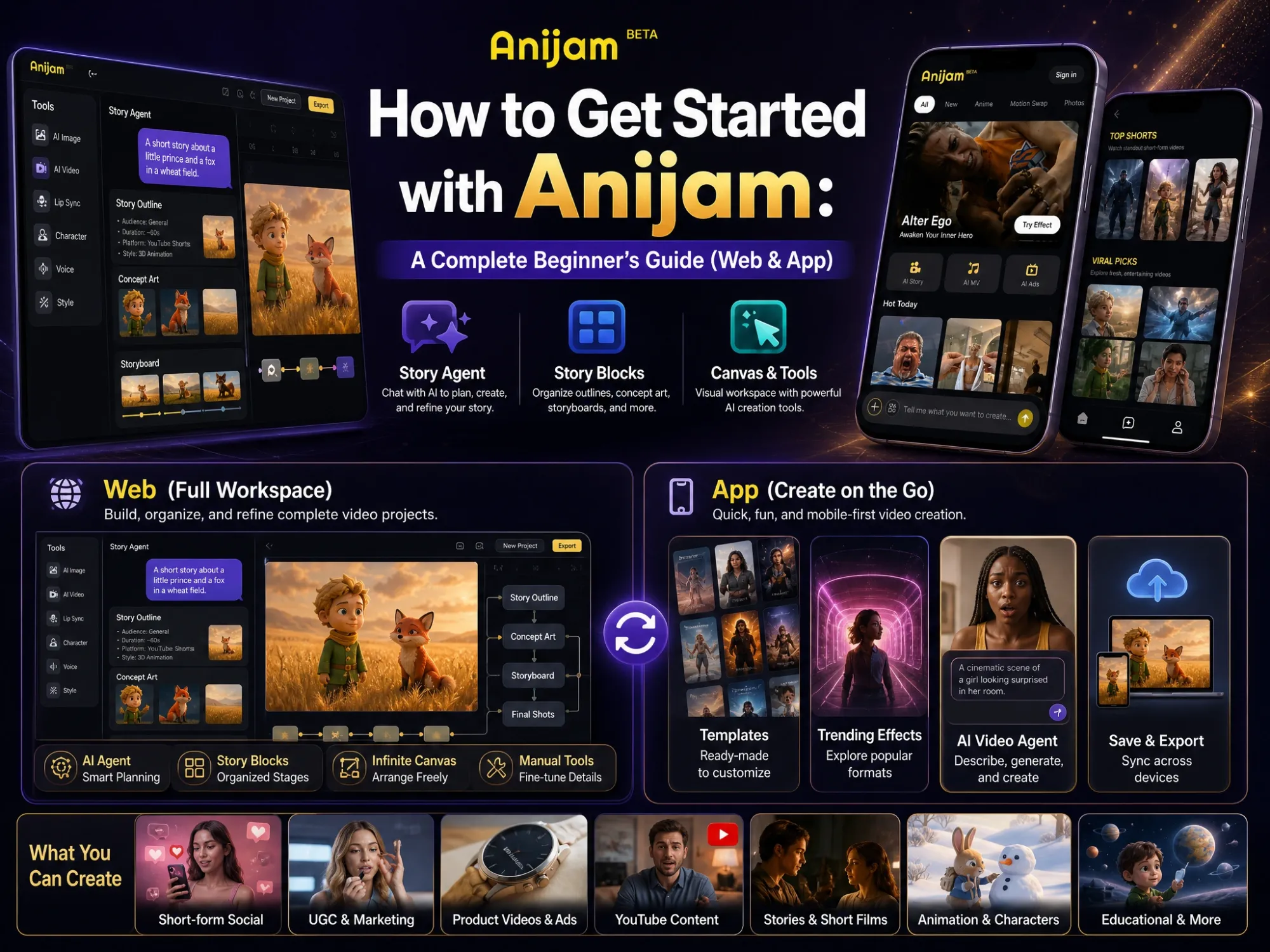
Advanced AI animation tools such as Anijam offer even greater control through prompts and motion references. Rather than accepting random movement, creators can specify exactly what should happen. Some tools also allow you to upload a reference video, enabling the AI to transfer camera movement, character actions, and motion rhythm directly to your image.
How to Animate a Picture with AI (Using Anijam)
Anijam AI is an all-in-one AI animation platform that stands out for its exceptional character consistency and motion control. By simply providing an image, you can use straightforward commands to precisely direct the character to speak, change expressions — all while perfectly preserving the original image art style and details.
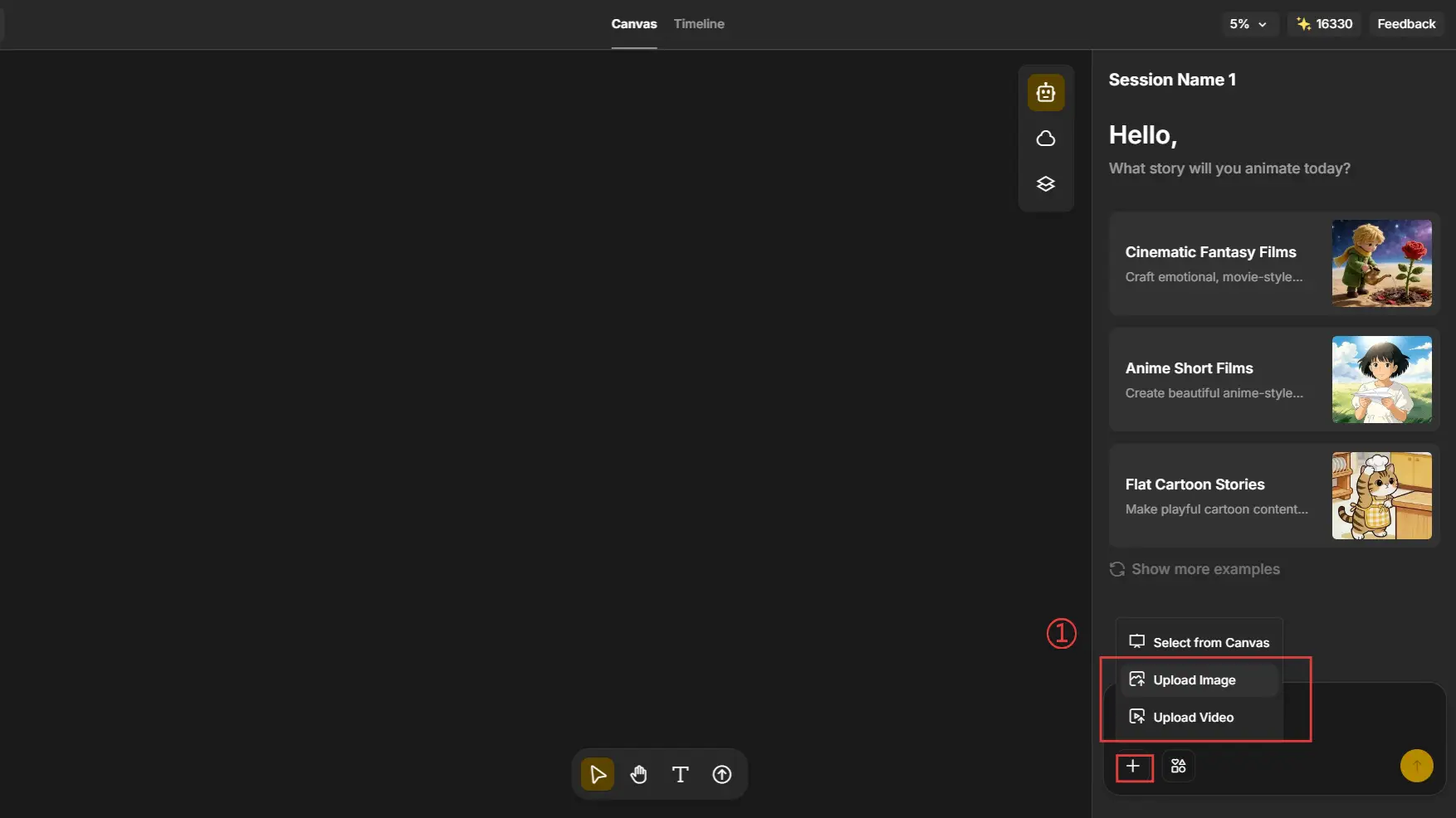
Step 1: Upload Your Image
Go to Anijam and access the AI image animation page directly. Upload a JPG, PNG, or WEBP image.
For best results:
- Use high-resolution images
- Keep the main subject clearly visible
- Avoid heavy compression
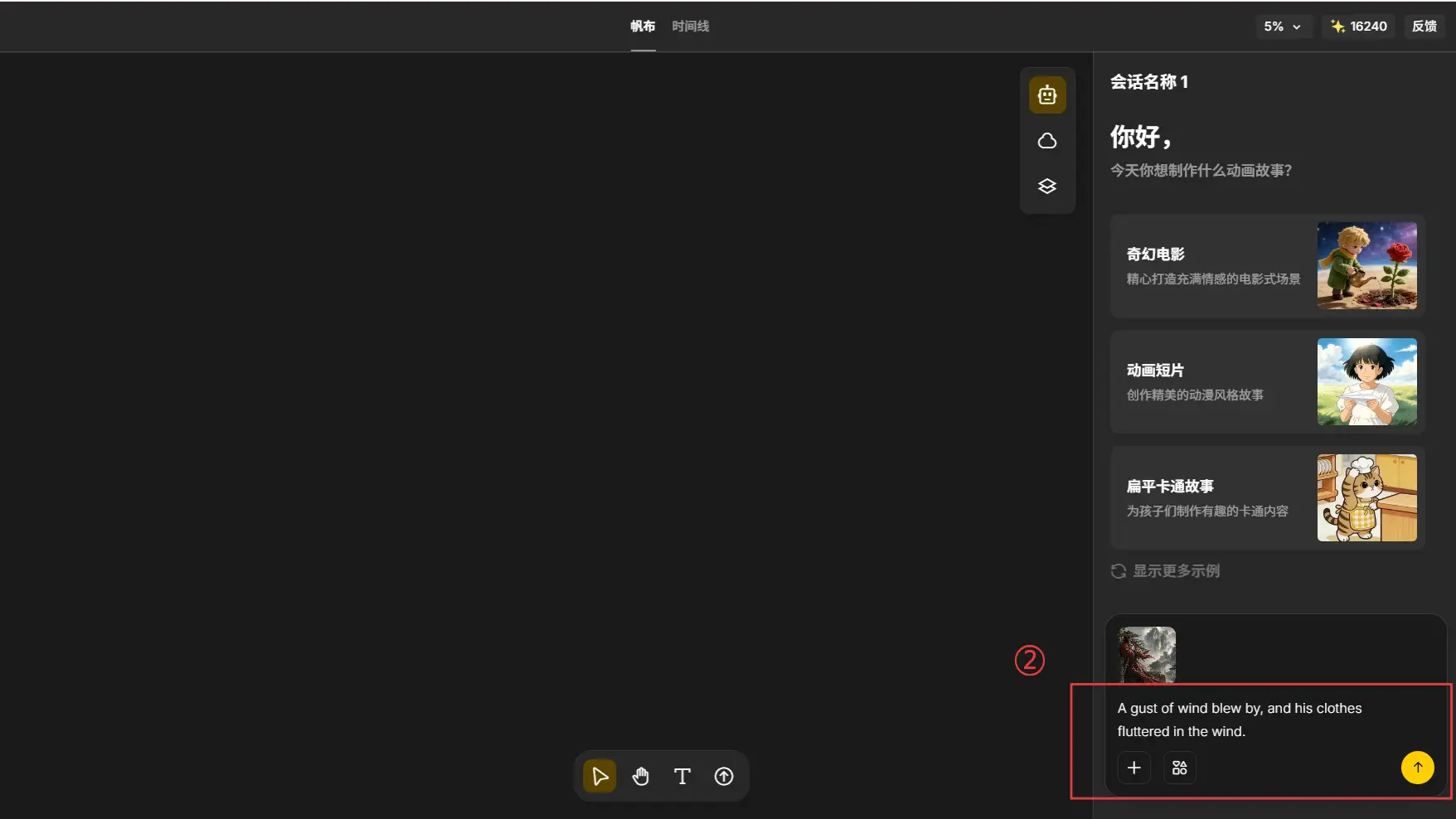
Step 2: Describe the Motion
Instead of manually keyframing animation, simply describe the movement you want.
Examples:
- Portrait: “The woman smiles softly, blinks naturally, and looks toward the camera.”
- Anime Character: “The character walks forward while hair and clothing move in the wind.”
- Product: “The camera slowly circles around the product while soft studio lights reflect across the surface.”
Step 3: Add a Motion Reference (Optional)
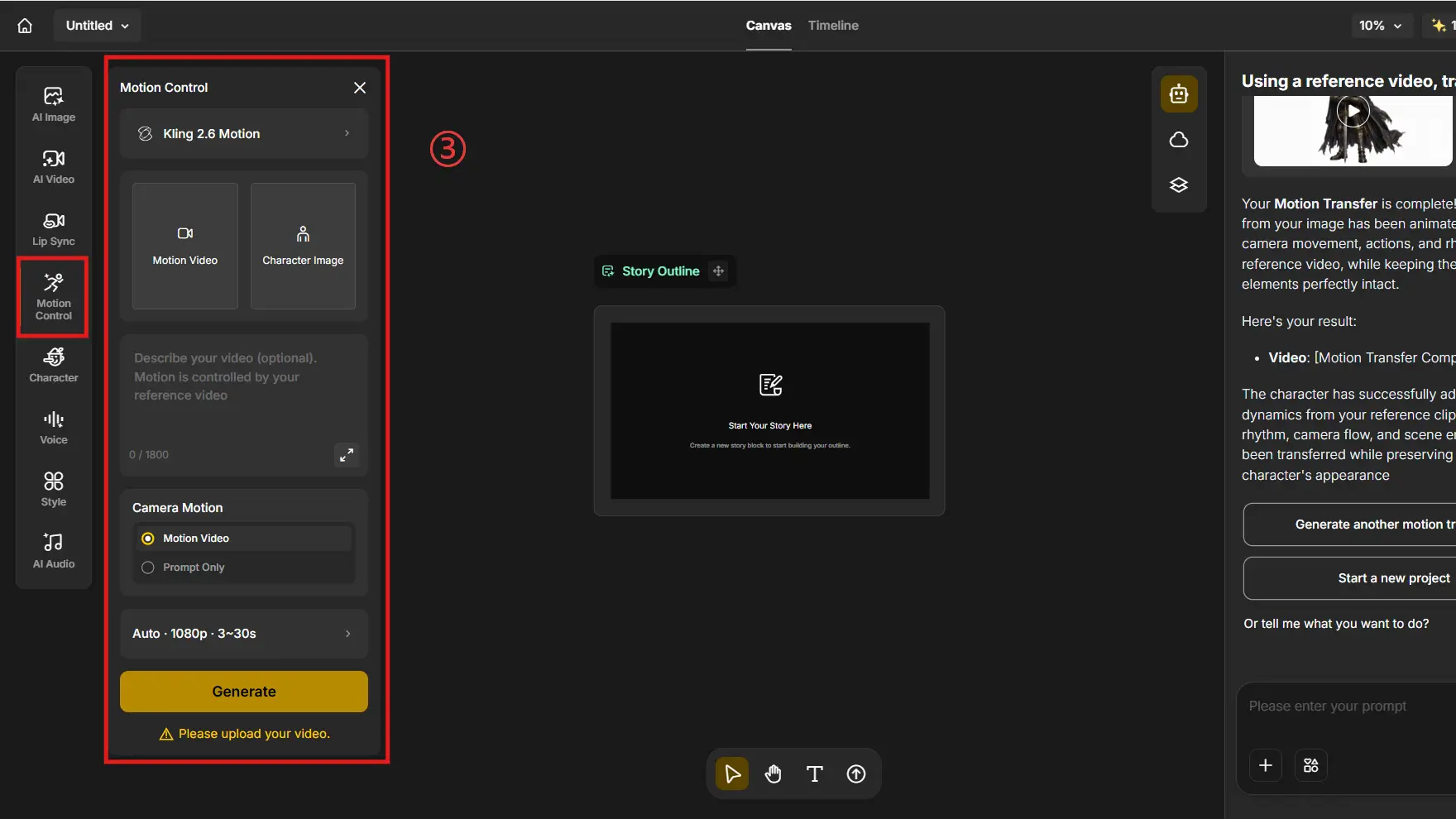
One of Anijam’s strongest features is reference-based motion generation.
Upload a reference video and Anijam can transfer:
- Camera movement
- Character actions
- Motion rhythm
- Scene dynamics
to your image animation. This gives creators much greater control than prompt-only animation tools.
Step 4: Generate and Refine
Generate the animation and review the results.
If needed, adjust:
- Motion intensity
- Camera movement
- Prompt details
and regenerate until the animation matches your vision.
Best Prompts for AI Photo Animation
The quality of your animated picture depends heavily on the quality of your prompt. Here is a library of high-performing prompts across the most common use cases:
Prompt 1: Portrait
“Soft natural smile, eyes gently blinking, slight head tilt to the right, hair lifting lightly in a breeze, warm afternoon light”
Key elements: Core movement (eyes/mouth) + Body language + Environmental motion (hair/wind) + Lighting/Atmosphere.
Prompt 2: Landscape / Scenic
“Clouds drifting slowly across the sky, waterfall cascading gently, trees swaying in a soft breeze, golden hour light gradually shifting, cinematic parallax depth”
Key elements: Subject state + Camera movement + Environment & Material + Lighting/Rendering.
Prompt 3: Product Animation
“The product slowly rotates 360 degrees on a smooth marble surface; soft studio lighting sweeps from left to right, revealing delicate surface reflections; clean, commercial aesthetic.”
Key elements: Environment & materials + camera movement + subject state + lighting & rendering.
🎯 Prompt formula:
Motion verb + Subject element + Direction or speed + Atmosphere or mood + Style instruction.
The more specific and layered your prompt, the more precisely AI delivers what you envision.
Common Mistakes When Animating Pictures
Even with an intuitive tool, beginners often make a few avoidable errors that reduce animation quality. Here are the most common ones — and exactly how to fix them:
Mistake 1: Using a Low-Resolution or Blurry Image
The problem: The AI has less visual information to work with, resulting in distorted facial features, smeared details, or unnatural-looking movement.
The fix: Use the highest resolution version of your image available. For old or scanned photos, use a photo enhancement tool first to sharpen and restore detail before uploading.
Mistake 2: Writing a Vague Prompt
The problem: Prompts like “make it move” or “animate the person” give the AI no directional information, so it defaults to generic motion that may not match your vision.
The fix: Be specific. Describe which elements should move, how they should move, at what speed, and in what mood or atmosphere. Think like a film director giving instructions to your camera and actor.
Mistake 3: Animating a Profile or Extreme-Angle Portrait
The problem: Most AI portrait animation models are optimized for front-facing images. Extreme angles reduce the AI’s ability to map facial landmarks accurately, producing unnatural results.
The fix: Use a front-facing or slightly three-quarter portrait for the most lifelike facial animation. Profile shots work better for motion-based animations (hair, clothing) than expression-based ones.
Mistake 4: Ignoring Style Preservation for Artwork
The problem: When animating digital illustrations or anime art, not including a style instruction can cause the AI to alter the visual aesthetic of the original artwork.
The fix: Add original art style preserved or cel-shaded style maintained to your prompt when animating illustrations. This tells the AI to prioritize visual fidelity to the source artwork.
Conclusion
Now you know the complete workflow: choose a clear image, write a specific motion prompt, optionally add a motion reference, and generate your animation in minutes. The best way to learn is to experiment with different prompts and styles.
Ready to bring your photos to life? Head to Anijam AI - upload your first image, write your prompt, and see the result in seconds.
Frequently Asked Questions
How do I animate a picture to talk?
Simply upload your image, add a voiceover or audio file, and Anijam will automatically generate realistic lip-sync animation. You can also combine facial expressions and motion prompts to create more engaging talking videos.
Can I animate a picture for free?
Yes. Anijam gives users free daily credits upon login, allowing you to animate pictures without any upfront cost. You can start creating animations immediately and upgrade only if you need additional generation capacity.
Can I animate a picture on my phone?
Yes. Anijam works directly in your mobile browser, so you can animate pictures without installing any software. For an even smoother experience, you can also download the Anijam app and complete the entire creation process on your phone.
What is the difference between image-to-video and photo animation?
Image-to-video is the broader technical term for any process that generates video from a still image, including zoom or scene generation. Photo animation more specifically refers to animating subjects within the image - making a person blink, water flow, or leaves move.
by Evan
Evan is an AI content creator and video technology writer at Anijam AI, focused on how generative AI is transforming storytelling and video production. He shares social trends, creative workflows, prompt strategies, and practical insights to help creators turn ideas into engaging videos and visual content.