


AI Age Filter
See your older, younger, and future self from one selfie, without installing an app or learning any editing tools.
AI Age Filter Examples
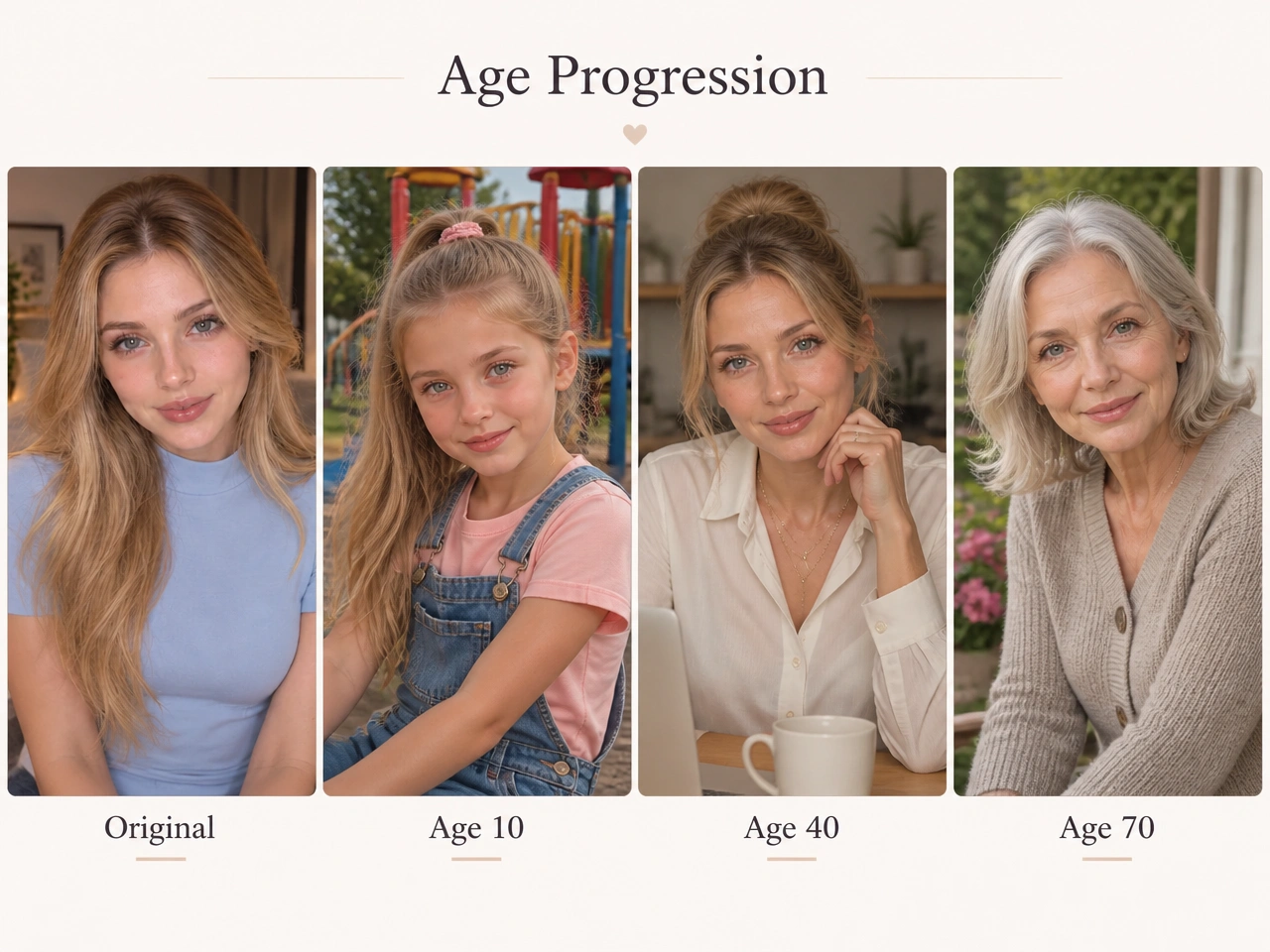
Example 1
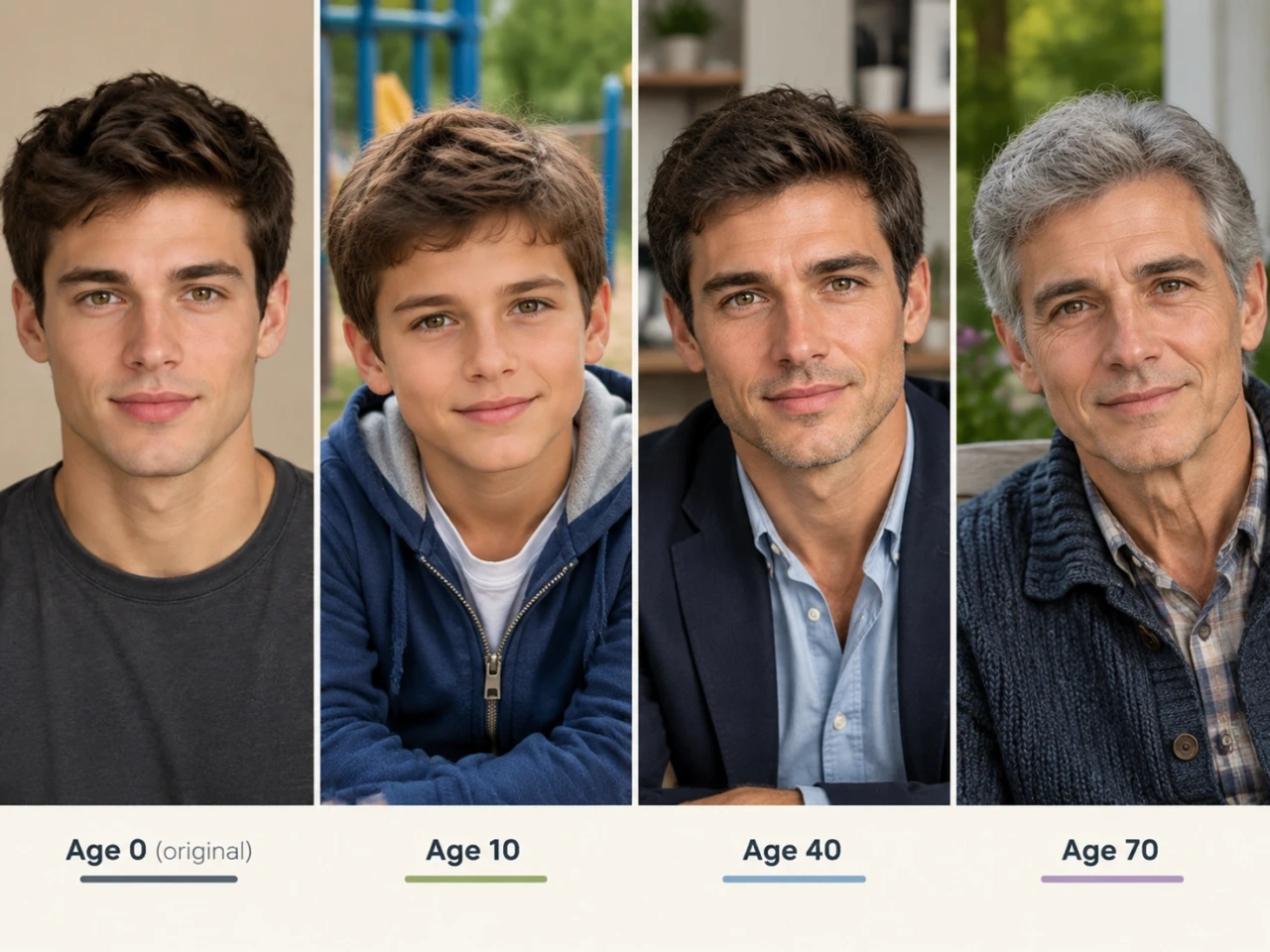
Example 2
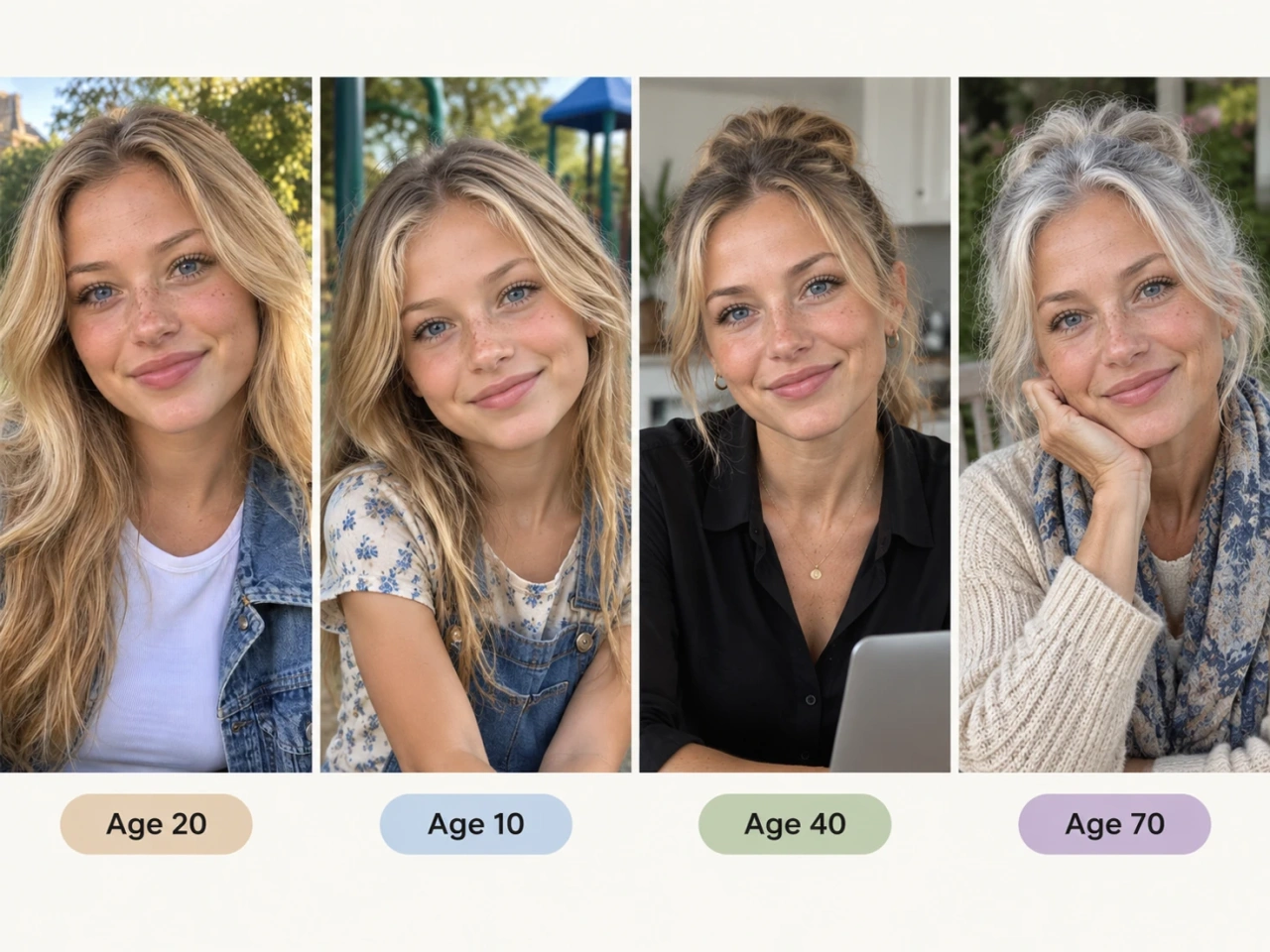
Example 3
AI Age Filter Prompts to Try
Before and After Age Card, copy it to the box: Analyze the uploaded photo and create a before-and-after age card of the same person. Show the original photo on the left, then three realistic versions on the right at around 10, 40, and 70 years old, each shown as its own natural photo. Keep only the person's core identity recognizable in every version: bone structure, eye shape and color, nose, lip shape, smile, and skin tone. Give each age its own hairstyle and hair color, outfit, pose, and everyday setting, such as a playground at 10, an office or kitchen at 40, and a garden or porch at 70. Use true childlike proportions at 10 and realistic aging details at 70, such as fine lines, silver hair, and softer skin. Label each version with its age and present the result as a clean, modern comparison card.
Make Me Older, copy it to the box: Show the person in the uploaded photo at around 70 years old, as a natural candid photo. Keep only their core identity recognizable: bone structure, eye shape and color, nose, lip shape, smile, and skin tone. Give them natural gray or silver hair in a practical age-appropriate cut, clothing a 70-year-old would really wear, such as a cardigan or linen shirt, a relaxed new pose, and a different everyday setting such as a garden or porch. Add real aging details like fine lines, crow's feet, softer skin, and light age spots. It should look like an unretouched photo, not a filter or a caricature. Change 70 to any age you want to see.
Make Me Younger, copy it to the box: Show the person in the uploaded photo at around 10 years old, as a natural snapshot. Keep only their core identity recognizable: eye color, smile, eyebrow shape, and skin tone. Use true childlike proportions, with a smaller, rounder face, fuller cheeks, a softer jaw, and a smaller nose. Give them a simple kid's hairstyle such as a ponytail or bangs, casual kid clothes such as a graphic T-shirt or hoodie, a playful pose, and a different setting such as a backyard or playground. It should look like a real childhood photo, not a cartoon. Change 10 to any age you want to see, such as 5, 16, or 20.
How to Use Anijam AI Age Filter
Step 1: Choose AI Image and a Model
Click Tool below the chat box, select AI Image, and pick an image model such as GPT Image 2.0. You can also adjust the aspect ratio and resolution in the settings next to the model.
Step 2: Upload Your Photo and Add the Prompt
Click Media to upload a clear, well-lit, front-facing selfie, then paste the prompt above into the chat box. Change the number in the prompt to the age you want to see.
Step 3: Generate and Download Your Result
Send your prompt and Anijam generates your aged photo in seconds. Download it, type a different age to generate again, or switch to AI Video to turn your photos into a short growing-up or growing-old clip.
See Yourself at Any Age in a Realistic Look
Anijam turns a selfie into older, younger, and growing-up versions of you that still look like you, keeping your core features while rebuilding the hairstyle, outfit, and setting for each age. Pick any age, then download a before-and-after card or turn the photos into a video you can post, all in the same workspace.
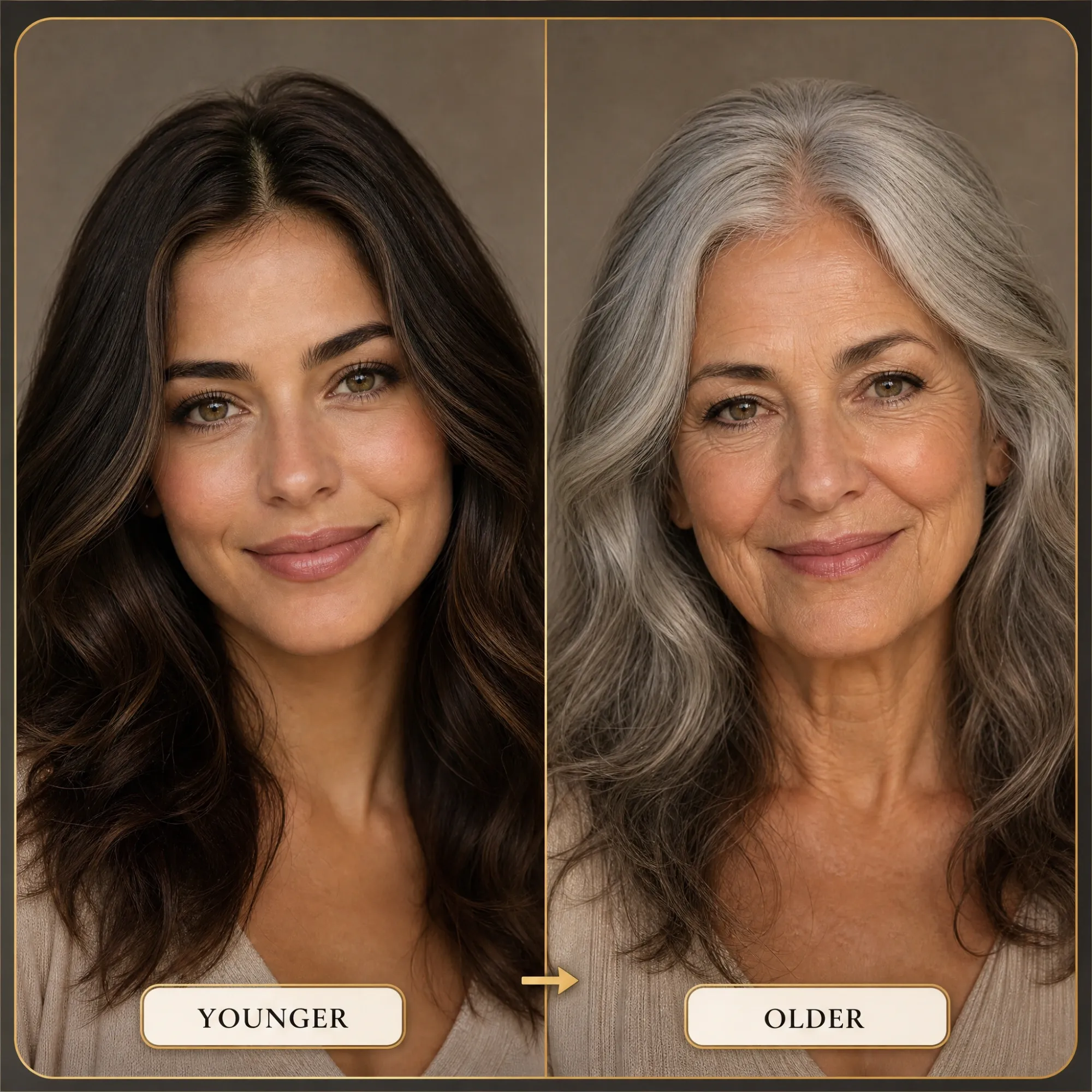
Realistic Old Age Filter and Younger Face Effects
Anijam ages your photo with natural fine lines, gray hair, and softer skin, or turns it younger with smooth cheeks and a fresher look. Type "around 70 years old" or "around 10 years old" and the AI edits the face while leaving your pose, outfit, and background alone.
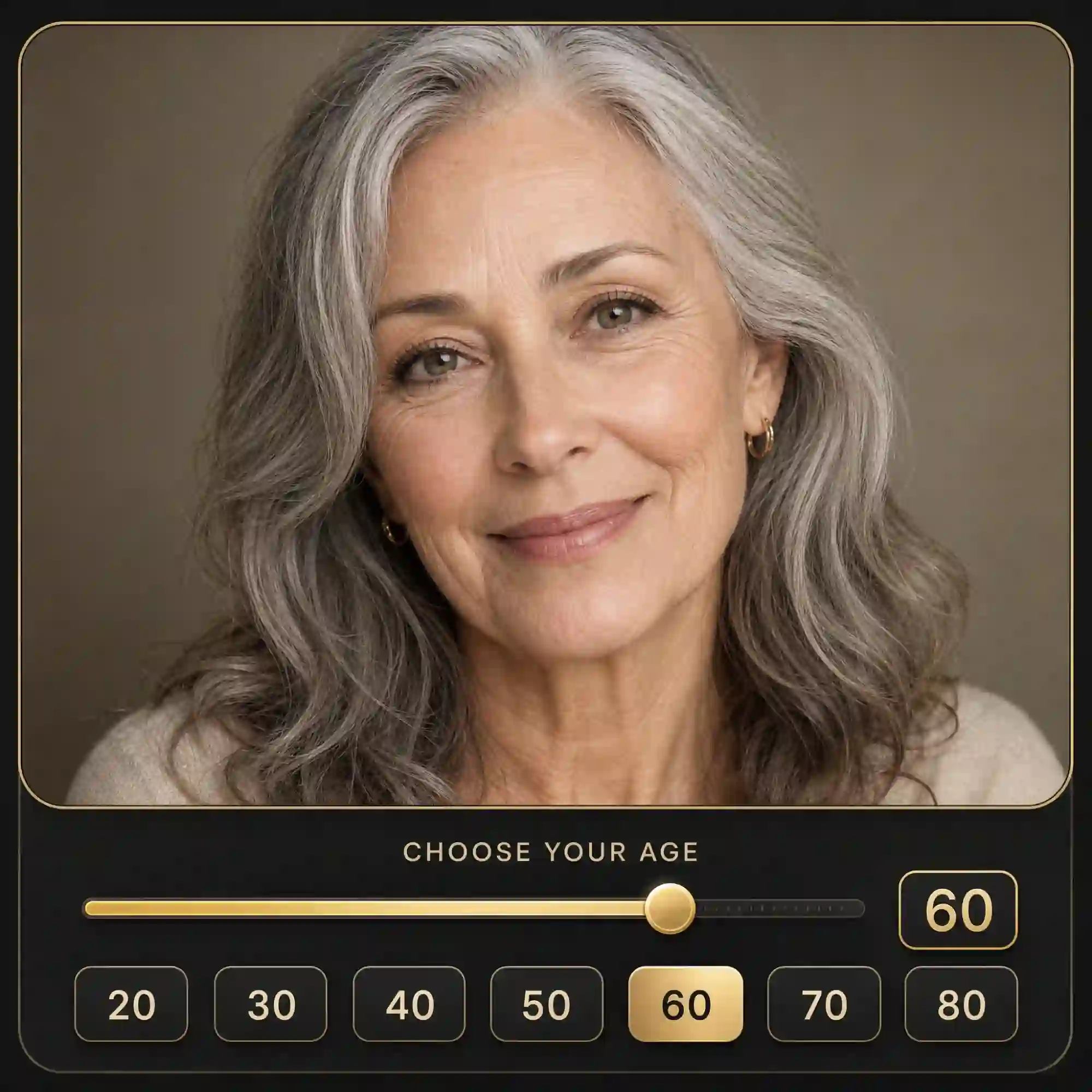
AI Age Progression to Any Age You Choose
You set the exact age by typing it into the prompt, from childhood to your senior years. Ask for one age or a six-step chart, and compare how the same face changes decade by decade on one clean card.
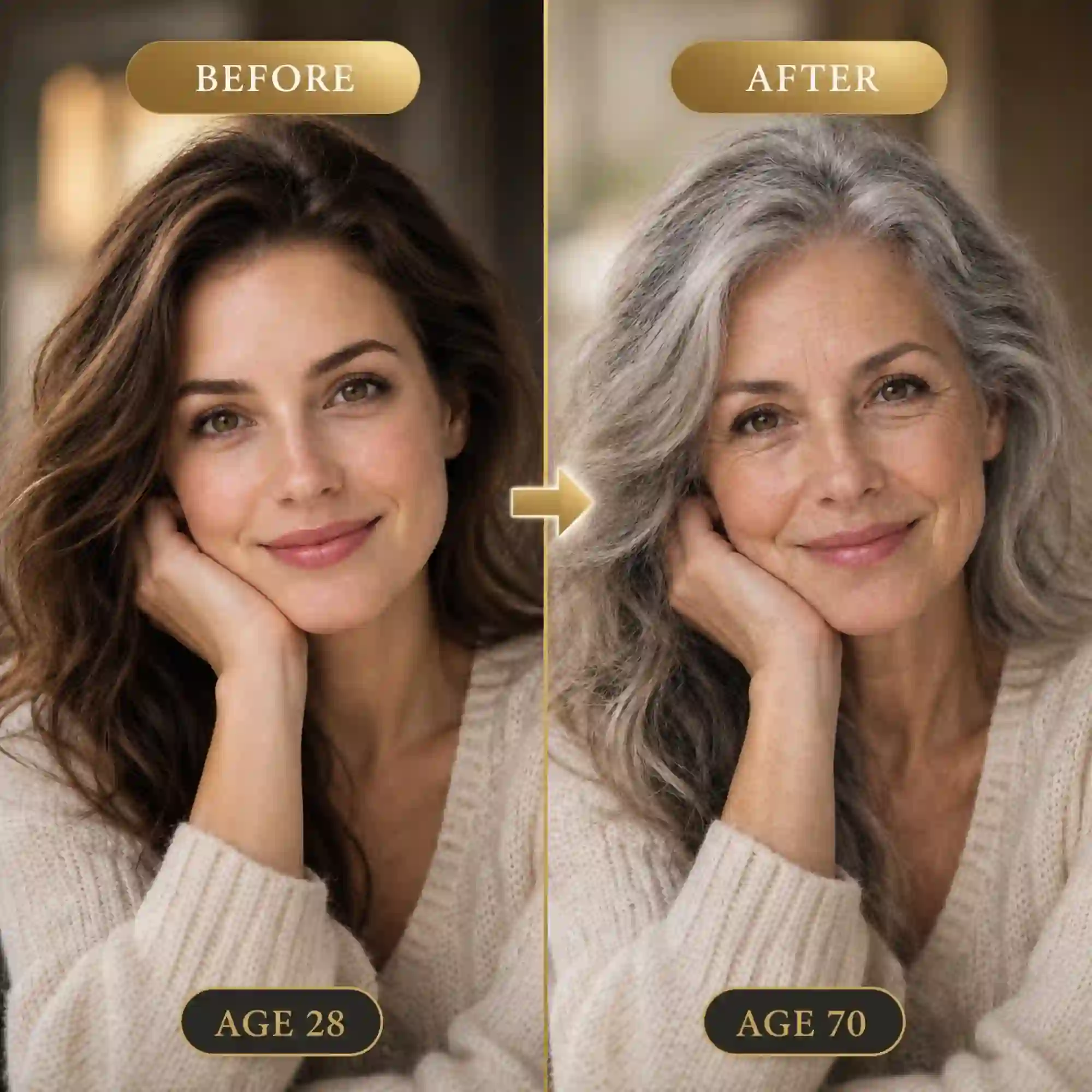
AI Age Filter with Before and After Comparison
Your original and aged photos can sit side by side in one image, so the change is easy to see and ready to share. Add age labels and a layout style to the prompt, and Anijam builds the comparison card for you in the same generation.
AI Aging Video from One Photo
Turn a single photo into a realistic AI aging video and see how a person might look years into the future. Create a smooth age progression from young to old, with natural-looking changes in facial features while keeping the same person's identity recognizable. Upload your photo, describe the aging effect you want, and bring your age transformation to life in a short video.
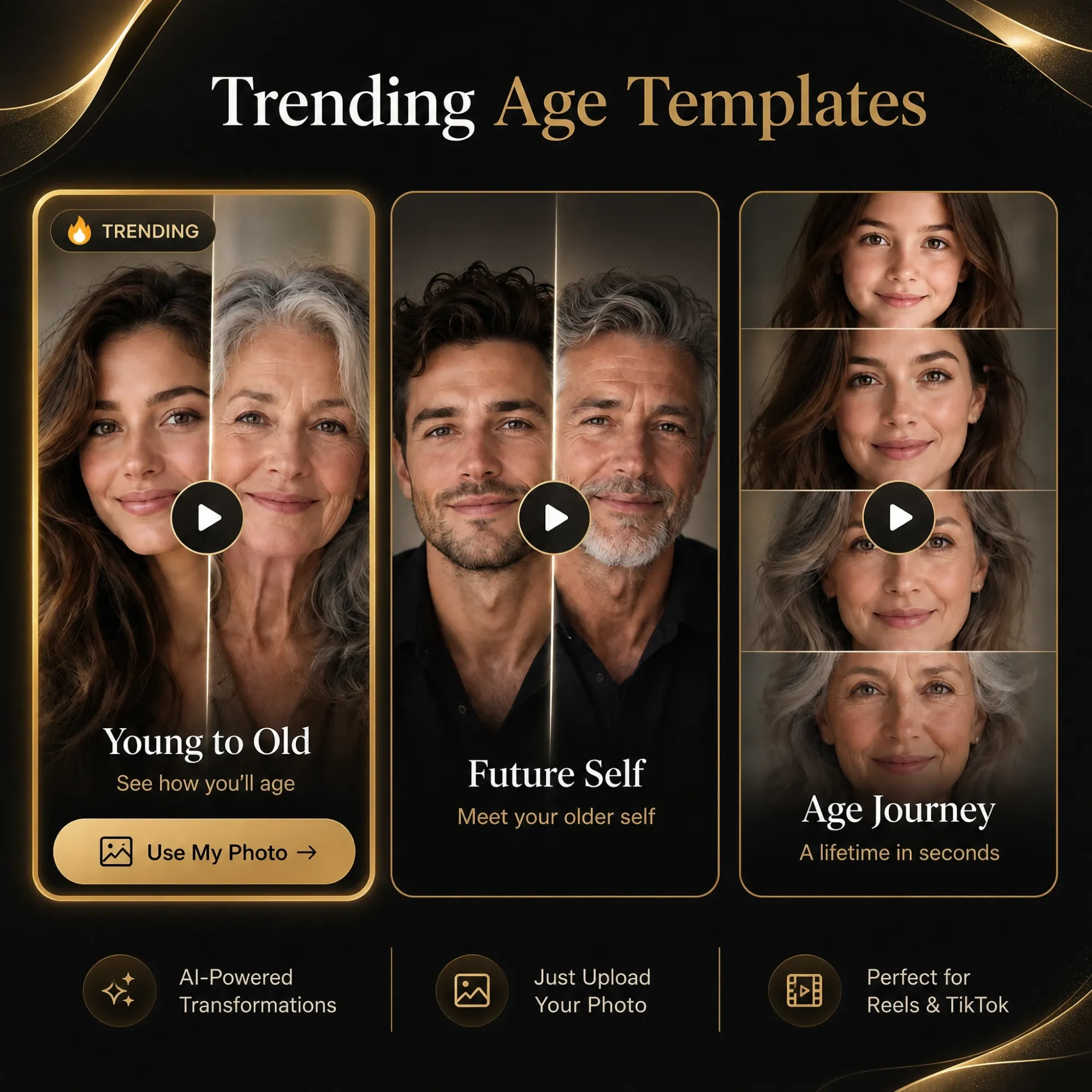
Trending Age Filter Templates for TikTok and Instagram
Anijam keeps trending age templates ready, so you can swap in your photo and generate without writing a prompt. Post the result as your own age filter TikTok video or an Instagram Reel, and check back as we add new looks.
Why Choose Anijam AI Age Filter

Free Credits to Start
New Anijam accounts start with free credits, so you can run a free AI age filter test and see your result before you spend anything. When you want more runs, choose a plan that fits.

Easy to Use
If you can type a message, you can change your age in a photo. There are no sliders to master and no editing skills required, just a selfie, an age, and a prompt.

Keeps Your Face Recognizable
Our prompts tell the AI to keep your eyes, nose, lips, and face shape while it changes only age details, so the result still looks like you. Pose, outfit, and background stay the same as your original.

One Workspace from Photo to Video
You can make the aged photo, build a before-and-after card, and turn it into a video without leaving Anijam. Single-purpose filter apps usually stop at one image.

Fun for Friends and Family
Run everyone's selfie through the same prompt and compare who ages the most gracefully. It takes minutes at a party, in a group chat, or at a family dinner, and nobody needs to download anything.

High-Quality
Create detailed, realistic age-filtered portraits with natural-looking skin texture and facial features. Get polished results that are ready to save, share, or use in your next creative project.
Explore More Anijam AI Creative Tools


FAQ
What is an AI age filter?
It is an AI tool that edits a photo to show the same person older or younger. Anijam does this with an image model such as GPT Image 2.0, which changes age details like skin texture, hair color, and facial fullness while keeping the pose and background.
Is the age filter free to use?
Yes, you can start for free. New Anijam accounts get free credits, and each generation uses a few of them. You can upgrade later if you want more runs.
How accurate are the aging results?
The results are AI visualizations made for fun, not predictions of how you will actually look. Genetics, lifestyle, and lighting all change real aging, so try a few ages and prompts and treat them as creative ideas.
Which photo works best?
A sharp, well-lit, front-facing selfie with your full face visible works best. Avoid sunglasses, heavy filters, group shots, and extreme angles, because they can make the age change look uneven.
Is it safe to upload my photo?
Upload only photos of yourself or of people who have agreed to it, and get a parent's or guardian's permission before using a child's photo. Review our Privacy Policy to see how uploads are handled.