


AI Background Remover
Get a clean, transparent-background image in seconds, with no manual masking, no design skills and no software to install. Upload a photo, click Remove Background, and start free with Anijam credits.
How to Use the AI Background Remover on Anijam
Step 1: Upload Your Image
Click the Upload icon in the toolbar at the bottom of the canvas to add your photo. It lands on the canvas as an image layer, ready to edit. Portraits, product shots, pets and logos all make a good starting point.
Step 2: Click Remove Background
Select your image, then click the Remove Background icon in the floating toolbar. Let AI remove background from your photo in seconds, and the result appears as a new transparent layer.
Step 3: Export or Edit Further
Click Export to download your image, or describe a new background in the prompt box to keep editing.
Precision Background Removal Powered by AI
Manual selection tools and most free tools still leave rough edges around hair and hand you a flat, low-resolution file. Anijam AI background remover reads every edge automatically and hands you a clean, editable cutout in seconds, the starting point for everything below.
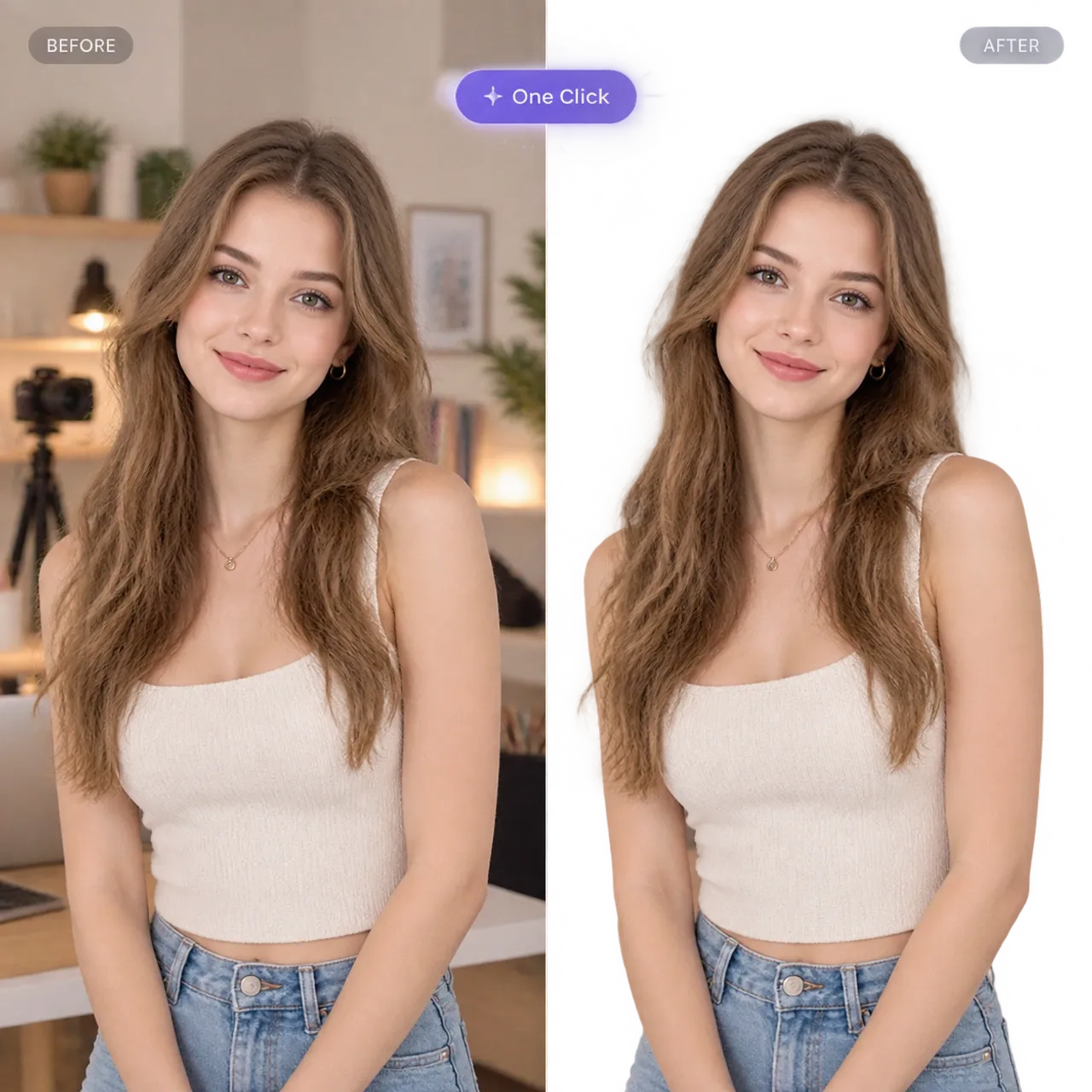
Remove Backgrounds in One Click
One click is all it takes to remove a background in Anijam. Select your image, click Remove Background in the floating toolbar, and our AI does the rest. There are no masks to draw, no brushes to adjust and no design experience required.
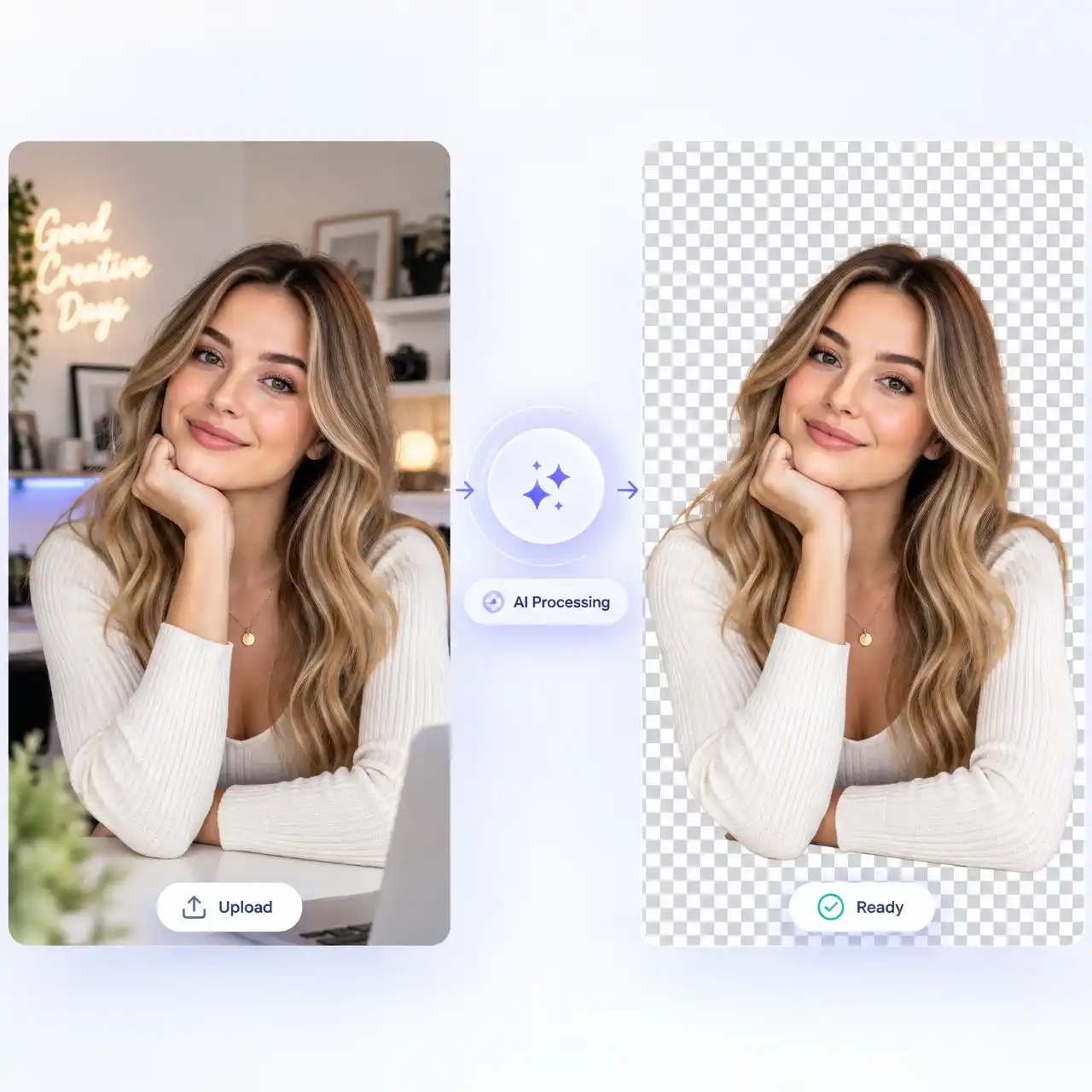
Instant AI Background Removal
You get a finished result in seconds, not minutes. Our AI detects the main subject and separates it from everything behind it automatically, so you skip the slow work of tracing every edge by hand and go straight from upload to export.
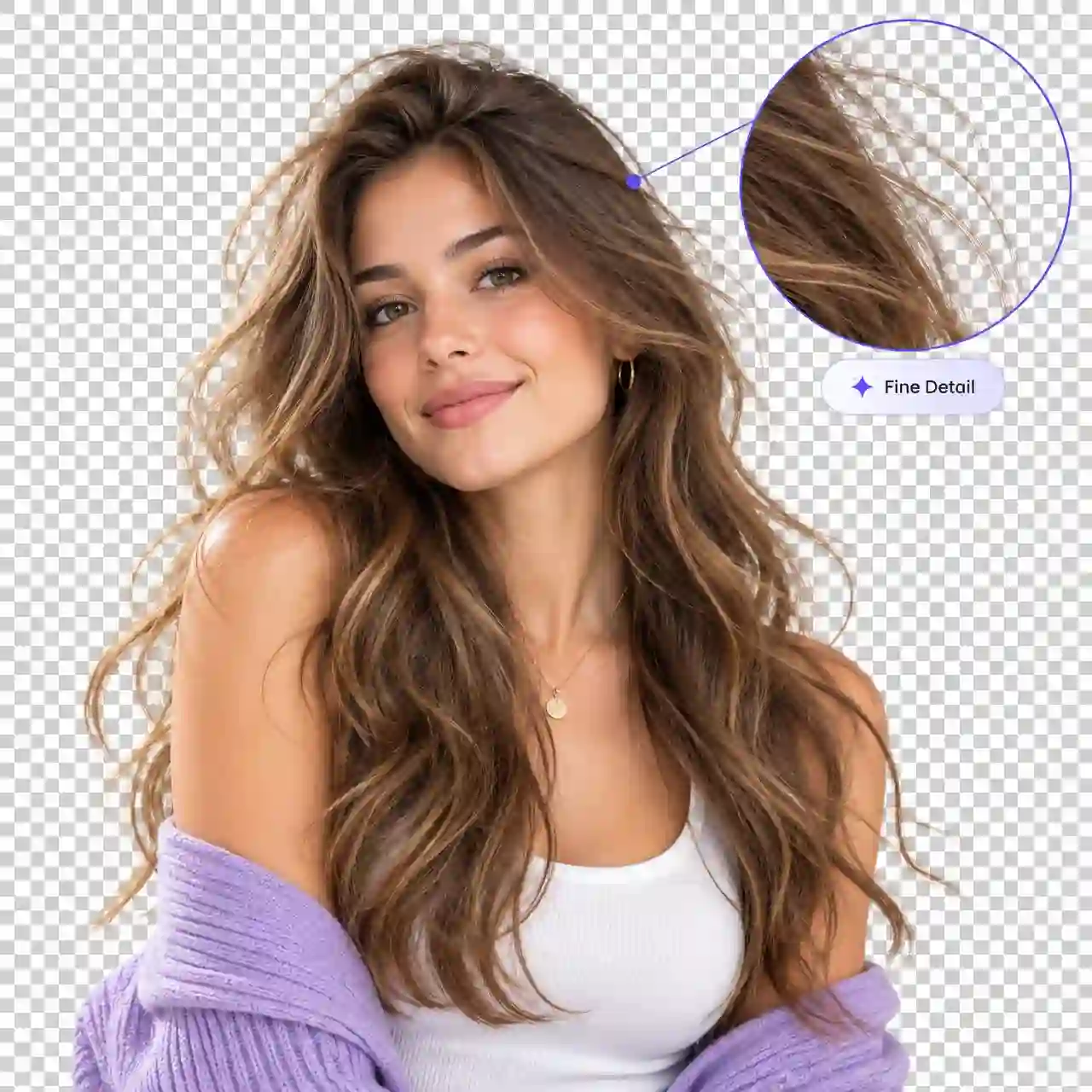
Clean Background Removal for Hair and Fine Details
Our AI is built to keep hair, fur and other fine details clean. Flyaway strands and soft edges are where most tools struggle, so we designed our results to blend naturally into any new background. Zoom in on the canvas to check the edges before you export.
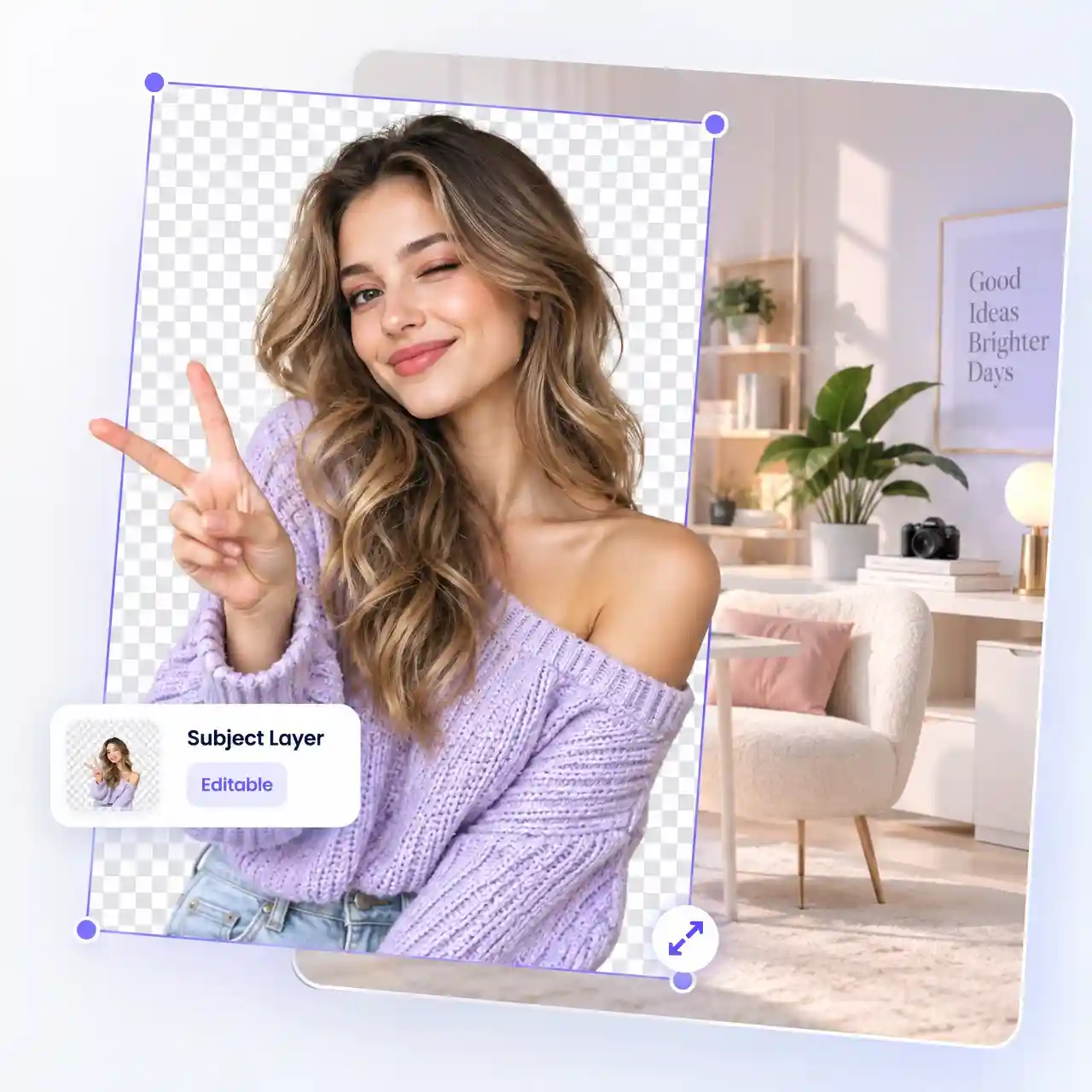
Transparent Background on an Editable Layer
Every result from Anijam's AI background remover lands on its own transparent layer. Move it, resize it or place it over other images on the canvas without starting over. Nothing gets flattened, so you can keep editing until the design looks right.
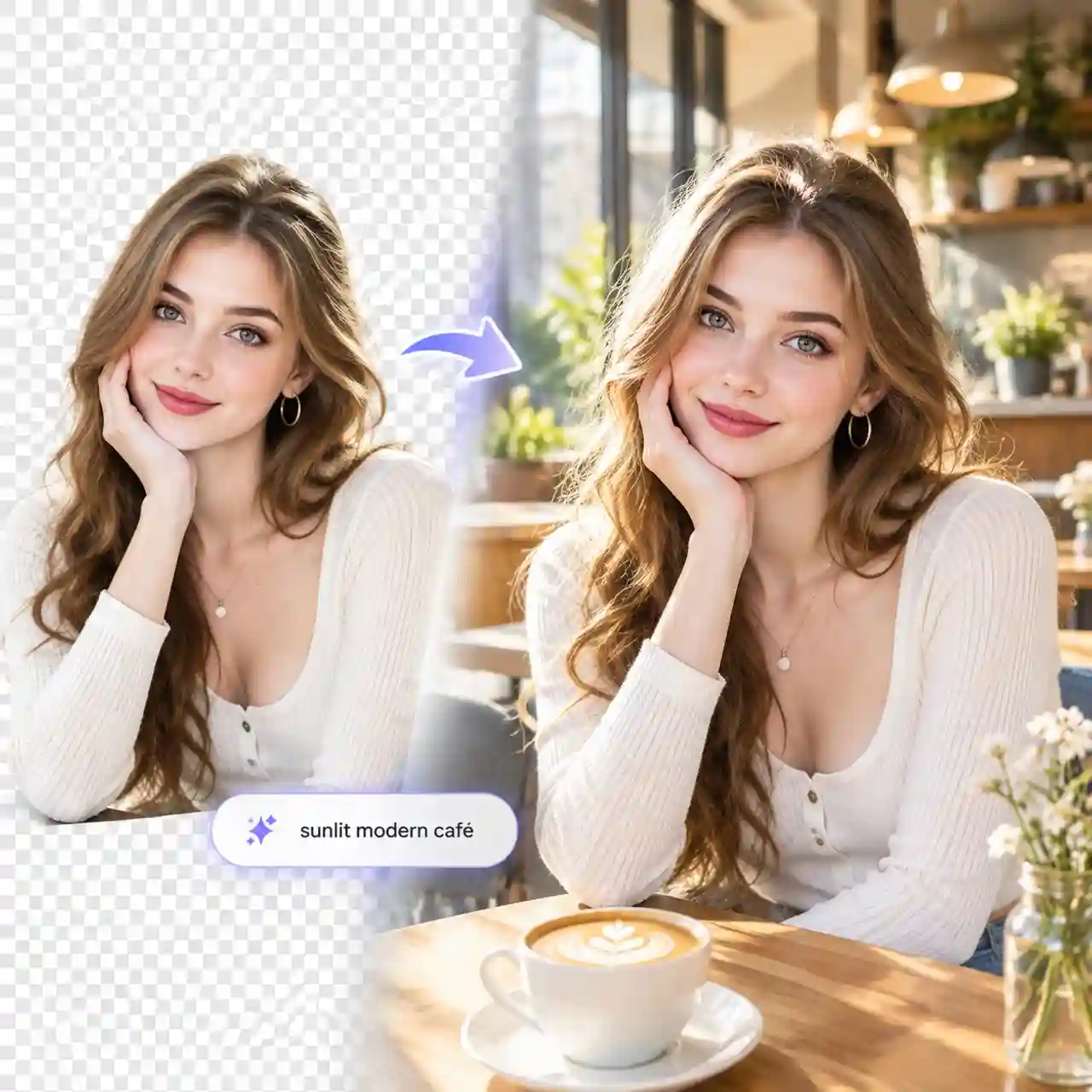
AI Background Changer with Simple Prompts
Once the old backdrop is gone, you can swap in a new one with a single prompt. Describe the scene in the prompt box, such as a sunlit café, a marble countertop or a solid brand color, and the AI builds it around your subject. No stock photo search needed.
Popular Ways to Use an AI Background Remover
Whether you sell products, share portraits or design graphics, removing the background is usually the first step. These are the everyday uses we see most on Anijam.
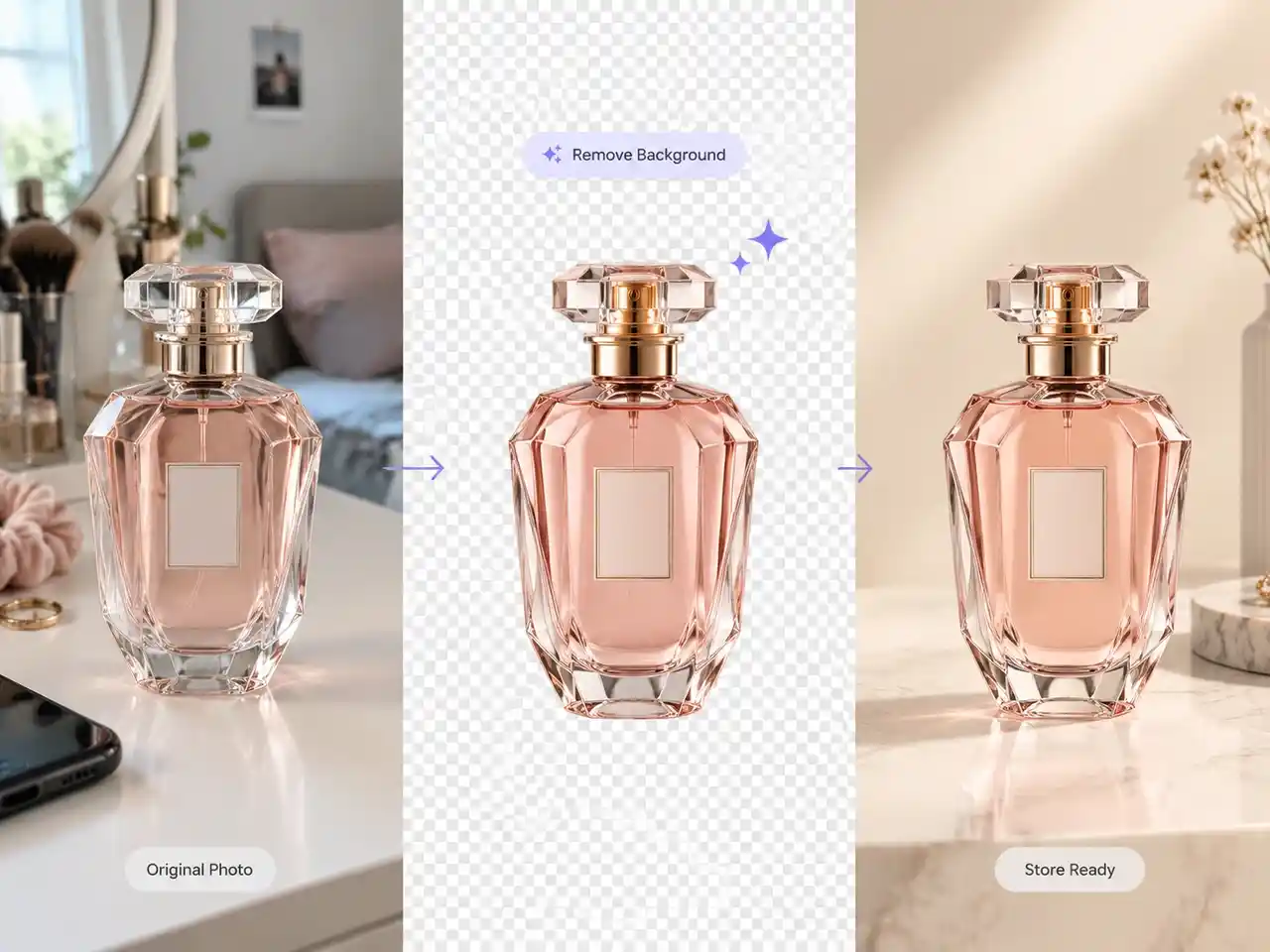
Product Photos for Online Stores
Clean product photos make listings look consistent and trustworthy. Remove the background from a phone-shot photo, then place the product on white or a lifestyle scene for Amazon, Etsy, Shopify and your own store.
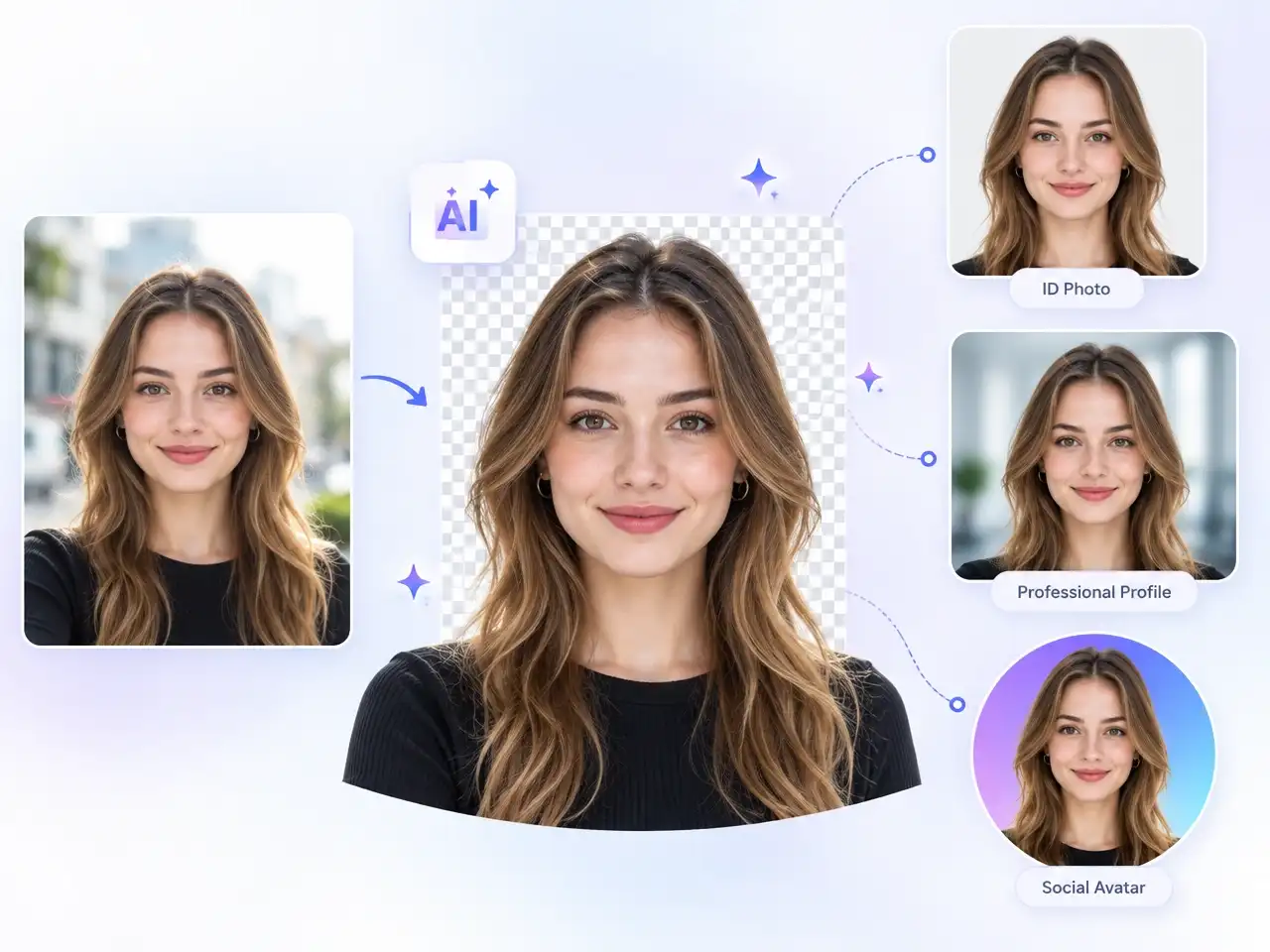
Portraits and Profile Pictures
A clean background makes any portrait look more professional. Remove a cluttered room from a headshot, then add a solid color or a new scene for LinkedIn, resumes, Discord and social avatars.
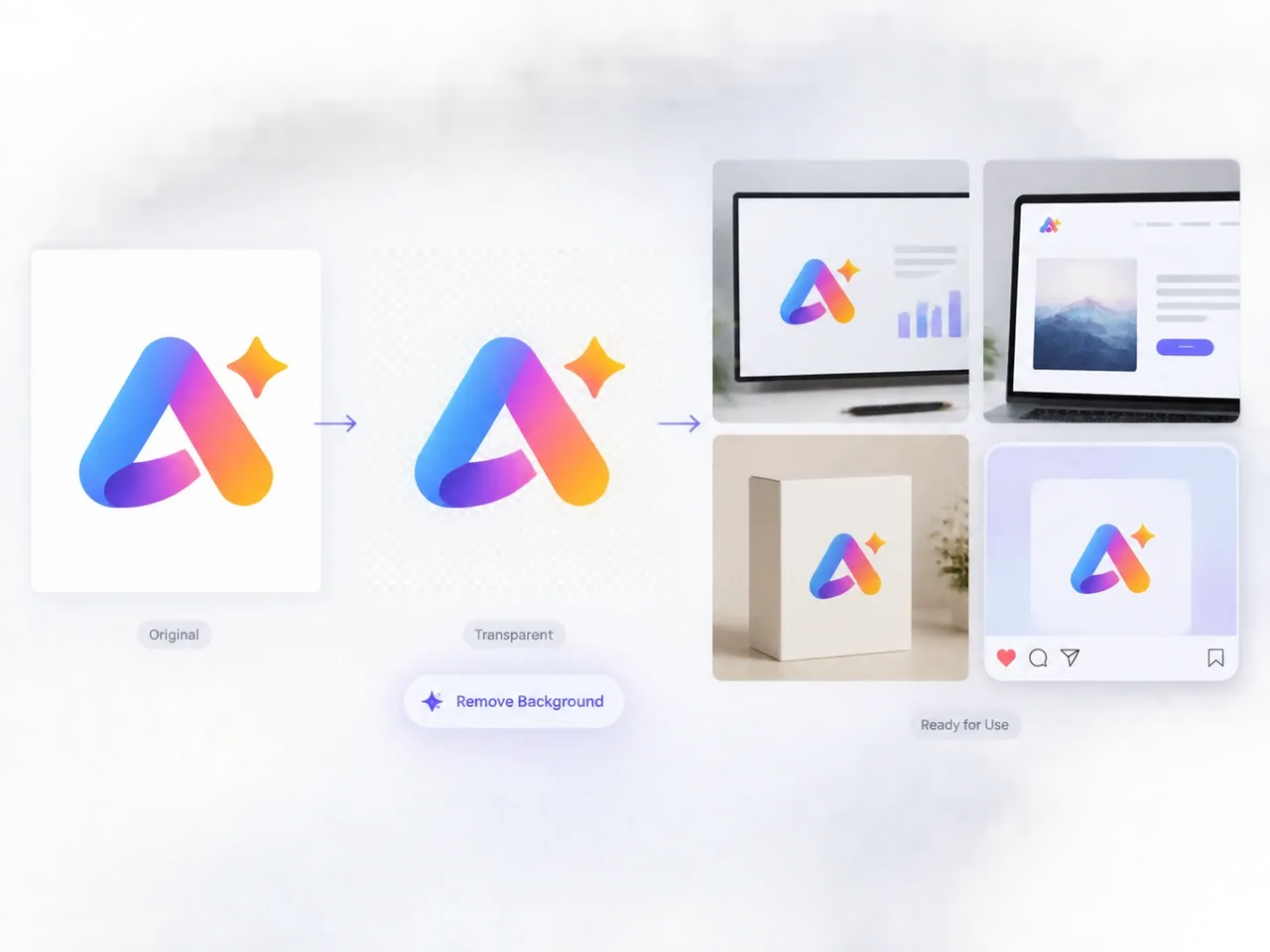
Logos and Graphics
A transparent logo works on any background. Remove the white box around a logo, sticker or graphic, then drop it onto slides, mockups, websites and printed designs.
Why Choose Anijam AI Background Remover

Free Credits to Start
Try Anijam as a free background remover online with sign-up credits. New accounts get starting credits, and daily check-ins earn you more, so you can test the tool before you pay anything.

Easy to Use
Anyone can get a clean result on the first try. There are no selection tools to learn and no design experience needed. Upload, click and export.

No Software to Install
Everything runs in your browser. Open Anijam, upload your photo and get your result without downloading an app or a plugin.

Watermark-Free Exports
Export clean, watermark-free files when you are ready to publish. Use them for listings, ads and client work.

One Canvas for Every Next Step
Go straight from a clean result to the rest of your project. After the background is gone, keep working on the same canvas: add a new background, place your image in a design and export, with no need to switch apps.

Safe and Secure Uploads
Your uploads are protected by security measures designed to prevent unauthorized access. Every result is saved in your account history, so you can find, reuse and export it whenever you need it.
Explore More Anijam Tools



What Our Users Said
FAQ
Is Anijam's AI background remover free to use?
Yes, you can start for free. Sign up to get starting credits plus daily check-in bonuses, and remove your first backgrounds without paying. Free-plan exports include a watermark and are for non-commercial use, while paid plans remove the watermark and include commercial rights.
How do I remove a background from an image with AI?
Upload your image to Anijam, select it on the canvas, and click Remove Background. The AI automatically separates the main subject from the original background and places the result on a transparent layer. You can then export the cutout or keep editing it on the same canvas.
Can an AI background remover keep hair and fine details?
Yes. Anijam is designed to separate the subject while preserving fine edges such as hair, fur, and other small details. Results can vary depending on the source image, so photos with a clear subject and good contrast generally produce cleaner cutouts.
Can I get a transparent background after removing an image background?
Yes. After you click Remove Background, Anijam places the isolated subject on a transparent layer. You can move, resize, or reuse the cutout on the canvas, then export it for your next design, product image, profile picture, or social post.
Can I change the background of an image?
Yes. After removing the background, describe the new scene in the prompt box, or place your image on top of other layers on the canvas. You can also add it to chat and let the agent build a complete scene around it.