Google Veo 3 Review (2026): Is Google’s AI Video Model Actually Worth It?
Google Veo 3 is the first mainstream text-to-video model that generates dialogue, sound effects, and ambient noise in the same pass as the picture - and that one feature has made it the most talked-about AI video tool of the past year. The demo reels are genuinely impressive. The real question is whether the output holds up outside a curated showcase, and whether Google’s pricing makes sense for how most people actually work.
This review covers what Google AI Veo 3 does well, where it breaks down, and what it costs in 2026. We’ll also look at how that same video quality fits into a broader creative workflow - including how Anijam builds on it with consistent characters, lip sync, and full episodes.
Quick Verdict
| What it is | Google DeepMind’s text/image-to-video model with native audio generation |
| Best for | Short-form ads, product shots, cinematic B-roll, dialogue clips under 8 seconds |
| Not built for | Multi-scene stories with the same character, long-form series, budget-conscious solo creators |
| Access points | Gemini app, Google Flow, Google Whisk, Vertex AI / Gemini API |
| Starting price | Free tier with limited monthly credits; paid access from roughly $8-$20/month, full quality up to ~$200+/month |
| Rating | 4.3 / 5 - best-in-class audio and realism, held back by short clips and price |
What Is Google Veo 3?
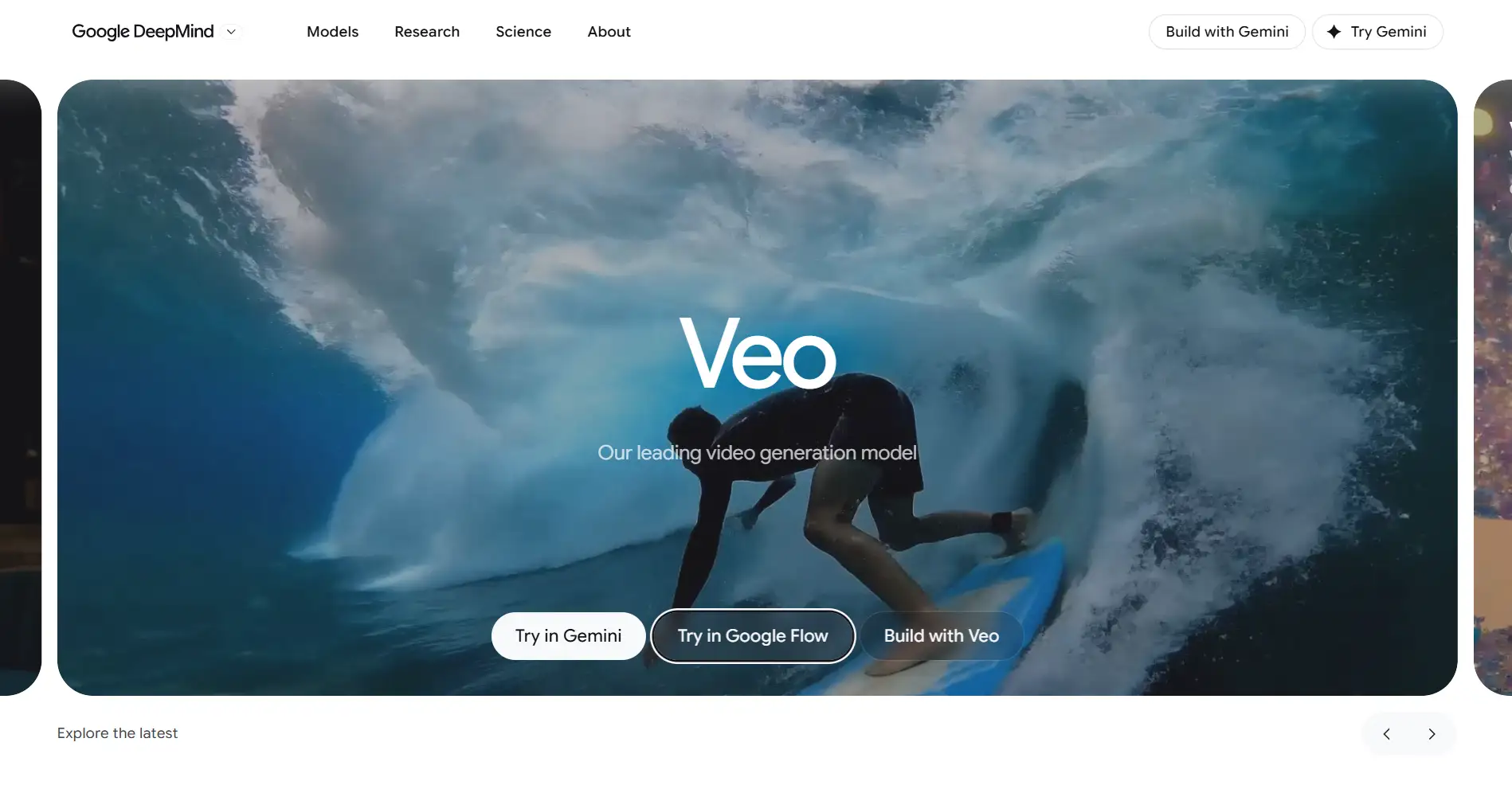
Google Veo 3 is Google DeepMind’s generative video model, first announced at Google I/O 2025. It takes a text prompt (or a reference image) and generates a short video clip at 720p, 1080p, or 4K, with a duration of 4, 6, or 8 seconds depending on the settings you choose.
A quick but important clarification: “Veo 3” is really a brand name at this point, similar to how people still say “iPhone” even after several generations. The model actually running behind that name today is Veo 3.1 (plus its Fast and Lite variants) - Google’s own developer documentation confirms the original Veo 3 and Veo 3 Fast models are now marked as legacy/deprecated in favor of Veo 3.1. Everything in this review reflects the current Veo 3.1 generation, since that’s what you’ll actually get if you generate a video through the Gemini app, Flow, or the API today.
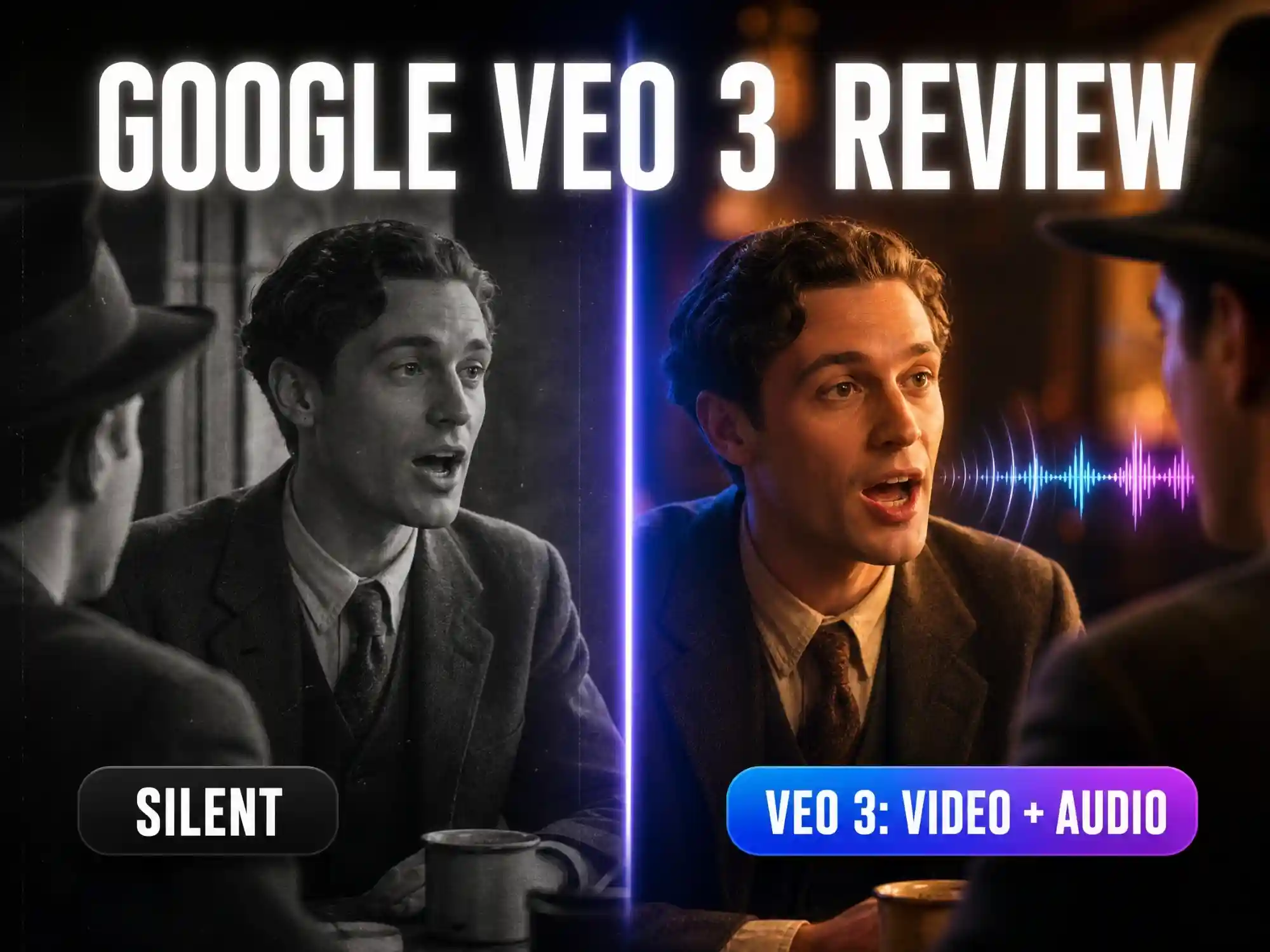
What made this model family a genuine turning point instead of just another incremental update is native audio. Earlier video models - and most competitors even today - generate a silent clip that you then have to run through a separate text-to-speech tool, a sound-effects library, and a lip-sync pass. Veo 3.1 generates the dialogue, footsteps, ambient room tone, and even background music inside the same generation. That single change collapses what used to be a four- or five-tool pipeline into one prompt.
Veo 3.1 also added several meaningful capabilities on top of the original Veo 3:
- Image-to-video and video-to-video input, so you can animate an existing still or continue an existing clip instead of generating purely from text
- Up to three reference images, letting you anchor a character, product, or outfit’s appearance so it stays more consistent within a single project
- First-frame/last-frame control, where you supply the starting and ending image and Veo generates the motion in between
- Scene extension, which continues a clip past its base length in up to 20 chained extensions (roughly 7 seconds each), reaching a total of about 148 seconds
- Vertical (9:16) and landscape (16:9) formats, both natively supported
Key Features Put to the Test
Native audio generation. This is still Veo 3’s headline feature and its biggest differentiator. Dialogue lines land with mouth shapes that roughly match the words, and ambient sound - wind, traffic, footsteps on gravel - gets generated without being explicitly prompted for, which is something no other mainstream model does as reliably.
Realism and physics. Lighting, reflections, and camera motion tend to look convincingly cinematic, especially in product shots and nature scenes. Complex physical interactions - a skateboard trick, a person catching a falling object - are hit-or-miss, and this is where the model most often gives itself away as AI-generated.
Prompt adherence. Veo 3.1 reads detailed, shot-list-style prompts well: camera angle, lens choice, lighting direction, and pacing are all reasonably well respected. Vague, mood-only prompts produce far less controllable results.
Resolution, duration, and formats. 720p is the default; 1080p and 4K are available but lock the clip to 8 seconds (shorter 4- or 6-second clips are 720p only). Both landscape (16:9) and vertical (9:16) formats are natively supported, which matters if your output is headed to TikTok, Reels, or YouTube Shorts.
Character and product consistency. This is the model’s most debated feature. Reference-image support (up to three images) genuinely helps anchor a character, outfit, or product’s appearance within a single project - the flamingo-dress and product-shot demos Google showcases are a fair representation of what it can do. What it still doesn’t do is remember that character in a brand-new session days later: there’s no persistent character memory across separate projects, so consistency has to be re-established with reference images each time.
How to Access Google Veo 3 (and What It Costs)
Google Veo 3 isn’t a single app - it’s a model made available through several different Google products, each with its own pricing logic. This is genuinely one of the most confusing parts of using it, so here’s the breakdown as of mid-2026.
| Access Point | What It’s For |
|---|---|
| Gemini app | Quickest way in - select “Create video” and generate directly in chat |
| Google Flow | Purpose-built filmmaking interface with a timeline, scene extension, and clip sequencing |
| Google Whisk | Lighter, experimental tool for fast image-to-video riffs |
| Vertex AI / Gemini API | Pay-per-second developer access for apps and automated workflows |
Google restructured its AI subscription tiers in 2026, and the plan names/prices are worth double-checking on Google’s pricing page before you buy, since they’ve shifted more than once this year. As a general guide:
- Free tier - a small monthly allotment of AI credits, usable for a handful of Veo generations; no commercial license
- Entry-level plan (roughly $8-$20/month) - unlocks Veo 3.1 Fast/Lite generation with a monthly credit pool, usually enough for dozens of short clips
- Top-tier plan (roughly $100-$200+/month) - full-quality Veo 3.1 with the highest credit allowance, priority processing, and the broadest commercial usage rights
- API / pay-per-use - billed per second of generated video, which suits developers or teams generating video programmatically rather than through a chat interface
The practical takeaway: casual, occasional use is affordable or even free. Serious, frequent video production pushes you toward the top tier fast, and every 8-second clip you regenerate to fix a bad take eats into that budget.
How to Use Google Veo 3: Step-by-Step
- Pick your entry point. Use the Gemini app for quick, single-clip experiments; use Flow if you’re building a sequence of shots that need to feel connected.
- Write a shot-list-style prompt. Don’t just describe a mood - describe the shot. Include camera angle (wide, close-up, low-angle), lens behavior (shallow depth of field, 50mm), lighting (golden hour, rim light), subject action, and any dialogue or sound you want baked in.
- Add a reference image if character or product consistency matters. Veo 3.1 accepts up to three reference images to anchor identity across a generation.
- Generate and review. Expect to regenerate a portion of your takes - minor glitches in hands, lip-sync timing, or an unwanted caption are common enough that budgeting for a second attempt is realistic.
- Extend if you need more than 8 seconds. Veo 3.1 and Veo 3.1 Fast (not Lite) support a formal extension feature - feed in a previous Veo-generated clip and Veo continues the action for another ~7 seconds, repeatable up to 20 times for roughly 148 seconds total.
- Export and finish elsewhere if needed. Veo 3 covers generation, not full editing - color grading, subtitles, and multi-clip assembly typically still happen in a separate editor.
Google Veo 3 Pros and Cons
Pros
- Best-in-class native audio: dialogue, effects, and ambience generated in one pass
- Strong prompt adherence for detailed, shot-based instructions
- Convincing lighting, camera motion, and overall cinematic look
- Multiple access points (Gemini, Flow, Whisk, API) for different workflows
- 4K output and vertical formats available for social-first content
Cons
- Clips are capped at 8 seconds per generation; longer content requires manual chaining
- No persistent character consistency across separate sessions or projects
- Pricing is genuinely confusing, with plan names and limits that have changed more than once in the past year
- Full-quality access sits at a premium price point that’s hard to justify for casual or budget-conscious creators
- Physics still breaks on complex motion (skating, falling objects, crowd scenes)
- No built-in scene management, character library, or timeline - you’re generating clips, not producing a finished video
Google Veo 3 vs. the Alternatives
| Model | Strength | Weakness |
|---|---|---|
| Google Veo 3 | Native audio, cinematic realism | Short clips, no character memory, pricier |
| OpenAI Sora 2 | Longer, more narrative-driven sequences | Audio and lip-sync less integrated |
| Kling 3.0 | Strong physics and multi-shot consistency at lower cost | Less refined native audio |
| Seedance 2.0 | Fast, budget-friendly generation | Fewer cinematic camera controls |
No single model wins across every category, which is exactly why most serious video workflows in 2026 combine two or three tools rather than relying on one - Veo 3 for the audio-driven hero shot, something else for volume or longer sequences.
From a Single Veo 3 Clip to a Full Story: Where Anijam Fits In
Veo 3 is built to do one thing extremely well: turn a prompt into a single, high-quality clip. Telling an ongoing story - the same character across multiple scenes, dialogue-driven episodes, a full narrative arc - is a different kind of production, and it calls for a different kind of tool.
That’s where Anijam comes in. Anijam is an AI animation agent built around that exact workflow: script, scenes, characters, voice, and editing all live inside one canvas. It draws on a roster of leading video models - including Google Veo itself, alongside Kling, Runway, Luma, Sora, and others - and its agent picks the right model for each shot, so you get the same caliber of video generation without manually switching between tools or subscriptions.
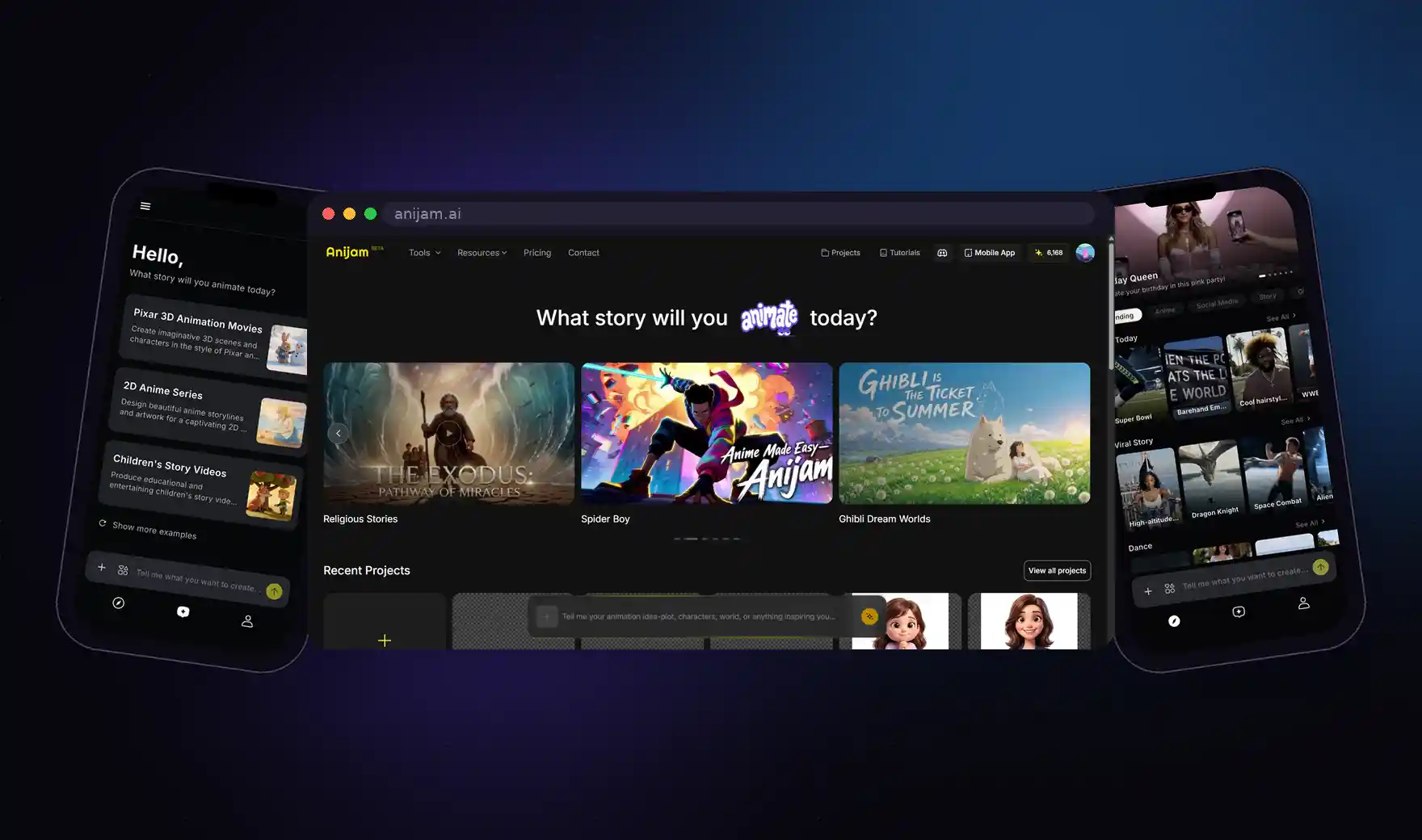
On top of that video generation layer, Anijam adds the pieces a full production actually needs:
- Character consistency engine - design a character once and Anijam locks their proportions, colors, and features across every scene, every episode, indefinitely - not just within a single generation session.
- Text, script, image, and audio-to-animation - start from a one-line idea, a full script, a reference photo, or a piece of audio, and Anijam builds out the scenes and shot list automatically.
- Production-grade lip sync - a dedicated lip-sync engine (not a bolt-on) matches voice lines to mouth shapes and expressions, supporting 30+ languages.
- Trending style and template library - jump straight into popular formats and visual styles instead of engineering every prompt from a blank page.
- Episode and series generation - reuse the same character across multiple episodes to build an ongoing animated series, something no single-clip generator is designed to do.
- Built-in timeline editor - reorder, trim, and regenerate individual scenes without breaking the rest of your project, then export directly - no round-tripping through a separate editing app.
If your goal is a single, striking 8-second clip, Google Veo 3 on its own is a strong, direct choice. If your goal is a finished video - or a whole series - with a character your audience recognizes from one scene to the next, Anijam is built for exactly that job, with Veo-level video generation already inside it.
Final Verdict
Google Veo 3 earns its reputation. Native audio generation genuinely changes what a single AI video tool can produce, and the visual quality holds up in most everyday use cases - ads, product shots, atmospheric B-roll, short dialogue scenes. Where it comes up short is anything that needs to hold together across multiple shots: character consistency, long-form pacing, and finished-video assembly all live outside what Veo 3 was designed to do, and the pricing structure adds real friction on top of that.
If you’re producing single hero clips and don’t mind a chat-based, one-shot workflow, Veo 3 is worth the price for serious users. If you’re building character-driven stories, animated series, or anything that needs to feel like one continuous production rather than a folder of separate clips, pairing that same underlying video quality with an agent-driven platform like Anijam will get you to a finished result faster - and with far less manual reassembly.
Frequently Asked Questions
Is Google Veo 3 free? There’s a limited free tier through the Gemini app with a small monthly credit allowance, enough to experiment but not for regular production. Meaningful, reliable access requires a paid Google AI plan or pay-per-second API access.
How long can a Google Veo 3 video be? Each individual generation runs 4, 6, or 8 seconds (1080p and 4K require the 8-second option). Veo 3.1 and Veo 3.1 Fast support a formal extension feature that continues a clip in ~7-second increments, up to 20 times, for a maximum of roughly 148 seconds - Veo 3.1 Lite doesn’t support extension.
Does Google Veo 3 generate sound and dialogue automatically? Yes. Native audio - including dialogue, ambient sound, and background music - is generated in the same pass as the video, without needing a separate text-to-speech or sound-design step.
Is Google Veo 3 better than Sora 2? It depends on what you’re prioritizing. Veo 3 leads on native audio and lip-sync realism; Sora 2 tends to handle longer, more narrative sequences more smoothly. Many creators use both rather than picking one exclusively.
Can Google Veo 3 keep a character consistent across multiple videos? Only partially. Veo 3.1’s reference-image feature helps anchor a character’s look within one project, but there’s no persistent memory across separate sessions. For guaranteed character consistency across an entire animated project or series, a purpose-built platform like Anijam is the more reliable option.
Can I use Anijam if I’ve never used an AI video tool before? Yes. Anijam is designed to remove the technical setup entirely - describe your idea in plain language, choose a style, and the AI agent handles model selection, character consistency, lip sync, and timeline assembly for you.
by Wendy
Wendy is a passionate writer and AI animation enthusiast at Anijam, exploring creative ways to bring stories to life with AI-powered animation tools. She shares practical tips, prompt ideas, and insights to help creators turn their imagination into stunning animated content.