


AI Video Background Changer
Change any video background with AI. Upload your video, describe the new background you want, and let Anijam generate a new scene for your video. Start creating with free credits.
Change Any Video Background with Ease
A cluttered room, a dull wall, or an unwanted setting can take away from your video. With Anijam's AI video background changer, simply upload your clip and describe the new scene you want. AI transforms the original background into a fresh setting that fits your vision, giving your footage a whole new look without starting over.
Professional Studio Backgrounds
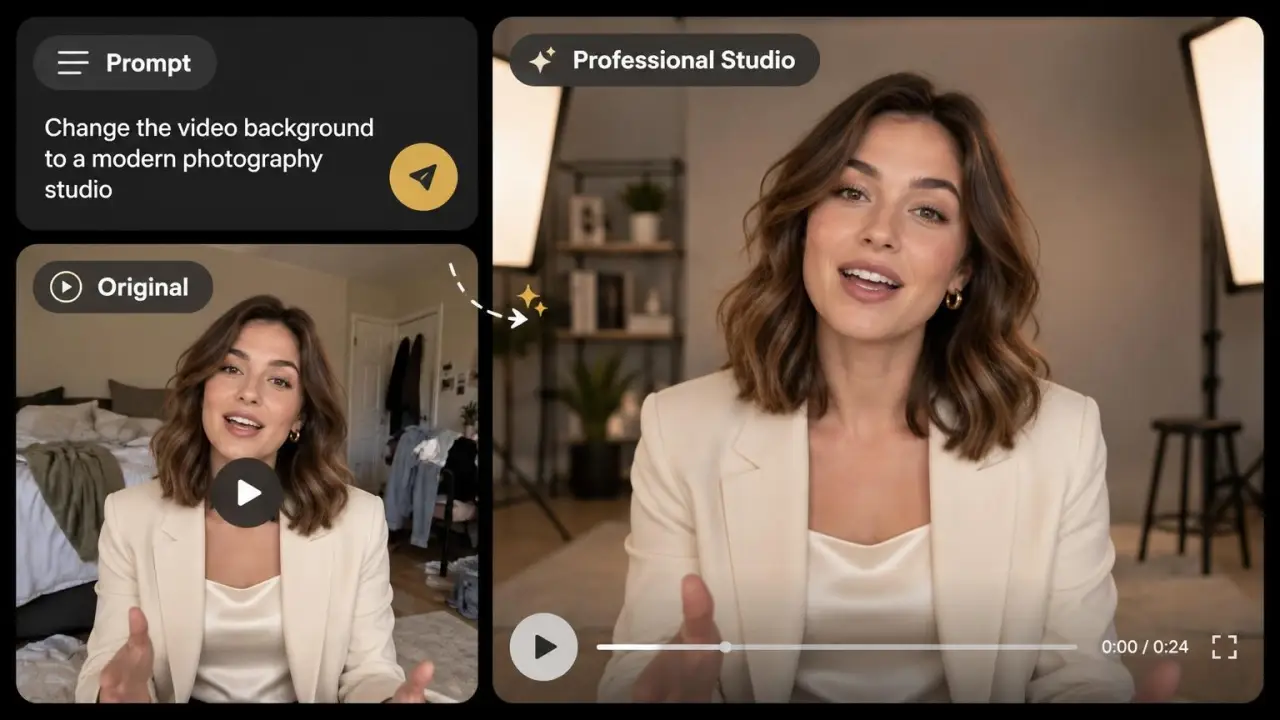
Give your videos a polished, professional look with modern offices, photography studios, and elegant business spaces. Create a clean backdrop for interviews, presentations, tutorials, and personal branding videos.
Replace Video Backgrounds with AI Prompts
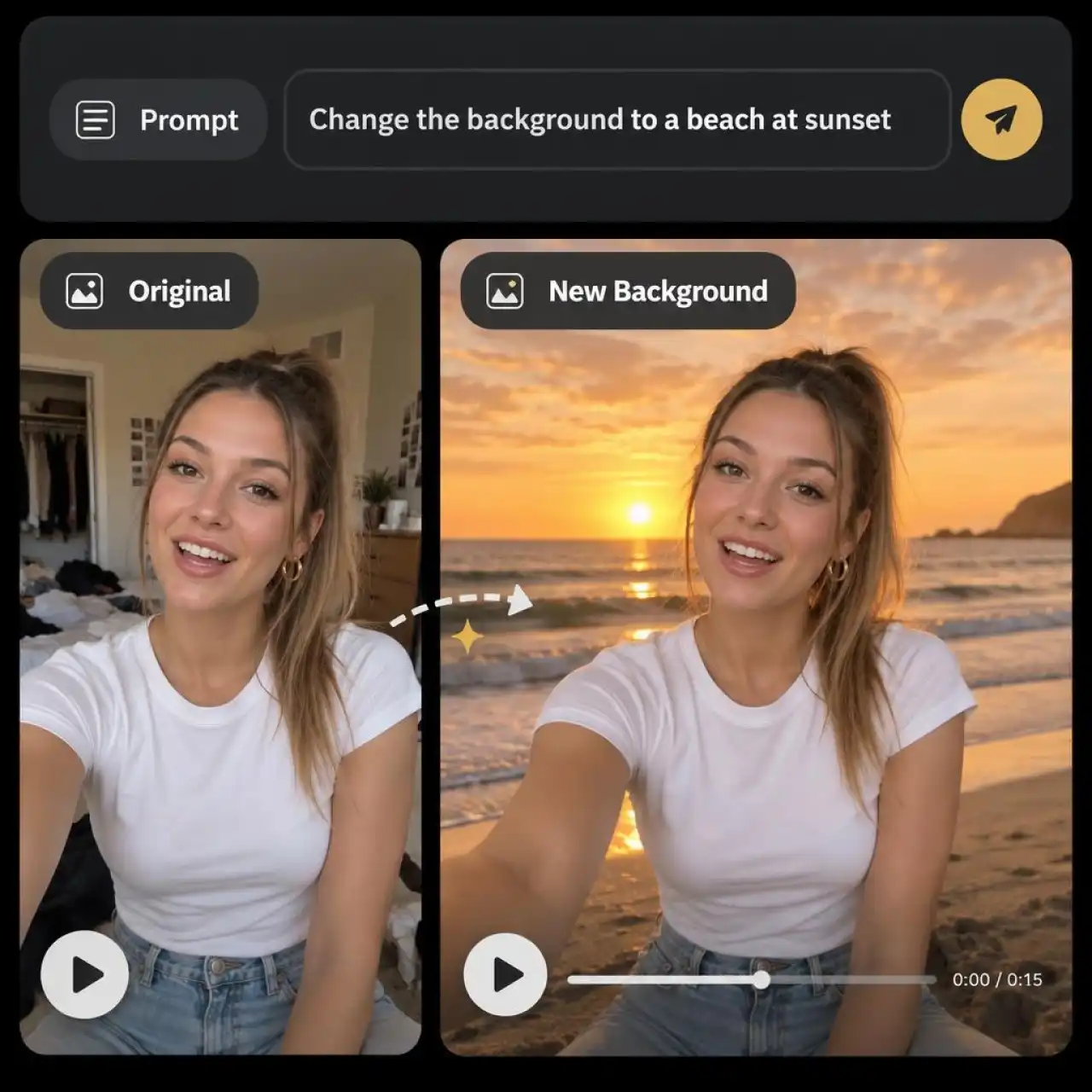
Describe any setting you have in mind, from a minimalist studio to a beach at sunset. Anijam turns your prompt into a new video backdrop, giving your existing footage an entirely different look.
Video Background Replacement That Keeps Original Motion
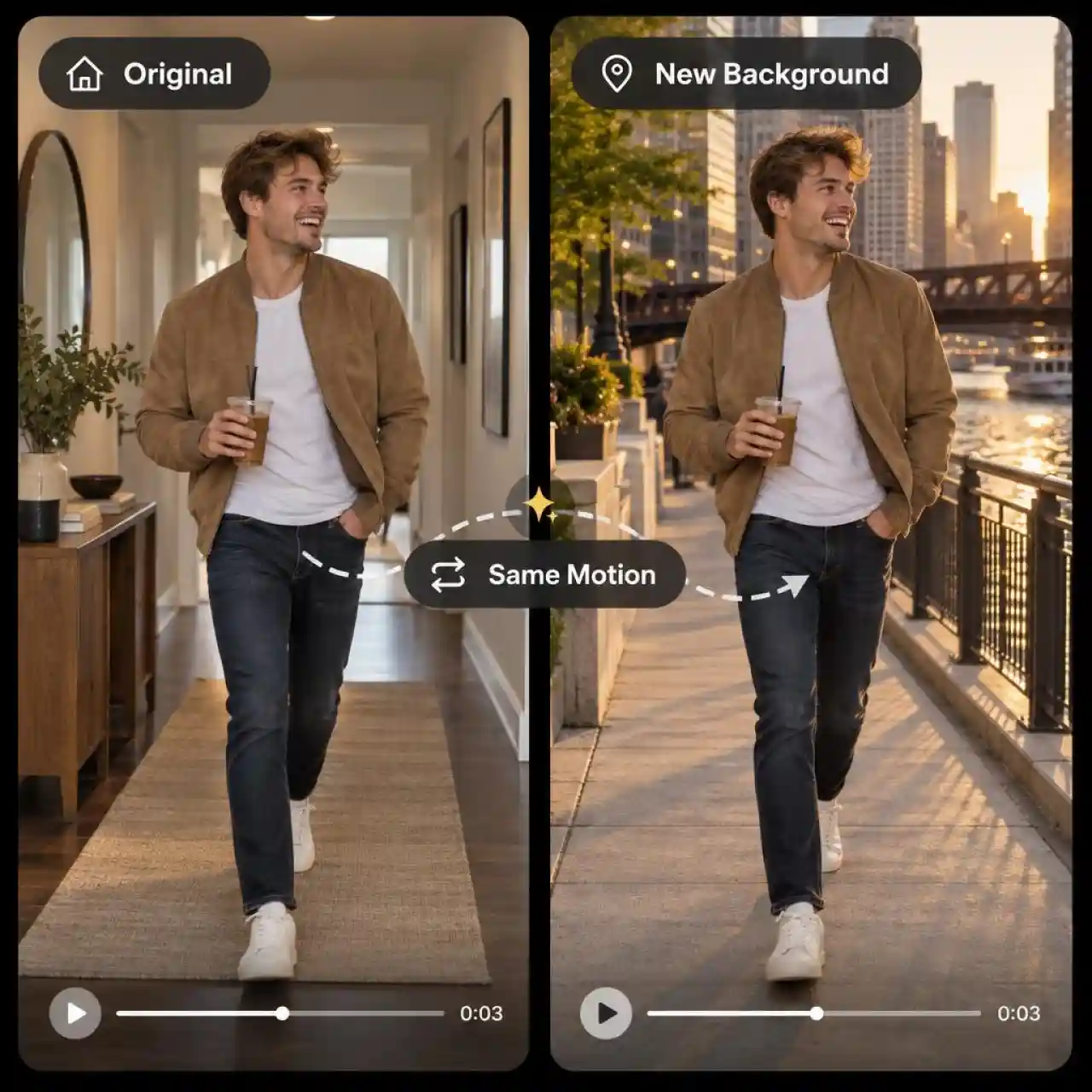
Give your footage a fresh setting without starting from scratch. AI Edit works from your original clip, helping preserve its existing motion and structure while transforming the surrounding scene.
Customize Every Detail of Your Video Background
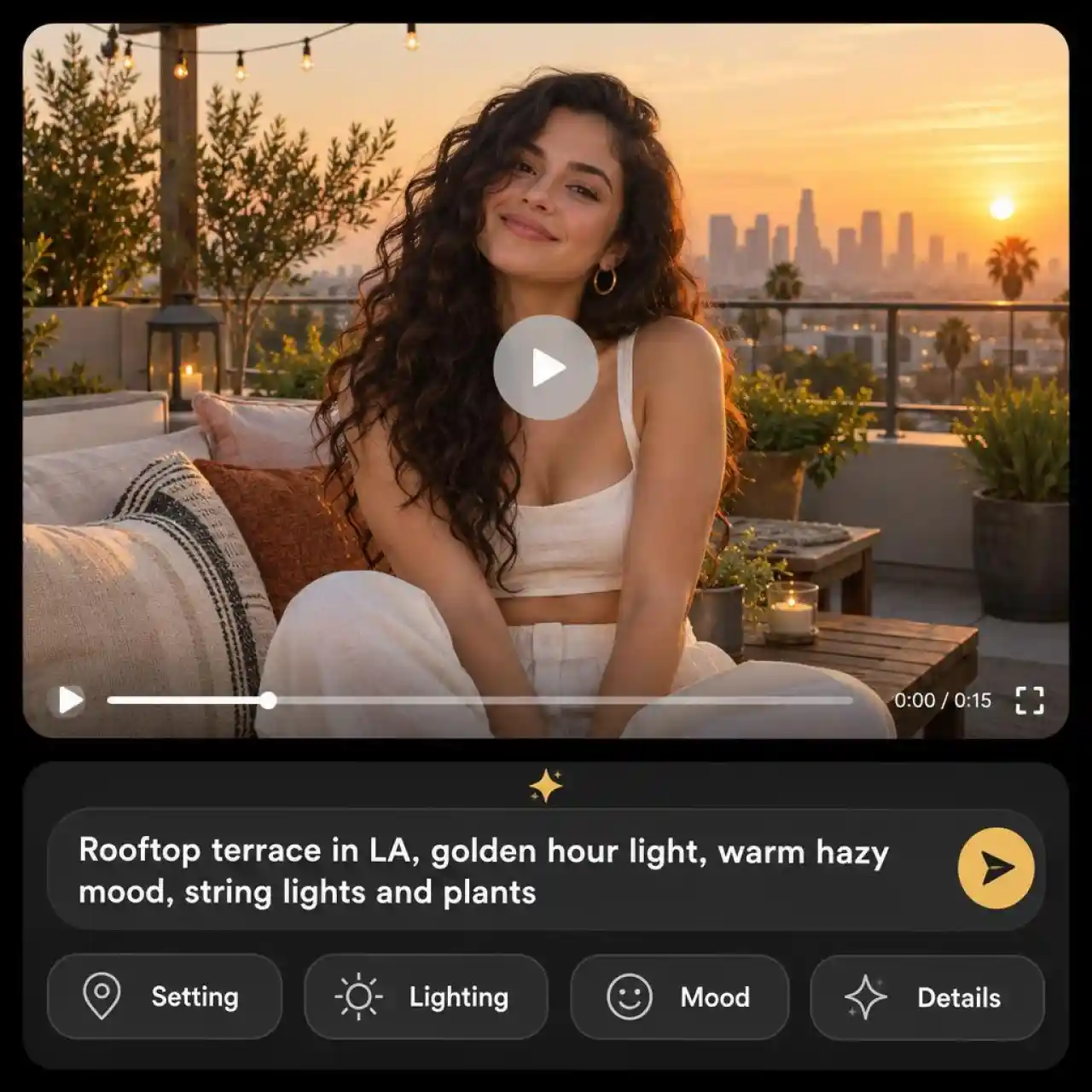
Go beyond basic background swaps. Describe the setting, lighting, atmosphere, and visual details you want, and let AI transform your footage to match your creative direction.
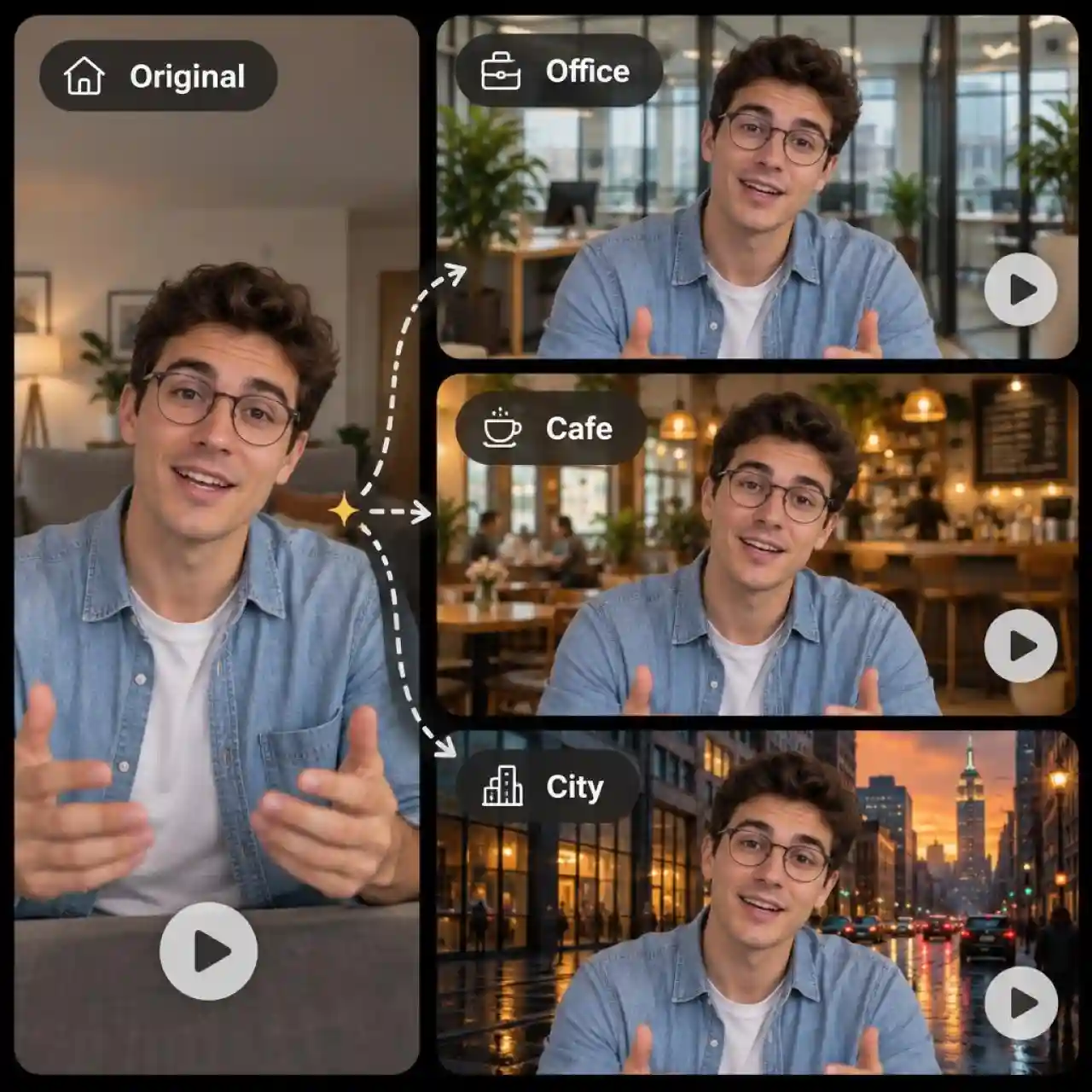
Explore Different Backgrounds from One Video
Turn one recording into multiple creative directions. Try a polished office, a cozy cafe, or a cinematic city backdrop, then preview different versions to find the right look for your content.
How to Change Background in a Video with Anijam
Step 1: Choose an AI Video Model
Open the mode menu in the prompt box and switch from Agent to AI Video. Then select Wan 3.0, Wan 3.0 Prime, or Gemini Omni Flash.
Step 2: Upload Your Video and Describe the New Background
Click Media to upload the video you want to edit. Enter a prompt describing the background you want, such as "Change the video background to a modern photography studio." Then submit your prompt to generate the edited video.
Step 3: Preview and Download Your Video
Preview the generated video to see how the new background looks. If you want a different setting, enter another prompt to generate a new version. Once you're happy with the result, download your video or continue editing it in Anijam.
What You Can Do with AI Video Background Changer
From professional presentations to product promotions and social media clips, Anijam helps you transform ordinary footage into content that fits different creative needs. Change the setting, explore new visual styles, and get more out of every recording.
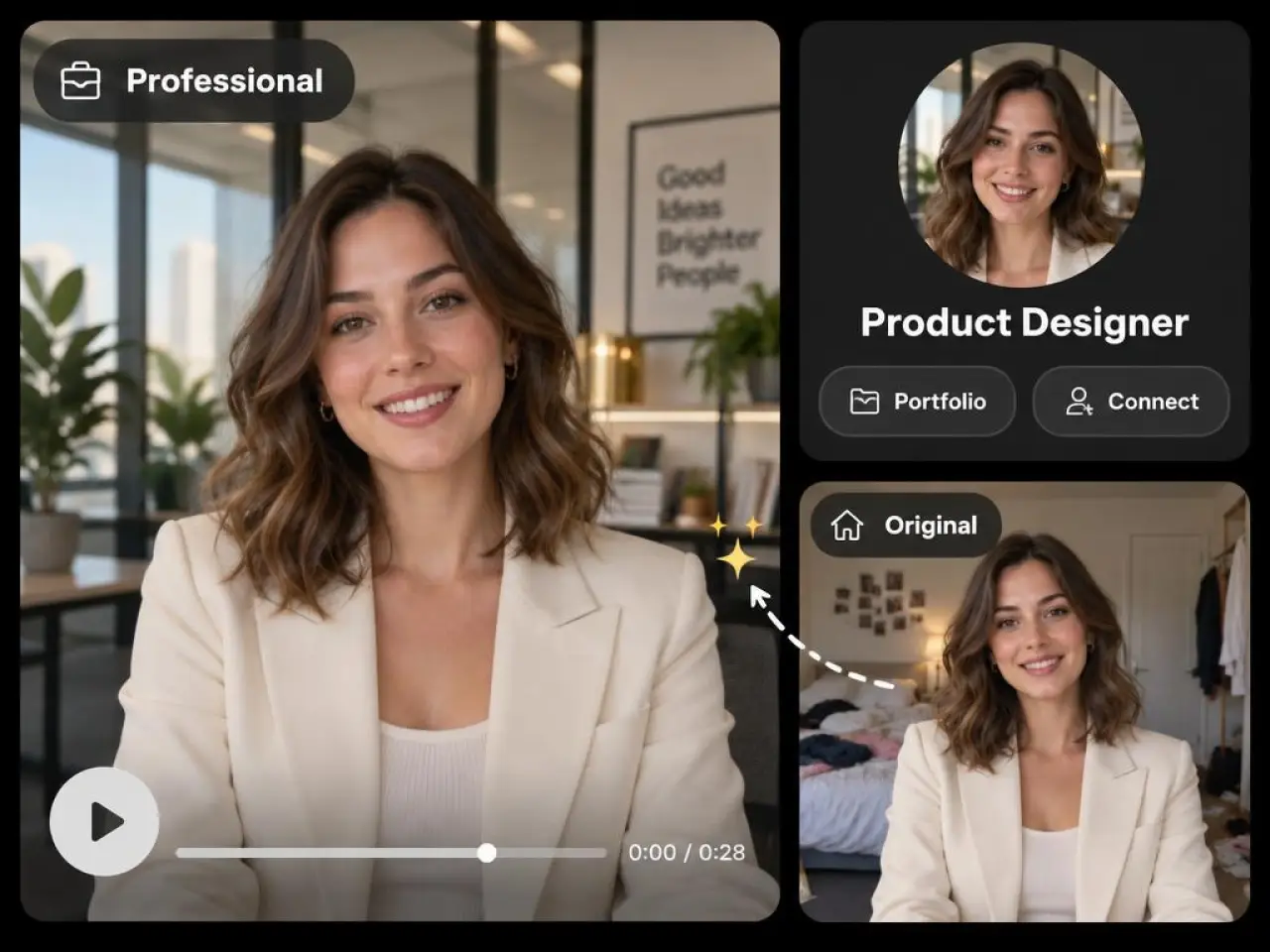
Create Professional Videos and Headshots
Replace distracting room backgrounds with clean offices, professional studios, or modern interiors. Give talking-head videos, personal introductions, and business presentations a more professional setting.
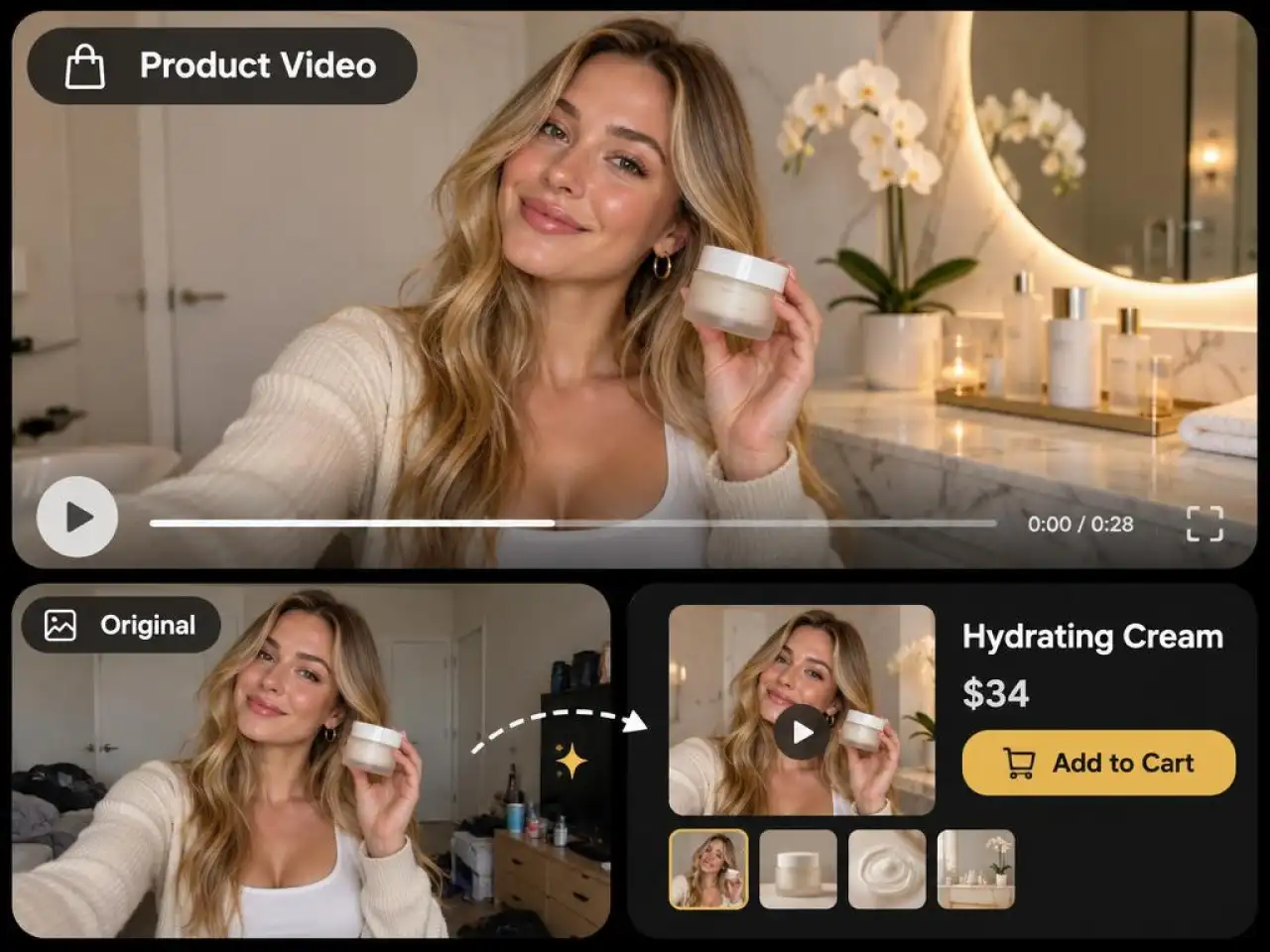
Create Standout Product and E-Commerce Videos
Replace ordinary backgrounds in product demonstrations, beauty videos, and promotional content with settings that complement your products. Create clean studio scenes, lifestyle backgrounds, and branded environments for e-commerce videos.
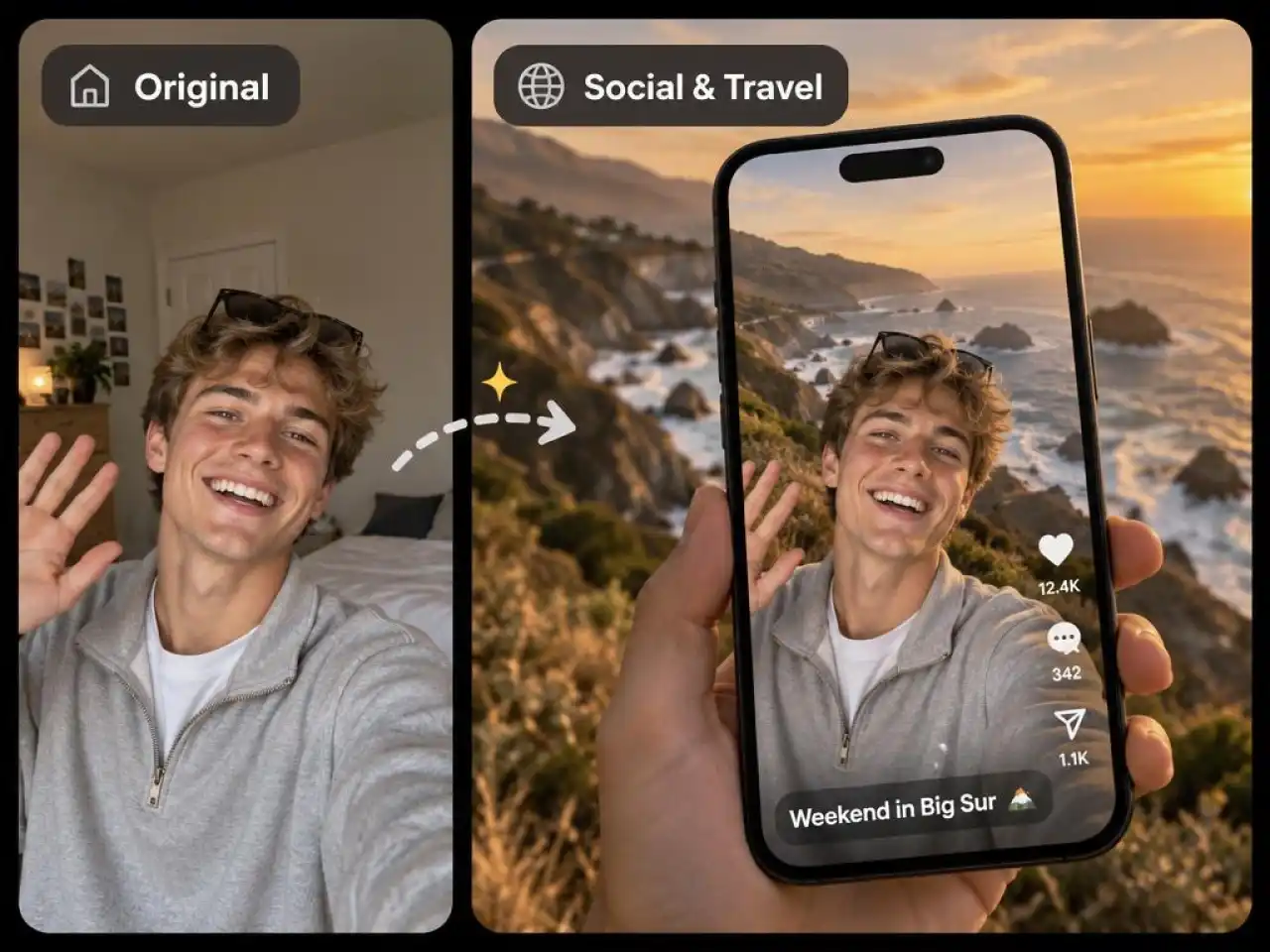
Refresh Social Media and Travel Videos
Replace everyday backgrounds in selfies, TikToks, and Reels with scenic destinations, popular locations, or creative scenes. Give travel videos and social content a new background without changing where you originally filmed.
Why Choose Anijam to Change Your Video Background

Free to Start
Anijam gives you a video background changer online free to start, with sign-up credits and daily check-in credits for your first edits and no credit card required.

No Editing Skills Needed
Describe the change in plain language. There is no masking, no keyframing, and no timeline work, so beginners get the same result as experienced editors.

Fast Generation
Generate videos with new backgrounds in less time. Simply upload your footage, describe the scene you want, and let AI quickly create a fresh version of your clip.

Create Across Devices
Replace video backgrounds seamlessly across web and mobile. Upload your footage, describe a new scene, and create AI-powered background changes wherever you use Anijam.

Watermark-Free Exports
Export clean videos without distracting watermarks. Share your finished clips across social platforms, marketing campaigns, and creative projects.

High-Quality Video Results
Create polished videos with detailed, natural-looking backgrounds. Transform ordinary footage into visually engaging content for social media, presentations, and promotions.
Explore More Anijam AI Creative Tools



FAQ
What is an AI Video Background Changer?
An AI video background changer uses artificial intelligence to replace the original setting in a video with a new scene. With Anijam, you can describe the background you want, from a professional studio to a scenic outdoor location, and generate a new look for your footage.
How does this video background changer work?
Anijam makes video background changes simple. Choose a video model, and upload your clip through Media. Describe the new background you want in your prompt and generate the video. You can preview the result, try another background, or continue editing your clip.
Is this video background changer free to use?
You can get started with Anijam for free. New users receive sign-up credits, and daily check-ins provide additional credits for more creations. No credit card is required to get started.
What is the best background changer for videos?
The best tool depends on your footage and creative needs. Anijam lets you choose from multiple AI video models and describe the background you want in natural language. You can also bring your generated clips into the timeline for further editing, making it useful for everything from social media videos to product content.
What types of video backgrounds can I create?
You can transform your footage with a wide range of settings, including professional studios, modern offices, cozy home interiors, cafes, beaches, city streets, cinematic locations, and imaginative fantasy scenes. Simply describe the environment and atmosphere you want in your prompt.
How long can the video be?
Video length depends on the model you choose. Wan 3.0 and Wan 3.0 Prime support clips from 2 to 15 seconds, while Gemini Omni Flash supports clips from 3 to 10 seconds. For longer videos, split your footage into shorter clips and apply consistent background descriptions to each one.
Can I use the edited videos commercially?
Yes. Commercial use is available with eligible paid plans. These plans also include watermark-free exports and private-by-default content, so you can create videos for marketing campaigns, client projects, and other commercial purposes.