


Remove Object from Video with AI
Get a cleaner video without masks, brushes, or reshoots. Simply describe what you want removed, and Anijam's AI video object remover clears the unwanted element while reconstructing the background.
Remove Unwanted Objects Without Reshooting
A stray tourist, distracting cable, or unwanted coffee cup doesn't have to ruin an otherwise perfect shot. With Anijam's AI video object remover, simply describe what you want gone, and AI removes it across the video frames while filling in the background. No masks, brushes, or reshoots needed. Keep refining your clip with simple prompts and continue editing in the same workspace.
Remove Tourists and People from Video
Remove unwanted people, passersby, and photobombers from your footage. Identify them by position or appearance, such as 'the man in the red jacket on the left,' and let AI help clean up the shot.
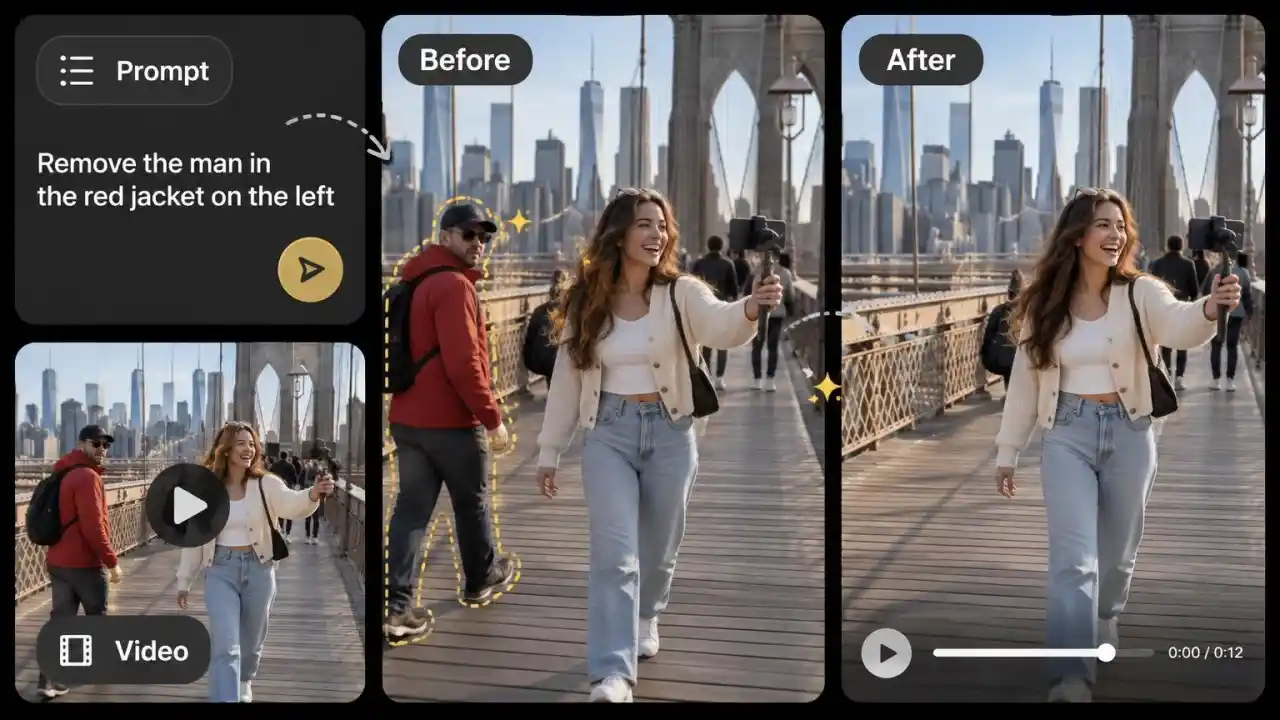
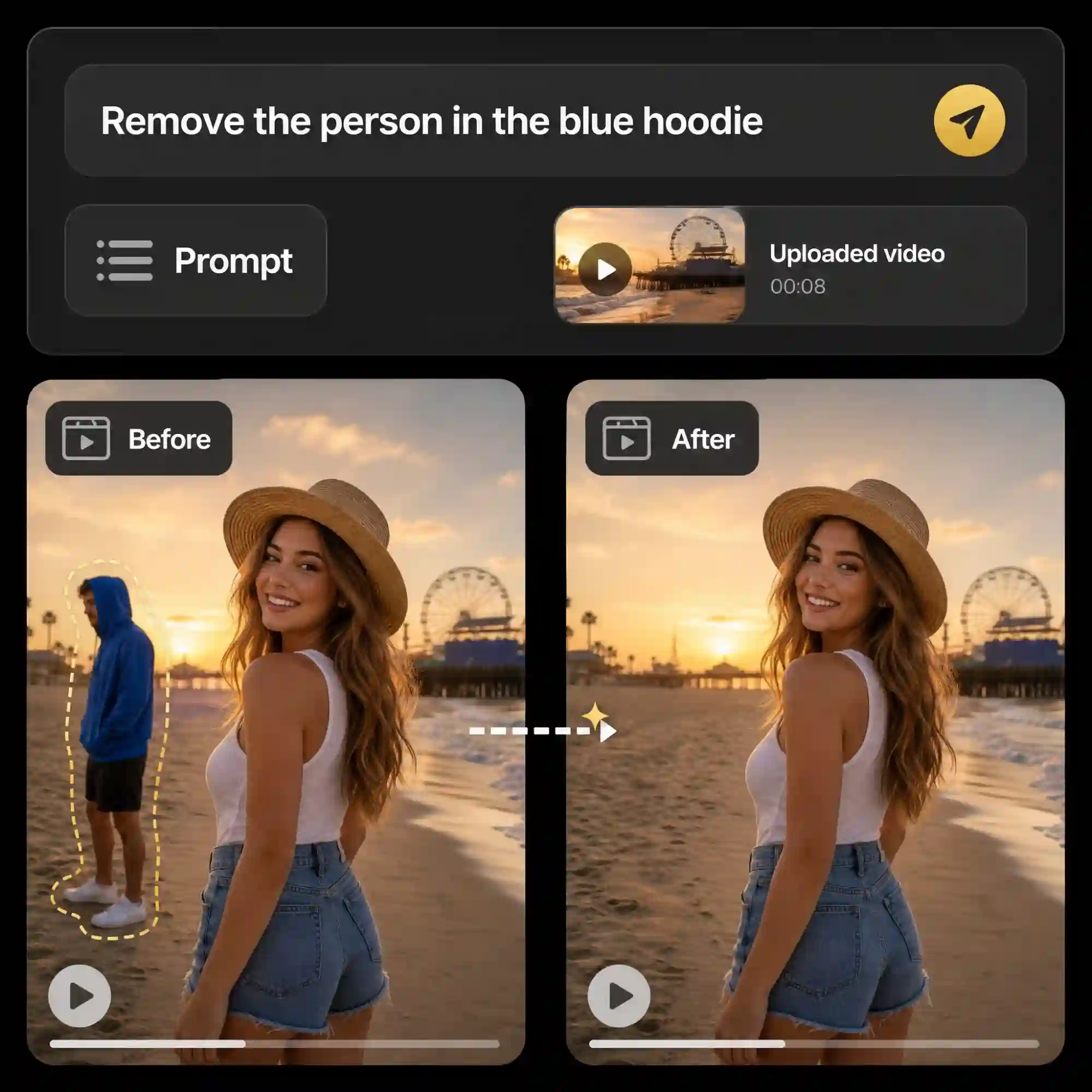
Remove Any Object from Video with a Simple Prompt
Describe the person, object, or distraction you want gone in plain English. Anijam identifies what to remove and processes your video without manual masking, brushes, or complicated editing.
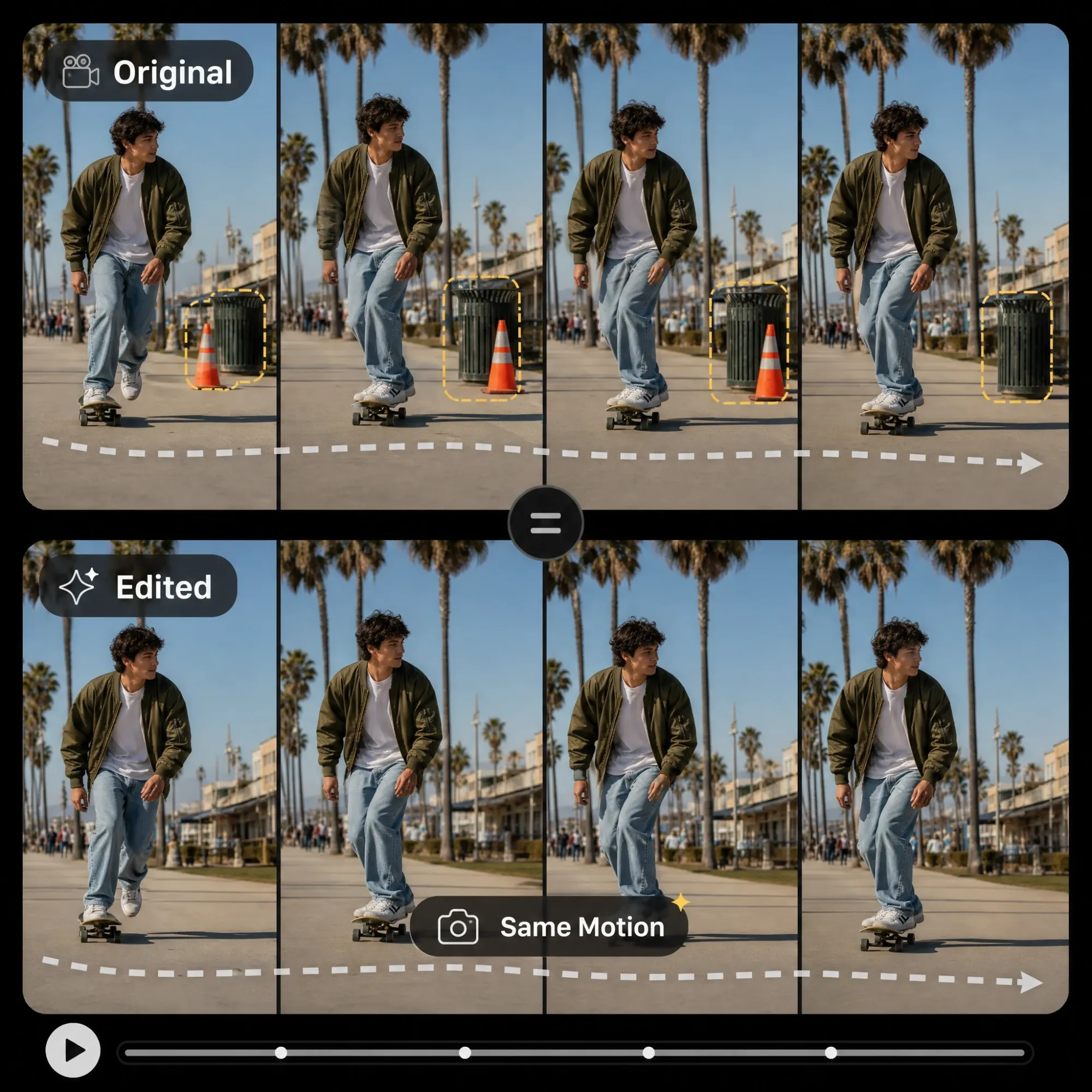
Keep Original Motion While You Remove Objects
Edit your existing footage instead of starting from scratch. Anijam's AI Edit works from your original clip, helping preserve its camera movement, timing, and action while removing unwanted elements.
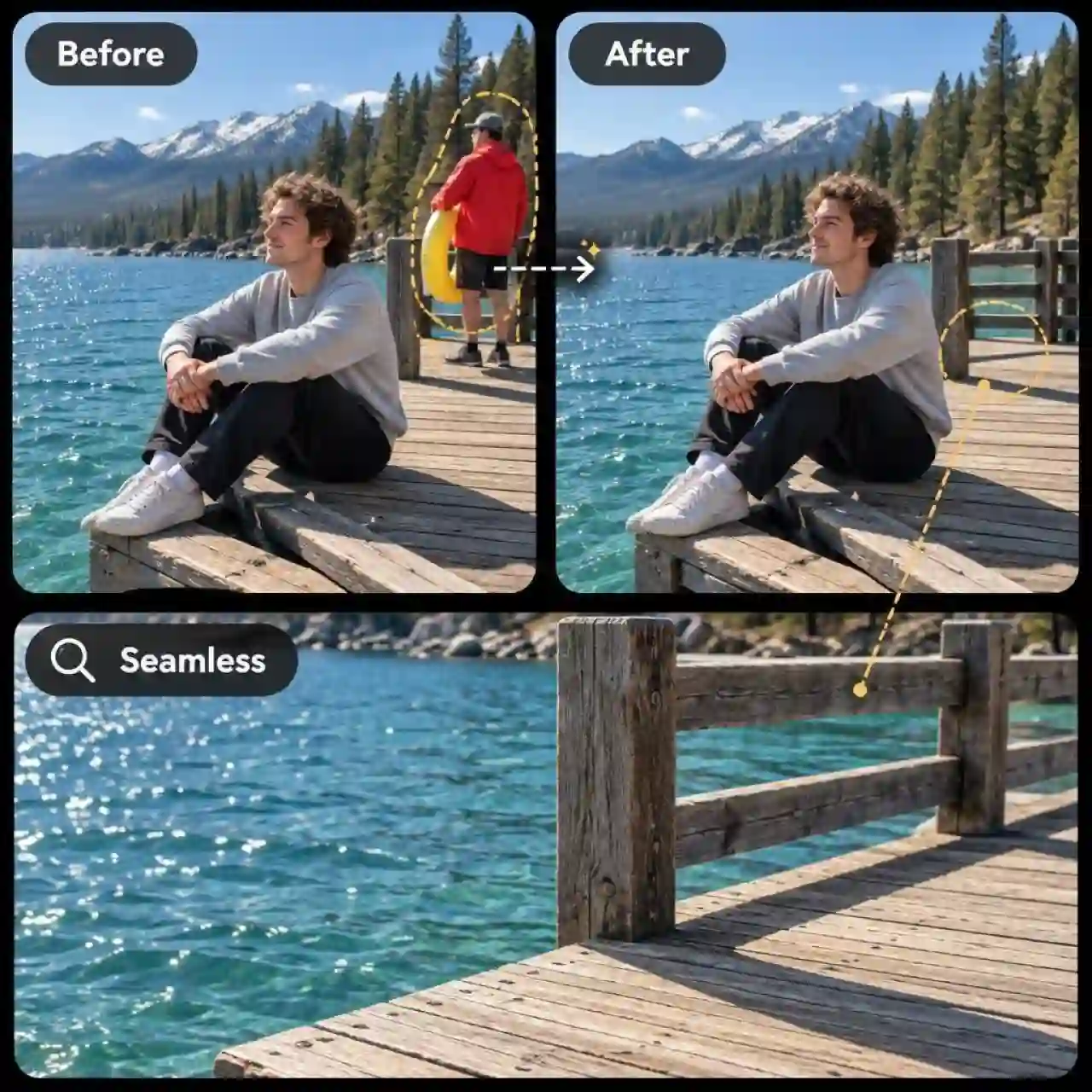
Fill In the Background for a Natural Look
Removing an object is only half the job. Anijam's AI reconstructs the area behind it using the surrounding scene, helping the edited footage look natural without obvious gaps or distracting patches.
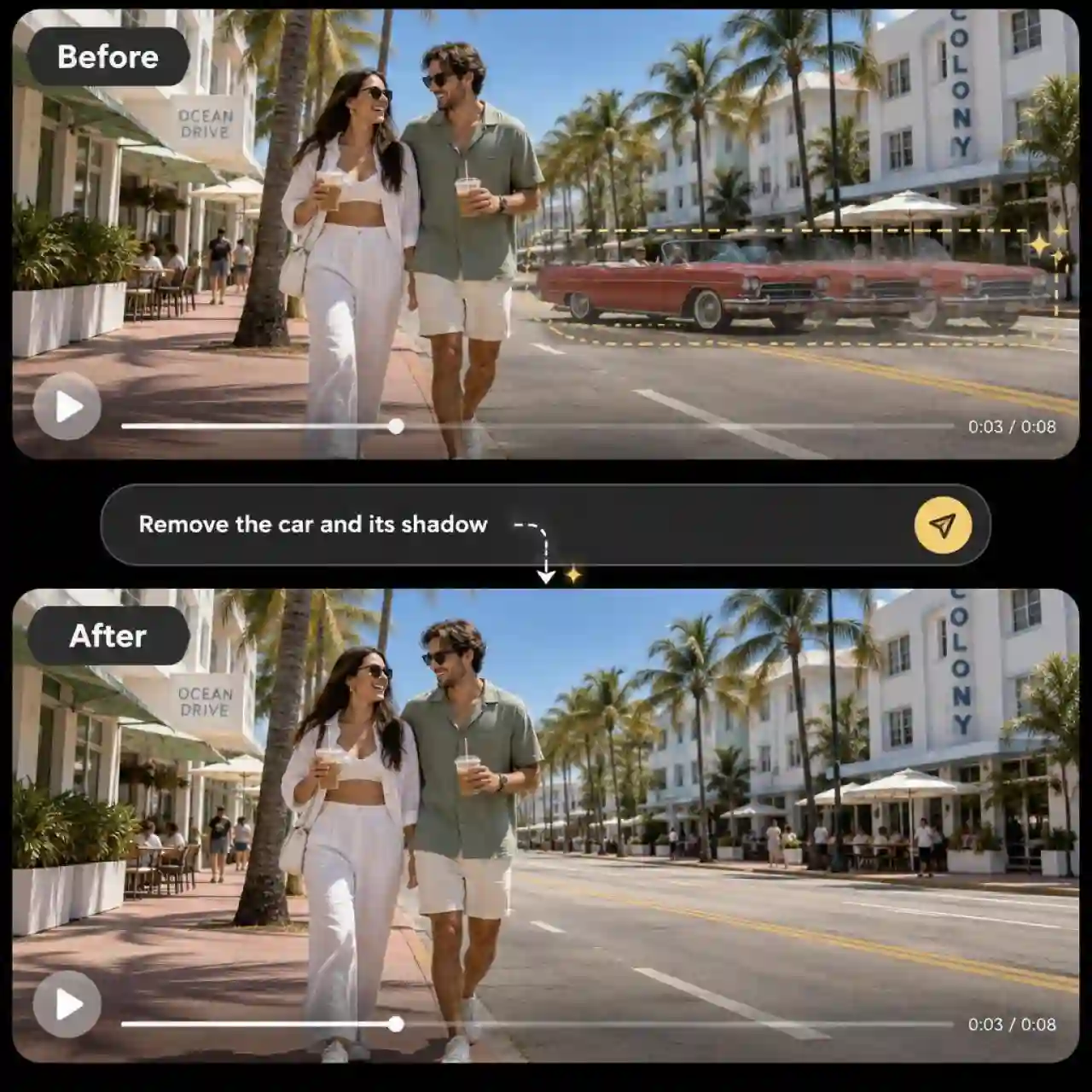
Remove Moving Objects Across Video Frames
Remove moving people, cars, and other distractions throughout your clip. AI tracks the selected object as it moves and reconstructs the background behind it. For more targeted results, describe details such as the object's shadow or reflection in your prompt.
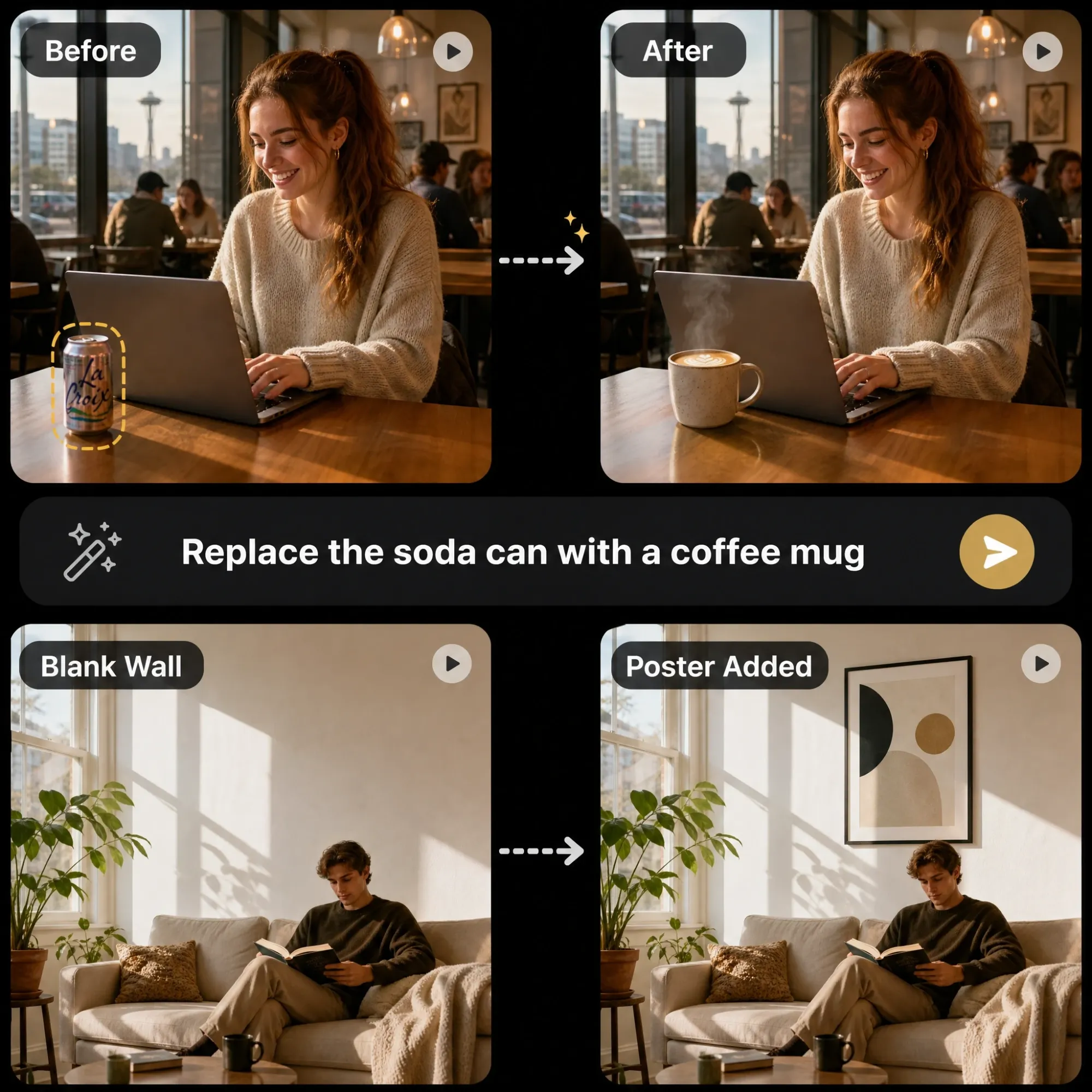
Replace Any Object with Something New
Describe what you'd like to replace and what should take its place. From swapping a soda can for a coffee mug to adding a poster to a blank wall, Anijam AI Edit helps bring your changes into the original footage.
How to Remove Object from Video with Anijam
Step 1: Choose an AI Video Model
Open the mode menu in the prompt box and switch from Agent to AI Video. Then select Wan 3.0, Wan 3.0 Prime, or Gemini Omni Flash.
Step 2: Upload Your Video and Describe What to Remove
Click Media to upload your video. Describe the object you want to remove and where it appears, such as "Remove the ice cream from the video." Then submit your prompt to start editing.
Step 3: Preview and Download Your Video
Preview the result and send follow-up prompts to refine the edit if needed. Once you're happy with the result, download your video or continue editing on the timeline.
Why Remove Objects from Video with Anijam

Free Credits to Start
Claim free signup credits and try to remove object from video AI free of charge before you pick a plan. Daily check-in credits give you more chances to test different clips.

Easy Chat-Based Editing
Simply describe what you want to remove in plain language. No manual masks, brushes, or frame-by-frame selection needed.

Fast Generation
Remove unwanted objects from your videos in less time. Simply describe what you want to remove and let AI do the editing, without tedious manual work.

High-Quality
Export videos in high resolution with crisp details and clear visuals, ready for social media, marketing, and more.

Watermark-Free
Export your edited videos without watermarks, keeping your content clean and ready to share.

Edit on Web and Mobile
Start on the web and pick up on the Anijam app. Your projects and edits sync between both.
Explore More Anijam AI Creative Tools




FAQ
Is Anijam's AI video object remover free to use?
Yes. Sign up for Anijam to claim free credits and start removing unwanted objects from videos. You can also earn additional credits through daily check-ins.
How do I remove an object from a video?
Open the prompt box, switch to AI Video mode, and select a model. Click Media to upload your video, then describe the object you want to remove. Submit your prompt to generate the edit, preview the result, and use follow-up prompts to fine-tune it before downloading.
What video formats does Anijam's AI video object remover support?
Anijam supports MP4 and MOV video uploads, making it easy to bring in clips from common devices and editing tools.
What types of objects can Anijam remove from videos?
Anijam can help remove people, unwanted props, clutter, vehicles, street signs, logos, text, power lines, and other distracting elements. Simply describe what you want removed, and AI reconstructs the area using the surrounding scene.
Can I remove objects from videos on my phone?
Yes. You can remove objects from videos on your phone using either the Anijam app or the Anijam website in your mobile browser. Simply open Anijam, upload your video, describe what you want removed, and let AI handle the edit.