


AI Video Enhancer
Get sharper, cleaner, better-looking videos without learning complex editing software. Upscale your clip to 4K or 8K, or tell Anijam what to fix in plain words.
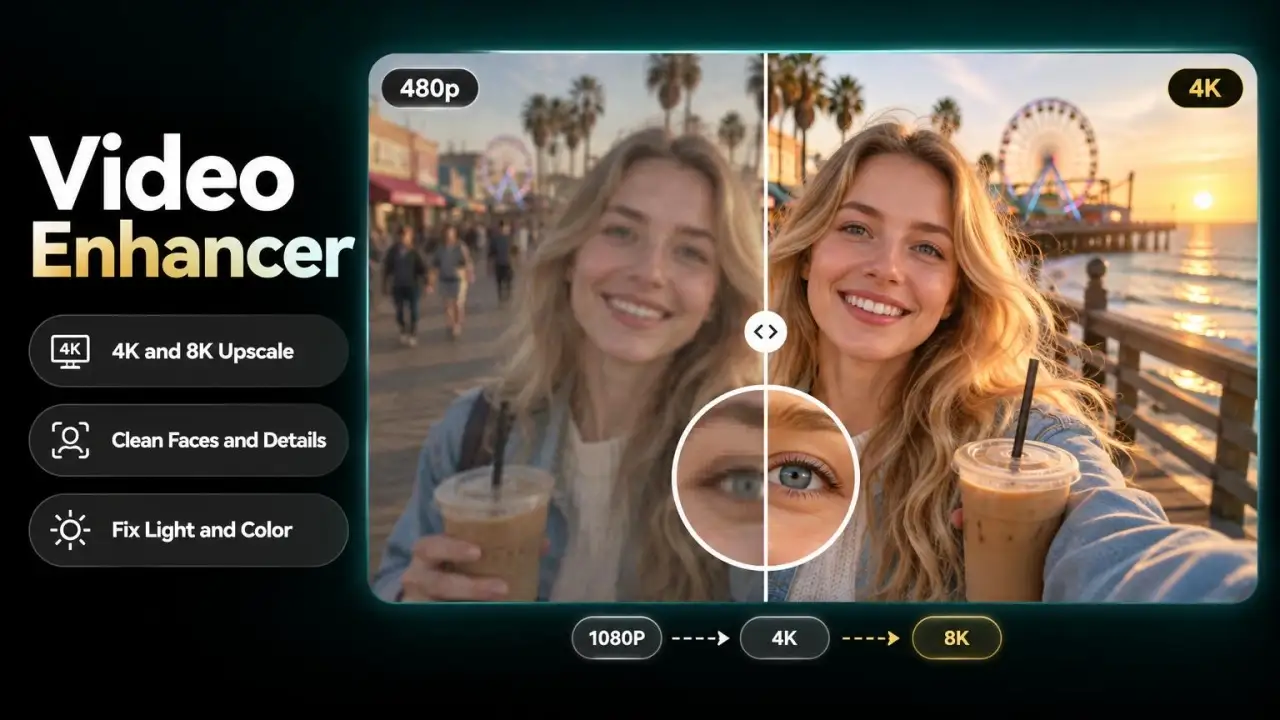
Fix What Makes Your Video Look Low Quality
A great moment loses viewers when soft details, flat lighting, or a messy background pull their eyes away, and a resolution boost alone cannot solve all three. Anijam pairs a video enhancer with 4K and 8K upscaling and prompt-based AI Edit, so you can sharpen your social post, product clip, family memory, or AI short and refine what appears on screen in one workspace.
Refine Portrait and Talking Videos
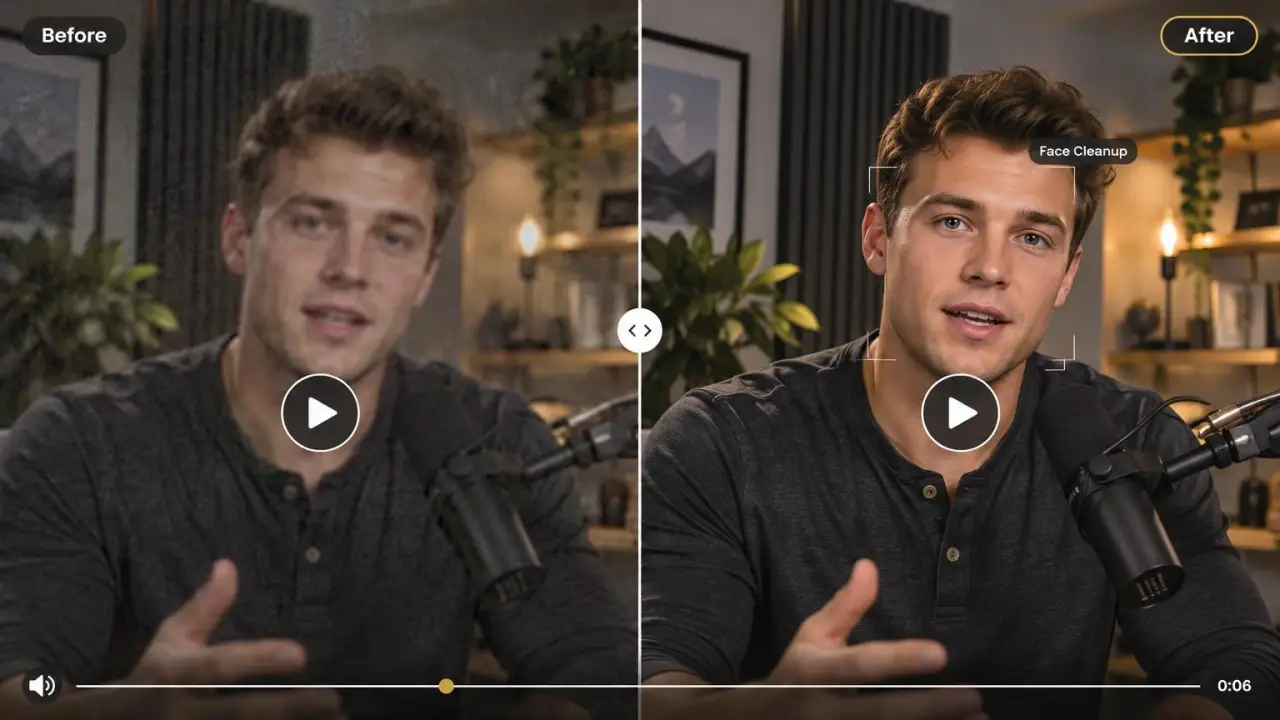
Use our video enhancer to keep attention on your speaker by cleaning up facial details that look off and adjusting the light. Review close-ups so the face stays true to the person.
Upscale Video to 4K and 8K Resolution
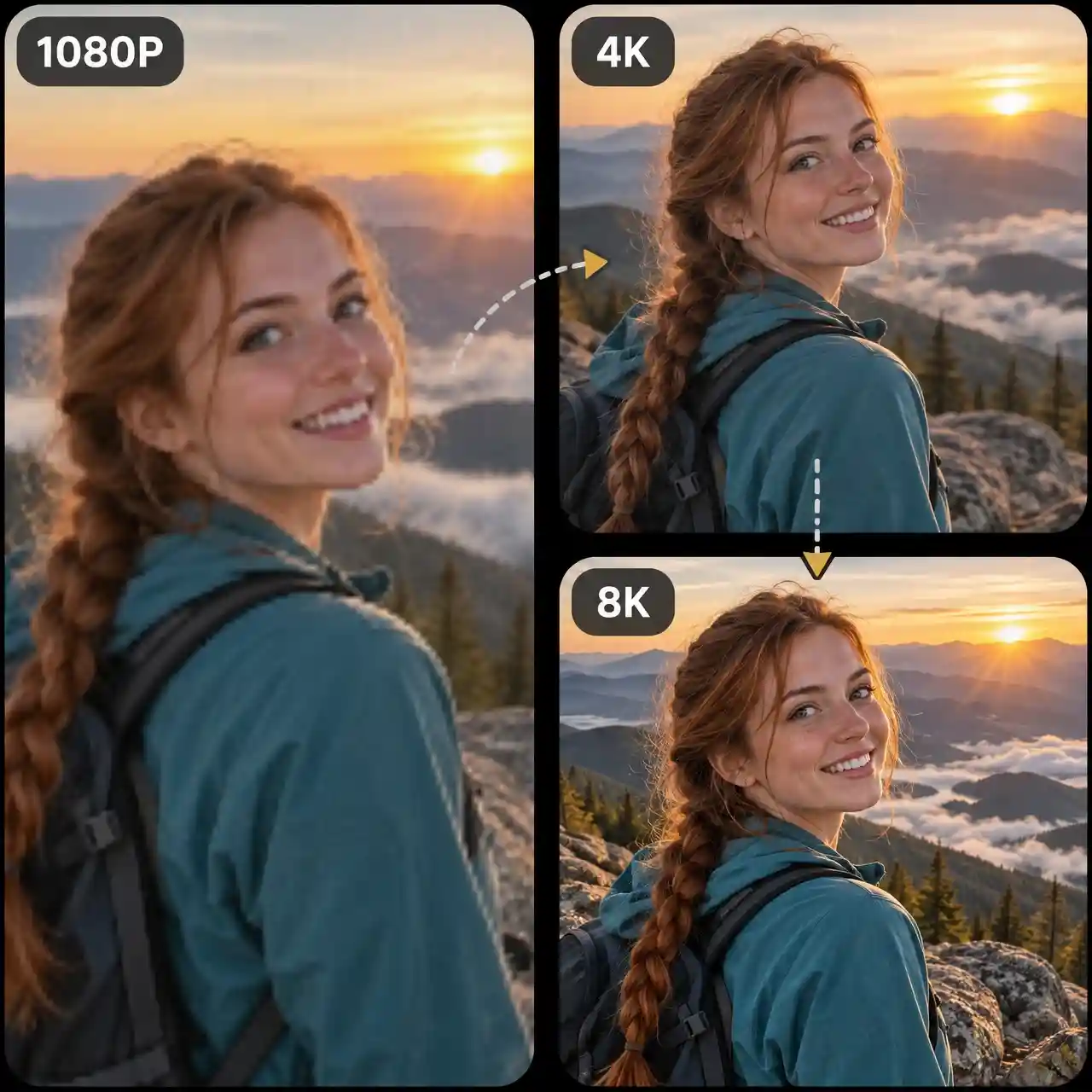
Our video enhancer includes Video Upscale, which takes your low-resolution clip to 1080P, 4K, or 8K. Pick 8K when your footage is headed for a very large display or a high-resolution edit, and choose 4K for everyday publishing and client delivery. If more pixels are all you need, go straight to our AI Video Upscaler.
Clean Up Faces and Video Details
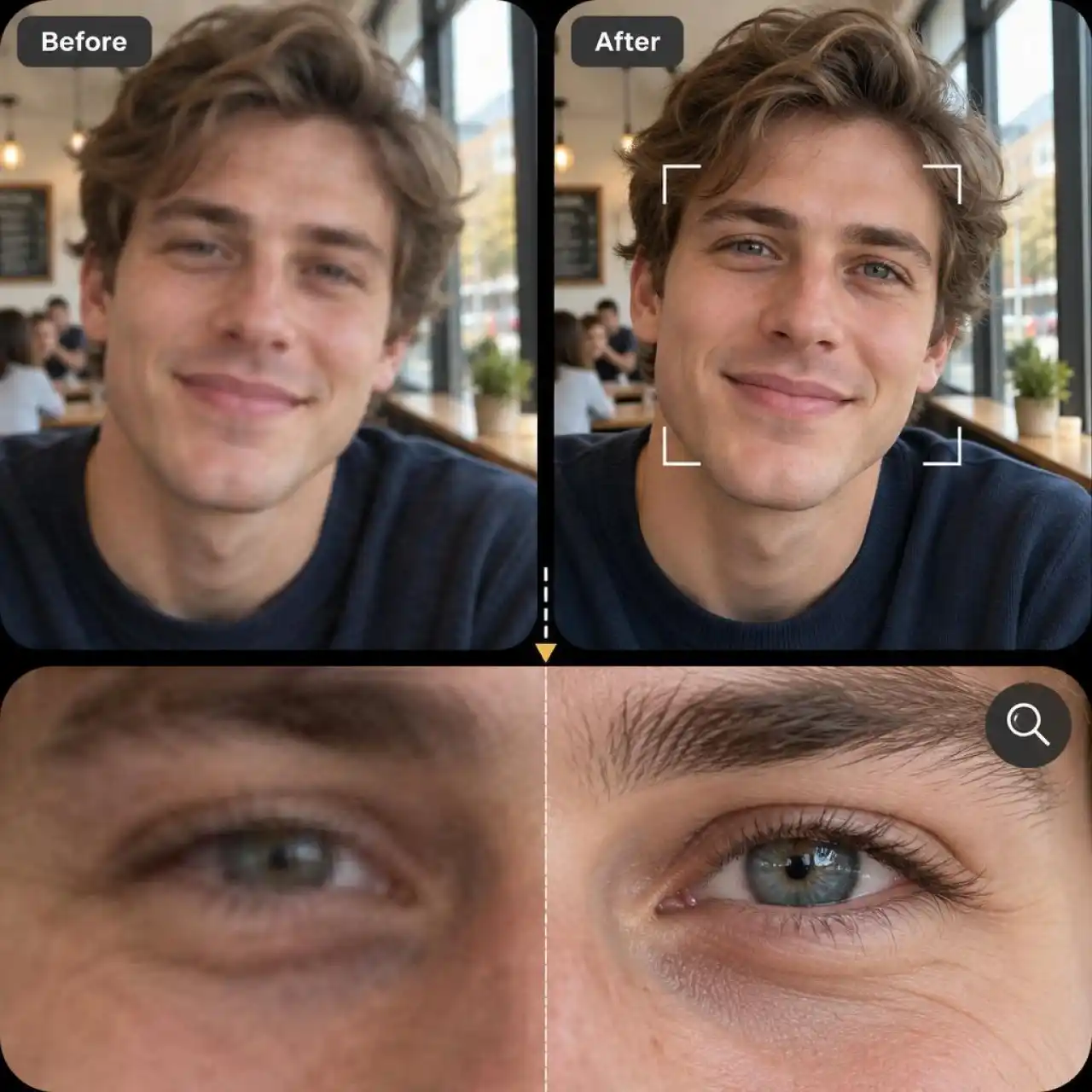
AI Edit repairs faces and small details that look off while keeping your clip's original motion and pacing. Point out the problem, such as distorted eyes in a close-up, then compare the result with your source to make sure the person still looks like themselves.
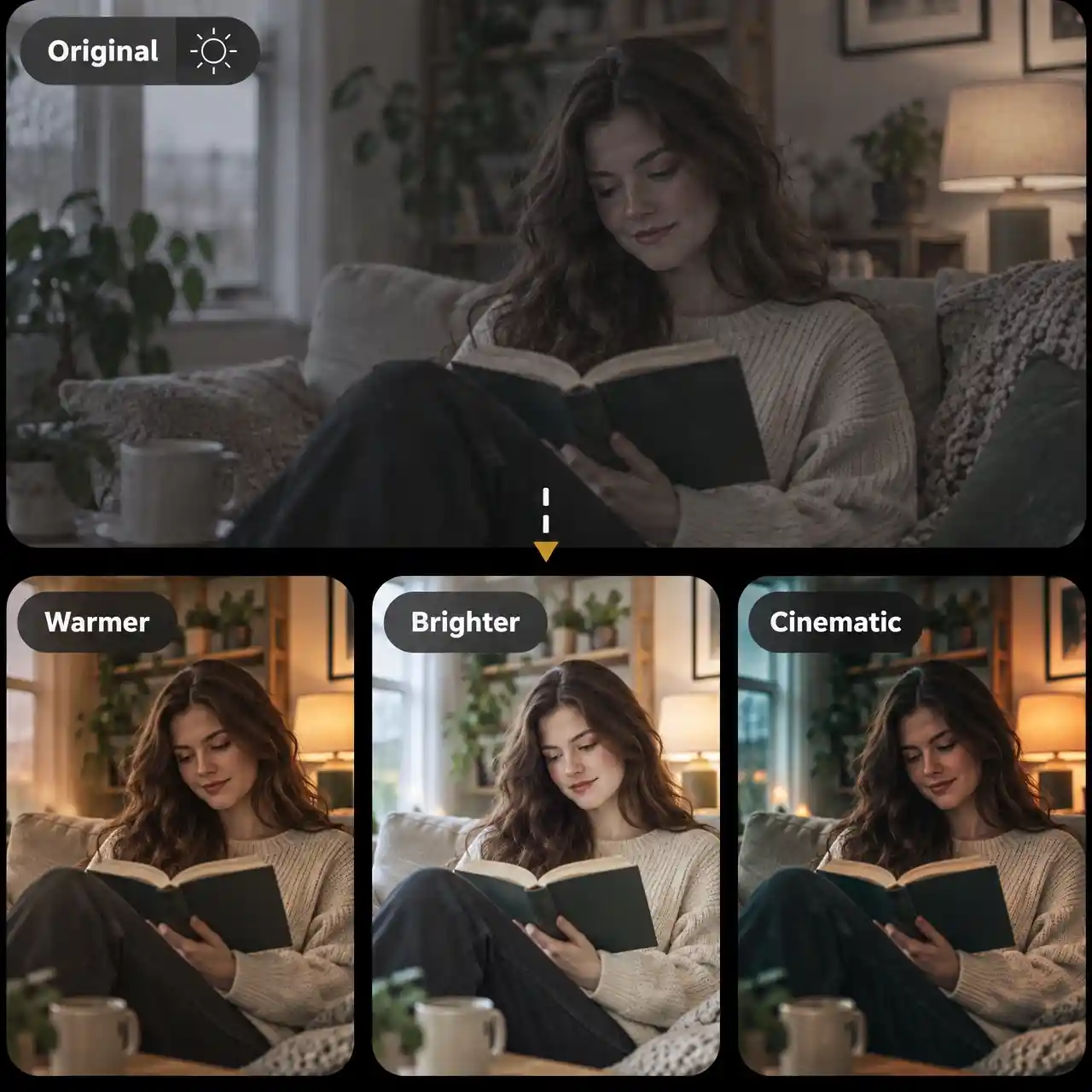
Correct Video Lighting and Color
You can reshape flat lighting and dull color with a short prompt. Ask for a warmer indoor tone, a brighter subject, or a cinematic color grade, and AI Edit applies the new look while your action and timing stay in place.
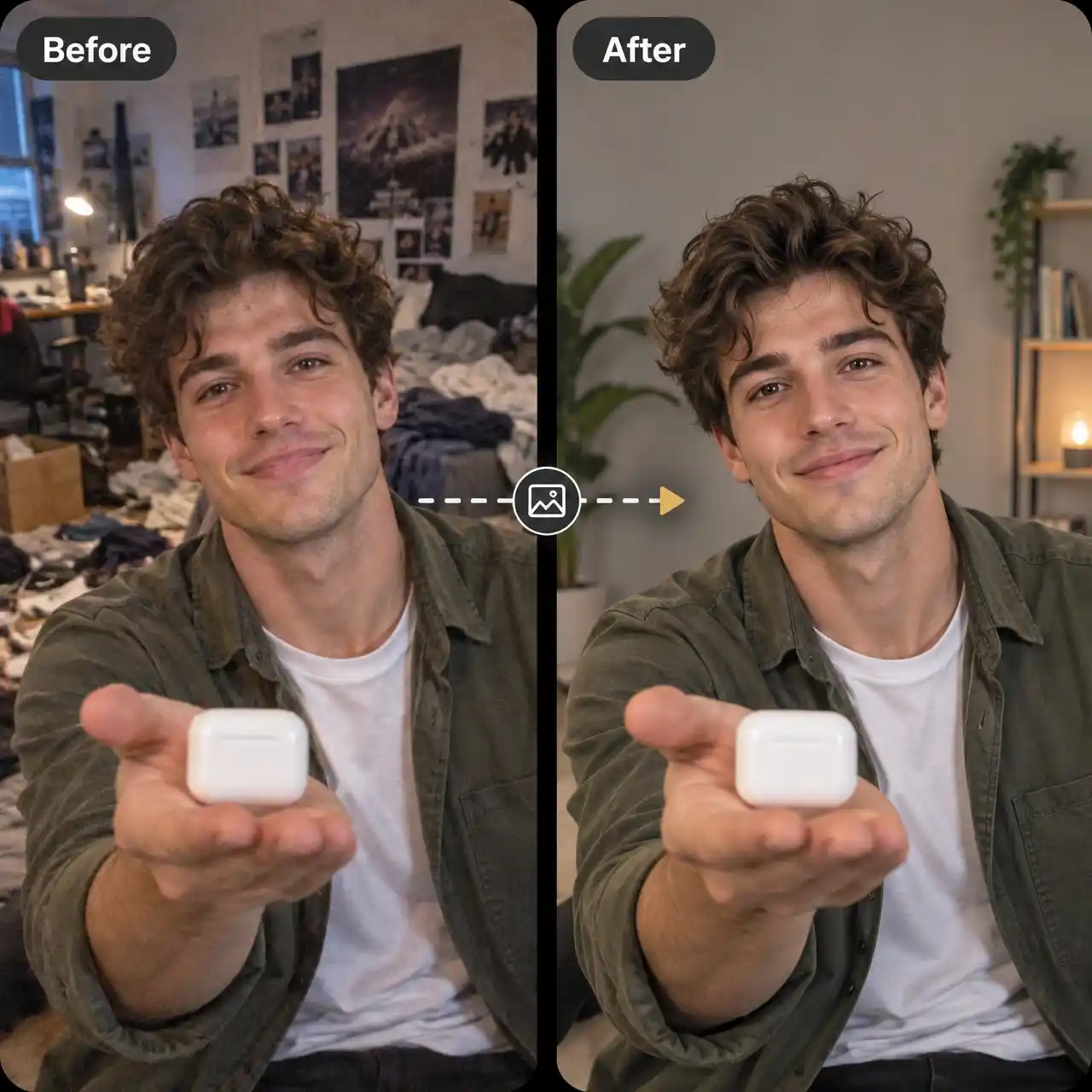
Replace Busy Video Backgrounds
A cleaner background puts attention back on your subject. Use AI Edit to calm a crowded scene or swap in a new setting, such as turning a cluttered room behind your product demo into a tidy studio.
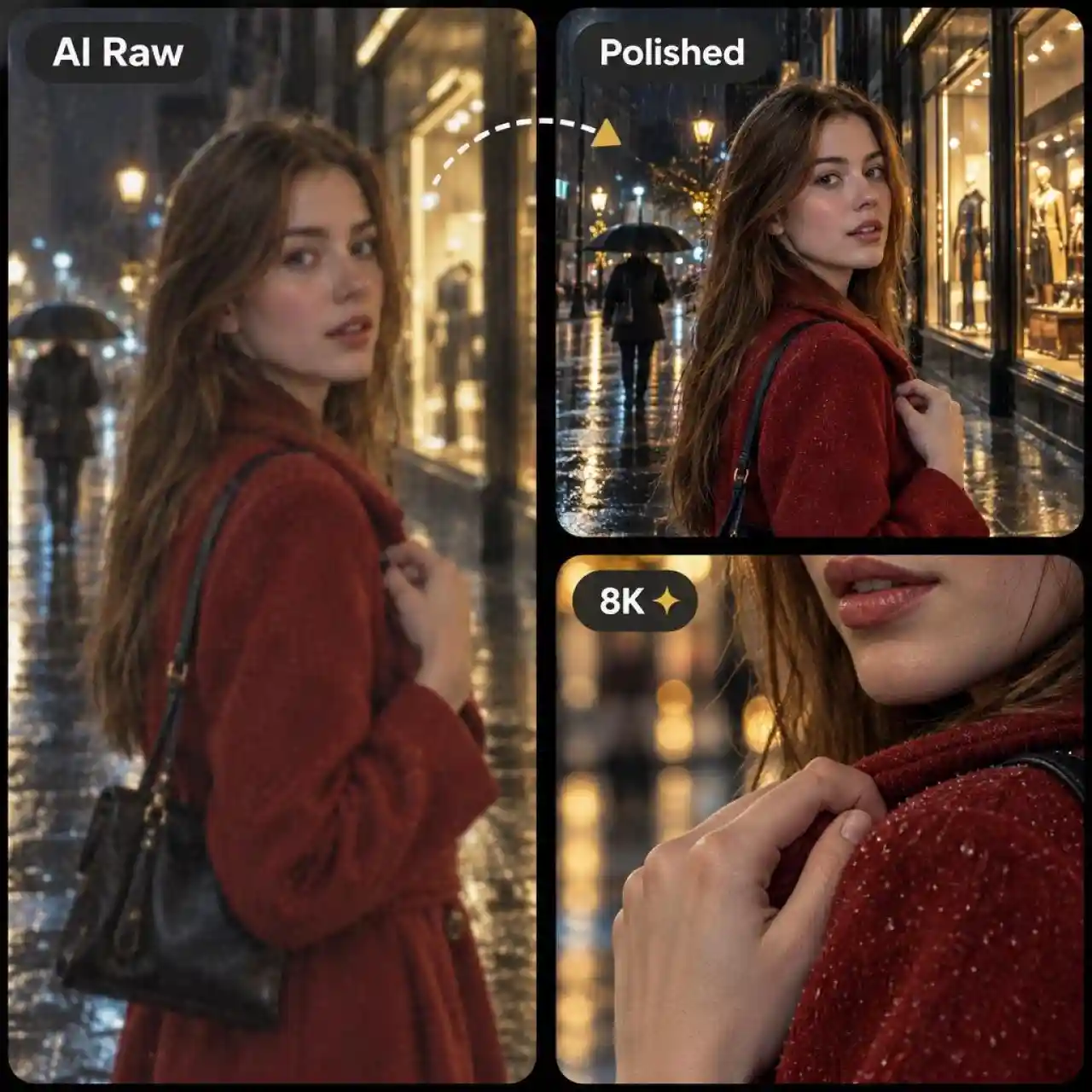
Polish and Upscale AI Generated Videos
Your AI clips can get a cleaner finish before they reach an audience. Use AI Edit to fix odd-looking details, sharpen the visual style, or settle a busy background crowd, then upscale the version you like best.
How to Enhance Video Quality with Anijam
Step 1: Add Your Video
Upload your clip to the Anijam canvas. For AI Edit, add the clip through Media in the Agent.
Step 2: Choose Your Enhancement
Pick your video enhancer path. For more resolution, select the clip, click Video Upscale, and pick 1080P, 4K, or 8K. For visual fixes, type your change in the Agent, choose AI Edit, and select a video model.
Step 3: Generate and Download
Click Generate for an upscale or Confirm for an AI Edit. Check faces, text, and motion in the preview, then download your video.
Put Your Sharper Videos to Work
Use our video enhancer for the clips you plan to post, share, or build into a bigger story.
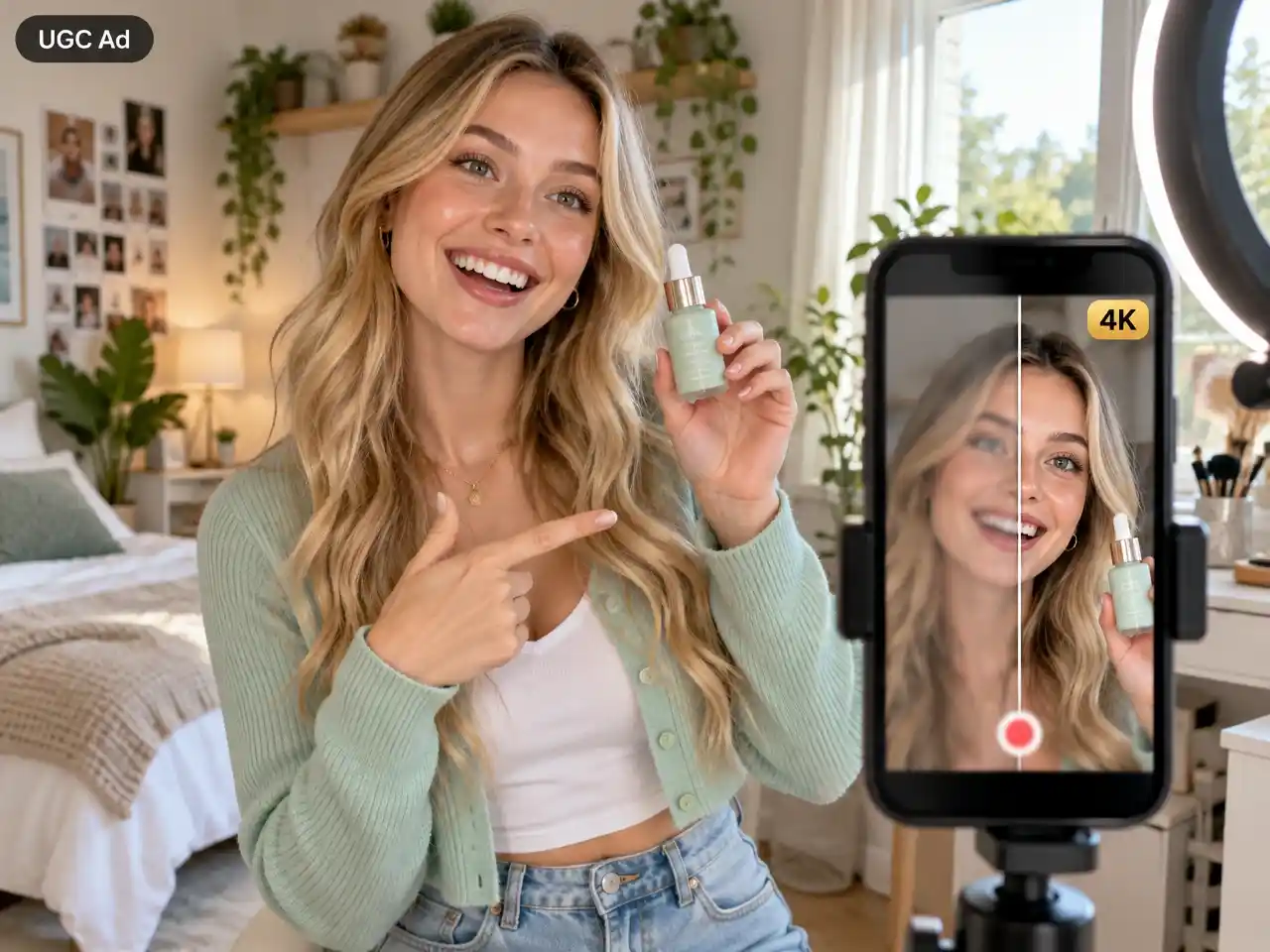
Upgrade Social Videos and UGC Ads
Make your next Reel, TikTok, Short, or creator ad easier to watch. Brighten the subject, clear visual distractions, and prepare a higher-resolution file before you post.

Refresh Family and Holiday Videos
Get birthdays, trips, and holiday clips ready for the living room screen. Upscale your favorite moments and keep the originals safe alongside the new versions.
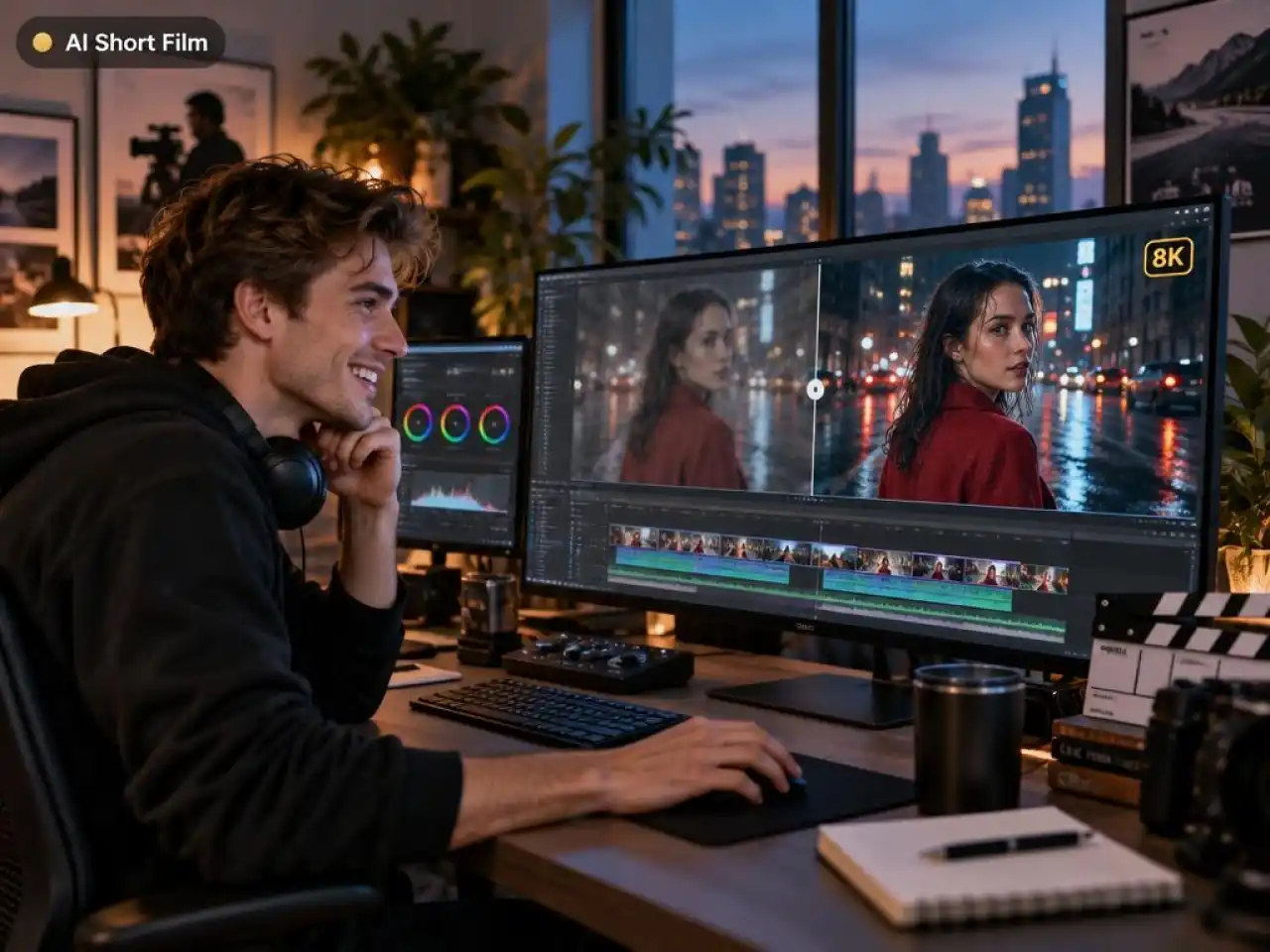
Finish AI Short Films and Series
Bring a more polished look to the shots in your story. Fix distracting details, adjust the color of each scene, and upscale your selected takes.
Why Choose the Anijam Video Enhancer

One Creative Workspace
Our video quality enhancer sits next to the rest of your project. Continue on the canvas and timeline with no need to move files into another creation platform.

Simple Text-Based Controls
Describe the improvements you want in everyday language, from refining faces and details to adjusting lighting, colors, and backgrounds. No manual masks or keyframes needed.
Enhance Videos Online
Access Anijam directly in your browser without installing desktop software. Upload your footage and enhance it from one convenient online workspace.

Free Credits to Start
New users get free credits when they sign up or log in, with more credits available through daily check-ins. No credit card required.

Watermark-Free Exports
Export clean, watermark-free videos ready to share across social media, websites, and other platforms.

High-Quality Video Exports
Export enhanced videos with sharp details, clear visuals, and improved overall quality, ready to share across your favorite platforms.
Explore More Anijam AI Creative Video Tools




FAQ
1. What is an AI Video Enhancer?
An AI video enhancer uses artificial intelligence to improve the visual quality of video footage. It can sharpen details, reduce visual noise, improve lighting and colors, and upscale low-resolution videos. With Anijam, you can use Video Upscale to increase resolution or describe the changes you want to make in plain language.
2. What Is the Best AI Video Enhancer?
The best choice depends on what is wrong with your clip. Dedicated restoration software suits heavy noise, shake, or frame rate repair. Anijam fits when you want 4K or 8K upscaling plus prompt-based fixes to faces, lighting, color, style, or backgrounds. Upscaling only raises resolution, while AI Edit changes what appears in the picture.
3. How to Enhance Video Quality with AI?
Upload your video to Anijam and choose the enhancement method that fits your needs. Use Video Upscale to increase resolution to 1080p, 4K, or 8K, depending on your plan. For visual adjustments, describe what you want to improve, such as facial details, lighting, colors, or the background. Review the result and refine it with additional instructions if needed.
4. How Long Can My Video Be for AI Enhancement
The maximum video length depends on the enhancement method and model you choose. For prompt-based video enhancement, Wan supports clips from 2 to 15 seconds, while Gemini Omni Flash supports 3 to 10 seconds. If your video is longer, trim it to the section you want to enhance. Video Upscale has separate length limits.
5. Is There an AI Video Enhancer Free Online?
Yes. New users can sign up or log in to Anijam and get free credits to explore its AI video enhancement tools, with more credits available through daily check-ins. Video Upscale supports resolutions up to 1080p on the Creator plan, while 4K and 8K upscaling are available on Master and Master Pro. Check our current pricing for details.
6. What Is the Difference Between Video Enhancement and Video Upscaling?
Video enhancement improves the overall appearance of footage, including sharpness, facial details, lighting, colors, and backgrounds. Video upscaling specifically increases video resolution, such as from a lower resolution to 1080p, 4K, or 8K. Anijam offers both approaches, so you can choose the one that best fits your footage.