How to Get Started with Anijam: A Complete Guide to AI Video Creation
Want to turn an idea, image, script, audio, or character into a finished video without switching between multiple creative tools?
Anijam brings the entire video creation workflow into one place. Just create Your Videos Like ChatGPT. Anijam’s AI Agent handles the whole production process — from developing your idea and building scenes to creating visuals, generating voices, animating characters, adding lip sync, and refining the timeline. In addition, Anijam provides trending ready-made video templates that are regularly updated to help you easily keep up with social media trends.
Whether you’re creating short-form social content, UGC videos, product videos, YouTube content, animated stories, or other creative projects, you can choose the workflow that fits your needs and build from there with Anijam.
This guide walks you through how Anijam works, what you can create, how to choose the right way to start, and how to make your first video with Anijam Web or the mobile app.
What Is Anijam?
Anijam is an AI video creation platform that combines an AI Agent with powerful image & video creation tools, helping you turn an idea into a finished video.
Create your videos like ChatGPT. Simply describe what you want to create, and work with Anijam’s AI Agent through natural conversation instead of learning complex video production workflows.
Beyond Agent-driven creation, Anijam brings together templates, trending video ideas, and a wide range of AI creation capabilities, giving you different ways to start and shape your videos. You can create on Web or mobile, whether you’re starting from an idea, exploring a template, or experimenting with a new creative direction.
What’s New on Anijam
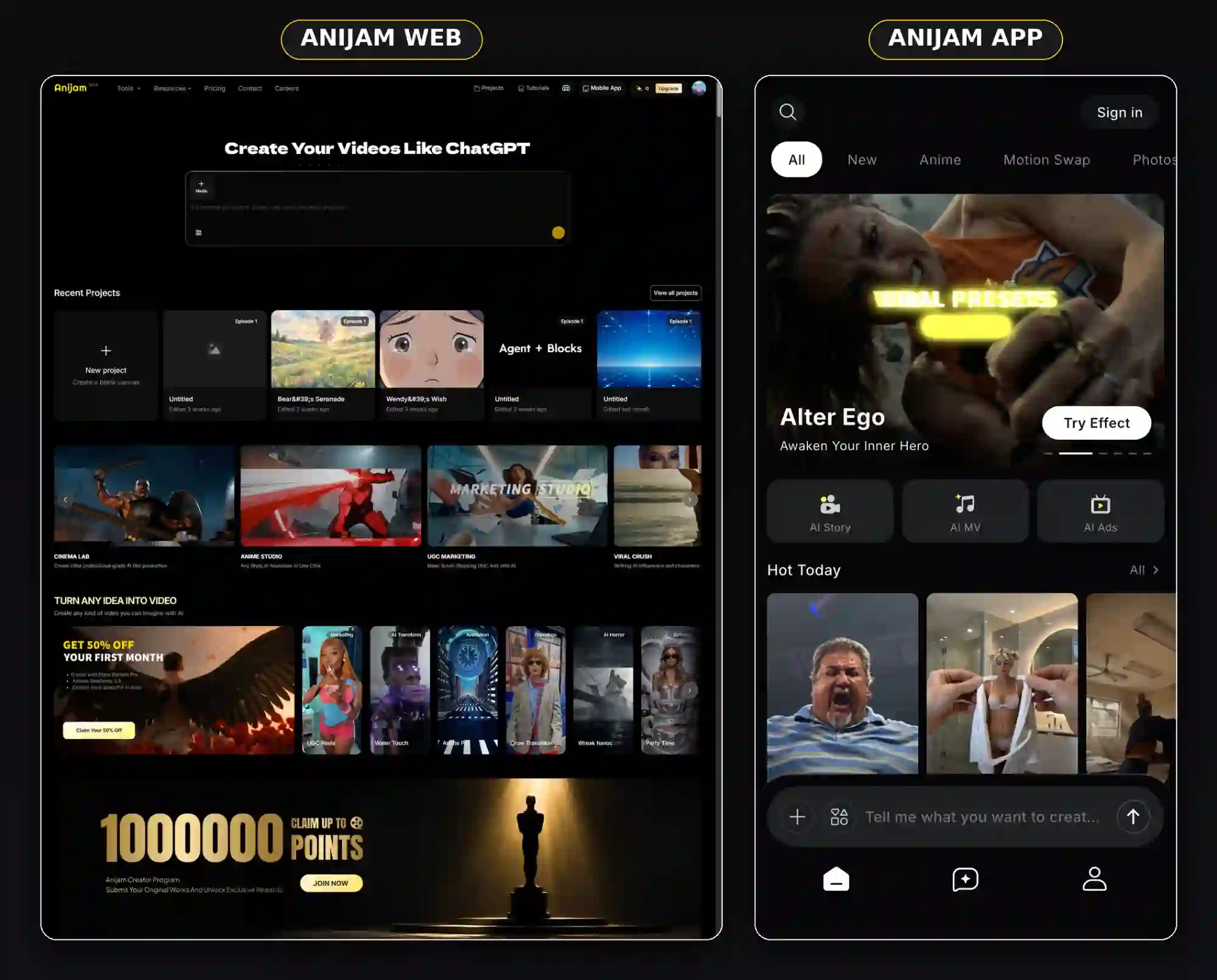
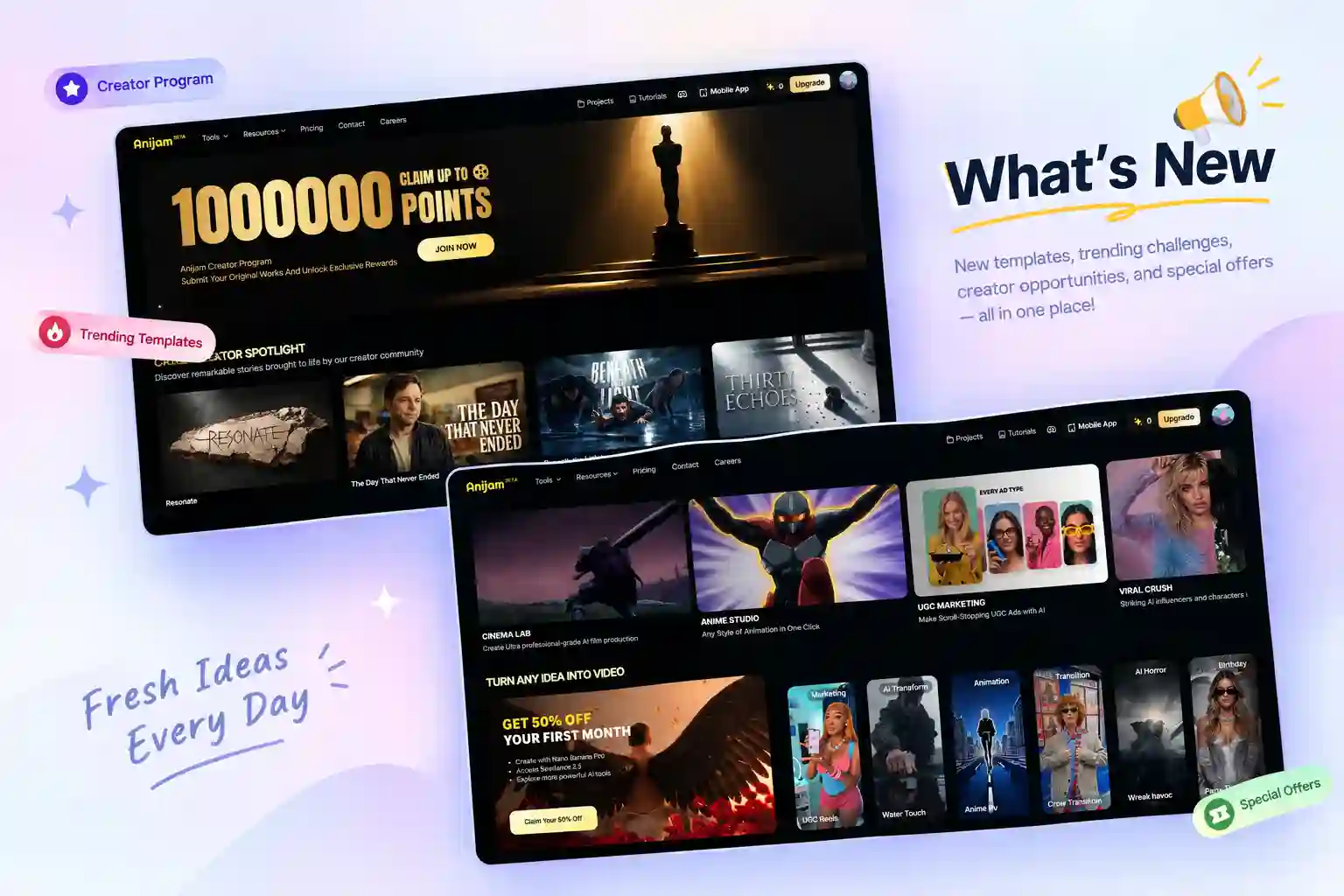
Anijam is continuously updated with new creative inspiration, trending templates, challenges, creator opportunities, and special offers. The Anijam AI homepage regularly features fresh content to help you discover new ideas, try different creative directions, and take advantage of current opportunities.
For example, you may find Anijam Creator Program updates, current creative challenges, and limited-time discounts such as 50% off. Check the Anijam homepage regularly for the latest updates, and visit the pricing page for current offers and discounts.
How Anijam’s Workspace Works
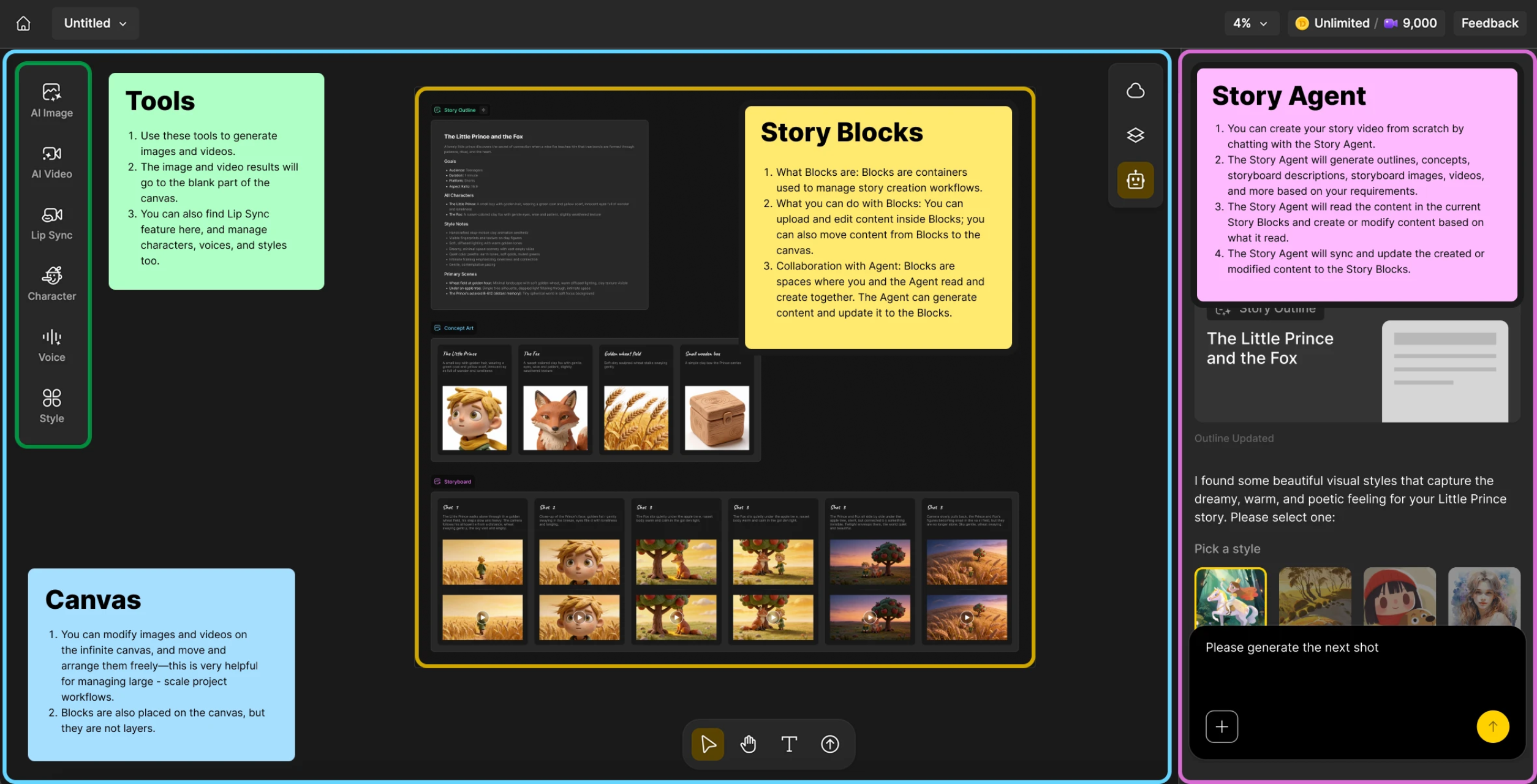
The building blocks you’ll actually work with:
| Concept | What It Does |
|---|---|
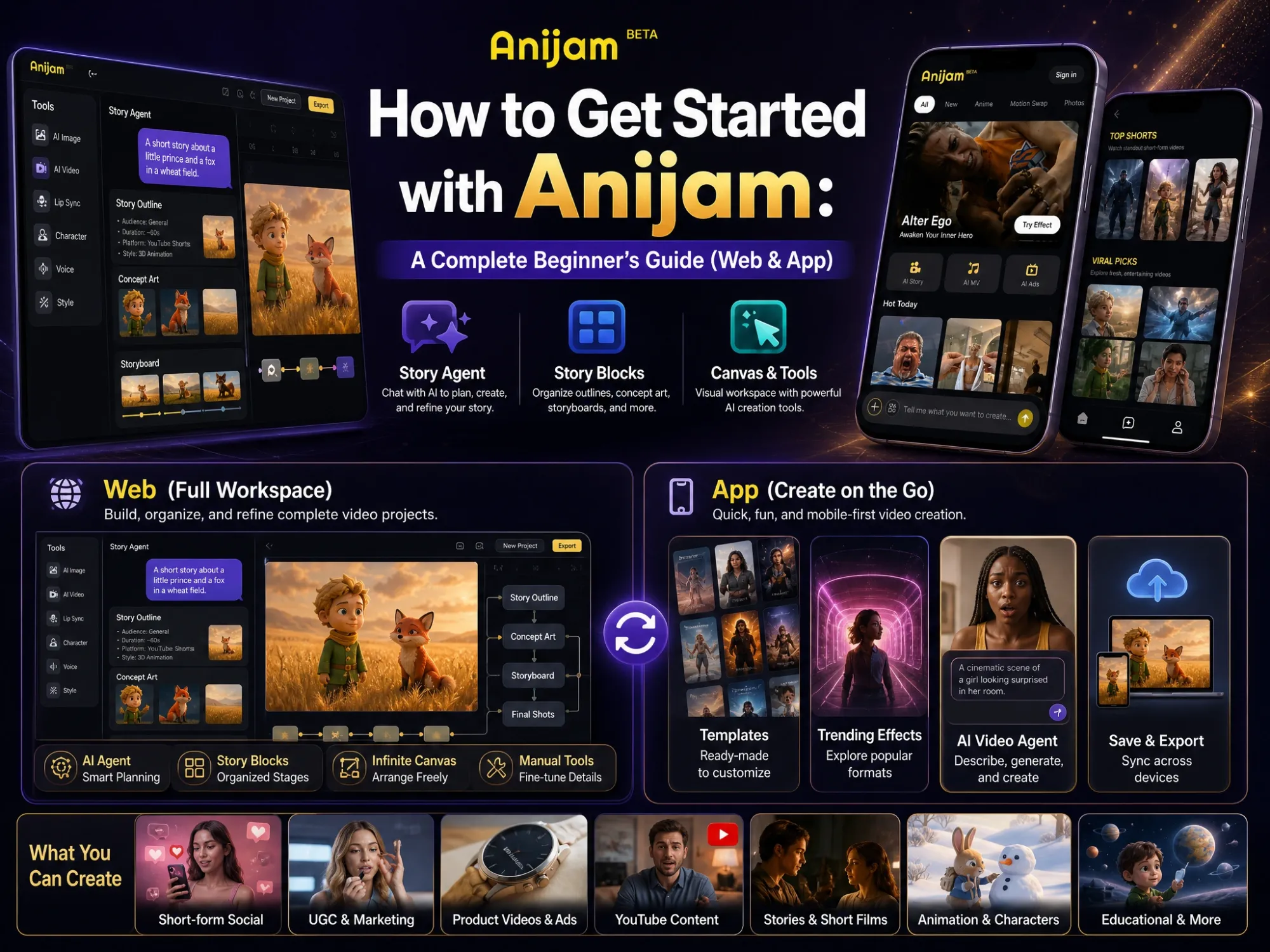
| Story Agent | The Super Agent’s chat interface inside a project - it writes outlines, generates concept art and storyboards, and updates your project as you talk to it |
| Story Blocks | Containers on the canvas (Story Outline, Concept Art, Storyboard, etc.) that organize everything the Agent creates |
| Canvas | An infinite workspace where you arrange images, videos, and Blocks - useful for managing large, multi-scene projects |
| Tools panel | Manual tools - AI Image, AI Video, Lip Sync, Character, Voice, Style - for when you want to generate or adjust something yourself instead of asking the Agent |
What Can You Create with Anijam?
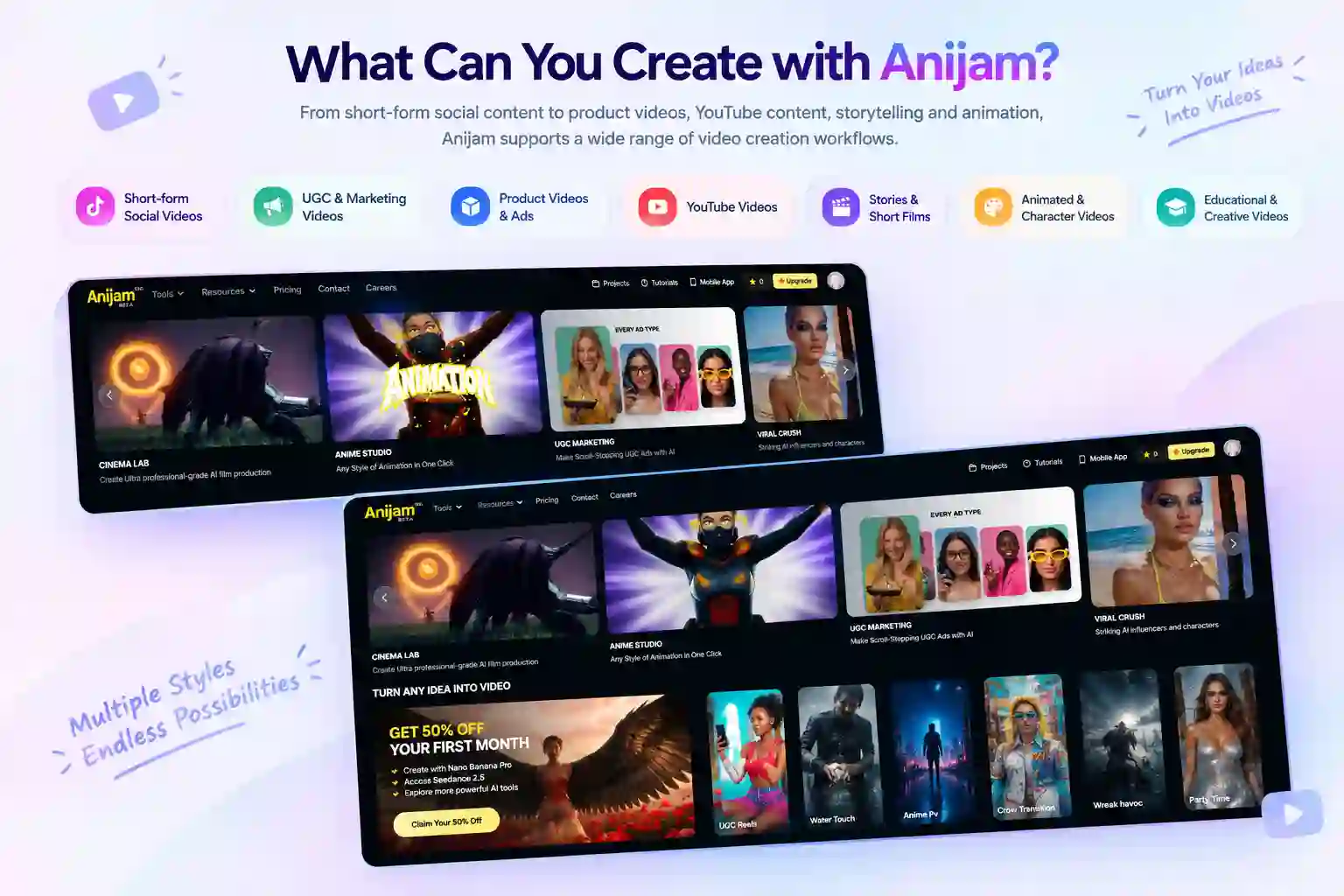
Anijam supports a wide range of video creation workflows, from short-form social content and UGC marketing videos to product videos, YouTube content, storytelling, and animation.
You can create:
- Short-form social videos for TikTok, YouTube,Instagram, and other social platforms
- UGC and marketing videos for creators, brands, and campaigns
- Product videos and ads to showcase products and ideas
- YouTube videos for storytelling, education, and entertainment
- Stories and short films with scenes, characters, and dialogue
- Animated and character-driven videos in different visual styles
- Educational and other creative videos for different audiences and use cases
You can also choose the visual direction that fits your project, from realistic and UGC-style videos to 3D, cartoon, and other video styles.
Getting Started on Anijam Web
The web version gives you the most complete workspace for building and refining larger video projects.
Step 1: Sign Up and Start Creating with an Idea, Prompt, or Template
Open Anijam and sign up or log in to get started.
Note:New users can get free credits by signing up or logging in, with additional credits available through daily check-ins.
Once you’re in, choose how you want to begin:
- Go to the workspace to create your own video with Anijam’s AI Agent.
- Choose a template from the homepage to start with a ready-made creative idea and customize it to fit your needs.
After choosing your starting point, you can continue building and refining your video in the workspace.
Step 2: Open a New Project on the Canvas
Once you’ve picked a starting point - your own prompt, a category, or a template - click New Project under Recent Projects (or select a template directly) to open the canvas. This is where the actual production work happens, so it’s the screen you’ll spend most of your time in.
Step 3: Learn the Three Panels of the Canvas
The canvas is split into three working areas, and understanding them up front will save you a lot of confused clicking later:
- Left panel - Tools. Manual generation tools: AI Image, AI Video, Lip Sync, Character, Voice, and Style. Anything you generate here lands on the blank part of the canvas, not inside a Block.
- Center - Canvas + Story Blocks. Your infinite workspace. Story Blocks (Story Outline, Concept Art, Storyboard) sit here and organize content by stage. You can freely move images and videos around, but Blocks themselves aren’t layers - they’re containers you and the Agent both read from and write to.
- Right panel - Story Agent. A chat interface. This is where you actually direct the AI - describe your story, ask it to generate the next shot, or tell it to pick a different style.
Step 4: Chat with the Story Agent
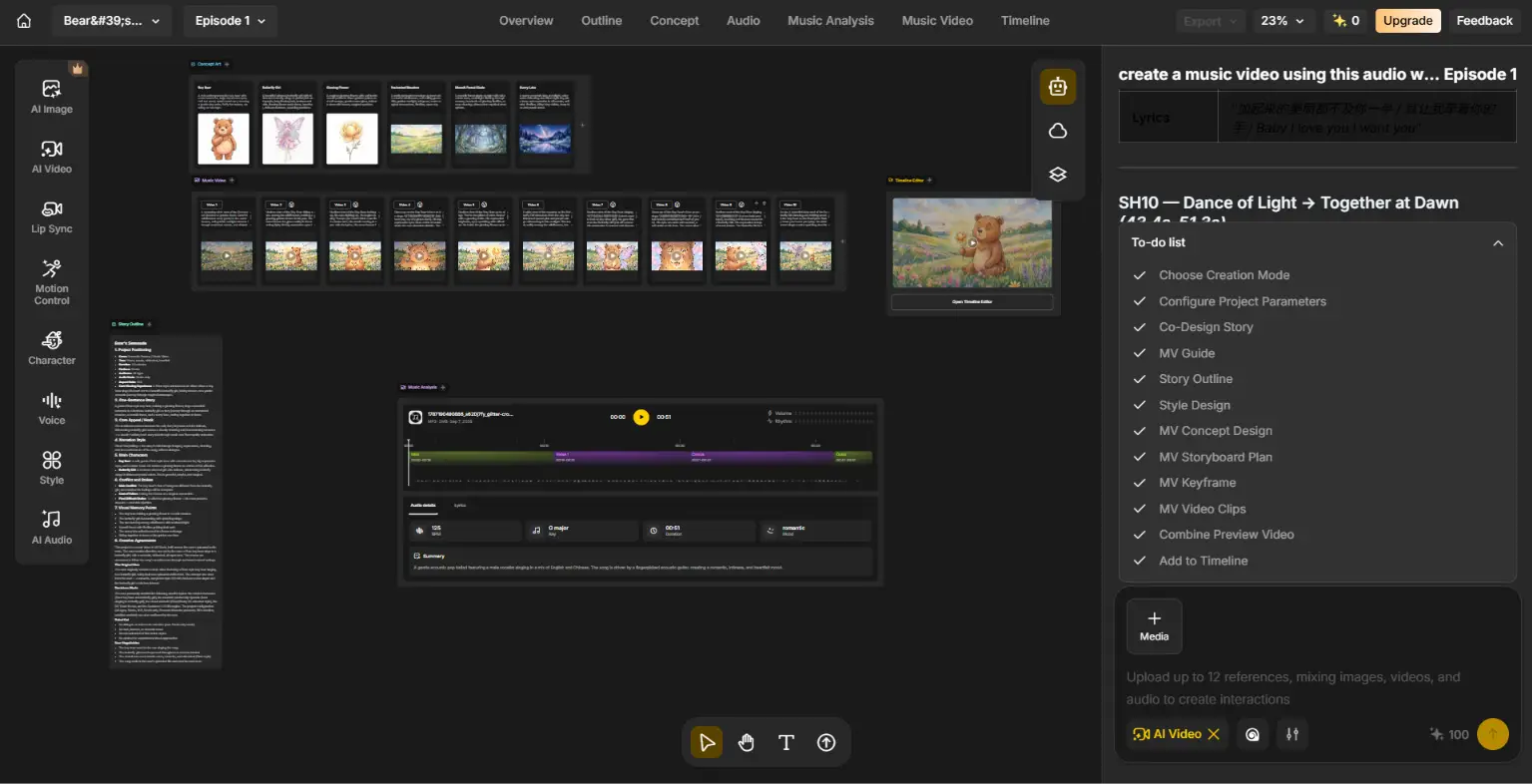
Instead of manually building every asset, tell the Story Agent what you’re making - for example, “a short story about a little prince and a fox in a wheat field.” From there, the Agent:
- Generates a Story Outline (audience, duration, platform, aspect ratio, characters, style notes, primary scenes).
- Produces Concept Art for each character and key object so you can approve the look before anything moves.
- Builds a Storyboard - individual shots, each with a description and a generated preview.
- Offers you a style choice (several visual style thumbnails to pick from) before generating full shots.
Everything the Agent creates gets written into the matching Story Block automatically, so your outline, concept art, and storyboard stay in sync as the conversation continues.
Step 5: Review, Edit, and Move Content Between Blocks and Canvas
You’re not locked into what the Agent produces. You can:
- Edit text directly inside a Block (rewrite a scene description, adjust the outline).
- Upload your own reference images into a Block.
- Drag content out of a Block onto the open canvas to compare shots side by side or rearrange your sequence.
This is also where the Tools panel comes back in - if you want to manually swap out one character portrait or generate an alternate version of a single shot, use AI Image or AI Video directly instead of going through the Agent.
Step 6: Add Voice and Lip Sync
Once your shots exist, use the Voice tool to generate a voiceover, or upload your own audio. Then use Lip Sync to match character mouths to the dialogue automatically - no manual keyframing required.
Step 7: Fine-Tune and Export
Use the canvas to reorder scenes and make final adjustments, then export your project. Everything you’ve built stays saved under Recent Projects on the homepage, so you can return and keep iterating later.
Getting Started on the Anijam App
The Anijam mobile app is designed for a faster, more lightweight creation experience. It’s particularly useful when you want to create from your phone, experiment with templates and effects, or turn an idea into a video without opening a full desktop workspace.
Note: Your projects and creative progress are synced across Web and the Anijam app, so you can switch between devices and continue creating anytime.
Step 1: Download the Anijam App
Create on the go with the Anijam mobile app. Download the app for your device and start creating wherever inspiration strikes.
- Android: Download the Anijam app from Google Play Android download link: https://play.google.com/store/apps/details?id=com.seekoohk.anijamApp&hl=en_US
- iPhone: Download the Anijam app from the App Store iPhone Donwload link:https://apps.apple.com/us/app/anijam-ai-video-maker/id6762319708
Step 2: Choose a Video Template or Chat with Agent
Open the Anijam app and browse the available creative starting points on the home screen.
You can explore featured formats and examples for inspiration, or go directly to the prompt box if you already know what you want to create.
If you’re not sure where to start, templates and featured examples can give you a ready-made direction. Choose one that matches the type of video you want to make and customize it with your own idea or assets.
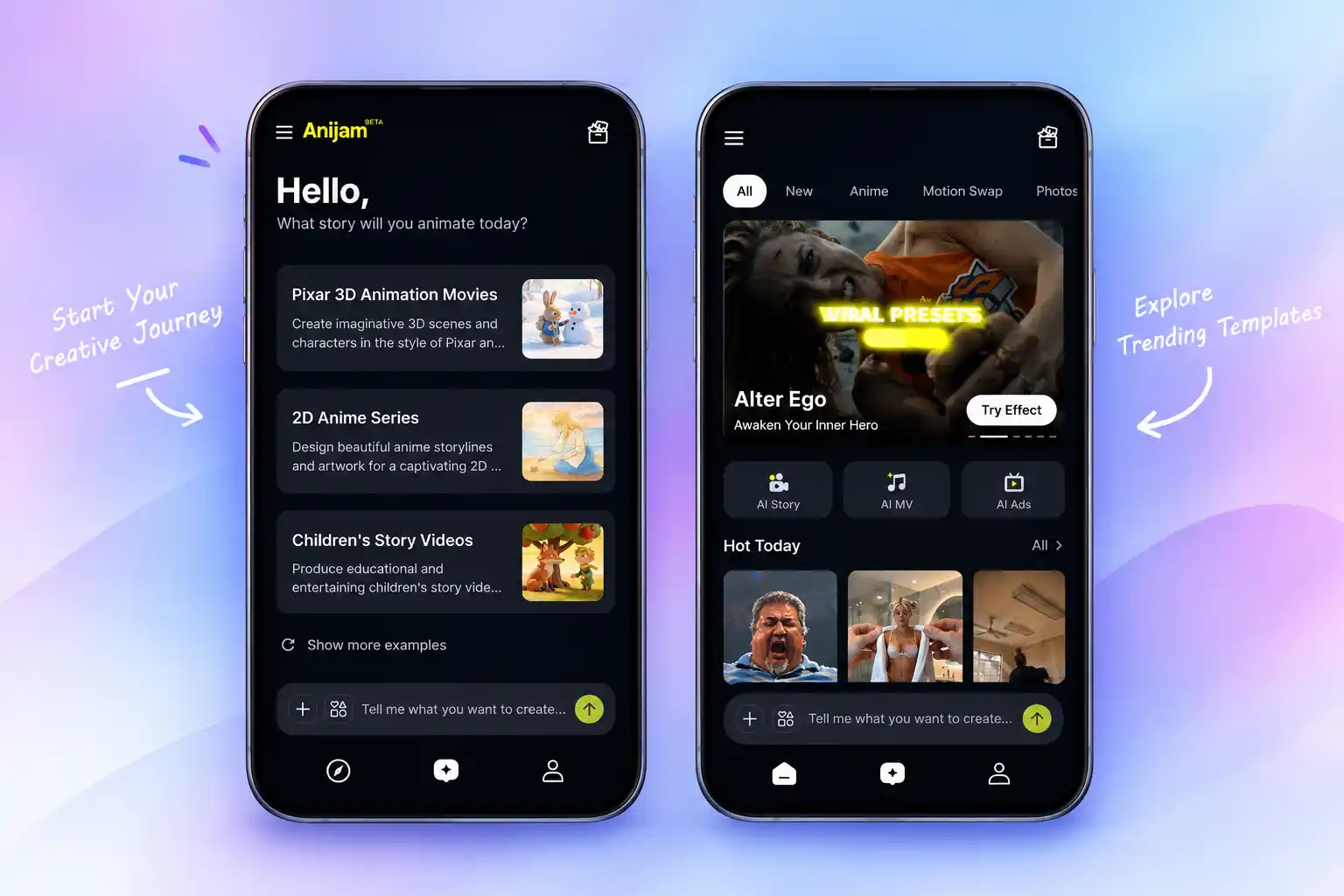
Step 3: Explore Trending Effects and Trending Content
The app also makes it easy to discover ready-to-use creative formats.
Browse featured effects, AI video formats, and trending creations to find ideas you can adapt for your own content.
This is especially useful when you want to create a quick social video or experiment with a popular format without planning an entire project from scratch.
Step 4: Chat with Anijam AI Video Agent
When you’re ready to create, describe what you want in the prompt bar. You can also add supported media when you already have assets to work with.
Submit your prompt and let Anijam generate the video based on your instructions.
The mobile workflow keeps the interaction simple, making it easy to go from an idea to a first result in just a few steps.
Step 5: Sign In to Save and Export
You can browse creative examples and explore available content without immediately starting a project.
When you want to generate, save, and export your own videos, sign in to your Anijam account.
Your projects can also stay connected across platforms, allowing you to start creating on mobile and continue working on the web when you need a larger workspace.
Web vs. App: Which Should You Start With?
Both versions let you create videos with Anijam, but they are designed for different workflows.
| Anijam Web | Anijam App |
|---|---|
| Best for larger or more structured projects | Best for quick, mobile-first creation |
| Full canvas workspace | Simplified creation workflow |
| AI Agent + canvas + individual tools + Inspiration Templates | Prompt-driven creation + templates and effects |
| More control over scenes and project structure | Faster access to ready-made formats |
| Better for multi-scene stories and ongoing projects | Better for quick social videos and creative experiments |
Start with the web version if you want to build a multi-scene story, work with multiple characters, or have more control over the structure and individual elements of your project.
Start with the mobile app if you want to create something quickly, experiment with templates or trending effects, or work primarily from your phone.
You can also use both. Start an idea on mobile and move to the web when you want a larger canvas and more control, or use the app to create quick content while keeping larger projects on the web.
Tips for Your First Anijam Project
Start Simple
For your first project, don’t try to create a full-length film.
A short video with a clear idea and a few scenes is a better way to learn how the Agent, generation tools, and editing workflow work together.
Give the Agent a Clear Direction
You don’t need to write a perfect prompt, but more context can help.
Consider including the topic, target audience, video format, approximate length, characters, setting, and visual style when those details matter to your project.
Use Templates When You’re Stuck
You don’t always need to start with a blank page.
If you’re short on ideas, exploring templates can help you discover formats and creative directions you may not have considered. Once you find a template you like, adapt it rather than recreating the entire workflow yourself.
Review Before You Generate More
When working on a story or character-driven video, check the early results before building too many additional scenes.
It’s much easier to change the direction of a project early than to revise a large number of scenes later.
Let the Agent Handle the Workflow, Then Take Control When Needed
You don’t have to choose between full automation and manual creation.
Use the Agent for planning, structure, and larger changes, then use individual tools when you want to refine a particular image, video, character, voice, or other element.
Keep Your Visual Direction Consistent
If your project depends on recurring characters or a specific visual style, establish that direction early and keep it consistent throughout the project.
This is especially important for storytelling, series content, and character-driven videos.
Conclusion
Getting started with Anijam AI is simple. Sign up or log in, choose how you want to create, and start turning your ideas into videos. You can work with Anijam’s AI Agent in the workspace, explore templates for inspiration, or switch between Web and the mobile app as your projects progress.
Whether you already have a clear idea or are looking for a creative starting point, Anijam gives you flexible ways to begin and tools to take your video from an initial concept to a finished creation.
Ready to create? Start with Anijam today.
Frequently Asked Questions
Is Anijam free to use?
Yes. You can sign up or log in to Anijam to receive free credits through daily login rewards, so you can try Anijam and explore its video creation features for free.
Do I need an account to try Anijam?
You can browse templates and trending effects without signing in, but generating and saving your own videos requires an account on both Web and the app.
Can I edit the video after AI generation?
Yes. Anijam is designed for an iterative workflow. You can ask the Agent to make changes or use individual tools to modify specific parts of your project.
Can I use Anijam on both web and mobile?
Yes. Anijam is available on the web and as a mobile app. You can choose the experience that best fits your workflow and move between platforms for different stages of creation.Your projects are synced across both platforms.
Do I need video-making experience to use Anijam?
No. You can start by describing what you want to create in natural language, and Anijam’s AI Agent can help turn your idea into a structured video project.
Templates are another easy way to get started if you don’t want to build a project from scratch.
by Wendy
Wendy is a passionate writer and AI animation enthusiast at Anijam, exploring creative ways to bring stories to life with AI-powered animation tools. She shares practical tips, prompt ideas, and insights to help creators turn their imagination into stunning animated content.