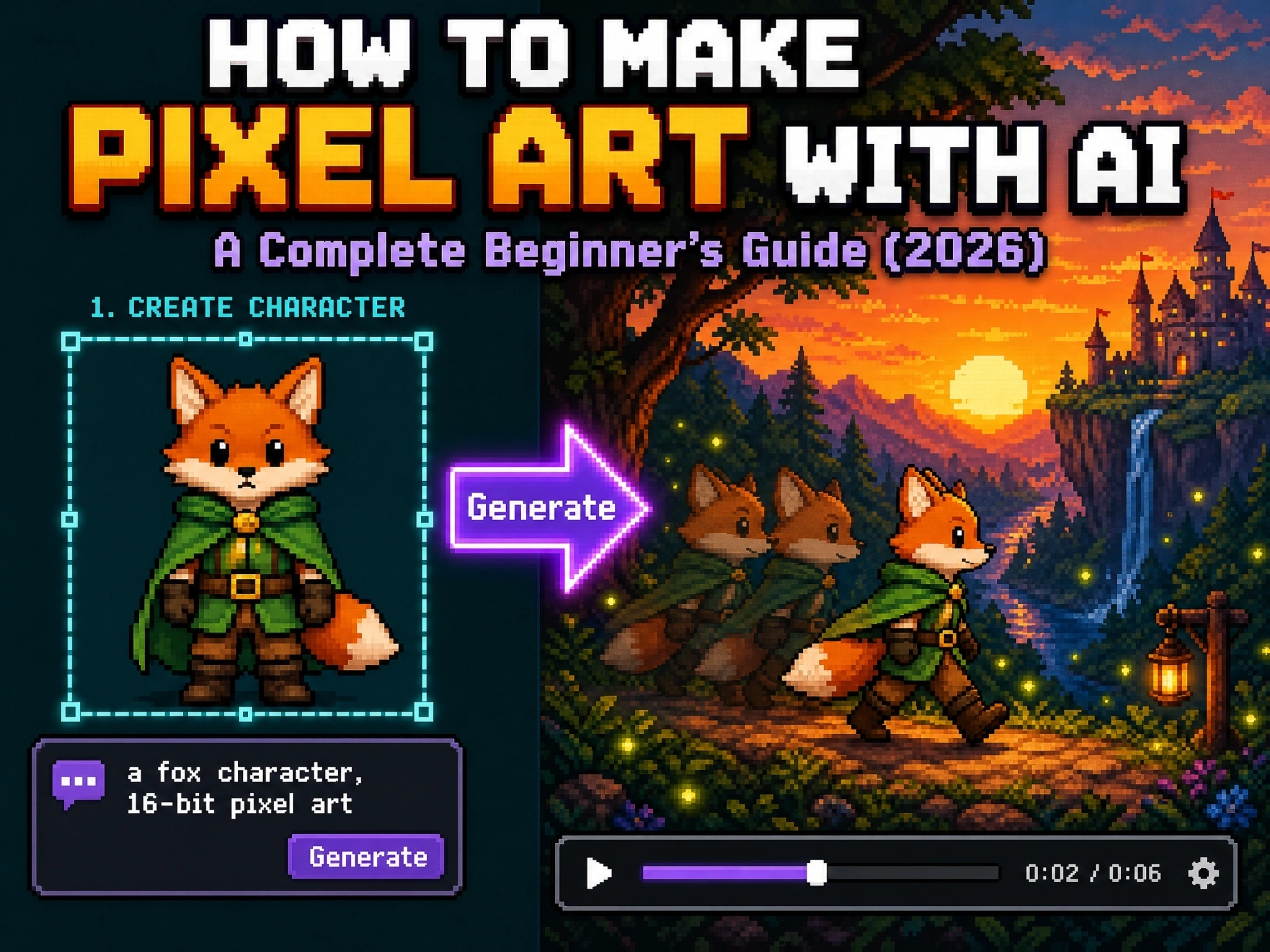
How to Make Pixel Art With AI: A Complete Beginner’s Guide (2026)
Pixel art is everywhere again.
It’s on the cover of new indie games at every showcase. It’s showing up in brand logos, LED displays, and merch drops. It’s in the retro filters flooding TikTok and Instagram feeds.
None of it requires the years of manual practice pixel art used to demand. A single prompt, or even an existing photo, is often enough to get a usable sprite in seconds.
This guide walks through what pixel art actually is, why it’s having such a big moment in 2026, and exactly how to make your own with AI, from your first prompt to a finished, animated character.
What Pixel Art Is and How AI Is Changing It
Pixel art looks simple, but it follows a strict set of rules that most people don’t notice until they try to break them.
Understanding those rules first is what separates a sprite that looks intentional from one that just looks like a small, blurry picture.
The Core Rules of Real Pixel Art - Grid, Palette, Edges
Three things define authentic pixel art:
- A fixed grid. Every pixel sits in a specific, deliberate position. Nothing is soft or blurred.
- A limited color palette. Classic sprites use anywhere from 4 to 16 colors, rarely more.
- Clean, hard edges. Shading comes from hand-placed highlight and shadow pixels, not gradients.
Why Pixel Art Is Having a Renaissance in 2026
The pixel art comeback isn’t just nostalgia running on a loop. A few concrete forces are driving it.
For indie studios, pixel art remains one of the most practical art styles available. Building a detailed 3D character requires modeling, rigging, texturing, and animation across a full pipeline; a pixel art character can often be produced by a single artist with much simpler tools. That efficiency lets small teams spend more time on gameplay and story instead of graphics production.
There’s also a reaction against how much content now looks AI-generated by default. Because every pixel in a real pixel art piece is placed deliberately, the style reads as visibly handmade and intentional, which resonates with audiences fatigued by content that feels mass-produced.
Put together, the pattern is less “retro throwback” and more a deliberate choice: indie developers pick pixel art for practical production reasons, and audiences keep choosing it because it still looks intentional in a feed full of things that don’t.
How to Make Pixel Art With Anijam AI
Anijam is an all-in-one AI video creation platform, built so anyone can go from an idea to a finished video without any prior design or animation skill. It works the same way across web and app, so your projects stay in sync whether you start on your laptop and finish on your phone, or the other way around.
However you start, a rough idea, a full script, or a reference image, Anijam’s pixel art tool turns it into pixel art you can generate, edit, and export in one place. The workflow below walks through exactly how that process works.
Step 1 - Start With Your Idea or Script
Open Anijam and type out your concept: a single line describing a scene or character, or a full script if you already have dialogue written. If you don’t have a script yet, Anijam can generate one for you from a short prompt, so you’re not starting from a blank page.
Step 2 - Design Your Character
Describe your character’s appearance in text, or upload a reference image if you already have one in mind. Anijam designs the character in pixel art style, and its character consistency engine locks that design in so the same face, proportions, and outfit carry through every scene generated afterward.
A reliable structure covers four elements:
- Subject - be specific about the character or object
- Style - “8-bit,” “16-bit,” or a specific console era
- Palette - a color count or reference, like “8-color palette” or “Game Boy colors”
- Perspective - “front-facing,” “side view,” or “top-down”
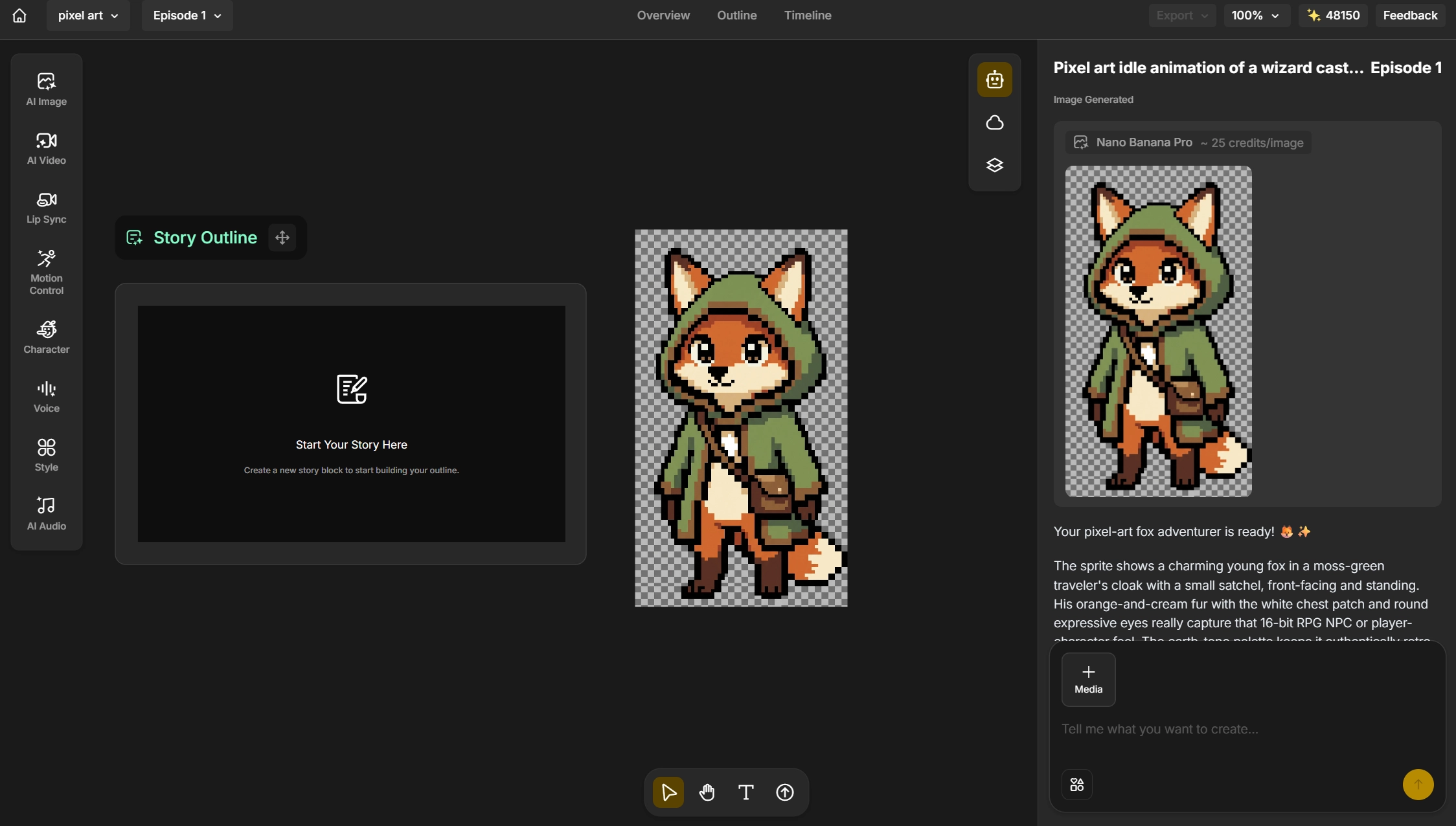
Step 3 - Set Your Style and Canvas Size, Then Generate
Choose your pixel art style, 8-bit for chunky, high-contrast sprites or 16-bit for more detail and shading, along with your canvas size. Once your script, character, and style are locked in, hit generate and let Anijam render the scene with motion applied automatically.
Canvas size is one of the biggest decisions in pixel art, since it directly controls how much detail is possible and how long a piece takes to finish.
| Canvas Size | Best For | Beginner-Friendly? |
|---|---|---|
| 8x8 | Icons, emojis, UI elements | Good for practice |
| 16x16 | Game characters, items | Most recommended start |
| 32x32 | Detailed characters, portraits | Once comfortable with basics |
| 64x64 | Backgrounds, full scenes | Advanced, time-intensive |
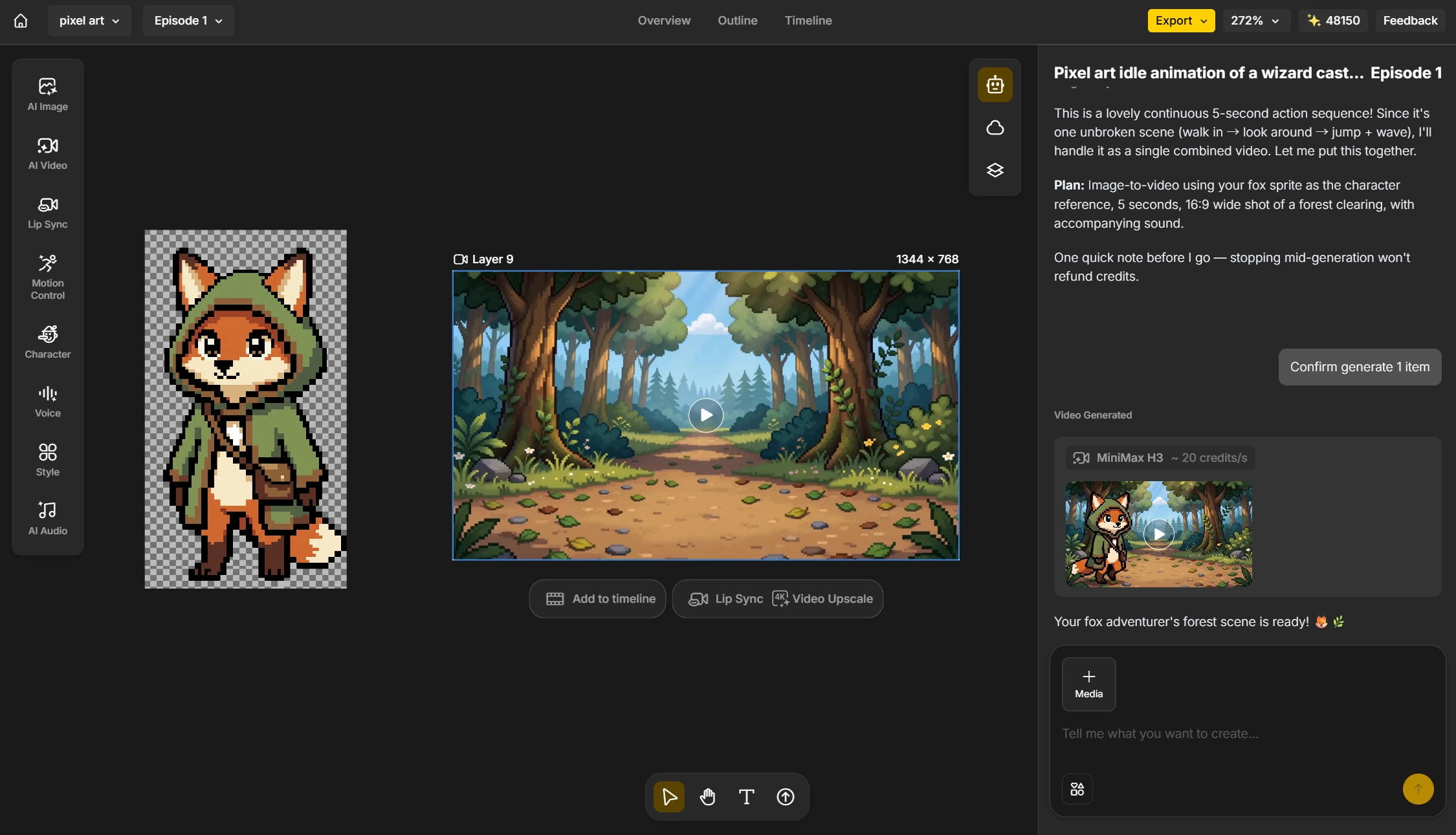
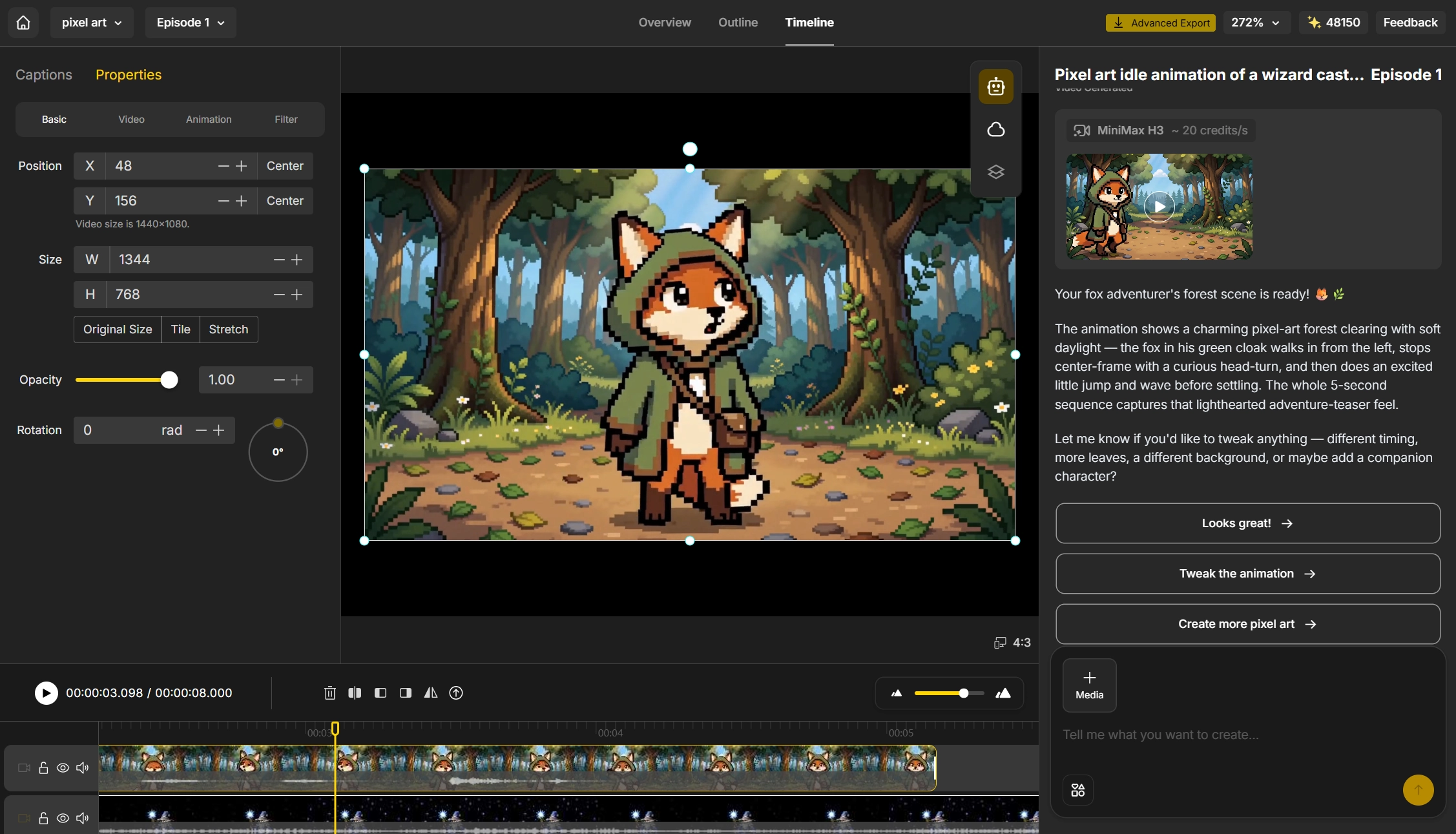
Step 4 - Edit, Sync, and Export
Use the built-in editor to fine-tune pacing and trim any rough transitions. If your character talks, add lip sync so mouth movement matches the dialogue. When you’re happy with the result, export your finished pixel art video, ready to post or share.
Common Animation Types Worth Knowing
Not every pixel art project needs the same kind of motion. Knowing the standard categories makes it easier to describe exactly what you want.
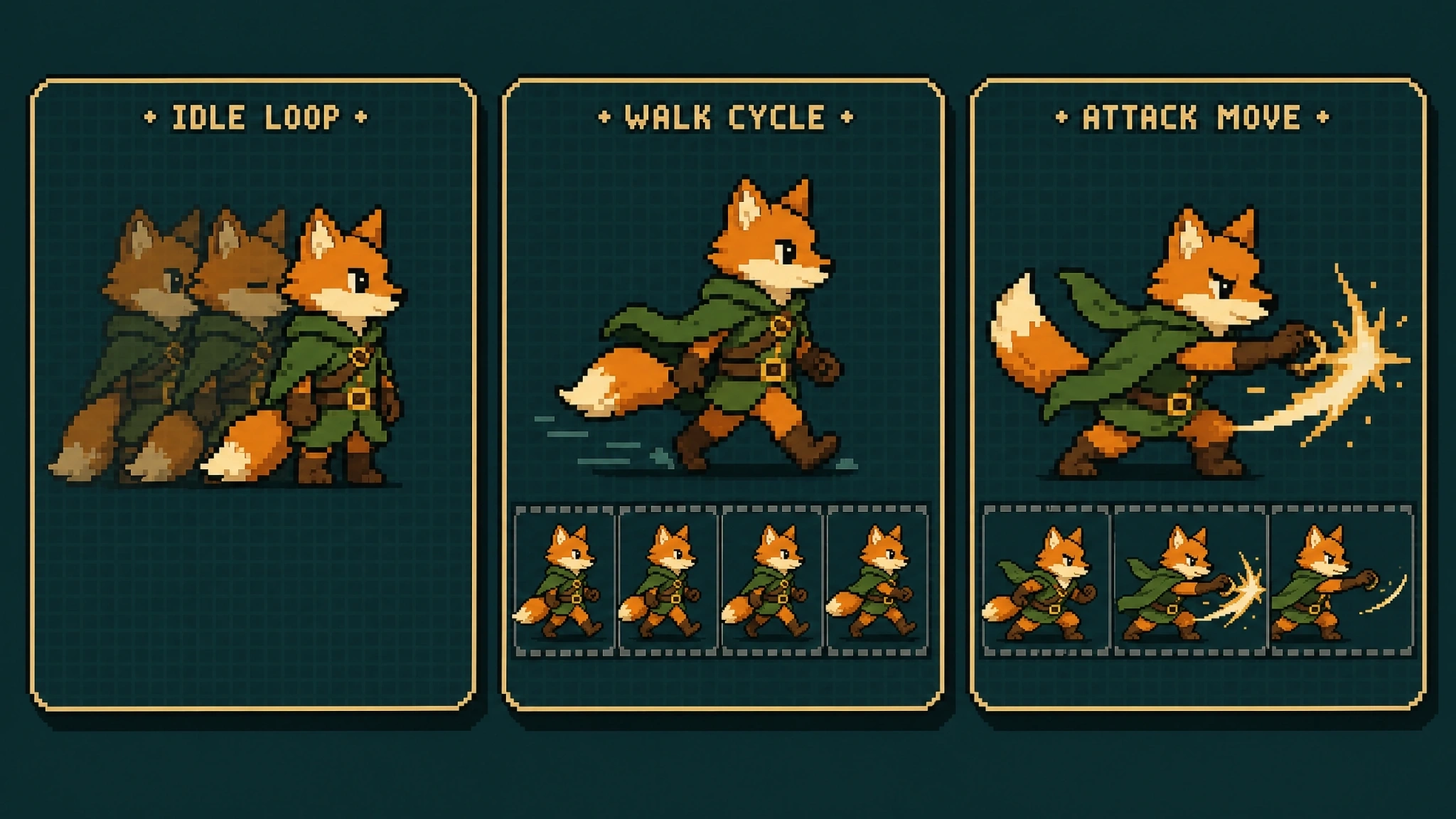
Idle Loops and Breathing Animations
A short, looping animation used when a character is standing still, like a subtle breathing motion, a blinking eye, or a swaying tail. Idle loops are usually the first animation worth making, since they make even a simple sprite feel alive on a title screen or profile.
Walk and Run Cycles
The classic repeating leg-and-arm motion used whenever a character moves across a scene. Walk cycles are more demanding than idle loops because they need to loop seamlessly, with no visible jump between the last frame and the first.
Attack, Jump, and Custom Movements
Action-specific animations, like a sword swing, a jump arc, or a custom gesture described in plain language. These tend to be shorter and punchier than walk cycles, built to read clearly in a second or two.
Common Mistakes When Making Pixel Art With AI (and How to Fix Them)
A few issues come up again and again, especially for beginners or when working with more complex characters and scenes. Here’s what to watch for and how to fix each one.
Palette Too Large or Inconsistent
The problem: Dozens of near-identical colors instead of a small, deliberate set, which makes a sprite look muddy rather than retro.
The fix: Reduce the palette to roughly 4 to 16 colors depending on canvas size, and lock every future generation to that same palette so multiple assets feel consistent.
Off-Grid or Misaligned Pixels
The problem: Pixels of inconsistent size scattered through the image, sometimes called “mixels,” which break the illusion of a clean grid.
The fix: Snap the entire image to a fixed pixel size using a grid-alignment tool before doing any manual touch-ups.
Characters Losing Consistency Across Frames
The problem: A character’s proportions, colors, or details shift slightly from one animation frame to the next, especially noticeable in walk cycles and multi-scene projects.
The fix: Lock in a single reference design before generating motion, and use a tool with a character consistency feature that carries that exact design across every frame instead of regenerating the character from scratch each time.
Conclusion
AI hasn’t replaced the skills behind good pixel art. It has removed the blank-canvas problem.
Instead of staring at an empty 16x16 grid, you can get a strong first draft in seconds, spend your time on the details that make a sprite feel intentional, and then let it move.
Anijam brings that entire path together in one place, from a first pixel art prompt to a fully animated, export-ready video clip. Try Anijam AI and turn your first sprite into a moving character today.
Frequently Asked Questions
Is Anijam free to use for pixel art? Yes. Signing up gives you free video credits to start generating pixel art right away, no credit card required, and you can earn more each day just by checking in.
Do I need drawing or animation experience to make pixel art with AI? No. You can start from a text prompt or an existing image, and the AI handles the pixel placement and motion. Basic cleanup skills help polish the result, but no prior art background is required.
What canvas size should I start with as a beginner? Most guides recommend starting at 16x16. It’s large enough to read as a character or object, but small enough to finish in one sitting, which matters more early on than cramming in extra detail.
Can I animate pixel art I already made, or only AI-generated sprites? Both. Anijam’s pixel art tools accept an existing image as a starting point, so a sprite you drew by hand or made in another tool can be animated the same way as one generated from a text prompt.
What animation types can I create? Anijam supports the standard categories used in pixel art projects: idle and breathing loops, walk and run cycles, attack sequences, jump animations, and custom movement described in plain language.
by Evan
Evan is an AI content creator and video technology writer at Anijam AI, focused on how generative AI is transforming storytelling and video production. He shares social trends, creative workflows, prompt strategies, and practical insights to help creators turn ideas into engaging videos and visual content.