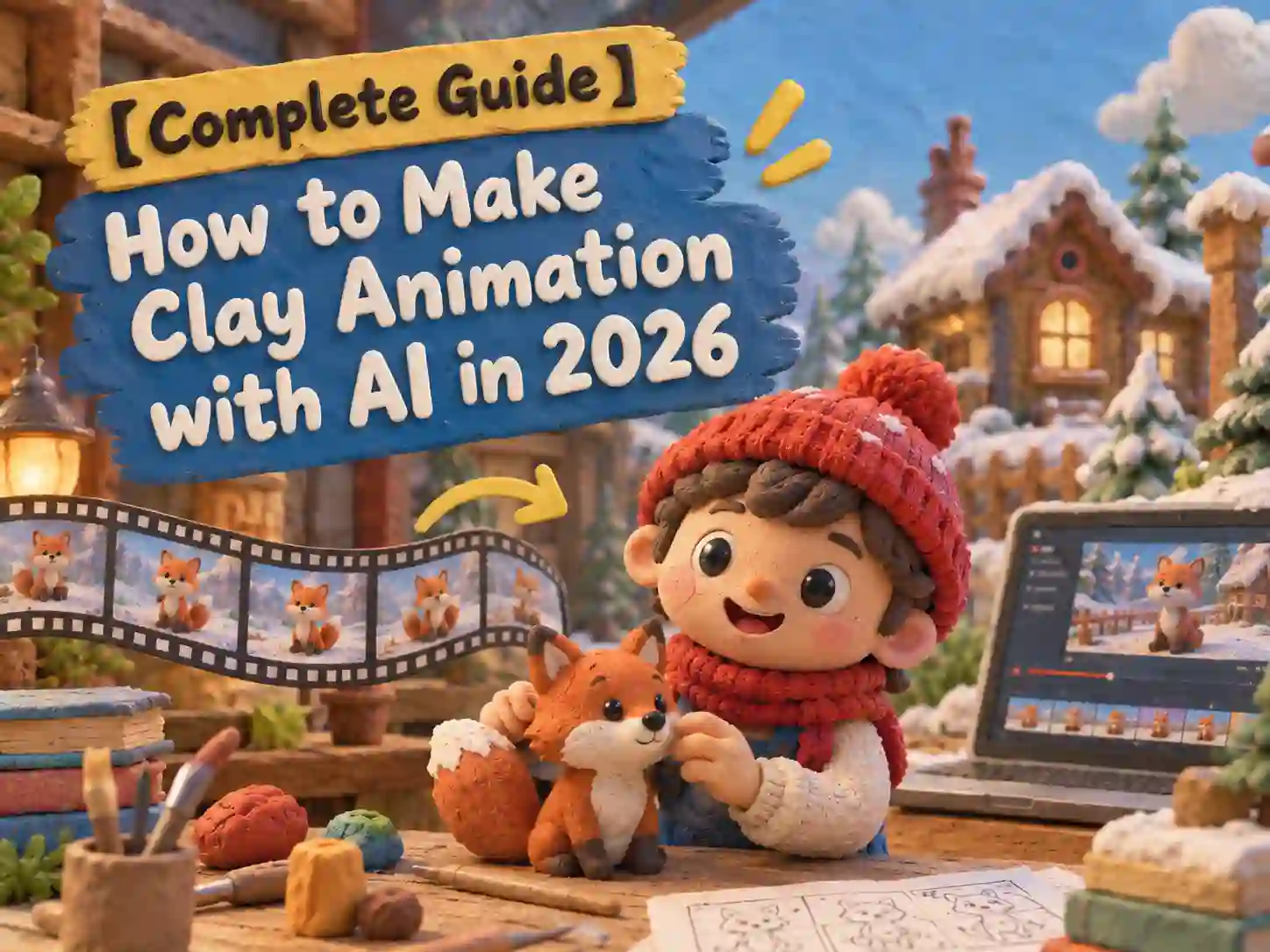
【Complete Guide】How to Make Clay Animation with AI in 2026
Wallace & Gromit make it look effortless. It isn’t. In real claymation, an animator nudges a clay figure a tiny bit, takes a photo, nudges it again, and repeats. A ten-second scene can take well over a hundred separate poses.
That’s why so many people are searching for how to make clay animation with AI. The short answer is good news: you no longer need clay, a camera rig, or a free month. An AI claymation video generator can turn a prompt, a script, or a single photo into a clay-style video in minutes.
In this guide, we’ll cover what clay animation really is, how these generators work behind the scenes, how five popular tools compare, and how to make your own clay animation video with Anijam AI. We’ll finish with a few tips to keep your clay looking handmade instead of plastic.
What Is Clay Animation (Claymation)?
Clay animation, usually called claymation, is a type of stop-motion animation. Characters and props are sculpted from clay or plasticine, photographed one frame at a time, and moved by hand between every shot. Play the photos back at 12 to 24 frames per second and the clay seems to come alive.
You already know the classics: Wallace & Gromit, Shaun the Sheep, Chicken Run. The look is unmistakable. Rounded shapes, soft lighting, tiny fingerprints on every surface, and a slightly jumpy movement that smooth CG animation doesn’t have.
So can AI make this kind of animation? Yes, at least the look and feel of it. AI doesn’t sculpt or photograph anything. It generates clay-style images and motion from your description. Here’s why that’s catching on.
Why AI Claymation Is Popular Right Now
If your feed has started filling up with tiny clay chefs, clay pets, and miniature clay villages, you’re not imagining it. A few things are behind it.
- It feels handmade. After a wave of glossy, hyper-real AI clips, many viewers find a soft, slightly imperfect clay look warmer and more human.
- It suits cozy content. Cooking scenes, pets, kids’ stories, holiday greetings, and brand mascots are all natural fits for clay.
- The barrier is gone. No sculpting, no lighting setup, no frame-by-frame shooting. You describe the scene and the tool does the rest.
- It works well as a series. One memorable clay character can carry a whole run of short videos, which is great for creators building an audience.
Popularity aside, the look itself is the whole point. So what exactly is the AI trying to copy?
How AI Recreates the Clay Look
When you ask for claymation, a good generator aims for a handful of visual signatures:
- Clay texture: thumbprints, soft creases, and matte plasticine surfaces
- Rounded, chunky shapes with big, expressive eyes
- Warm, soft lighting like a small studio set
- Miniature handmade sets: felt grass, paper trees, tiny props
- Slightly choppy stop-motion movement, often around 12 frames per second
- Small imperfections that make it feel handcrafted, like uneven edges
Most of these details come down to material and mood, so naming them clearly in your prompt is what brings the clay style to life.
What You can Create with AI Claymation
That handmade quality is exactly what makes clay animation so versatile. People are already using it for:
- Holiday and occasion videos, like Christmas scenes and birthday greetings
- Stories and social clips, from multi-scene shorts to vertical videos for TikTok, Reels, and YouTube Shorts
- Ads and product videos, including clay mascots and product demos with a handcrafted feel
- Lessons and explainers that need a friendlier, more playful look
How Do AI Claymation Video Generators Work?
Every tool has its own buttons, but most AI claymation video generators follow the same basic path. Knowing it will help you write better prompts and pick the right tool.
- You provide a starting point. Usually it’s one of three: text-to-animation (a prompt), script-to-animation (a full story), or image-to-animation (a photo or character design you want turned into clay). Some tools also accept audio. A rough rule: start with text if you only have an idea, a script if the story is written, and an image if the character already exists.
- The AI reads your description and picks up the style. Words like “plasticine,” “fingerprint texture,” and “stop-motion” tell the model what material and mood you want. Leave them out and results often drift toward a smooth 3D cartoon look.
- It generates the scenes and motion. The AI isn’t photographing real clay. It creates the images and movement directly, and imitates that slightly stepped stop-motion rhythm. That’s why a video that once took weeks can take minutes.
- It tries to keep your character consistent. In a multi-scene video, the same character should keep the same face, colors, and proportions. Tools handle this with character sheets, reference images, or saved descriptions. Without that, a chef’s hat can change shape or an apron can vanish between shots.
- Voice, lip sync, and editing finish the job. You add an AI voiceover or upload your own audio, AI lip sync matches the mouth movements to the words, and a timeline editor lets you trim, reorder, and export.
Not every generator covers all five steps. Some only apply a clay-style filter to a photo or clip you already have. Others handle the whole process, from story to finished video. Knowing which kind you need makes the next section a lot easier.
Popular AI Claymation Video Generators in 2026
There are plenty of options, and they’re built for different jobs. Here’s a fair look at five popular ones, starting with what to check before you pick.
What to Look For in an AI Claymation Generator
- Starting point: text, script, image, or audio. More options mean more flexibility.
- Character consistency: can the same clay character appear across several scenes?
- Voice and lip sync: do you need your characters to talk?
- Editing control: can you adjust a scene after generating, or only regenerate?
- Free access and usage rights: what can you try for free, and can you use the results commercially?
- Length and format: short vertical clips, or longer videos?
Quick Comparison Table
| Tool | Starting point | Character consistency | Voice and lip sync | Free access | Best for |
|---|---|---|---|---|---|
| Anijam AI | Text or script, image, video, audio | Kept across scenes | AI voiceover, AI lip sync (30+ languages) | Generate from text prompts, images, scripts, video or audio | Complete, story-driven clay videos with talking characters |
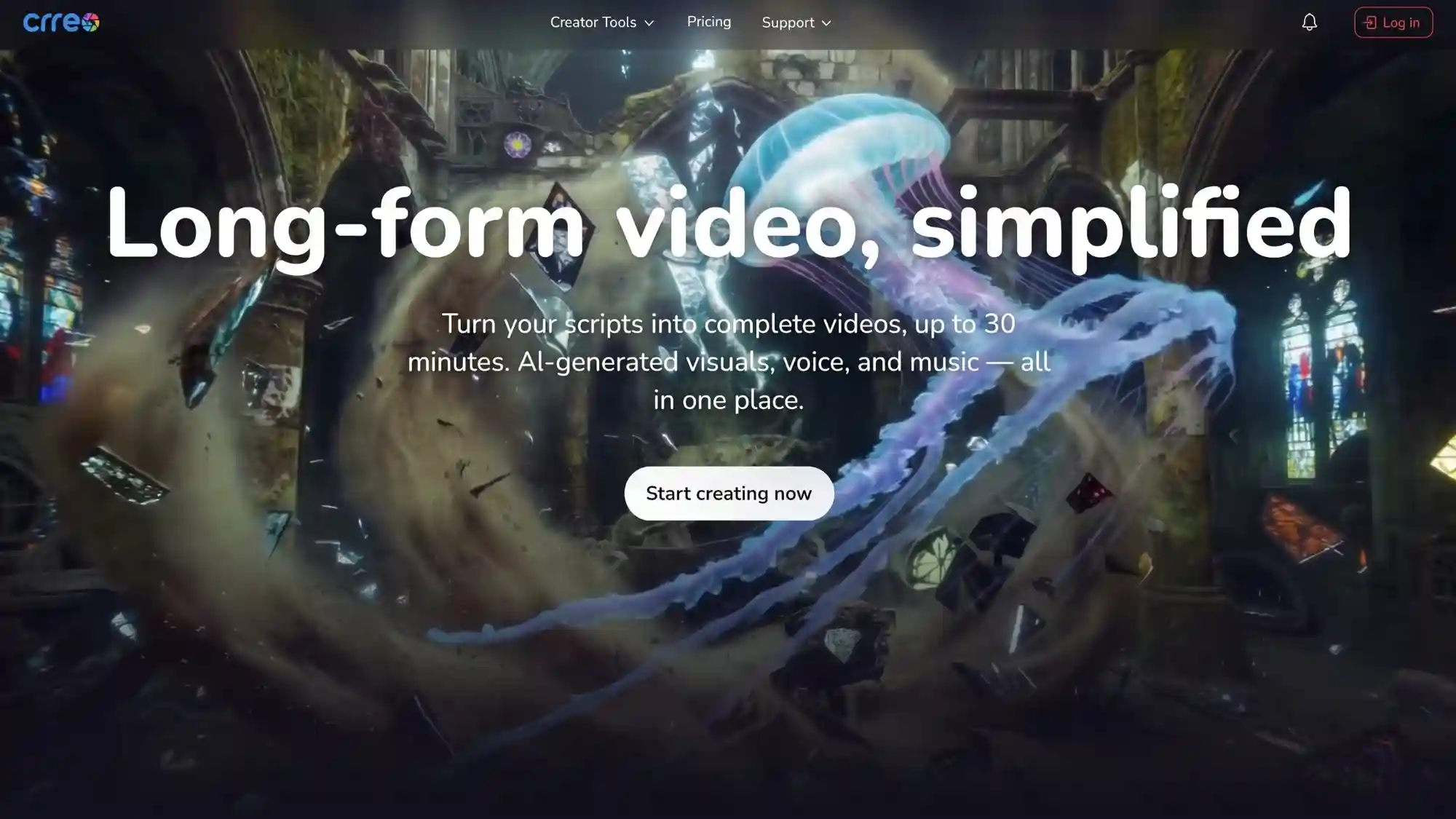
| Crreo AI | Text or script | Maintain across scenes | AI voiceover (200+ AI voices, 80+ languages), limited lip sync | 9 standard voices; Restricted to text-based description only | Long-form, script-driven faceless clay videos (up to 30 minutes) |
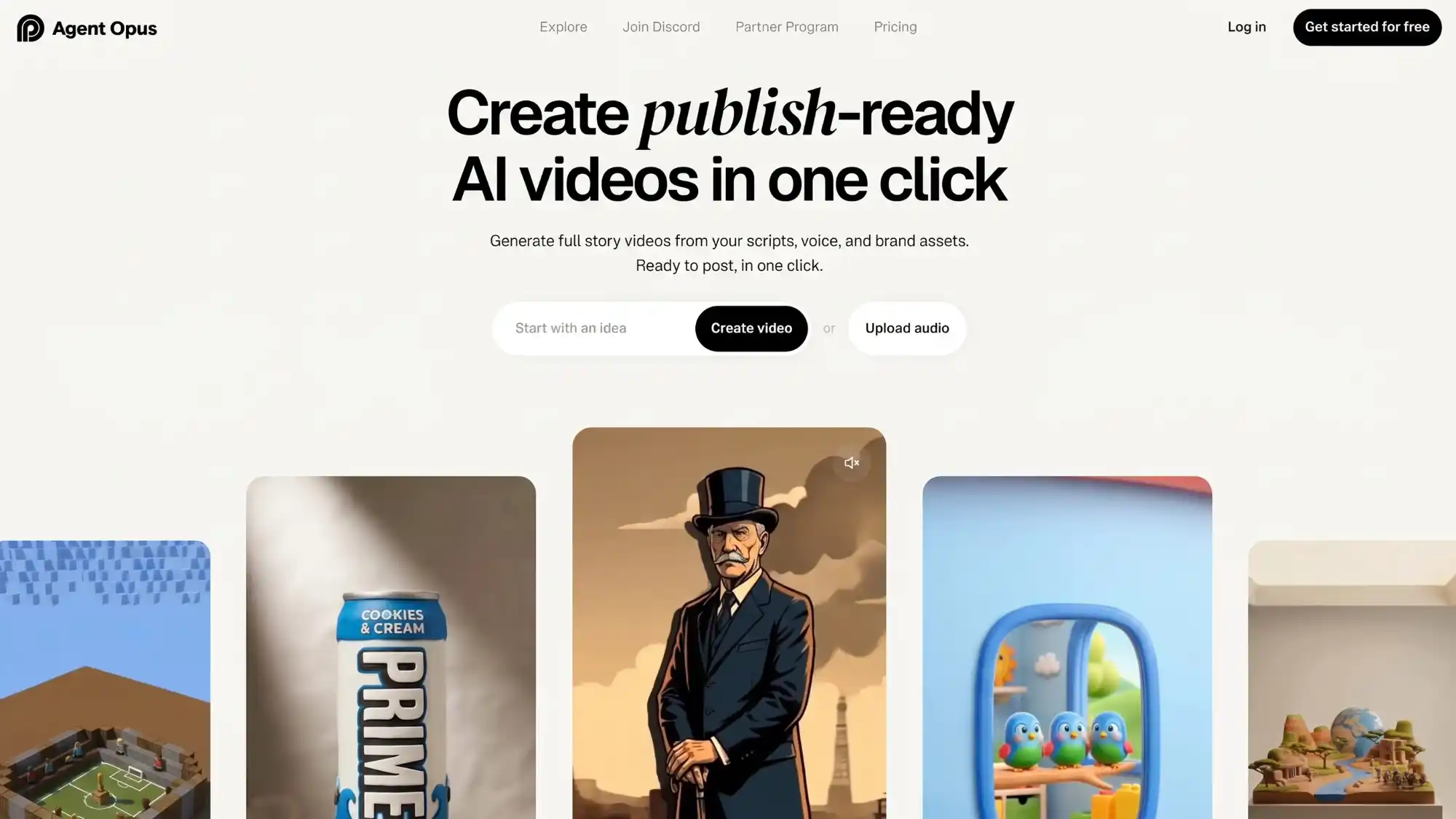
| Agent Opus | Script, song, audio, reference | Support character and visual consistency (not its main focus) | Lip sync; Voice cloning; Multi-language support (up to 119+ languages) (on paid plans); Auto-caption | Full editor access; Preset AI voice library | Fast, production-ready stop-motion style clay videos |
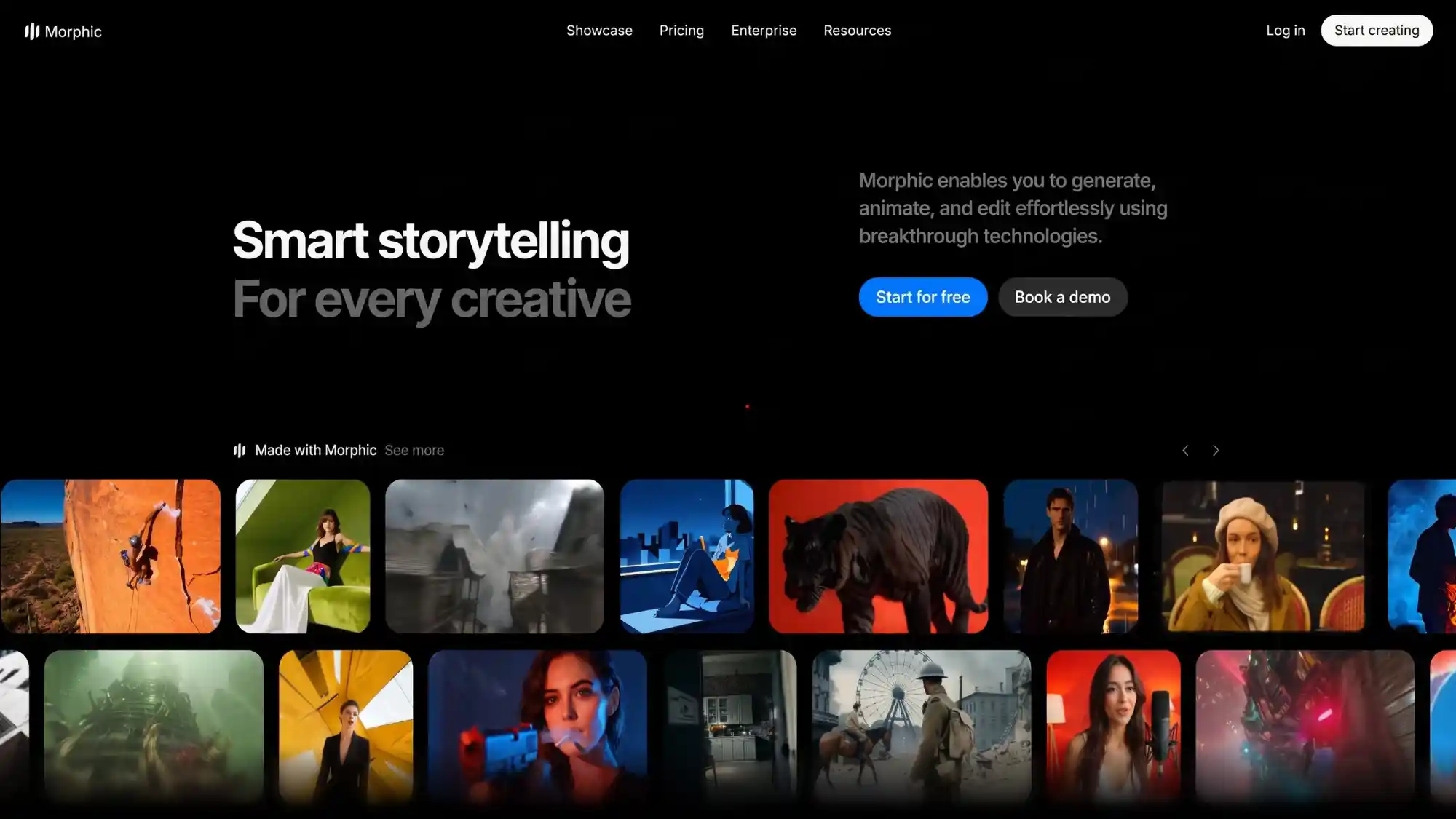
| Morphic | Text prompt, image, video, audio | Maintain character and visual consistency | Lip sync; Built-in AI voiceover; 75+ languages | Limited to a single user; Access to image, video, and audio generation | Quick clay shots and short clips |
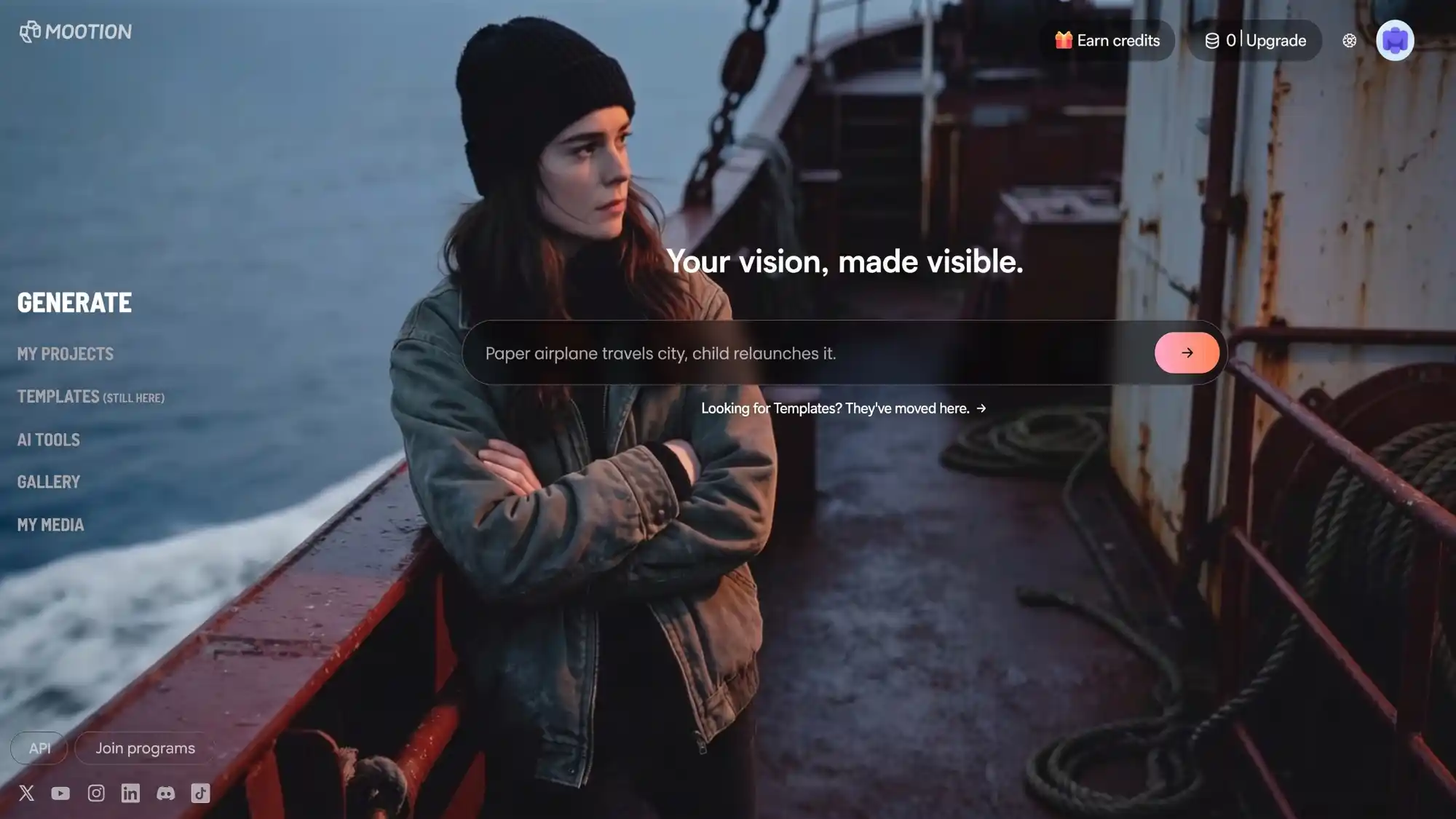
| Mootion | Text prompt, script, audio, video, link | Kept character consistency (not a highlighted strength) | Lip-sync and native audio-visual alignment (not a highlighted strength) | No free plan | Educational claymation for kids and faceless viral shorts |
Which Tool Should You Choose?
There’s no single winner. The right pick depends on what you’re making:
- Choose Anijam AI if you want a complete, story-driven clay video with talking characters. You can start from whatever you already have (text, script, image, video, or audio), and Character consistency and AI lip sync (30+ languages) are core parts of the workflow, so you can build a recurring cast without extra setup.
- Choose Crreo AI if you’re making long, script-driven, faceless clay videos, up to 30 minutes. Character design is a core feature here too, with 200+ voices in 80+ languages, though lip sync is limited on the free tier and stronger visual consistency needs a paid plan.
- Choose Agent Opus if you need fast, production-ready stop-motion style clay videos. Character consistency is marketed but not its main focus, and dialogue with lip sync only comes on the Premium and Ultra tiers, so factor that into your plan choice if your characters need to talk.
- Choose Morphic if you want quick clay shots with strong voice and lip sync built in, in 75+ languages. Character consistency is more of a supporting feature here (its Character Lineup workflow), so it suits single shots more than a long recurring cast.
- Choose Mootion if you’re making educational claymation for kids or faceless viral shorts where neither feature needs to carry the video. Character consistency and lip sync are included, but not the tool’s headline strengths, and there’s no free plan to test them first.
How to Make Clay Animation with Anijam AI (Step-by-Step)
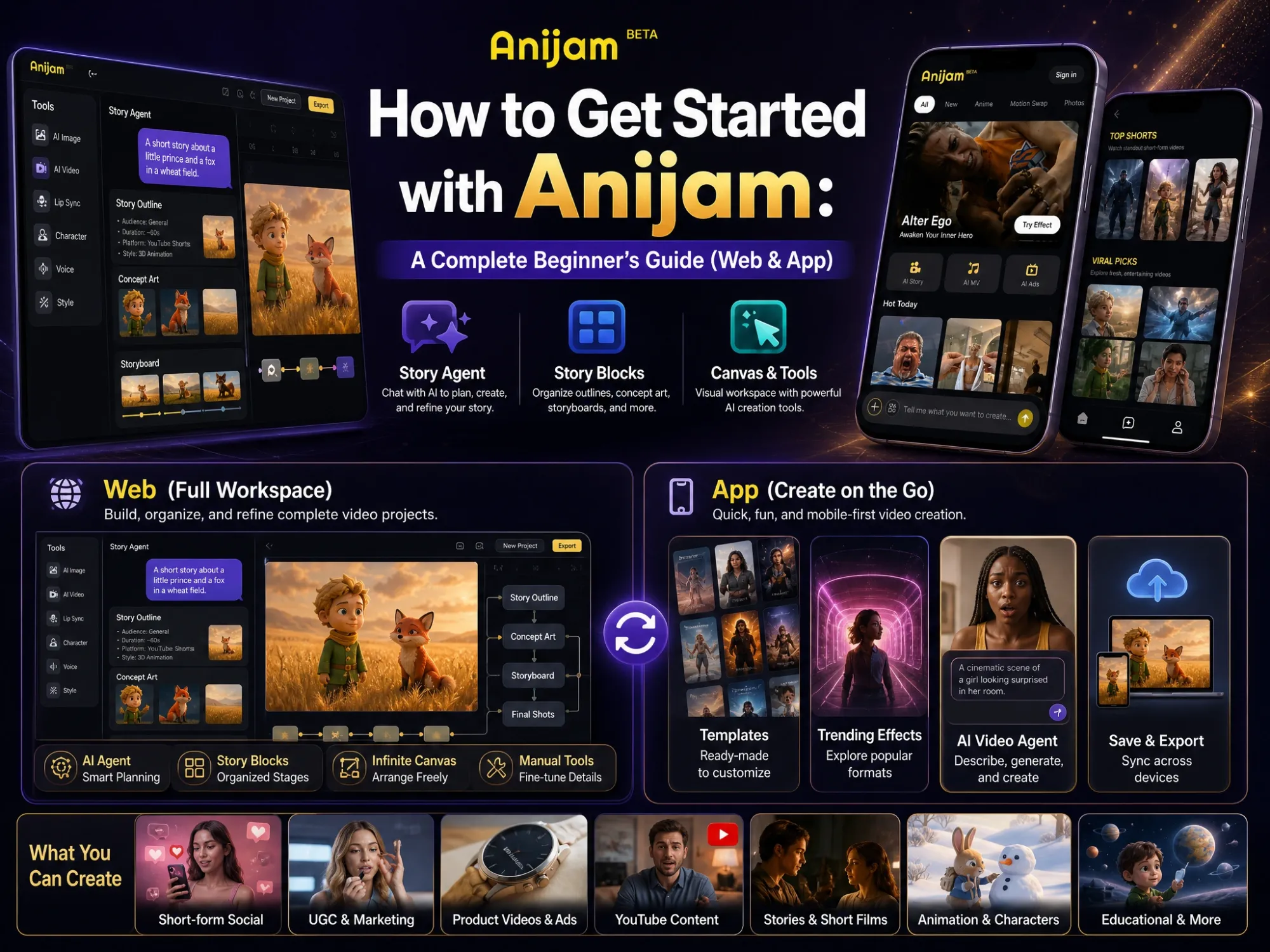
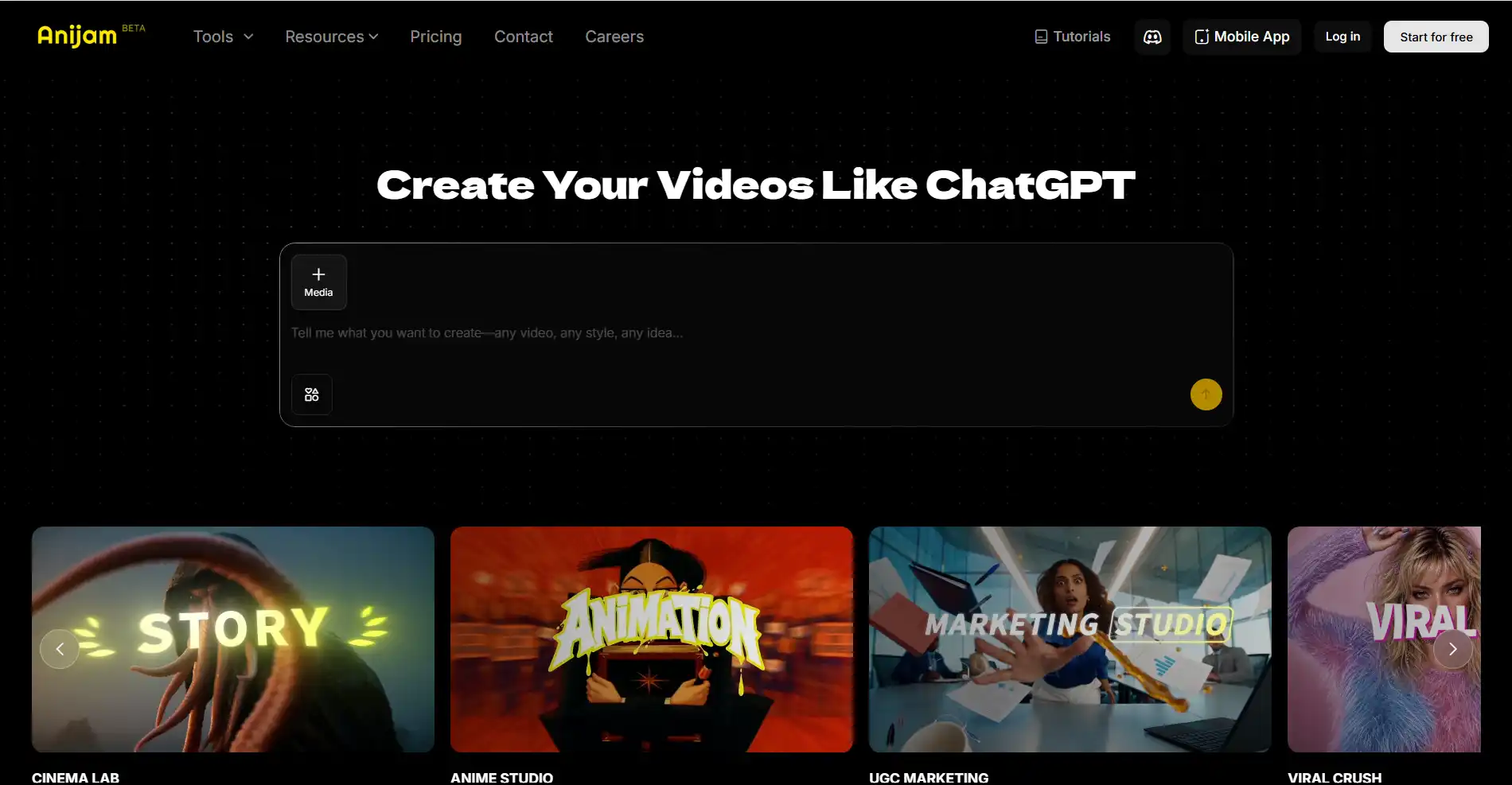
Anijam AI is an all-in-one AI video generator and creative platform that lets you chat your way from idea to finished video. Its clay animation generator is one of the visual styles you can use, and the whole process takes three steps.
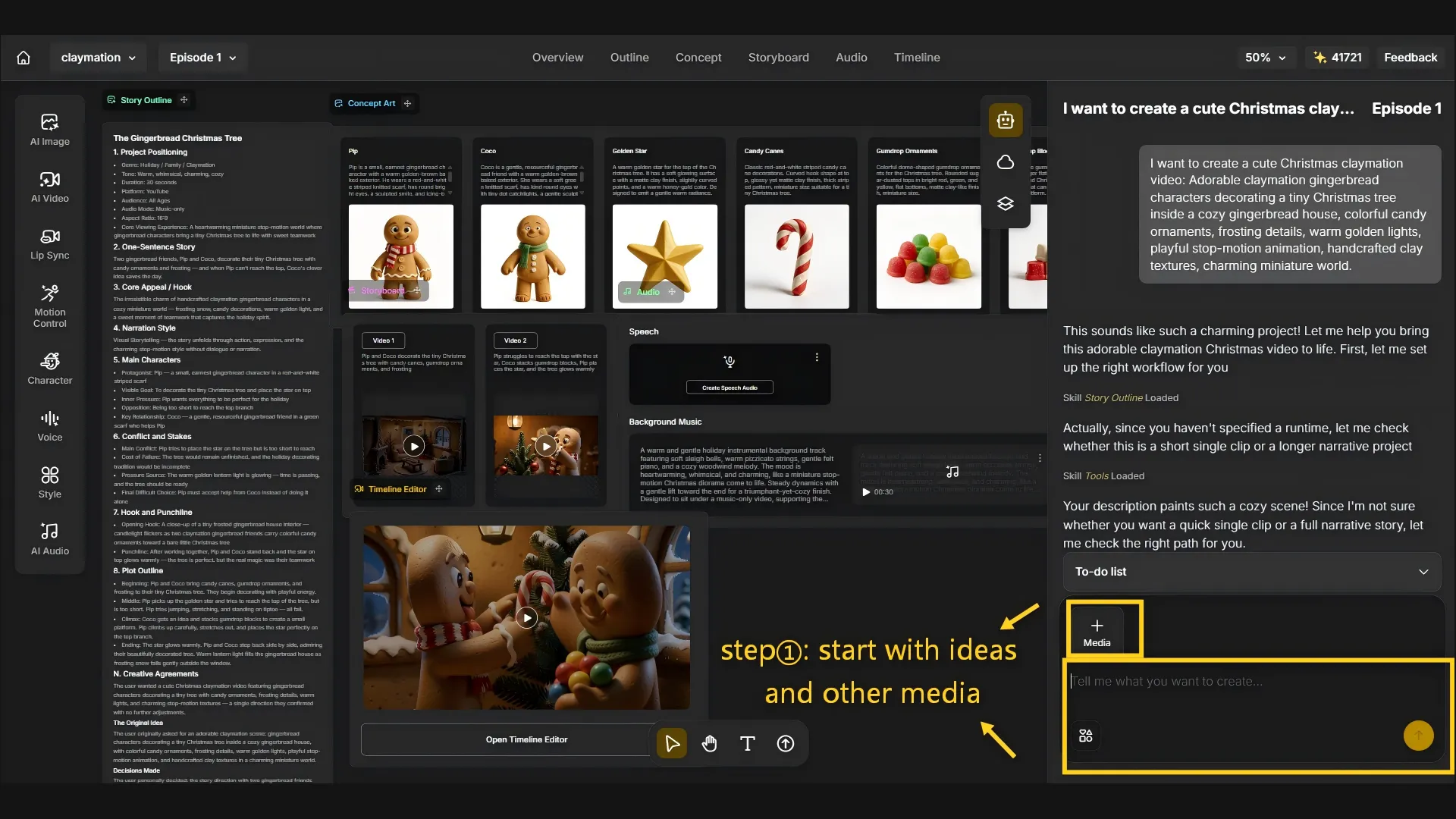
Step 1: Describe Your Clay Animation Idea
- Type a prompt, paste a script, or upload a reference image. Anijam turns it into a story outline and scene breakdown you can review.
Step 2: Choose the Clay Style & Customize
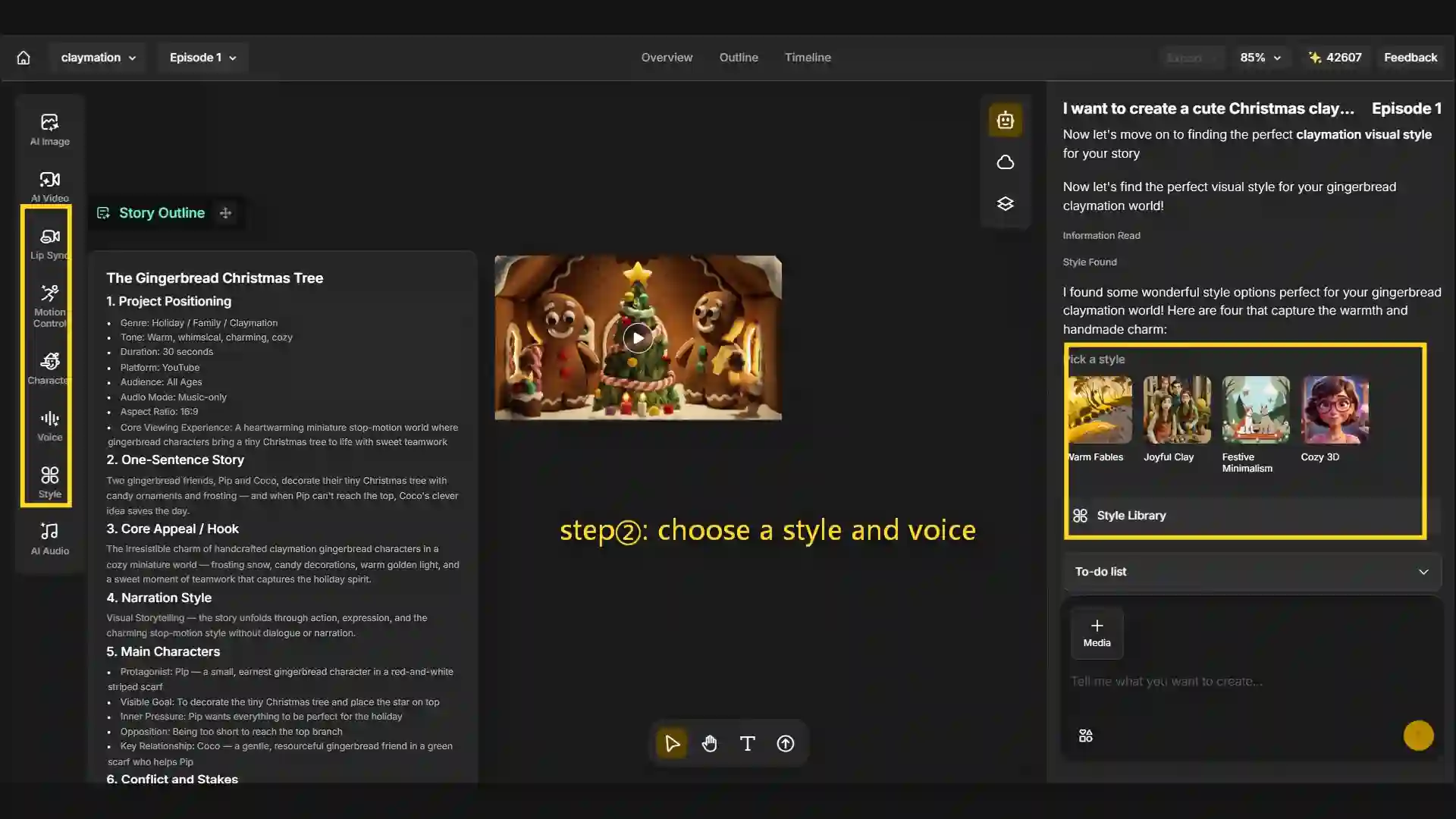
- Pick the clay look from the style library, then adjust your character’s appearance, color palette, clay texture, and background. This is also where you design your clay animation character once so it stays consistent across scenes.
- Want them to talk? Add a voiceover or upload your own audio, and Anijam’s AI lip sync matches your characters’ mouths to the sound in 30+ languages.
Step 3: Generate, Edit & Export
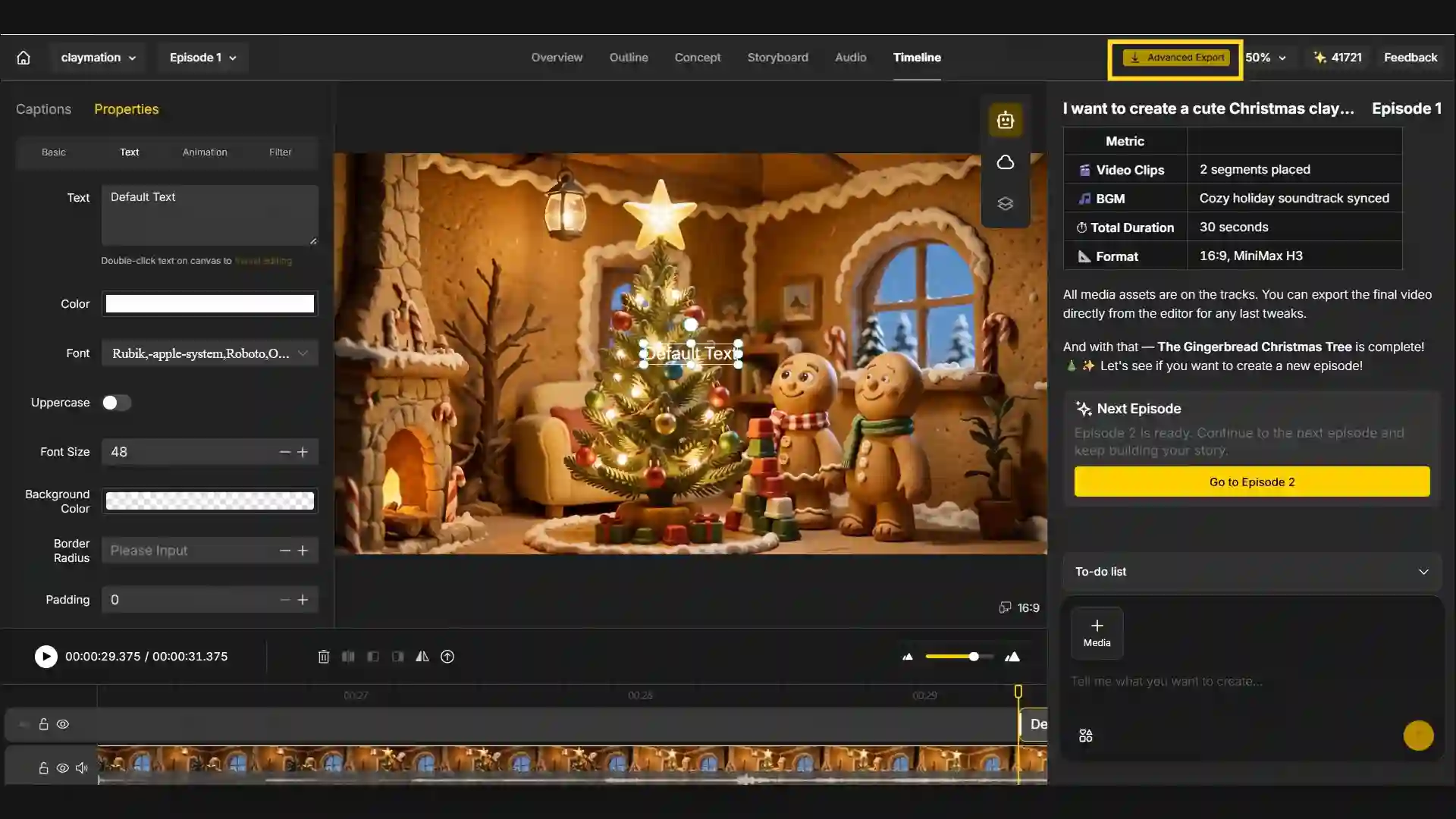
- Hit Generate. When your video is ready, use the timeline editor for final tweaks like timing and scene order, and then go to the next episode or export it.
Tips for Making AI Claymation Look Handmade
Your first clay video will probably look close, but not quite right. Maybe the surfaces are a little too smooth, or your character changes slightly from one scene to the next. Those are two of the most common issues with AI claymation, and both are easy to improve. These tips work in most generators:
-
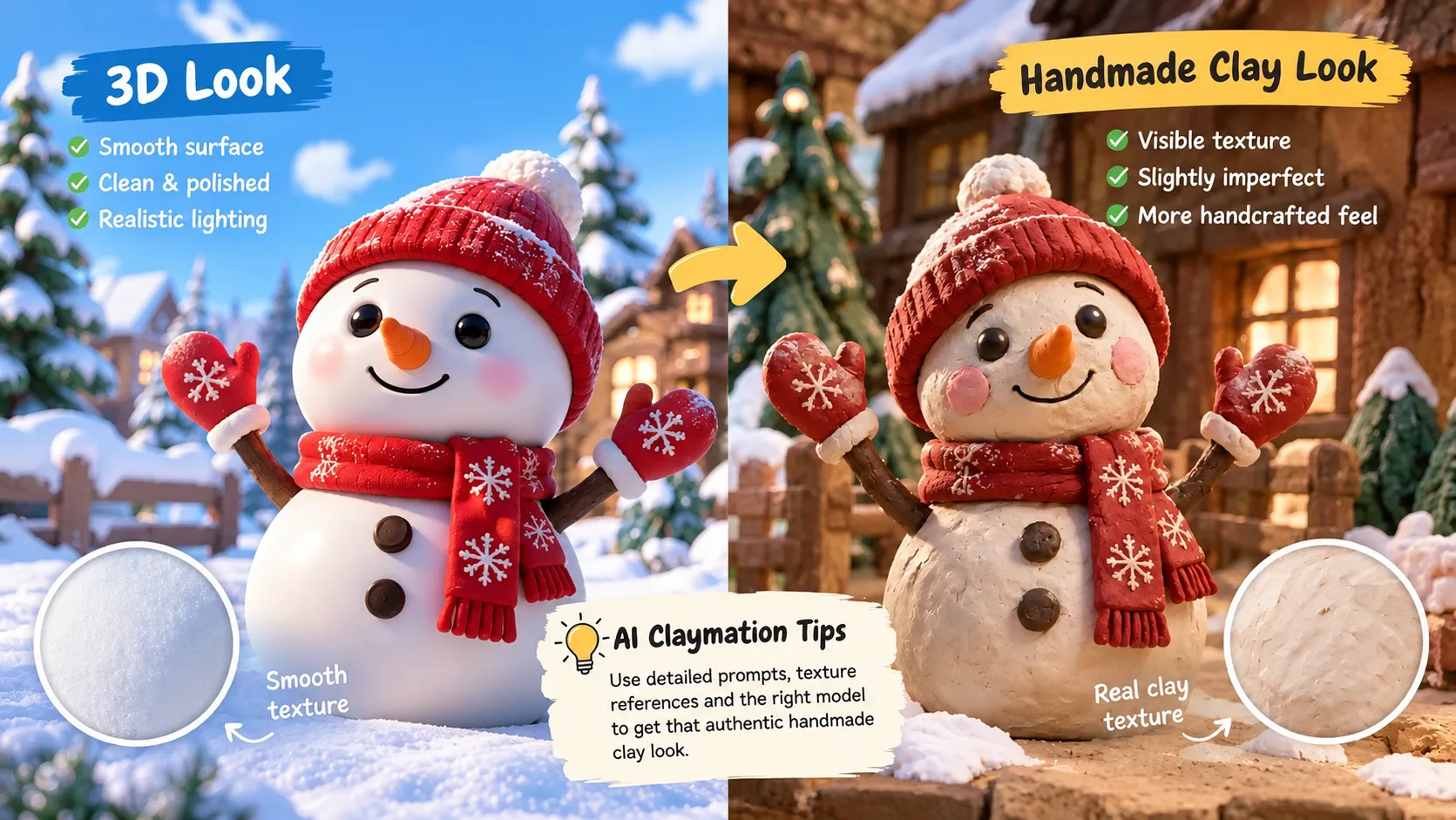
- Name the material. Say “clay” or “plasticine” and describe the surface: visible thumbprints, matte finish, slightly uneven edges. Don’t assume the AI will guess.
-
- Skip words that push toward plastic. Terms like “smooth,” “glossy,” “perfect,” and “polished” pull results toward a clean 3D render. Reach for “handmade,” “imperfect,” and “matte” instead.
-
- Use a simple prompt formula. Character + action + setting + texture + lighting + motion. For example:
“A clay hedgehog in a knitted scarf waters tiny paper flowers in a miniature garden, thumbprint texture, matte clay finish, soft afternoon light, handmade felt grass, slightly choppy stop-motion movement.”
-
- Describe your character once, then reuse it word for word. Write down the colors, outfit, and features, and paste the same description into every scene. Simple designs with two or three memorable details, like big eyes, a red scarf, and one floppy ear, are easier to keep consistent. A reference image or saved character helps even more.
-
- One action per shot. Cramming a run, a jump, and a wave into one prompt tends to give messy motion. Split it into separate shots instead.
-
- Match the story to the style. Clay feels warm, nostalgic, and playful. It’s great for cozy scenes, kids’ stories, pets, and food. It’s a less natural match for content that needs to feel sleek, urgent, or high-tech.
-
- Start short, then build a series. Make one clip you love, then bring the same character back in follow-ups. Audiences remember a good clay character.
Final Thoughts
Clay animation used to belong to patient studios with a lot of time and a lot of clay. Today, anyone with an idea can make a clay-style video in an afternoon, and often in a few minutes.
The basics are simple: describe the material clearly, keep your character consistent, and choose a tool that fits how far you want to take the project. Any of the five tools above can get you started. If you want a complete clay video with a recurring character, voice, and lip sync in one place, the Anijam AI video generator is a good place to begin.
Pick one character, write one prompt, and see what your clay world looks like. You may be surprised how quickly it comes together.
Frequently Asked Questions
How can I convert an image to claymation style?
Use an image-to-video tool. Upload your photo or character design and ask for a clay look, with plasticine texture, visible fingerprints, soft lighting, and stop-motion movement. Clear images with one main subject and a simple background usually convert best, since busy details often get simplified in clay style.
Can I make clay animation with AI for free?
Yes, most tools let you start free. Anijam gives sign-up credits and daily check-ins, and Crreo AI, Morphic, and Agent Opus also offer free ways to try them. Free plans are great for testing an idea or making a short clip, but they come with limits on credits, features, or usage rights. If you need finer adjustments, more complex content, or commercial use, a paid plan is usually the better choice.
Can I use AI clay animation videos commercially?
It depends on the tool and the plan. On Anijam, commercial usage rights come with paid plans, while the free plan is for personal, non-commercial use. Always check each tool’s terms, and label your video as AI-generated where a platform asks for it.
How long does it take to make an AI claymation video?
Generation itself is quick. Anijam says complete videos usually take under five minutes. Your total time depends on how much you polish, such as writing the script, refining the character, and adjusting the timeline. A short first clip can easily be done in one sitting.
What’s the difference between clay animation and stop motion animation?
Stop motion is the broader category: photographing real objects frame by frame, whether puppets, paper cutouts, or clay. Clay animation, or claymation, is the version made specifically from clay or plasticine. In a prompt, naming clay (rather than just “stop motion”) is what gets you that texture instead of a generic paper-cutout or puppet look.
by Evan
Evan is an AI content creator and video technology writer at Anijam AI, focused on how generative AI is transforming storytelling and video production. He shares social trends, creative workflows, prompt strategies, and practical insights to help creators turn ideas into engaging videos and visual content.