Paper Animator Guide 2026: Features, How It Works & Tips for Better Results
Scroll through TikTok or Instagram Reels long enough and you’ll run into it - a photo that suddenly looks torn out of a magazine, edges rough like they were cut with scissors, tumbling or folding across the screen like a page come to life. That look has a name: paper animation, and “Paper Animator” has become the go-to name for it online.
If you’ve searched for this term, you’re probably trying to figure out one of two things: what this tool actually does, or how to use it well. This guide covers both. We’ll walk through what a paper animator can create, its main features (including the text match cut effect everyone keeps asking about), how the workflow usually goes, a few tips for cleaner results, and what a broader AI video generator can add once a single paper effect isn’t quite enough.
What Is Paper Animator?
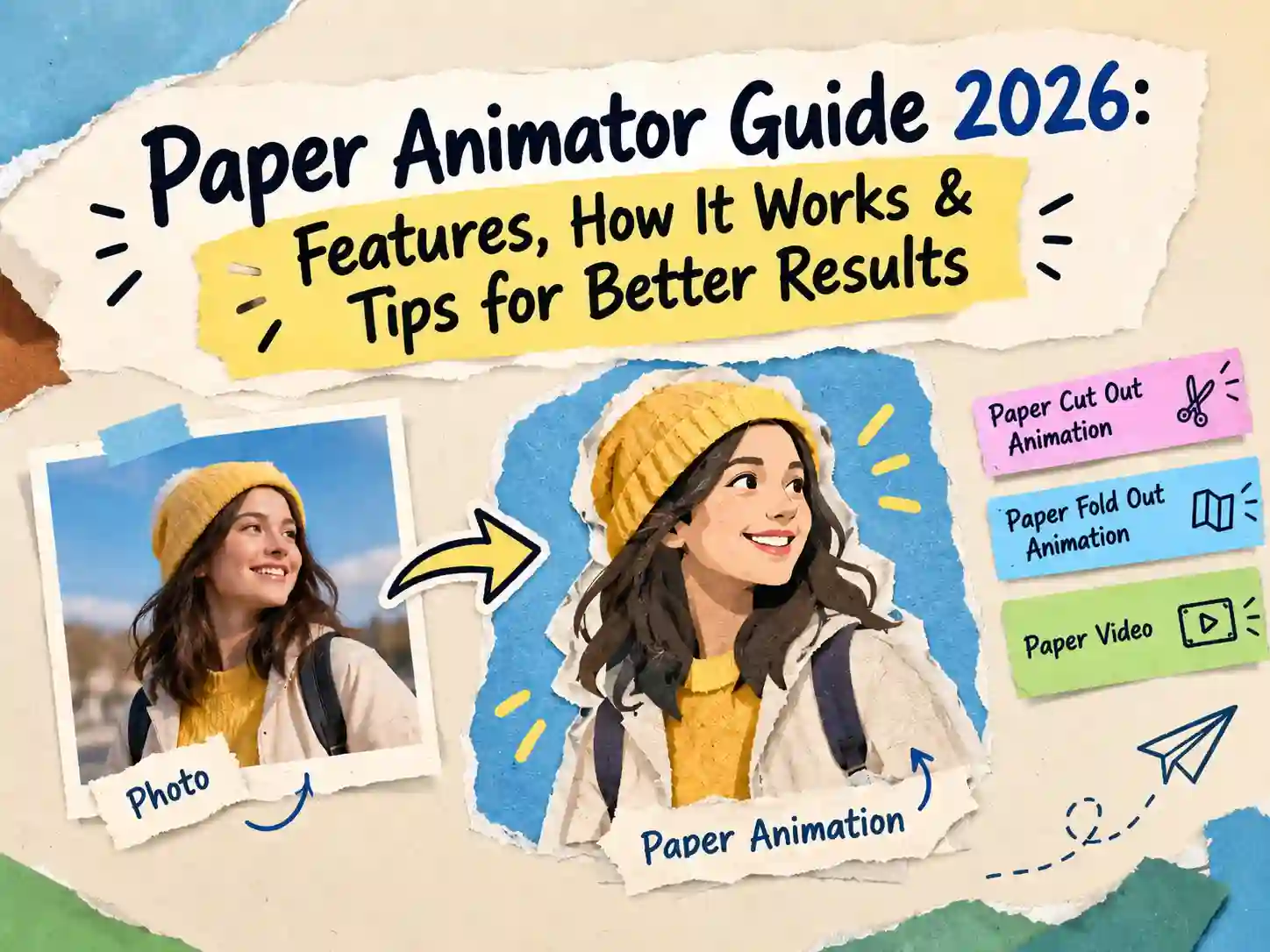
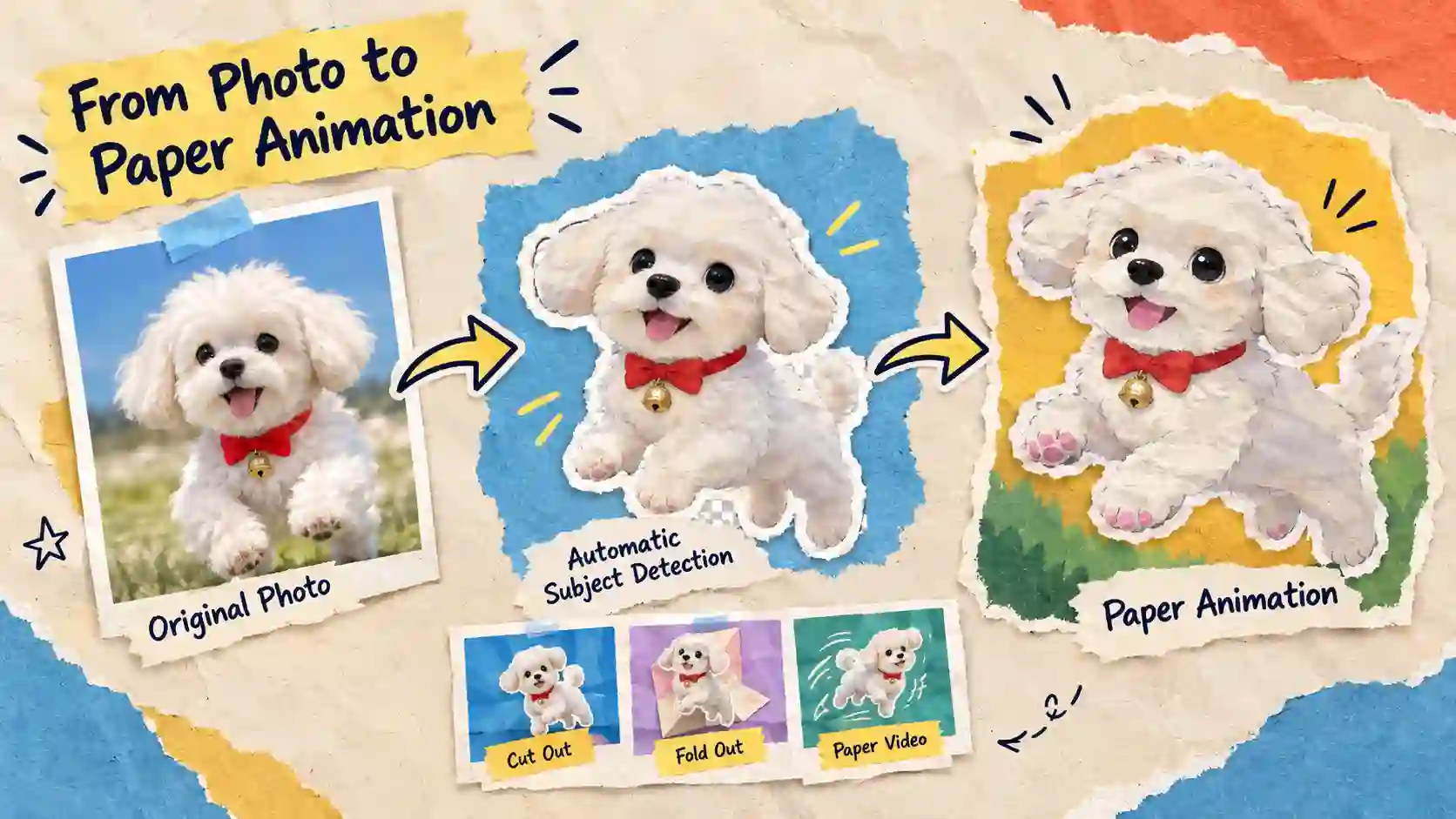
“Paper Animator” is a name shared by several browser-based tools built around the same idea. Upload a photo, and the tool automatically separates your subject from the background, applies a paper-like texture and edge, then animates the whole thing with a preset - a fold, a tear, a bounce, or a slow stop-motion wobble. The exact feature set differs a little from tool to tool, but the core look is consistent.
These tools are aimed at people who want that handcrafted, collage-style effect without actually cutting up magazines or shooting stop-motion frame by frame. Across most of them, there’s no timeline to learn and nothing to install - the process runs on a handful of sliders and presets, right in your browser.
Key Features
A few things show up across most of these tools:
- Automatic subject detection - click once to isolate a person, pet, or product from its background
- Multiple paper effects, including cut-out, torn edge, fold-out, and origami-style folds
- Movement presets such as paper boil, stop motion, float, bounce, and fold-out
- Adjustable edge roughness, shadow depth, paper texture, grain, and border thickness
- Export as a transparent PNG, a green-screen clip, or an MP4 at 720p or 1080p
- Ready-made templates for social, editorial, product, and playful styles, in 9:16, 4:5, 1:1, or 16:9
One feature worth calling out is text match cut. Type in a word or short phrase, and one can build a stack of magazine-style cutout letters, then animates a cut between your image and that text. It’s the same ransom-note, collage-lettering look you’ve probably seen on TikTok reveals, quote graphics, and lyric-style captions.
Pros and Cons
Like most single-purpose tools, paper animators have a clear sweet spot - and some clear edges to it.
Pros:
- A free tier to try before committing to anything
- Genuinely fast - a finished clip usually takes a couple of minutes
- No design or animation background required, thanks to presets
- Works entirely in the browser, on desktop or mobile
- A solid range of movement styles and export formats for short social clips
Cons:
- Apply to a single photo and limited effects and outputs one short clip - not a multi-scene story
- No built-in voice, dialogue, or lip-sync
- No way to keep a character or product looking consistent across several clips
- Clips are intentionally short - more of a moment than a narrative
- Higher-resolution exports or extra customization can sit behind a paid tier
What You Can Create with Paper Animator
The paper cut-out and fold-out look shows up across a wide range of short-form content. Here’s where creators are putting it to use most often:
- Social transitions and openers for TikTok, Reels, and YouTube Shorts
- Lyric videos, album art reveals, and music promo clips
- Product demos, unboxings, and review videos with a tactile, handmade feel
- Newspaper- or magazine-style intros for commentary and explainer content
- Memes, stickers, and quote graphics using the text match cut effect
If the part that appeals to you is really the collage side of this - layering several cutouts into one busier scene, rather than animating a single photo - it’s worth reading our separate guide on how to make collage animation with AI, which covers a closely related style in more depth.
How Paper Animator Works
The workflow behind most paper animator tools rely on the same handful of mechanics working together:
- AI background removal - an image segmentation model detects the main subject and lifts it cleanly off the background, so nothing needs to be masked by hand
- Procedural paper texture - an edge and texture layer (roughness, grain, torn edges, drop shadow) is generated on top of the cutout to mimic real paper and card stock
- Preset-based motion - instead of manual keyframing, movement comes from built-in presets - fold, bounce, float, or a stop-motion wobble - that you pick and fine-tune
- Real-time preview - adjustments render instantly in the browser, so you can see the finished look before committing to an export
Once those pieces click into place, actually using one typical paper animation tool to a short, repeatable sequence:
A Typical Paper Animator Workflow (Step-by-Step)
Step 1: Upload Your Image
Drop in any clear photo - one with a distinct subject and a simple background will segment the most cleanly.
Step 2: Customize the Animation
The AI removes the background automatically. From there, pick a paper style (cut-out, torn, fold-out) and a movement preset (bounce, float, stop motion), then fine-tune texture, edge roughness, shadow, and size until it looks right.
Step 3: Download
Choose your duration, resolution, and aspect ratio to match your platform, then export as a video or transparent PNG.
Across most of these tools, you can go from upload to export in one sitting, adjusting the settings a few times before landing on something you’re happy with.
Tips for Better Paper Animation Results
A handful of small choices make the difference between a paper animation that looks intentional and one that looks a little chaotic.
Quick tips for cleaner results:
- Start from a preset, then nudge one or two settings rather than maxing everything out at once
- Use a photo with good contrast between the subject and background before you upload it
- Preview at a lower resolution first, then export in full quality once the settings look right
- Match your aspect ratio to the platform before you start customizing, so nothing gets cropped later
Common mistakes to avoid:
- Pushing edge roughness and shadow depth to their maximum, which can make the subject look messy rather than hand-cut
- Starting with a busy or low-contrast photo, which makes automatic segmentation harder and less accurate
- Ignoring aspect ratio - a 16:9 clip gets awkwardly cropped once it’s dropped into a 9:16 Reel
- Writing long phrases for text match cut, which get cramped or hard to read once broken into cutout letters
More Than Paper Effects: Explore Image to Video AI with Anijam
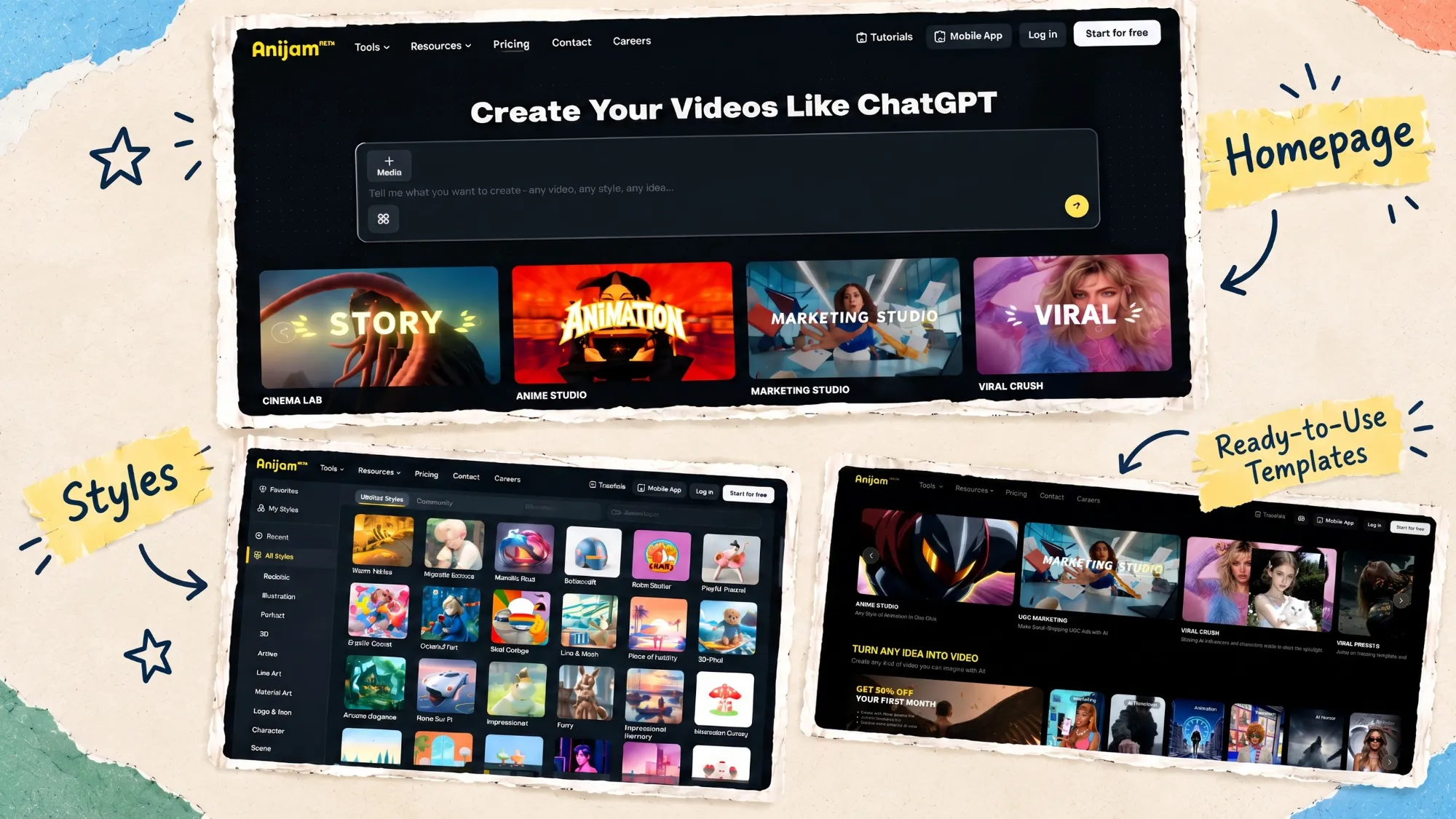
Paper animator tools do one thing well: applying a handful of paper-cut, torn-edge, or fold-out presets to a single photo. Anijam AI can create that same paper-animation look - and then keeps going. Its style library isn’t limited to paper: the same photo can come out as anime, 3D cinematic, Ghibli-inspired, cartoon, cyberpunk, and more, so a paper effect is just one option among many rather than the whole toolkit.
And if what you actually need is a longer, edited video - multiple scenes, a consistent character, a voice - that’s where Anijam AI takes it further still, into a full production rather than a single effect.
What You can Get in Anijam AI:
- Image to video AI that understands your photo - instead of applying one of a fixed set of paper-fold presets, Anijam reads what’s actually in the image - a face, a product, a landscape - and generates motion that fits it: a subject turning to the camera, hair moving in the wind, clouds drifting behind a portrait. You can also describe the motion in plain language or point to a reference clip and let it match that movement.
- Character and subject consistency - if the same person, product, or character needs to appear across several scenes, Anijam keeps their appearance consistent shot to shot - something a single-image paper effect isn’t built to do.
- Talking animation with AI lip sync - turn a still photo or character into someone who actually speaks. Add a script or voiceover and Anijam maps mouth shapes and expressions to the audio automatically - a full talking scene, not just a moving cut-out.
- Long video generator for multi-scene stories - where a paper animator tops out at one short clip from one photo, this stitches multiple scenes together with the same character and visual style carried through, for when a single moment needs to grow into an actual narrative.
- Style library and templates - choose from a growing library of visual styles (anime, 3D cinematic, Ghibli-inspired, cartoon, cyberpunk, and more), or start from a ready-made template - useful if a paper-style clip is really the seed of a recurring series or a batch of similar-looking clips.
None of this replaces what a paper animator does well for a quick, single-effect clip - it’s just a different job. If a project has outgrown a single photo, that’s usually the sign it’s time to look at a fuller video generator instead.
Final Thoughts
Paper Animator is a solid, purpose-built tool if what you need is exactly what it does: a quick, torn-paper or fold-out effect from a single image, including that distinctive text match cut look. It’s free to start, fast, and doesn’t ask you to learn anything complicated.
Where it runs out of road is anywhere a project grows past one photo and one moment - multiple scenes, a consistent character, spoken dialogue. That’s the gap an Anijam AI video generator is built to fill, taking the same starting point of an image or idea through to a complete, edited video. Worth trying once your paper animation needs more than one page.
Frequently Asked Questions
What is text match cut in a paper animator? Text match cut turns a typed word or phrase into a stack of magazine-style cutout letters, then animates a transition between an image and that text. It’s available on several (though not all) paper animator tools, and it’s commonly used for social media reveals, quote graphics, and lyric-style captions.
Is Paper Animator free, and can I use my export commercially? Most paper animator tools offer a free tier, but free exports typically include a watermark and are limited to personal use. Commercial use - for ads, client work, or monetized content - usually requires a paid plan or credit pack for clean, watermark-free exports.
Can I export with a transparent or green-screen background? Yes. Many paper animator tools support transparent PNG or green-screen video exports, making it easy to layer the animation over another video, image, or background in your editor.
Can I stitch a few photos into one longer clip? Generally not inside a paper animator itself - most are built for a single image, single short clip. If you want several photos (or the same character) flowing into one longer story, that’s a job for a fuller tool like Anijam AI, which is built for multi-scene, multi-shot video.
Can I add music or a voiceover to the animation? Not inside most paper animators - they’re built around image and motion, not audio. You’ll need to drop the exported clip into a video editor afterward, or reach for a tool like Anijam that supports built-in voice and lip sync if you want your paper character to actually talk.
by Evan
Evan is an AI content creator and video technology writer at Anijam AI, focused on how generative AI is transforming storytelling and video production. He shares social trends, creative workflows, prompt strategies, and practical insights to help creators turn ideas into engaging videos and visual content.