How to Make an AI Cartoon Video: The Complete Step-by-Step Guide
You have a story to tell - maybe it’s a fox exploring a neon jungle, a mascot introducing your app, or a short story you want to bring to life through animation. The challenge is turning that idea into a finished cartoon video without an animation degree, expensive rendering equipment, or a studio-sized budget. Not long ago, that process could take weeks or even months. Today, AI can turn a simple idea or prompt into an animated video in just a few minutes.
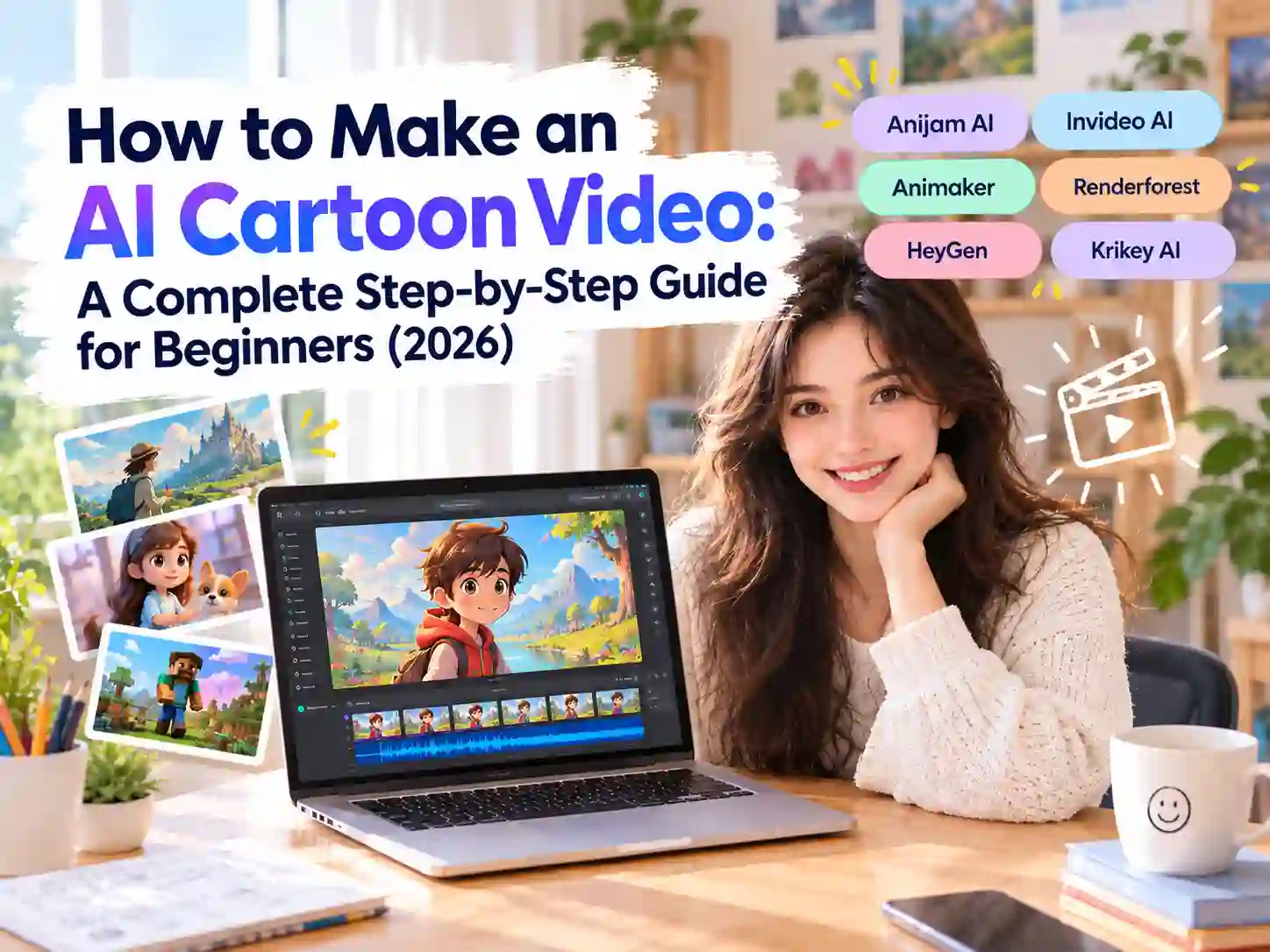
This guide breaks down how to make an AI cartoon video from a text prompt, script, or photo. We’ll cover what these tools actually do, the real challenges creators run into once they start using them, how to pick a generator that fits your project, and how to make an AI cartoon video with Anijam AI.
What Is an AI Cartoon Video?
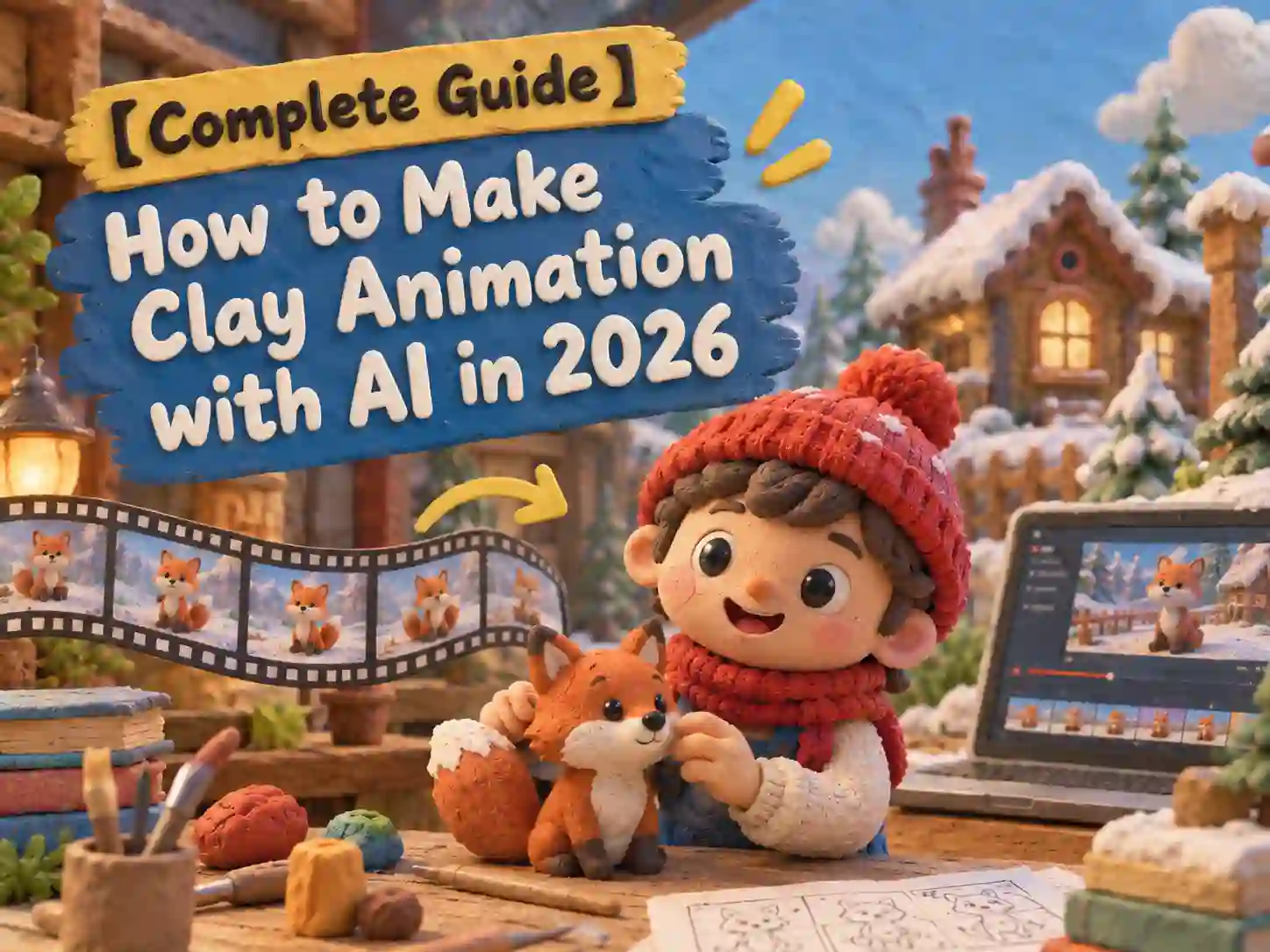
An AI cartoon video is an animated video generated by artificial intelligence from a text prompt, script, or image - instead of being hand-drawn, modeled, or rigged frame by frame. You describe the character, the scene, and the style; the AI handles the linework, motion, and timing.
That’s the core difference from traditional animation. A hand-drawn or 3D-rigged cartoon can take a trained artist days or weeks per minute of footage. An AI cartoon video generator compresses that into minutes, which is exactly why the format has taken over so much of TikTok, YouTube Shorts, and Instagram Reels over the past couple of years.
Popular AI Cartoon Video Trends on Social Media
“Cartoon” isn’t one look - it’s a whole family of styles, and a few of them are having a real moment online right now:
- Ghibli-style AI cartoons - soft, hand-painted scenes inspired by Studio Ghibli’s aesthetic have been one of the most consistently viral trends since early 2025, especially for turning ordinary photos into dreamy animated scenes. Ghibli Animation style is built specifically for this look.
- 3D chibi and kawaii characters - oversized eyes, tiny rounded bodies, pastel colors. Common in pet content, lifestyle vlogs, and mascot intros.
- Minecraft-style and game-art cartoons - blocky, voxel-style animation aimed squarely at gaming audiences. Minecraft Animation style covers this look if that’s your niche.
- POV cartoon storytelling - first-person narrative clips, usually paired with AI voiceover and captions - popular for Reddit-story and confession-style content.
- Text-to-cartoon meme clips - a single-line prompt turned into a quick, shareable joke or reaction video.
- Photo-to-cartoon transformations - uploading a selfie or pet photo and getting back an animated cartoon version, which tends to come with built-in “look what I made” shareability.
Common Challenges When Making Cartoon Videos with AI
Once you actually sit down to make one, a few problems show up again and again - worth knowing before you pick a tool.
Character and Scene Consistency Drift
The first scene you generate might look exactly right. Move to the second or third scene, though, and the same character can quietly change - a different hair color, a slightly different face shape, a missing accessory. Stitch those scenes together and it reads less like one character in a story, and more like several different characters filling in for each other. This usually happens because a tool treats every generation as an independent request rather than building around one saved character profile.
A Single Prompt Only Gets You One Clip, Not a Full Story
Most AI video tools follow a simple pattern: one prompt in, one short clip out - usually somewhere between three and fifteen seconds. To tell an actual story with a beginning, middle, and end, you end up generating several clips separately and stitching them together yourself, transitions and all.
This is also why turning a full script into a cartoon video is a step up in difficulty from a single prompt - the tool needs to understand scene breaks and pacing, not just “animate this sentence.” A Script-to-Animation tool that reads the whole script and breaks it into scenes on its own removes most of that manual work.
Getting a Clean Result Takes Several Tries
AI-generated motion still slips up sometimes - a hand that bends the wrong way, lips that don’t quite match the audio, a pose that glitches mid-frame. It happens more often on free tiers or lower-resolution exports. Talk to anyone who’s actually shipped a finished AI cartoon video and you’ll hear a familiar number: two or three regenerations before a clip is actually postable, plus some manual trimming.
Not Every Platform Treats AI Content the Same Way
Before publishing, it’s worth checking a few things: whether the platform you’re posting to requires an AI-generated content label, what usage rights come with the tool’s free vs. paid tier, and whether your video touches anything sensitive - a real person’s likeness, a celebrity impression, a copyrighted character. These rules differ by platform and by tool, and they’re easy to overlook while you’re focused on getting the video made - but they’re exactly what decides whether it can go live or get monetized at all.
These are exactly the pain points worth checking before you commit to a tool - here’s what to look for.
How to Choose the Right AI Cartoon Video Generator
Not all AI cartoon video generators work the same way. Some are built for quick, one-off clips, while others offer more control over characters, scenes, editing, and longer projects. The right choice depends on what you want to create and how much control you need throughout the process.
Before you pick a tool, here are five key things worth checking.
5 Things to Check Before You Pick a Tool
- Character consistency - can you save or lock a character design and reuse it across scenes, or does every generation start from scratch?
- Script-to-scene handling - does the tool accept a full script and break it into multiple connected scenes, or only a single short prompt at a time?
- Editing without starting over - if one scene is off, can you fix just that scene (timing, lip sync, a pose) without regenerating the whole video?
- Free plan terms - does the free tier watermark exports, cap resolution, or restrict commercial use? Worth reading before you build anything you plan to publish.
- Mobile access - if you make content on the go, does the tool work in a mobile browser or have a dedicated app?
6 Top AI Cartoon Video Generators Worth Trying
Here’s how some of the most searched-for names in this space actually compare, based on what each is built to do best.
| Tool | Known For | Free Plan | Best For |
|---|---|---|---|
| Anijam AI | All-in-one AI video agent that turns a prompt, script, or photo into a full multi-scene cartoon with a consistent character and built-in lip sync | Starter credits & daily check-in bonuses; watermarked; capped resolution | A character-driven cartoon story - from script to a finished, publishable video |
| Invideo AI | Turns a prompt or script into a video by assembling stock footage, motion graphics, and AI voiceover | Watermarked; capped resolution | Narrated marketing and YouTube-style videos, more than character-driven cartoons |
| Animaker | Drag-and-drop editor with a large character builder and template library | Free plan with basic animation tools; watermarked; capped resolution | Branded explainer characters and template-based cartoon content |
| Renderforest | All-in-one suite covering video, logo, and website templates | Watermarked; capped resolution; limited project length | Quick, template-based intros and promos |
| HeyGen | AI avatar engine that animates a single photo into a talking character with strong lip sync | Limited free credits; capped resolution; limited video length | One cartoon character speaking to camera, not a multi-scene story |
| Krikey AI | 3D animation built from a library of pre-made avatars and characters | 20 one-time credits; basic introductory use; 3D character animation library | Quick 3D social clips using existing character templates |
Here’s a closer look at what each one actually does well, and where it falls short.
Anijam AI
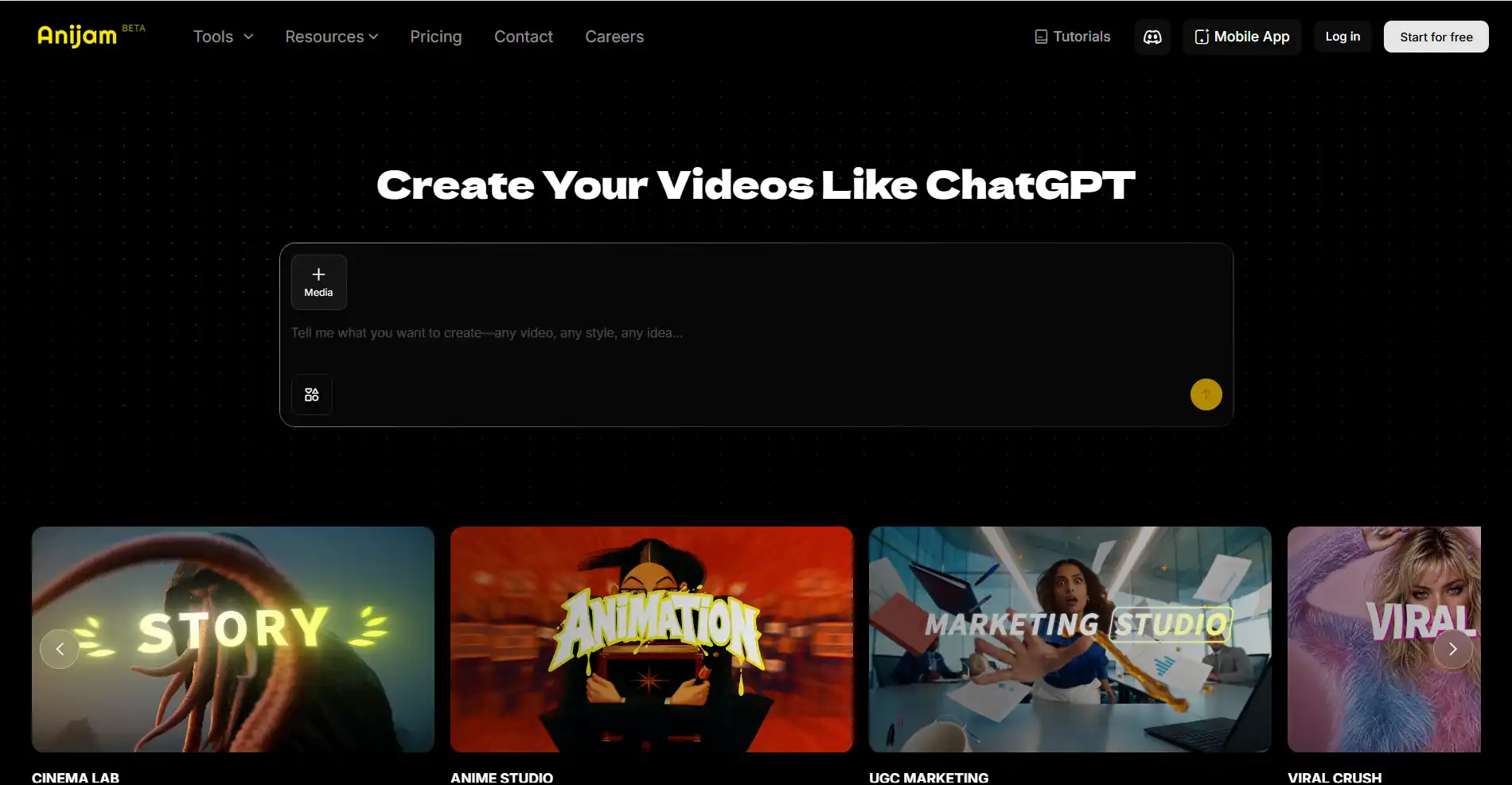
Anijam AI is an all-in-one AI video generator built around a simple idea: chat with AI to create a video. You can start with a single prompt describing what you want, and Anijam turns your idea into a complete cartoon video with connected scenes. For more detailed projects, you can also provide a script or additional instructions to guide the story, characters, and scenes. It can then handle character consistency, voice, lip sync, and timeline editing in the same workspace.
Key Features
- Text, script, or photo input, with automatic scene breakdown from a full script
- Style library spanning 2D cartoon, 3D, anime, Ghibli-inspired, and more
- Ready-to-use templates for quickly starting a video without building everything from scratch
- AI cartoon series creation for creating and managing multiple episodes with lip-sync, consistent characters and styles
Pros
- Handles the full pipeline - script, style, character, voice, lip sync, editing - in one workspace
- Keeps a character consistent scene after scene, the main pain point covered earlier in this guide
- Free to start, with a mobile app for creating on the go
Cons
- Watermark-free export and full commercial rights require a paid plan
- A multi-scene project with several characters can take longer to render than a single short one
Invideo AI
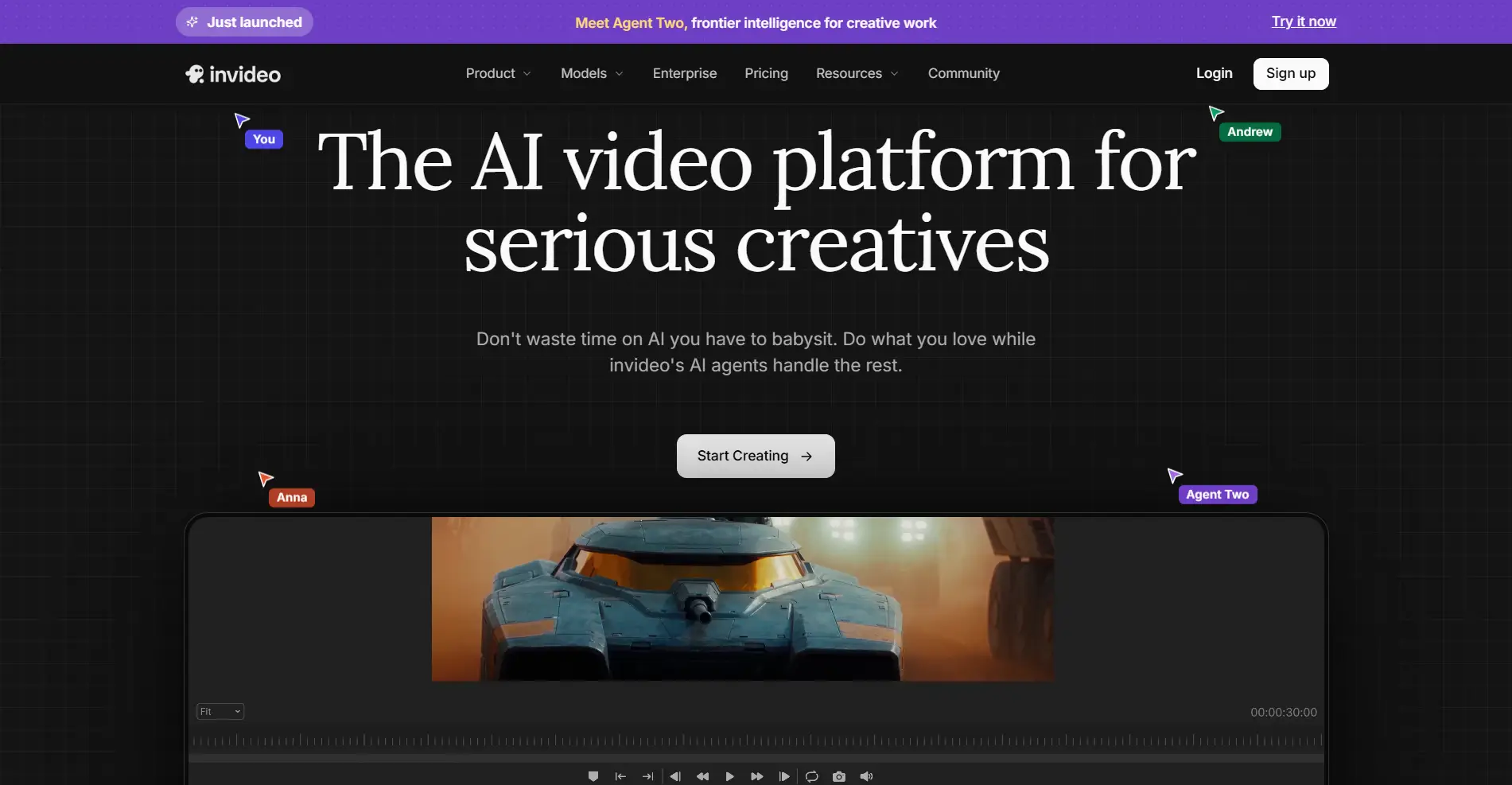
Invideo AI is a browser-based tool that turns a prompt or script into a video by assembling stock footage, motion graphics, AI voiceover, and text overlays, rather than generating hand-drawn or 3D character animation frame by frame. It’s built primarily around long-form, narrated content.
Key Features
- Script-to-video workflow with a “magic edit box” for typed adjustments
- Large stock media library plus AI voiceover in 50+ languages
- Auto-generated subtitles, transitions, and background music
- Best suited to 3-10 minute YouTube-style videos
Pros
- Fast way to assemble a narrated, long-form video from a script
- Large template and stock library covers a wide range of topics
- Easy for beginners, with a minimal learning curve
Cons
- Free plan exports carry a watermark; removing it requires the Plus plan (~$25/mo)
- Leans on templates and stock assets rather than true character animation, so it’s a weaker fit for an original cartoon story with a consistent character
Animaker
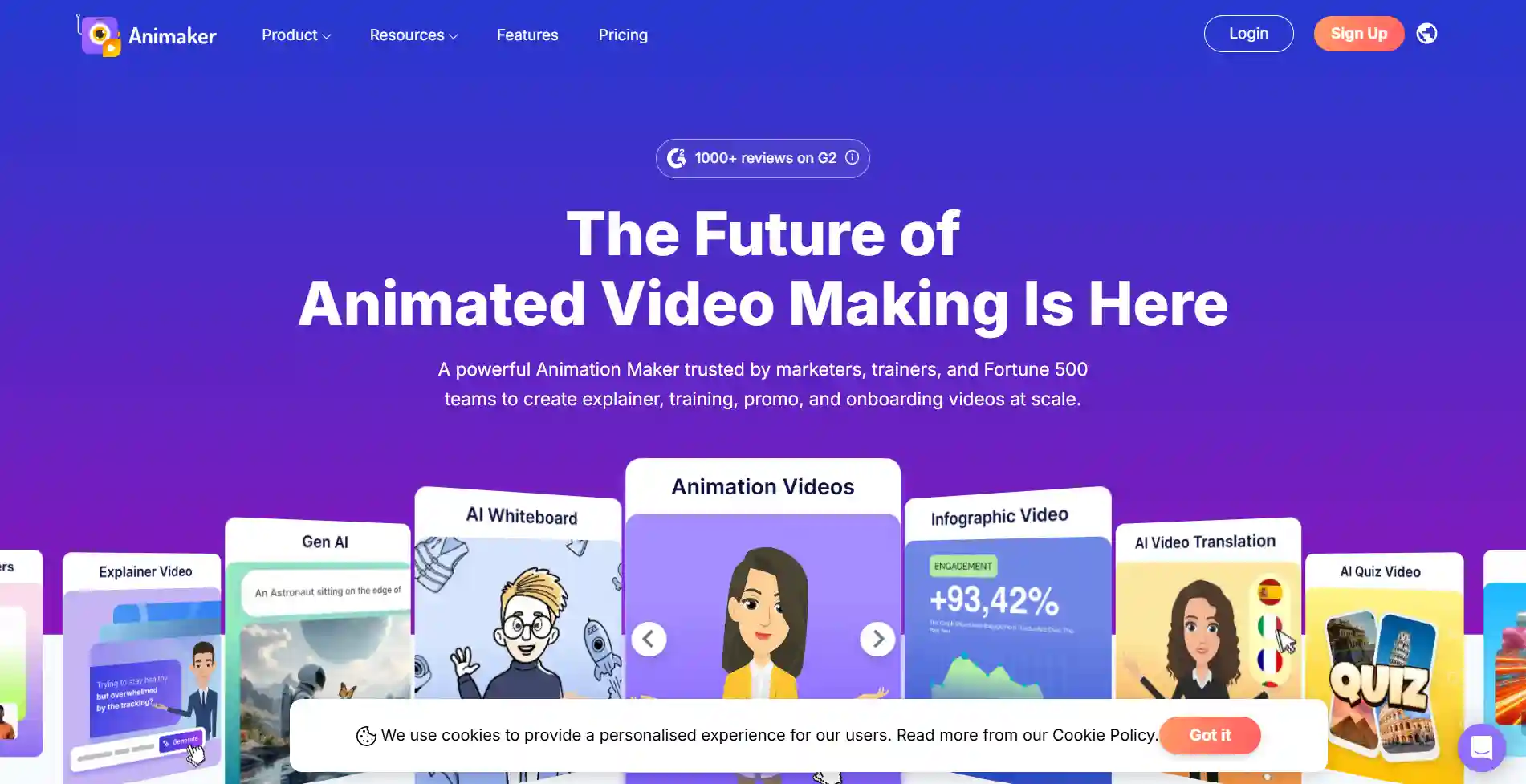
Animaker is a drag-and-drop animation and video maker built around a large asset library and a character builder for designing custom cartoon mascots. Scenes are assembled manually from templates, characters, props, and backgrounds rather than generated from a single prompt.
Key Features
- Character builder for creating and customizing cartoon avatars
- Large library of templates, props, backgrounds, and music
- Multiple aspect ratios, lip sync, and multi-language voice support
- Drag-and-drop scene editor
Pros
- Deep character customization for a branded mascot or classroom character
- Large asset library makes it easy to assemble a scene without drawing
- Free plan available to test the editor before paying
Cons
- Free-tier exports carry a large watermark
- The editor reportedly slows down on projects past roughly 10 scenes, and building a multi-scene story is manual rather than automatic
Renderforest
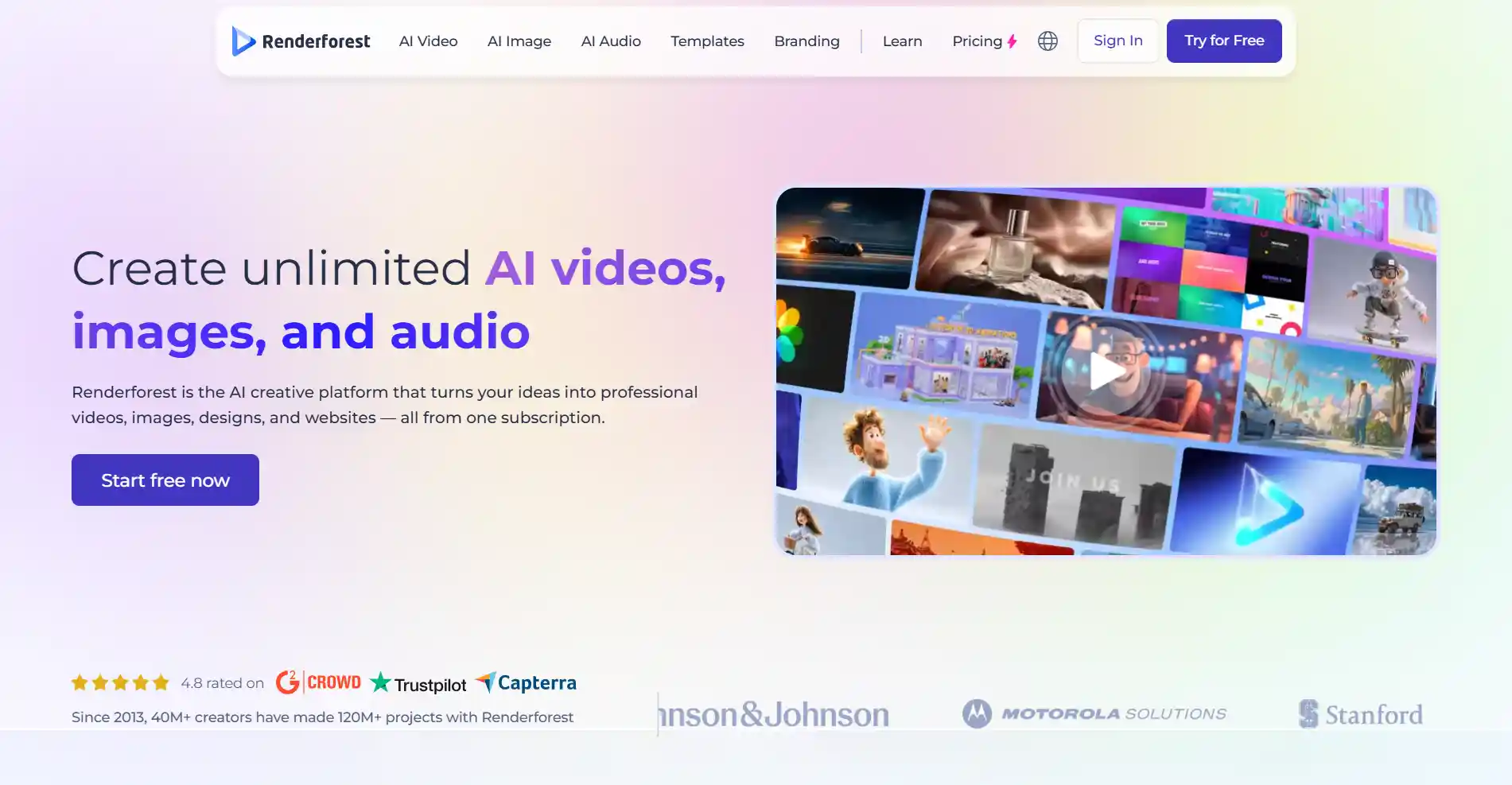
Renderforest is an all-in-one online platform that bundles video creation with logo and website design tools. Its video maker leans on customizable templates rather than generating original character animation from a prompt.
Key Features
- Template library covering intros, promos, and explainer-style videos
- Bundled logo maker and website builder in the same subscription
- Drag-and-drop scene customization
- HD export, with 4K available on higher tiers
Pros
- One subscription covers video, branding, and web design needs
- Good value for simple, template-based intros and promo videos
- Straightforward for beginners with no animation background
Cons
- Free plan exports are capped at 360p and watermarked
- Not built for original, character-driven cartoon storytelling - better suited to short, template-based clips
HeyGen
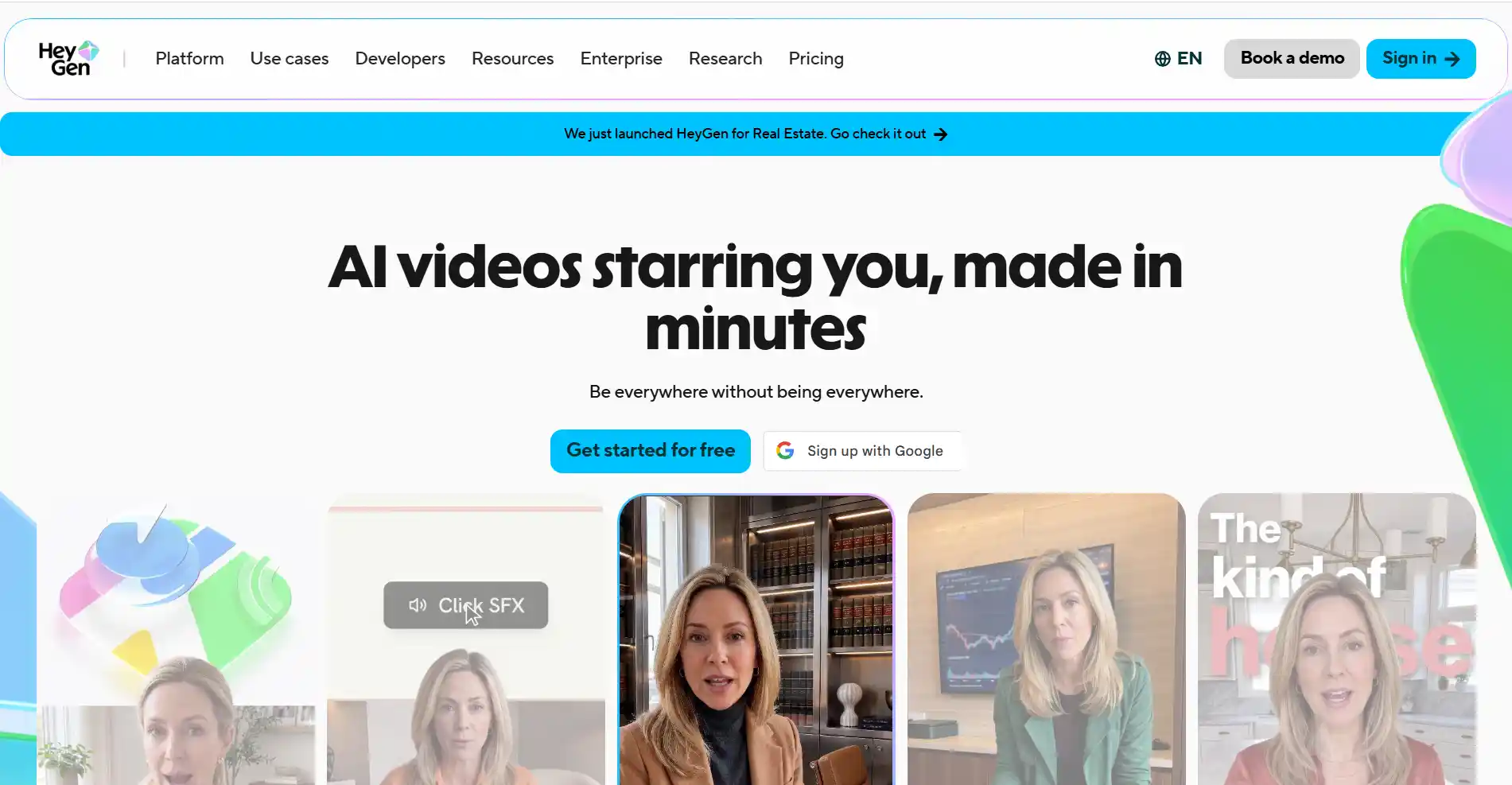
HeyGen is an AI avatar platform that animates a photo - a real person, a cartoon character, or an illustrated mascot - into a talking video with lip sync matched to a script or voice track. It’s built around a single presenter speaking to camera, not a multi-scene animated story.
Key Features
- Photo-to-talking-avatar generation, including stylized and cartoon faces
- Phoneme-level lip sync driven by vocal tone, rhythm, and pacing
- Voice cloning and translation across 70+ languages
- Script-based workflow for presenter-style videos
Pros
- Strong, natural-looking lip sync, even on non-human or cartoon faces
- Fast way to get a single character speaking on camera
- Useful for multilingual presenter or explainer content
Cons
- Built around one avatar speaking in a fixed setting, not a moving, multi-scene cartoon story
- Free tier is limited, and advanced features run on a credit system
Krikey AI
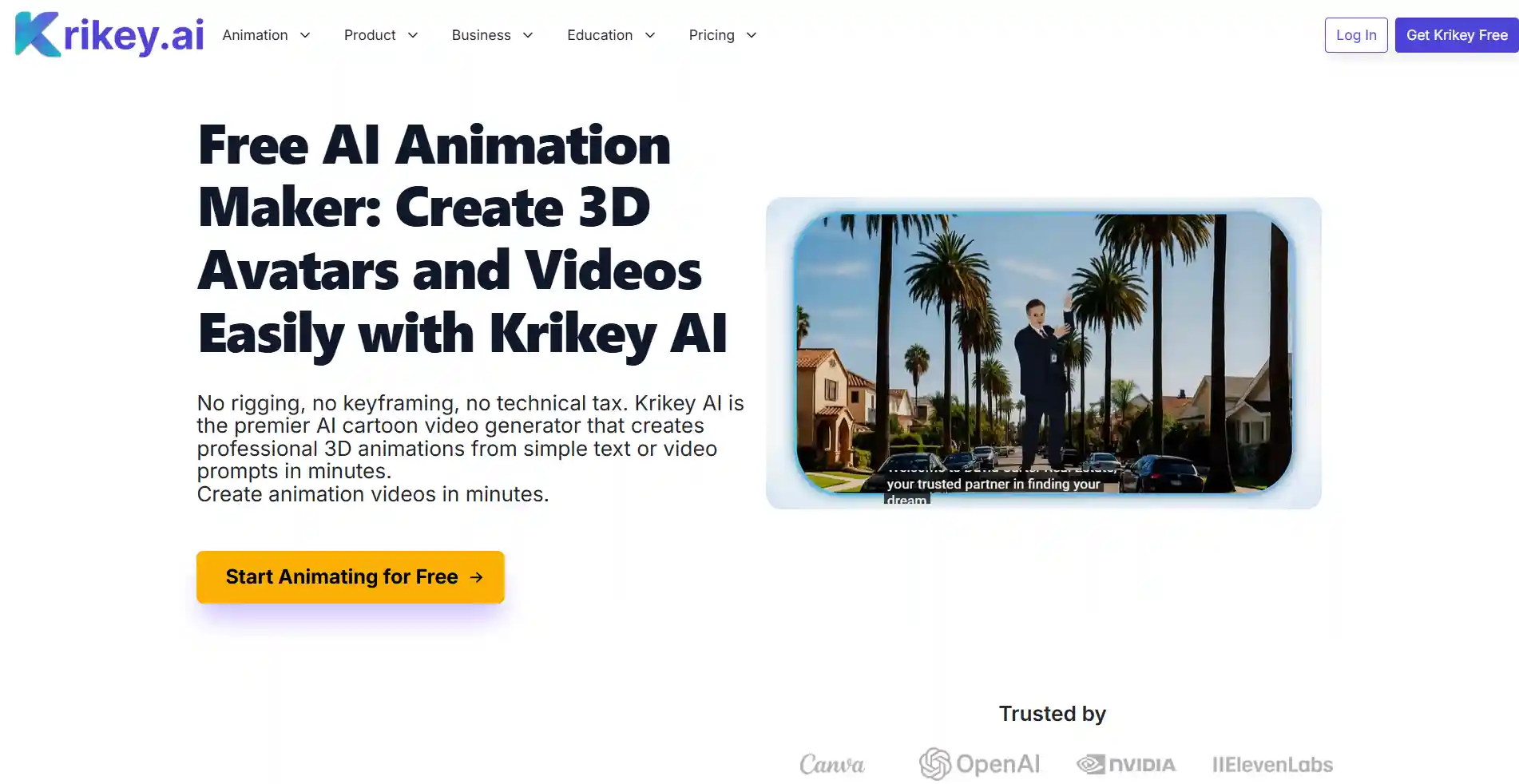
Krikey AI focuses on 3D animation built from a library of pre-made avatars and characters. Users generate motion from a text prompt or a video upload, then customize the character and scene in a 3D editor.
Key Features
- Text-to-animation and video-to-animation for 3D characters
- 3D avatar creator with customizable features, clothing, and accessories
- Voiceover and lip sync in 20+ languages
- Export to MP4, GIF, or FBX
Pros
- Quick way to generate a 3D animated clip without modeling or rigging skills
- Useful character customization options for avatars
- Free plan includes 20 one-time credits to try the core features
Cons
- Relies on pre-built character templates, so different projects can end up looking similar
- Generated motion sometimes needs manual cleanup, and it’s less suited to complex, multi-scene storytelling
How to Make Your First AI Cartoon Video with Anijam AI (Step-by-Step)
Now, let’s use Anijam AI to walk through how to make an AI cartoon video step by step.
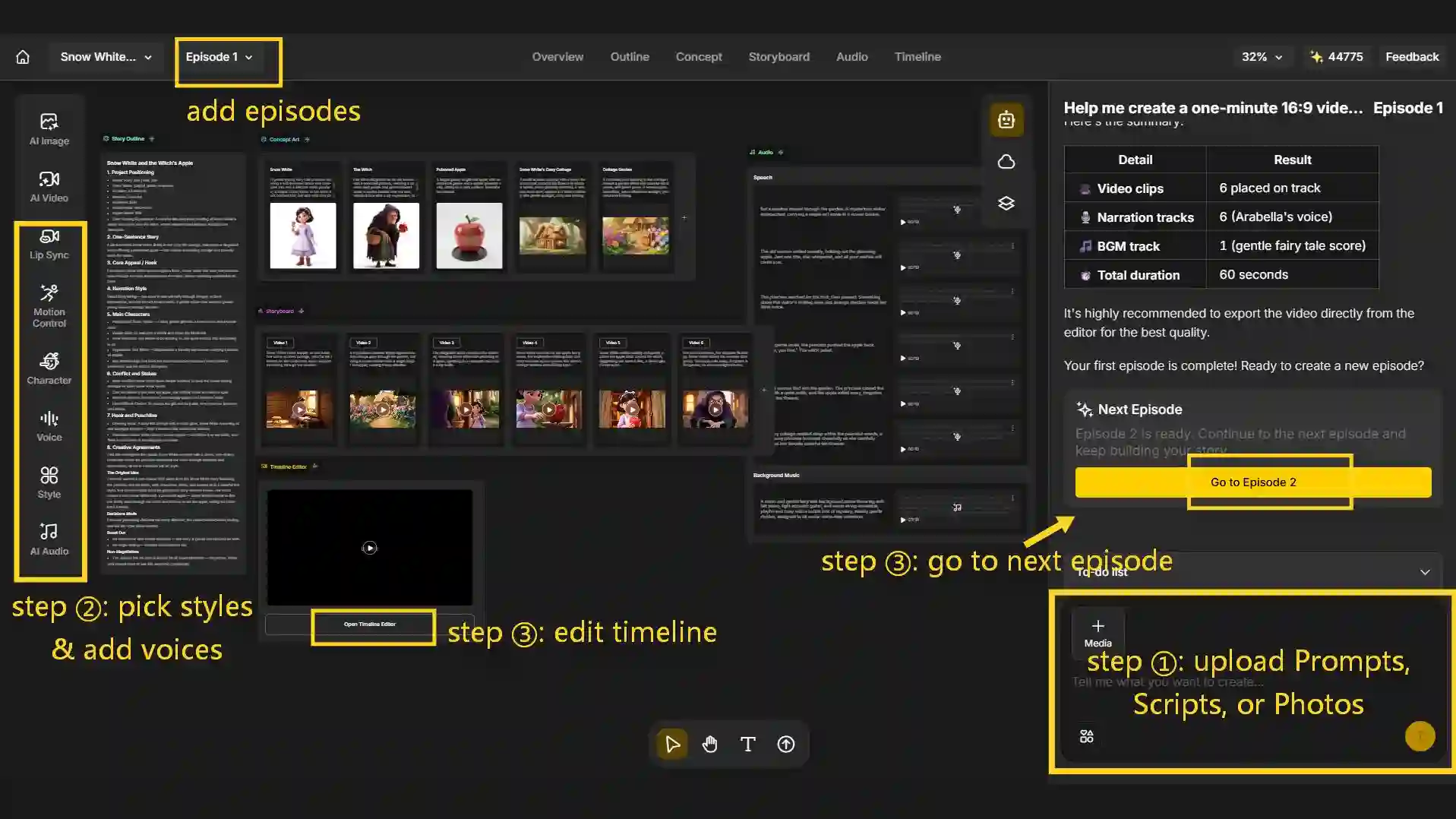
Step 1: Start with Prompts, Scripts, or Photos
Type a one-line idea, paste in a full script, or upload a photo. Anijam AI agent reads a full script and breaks it into a scene-by-scene outline automatically, making it possible to specify style, mood, camera angle, and more in plain language.
Step 2: Pick a Cartoon Style, Add a Voice and Lock In Your Character
- Choose from the style library - flat 2D cartoon, 3D, anime, Ghibli-inspired, Minecraft-style animation, and more - then set your character’s design once. Anijam keeps that same character consistent across every scene.
- Select a voice from the built-in library, upload your own audio, or generate one from text or build your own voice and let Lip Sync engine match mouth movements to voice automatically.
Step 3: Fine-Tune on the Timeline Go to Next Episode & Export
- Use the timeline editor to adjust pacing, trim a scene, or fix a single moment - without regenerating the entire video.
- Go to the nest episode if it’s necessary or export when the video is ready with no watermark on eligible plans. The whole workflow runs in a browser or the Anijam mobile app, so a video you started on your laptop can be finished from your phone.
Tips to Make Your AI Cartoon Videos Go Viral
Hook Viewers in the First 3 Seconds
Open on the conflict, the punchline, or the visual that makes someone stop scrolling - not a slow establishing shot. Bake this directly into your prompt by describing the opening shot specifically, instead of leaving it to chance.
Ride Trending Styles and Formats
Take the same character or story and try it in a couple of the styles covered earlier - Ghibli, chibi 3D, POV storytelling - and see which one actually performs. Trend-riding works best when you’re fast, not when you’re precious about one version.
Write Prompts Like a Director
Vague prompts get vague results. A useful structure is character + scene + camera angle + mood - “a cheerful fox explorer, jungle clearing at sunset, wide shot, warm lighting” beats “a fox in a forest” every time. For a deeper library of ready-to-use style prompts, our guide to cartoon style prompts for AI has 50+ to copy and adjust.
Keep Your Character Consistent for Series Content
A single great cartoon video gets a view. A recognizable character that shows up episode after episode gets a follow. Lock in your character design early and reuse it across a series - it’s one of the more reliable ways accounts actually grow on short-form platforms.
Post Native Vertical Format and Right Length
Export in 9:16, keep it roughly 15-30 seconds for TikTok, Reels, and Shorts, and let the platform’s captioning do its job - native vertical format consistently outperforms a resized landscape clip.
Final Thoughts
Making a cartoon video used to mean years of training or a production budget most people don’t have. AI has genuinely closed that gap - the real skill now is picking a workflow that gets your idea from a prompt to a finished, publishable video without a dozen manual patch-ups in between.
If you’re ready to try it, Anijam AI cartoon video generator handles the full pipeline in one place - script, character consistency, lip sync, and timeline editing - free to start, so your first cartoon video is a few minutes away.
Frequently Asked Questions
Do I need to write a full script, or can I just type a short idea? Either works but you don’t need a full script to get started. A one-line prompt can be enough for a simple cartoon clip, while a more detailed script or story outline gives the AI more information about dialogue, characters, pacing, and scene progression. AI video generators like Anijam AI can turn a short idea into a structured story or scene plan for you.
Can I use AI-generated cartoon videos for YouTube, TikTok, or client work? Generally yes, but commercial use depends on the AI tool and your plan, so check the platform’s commercial-use terms first. You can generally publish AI-generated cartoon videos on platforms such as YouTube and TikTok, but check the generator’s licensing terms before using them for monetized content, ads, or client work.
Can I make an AI cartoon video entirely on my phone? Yes. Anijam AI works both in a mobile browser and through its dedicated app, so you can start with a prompt, image, or script, choose a cartoon style, generate the video, and refine or share it from mobile whenever inspiration strikes.
Is it really possible to make a cartoon video with AI for free?
Yes. AI makes cartoon video creation accessible even if you don’t have a large production budget. With Anijam, you have free credits and daily check-in bonuses to try, using simple prompts to turn your ideas into animated scenes. It’s an easy way to try AI-powered video creation before upgrading for more advanced capabilities and options.
What is the best AI cartoon video generator?
The best AI cartoon video generator depends on your needs, such as ease of use, cartoon styles, character consistency, and editing options. Anijam AI is a strong choice for creators who want to turn simple prompts into a multi-scene cartoon video with AI-generated characters, voice, and lip sync. It also offers ready-to-use templates and AI cartoon series creation for more creation needs.
by Evan
Evan is an AI content creator and video technology writer at Anijam AI, focused on how generative AI is transforming storytelling and video production. He shares social trends, creative workflows, prompt strategies, and practical insights to help creators turn ideas into engaging videos and visual content.