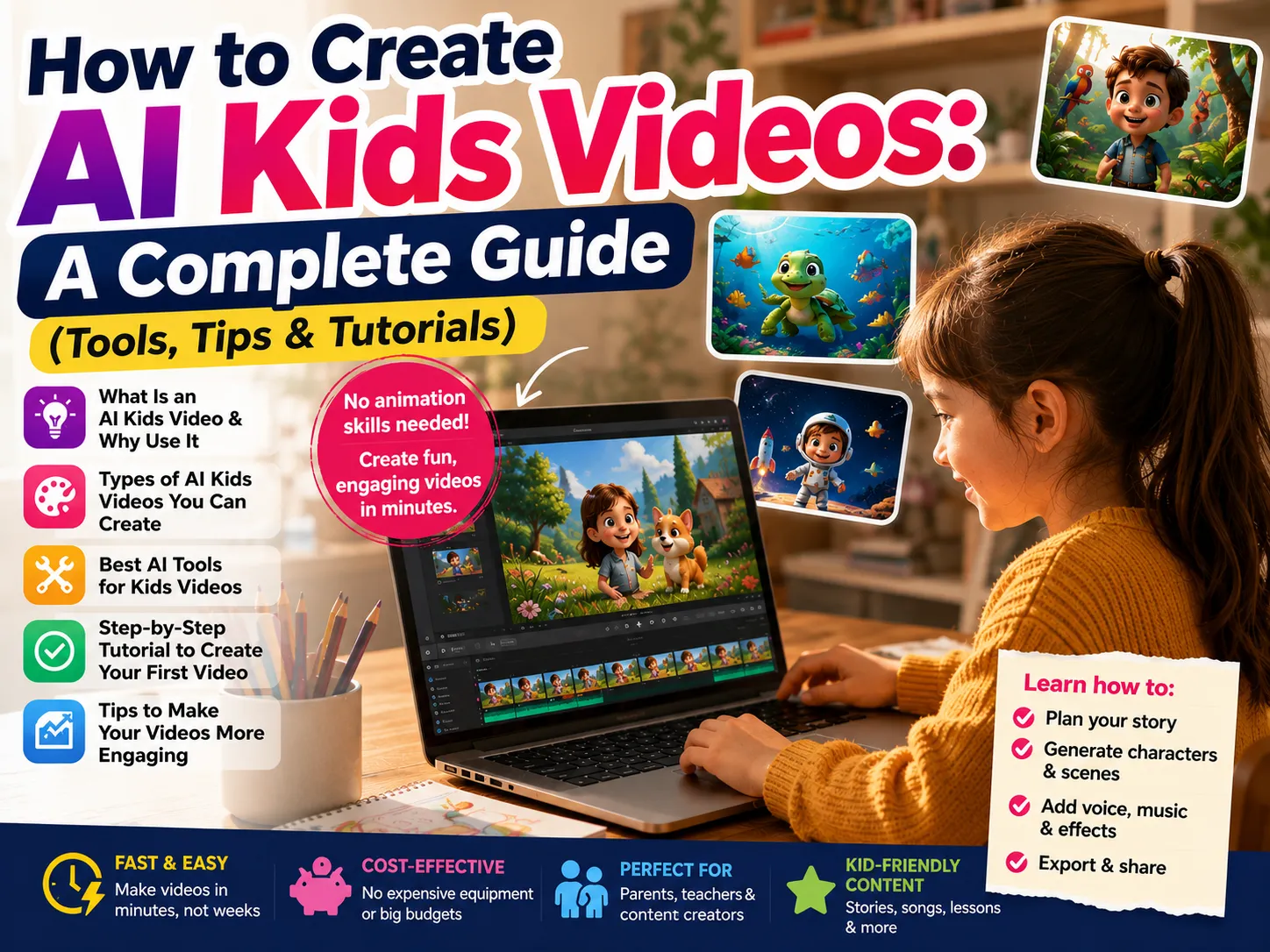
How to Create AI Kids Videos: A Complete Guide (Tools, Tips & Tutorials)
Picture a bedtime story finished by dinnertime - animated, narrated, and ready to watch - instead of something that used to take a studio months to produce. That’s the shift happening right now with AI kids video creation, and it’s why parents, teachers, and YouTube creators are increasingly reaching for AI tools instead of traditional animation software.
Making an AI kids video today doesn’t require drawing talent, 3D modeling skills, or a production budget. It mostly requires a story idea - and the right tool to bring it to life.
This guide covers what an AI kids video actually is, the different styles you can make, the common snags creators run into (and how to avoid them), and how to create your first one from scratch with Anijam AI.
What Is an AI Kids Video?
An AI kids video is any children’s video - a story, a lesson, a song - created using generative AI instead of manual animation. Instead of an illustrator drawing every frame or a 3D artist rigging a character by hand, you describe the story and style you want, and the AI generates the artwork, motion, and often the voice to match.
The finished result can look like a hand-drawn 2D cartoon, a dimensional 3D storybook scene, or something closer to a narrated slideshow. What’s changed is the process behind it, not necessarily how the video needs to look.
Why Use AI to Create Videos for Kids?
AI has lowered the barrier to making children’s animation to almost nothing. A few reasons creators are making the switch:
- Speed - a video that once took weeks of illustration can be outlined, styled, and animated in a single sitting
- Cost - no need to hire an illustrator, 3D rigger, or voice actor for every project
- No software learning curve - you don’t need animation software experience to get a finished video
- Easy experimentation - testing a new story idea or art style costs a few minutes instead of a full production cycle
Types of AI Kids Videos You Can Create
Now that you know what an AI kids video is and why creators are making the switch, the next step is knowing the main types and which style actually fits your project. Not every AI kids video looks the same, and the style you choose depends on what you’re making it for - a YouTube series, a classroom lesson, or a sing-along video. Here are the four types creators make most often.
Cartoon-style Videos
Cartoon-style videos use the classic 2D, flat-color look behind Saturday-morning cartoons and much of children’s anime. Visually, they lean on bold outlines, bright color palettes, and exaggerated expressions rather than realistic lighting or depth - part of what makes the style easier for AI tools to keep consistent across many short episodes.
That combination makes cartoon style the go-to choice for episodic YouTube channels, storytime series, and projects built around a recurring character kids get to know episode after episode. If you’re curious how this style compares to other animation techniques, our guide to animation types breaks down ten different styles in more detail.
3D Animated Kids’ Story Videos
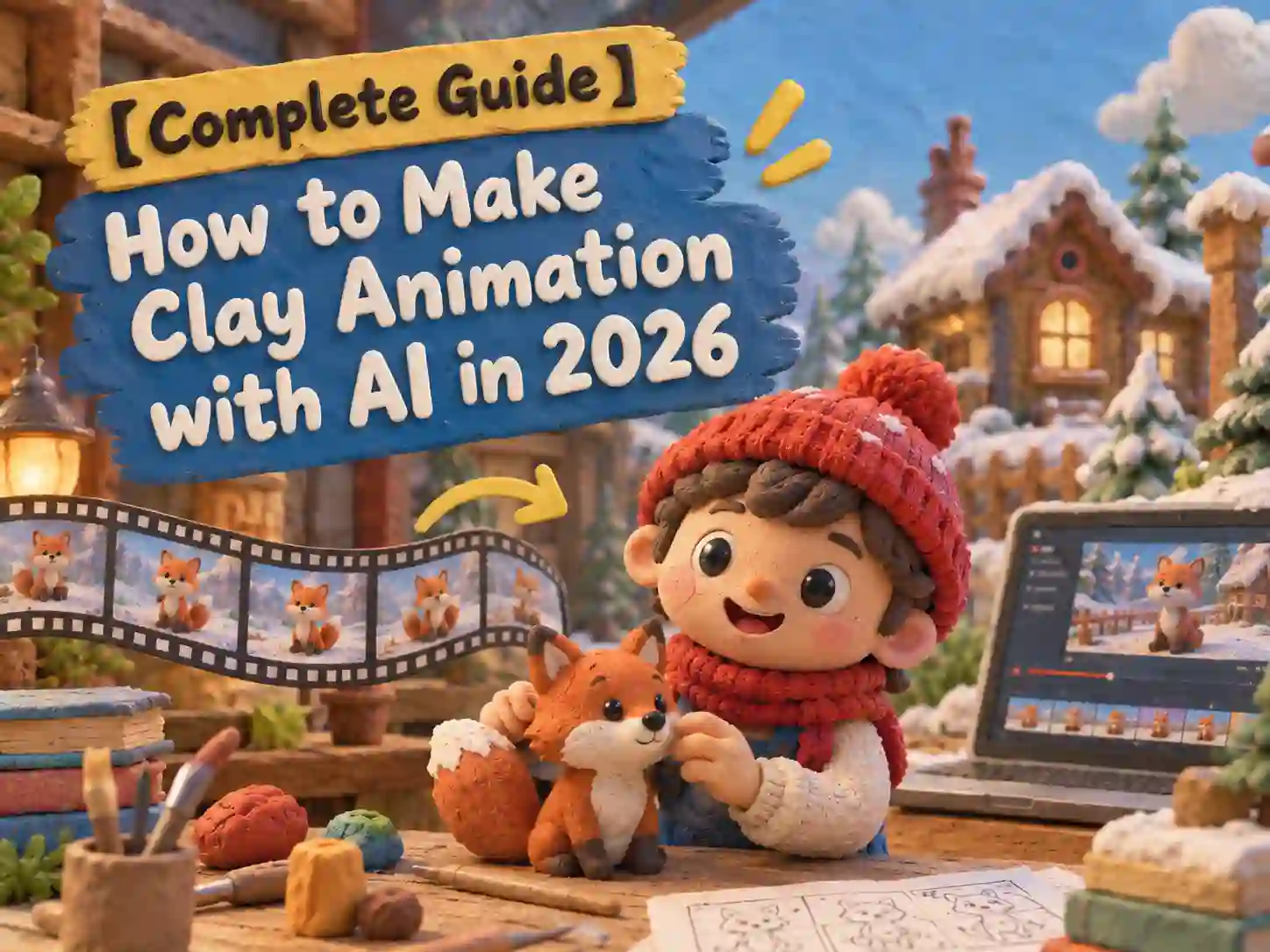
3D animated kids’ story videos build characters and scenes with actual depth, using dimensional lighting and camera movement rather than a flat illustrated plane.
The look sits closer to a Pixar or DreamWorks short, with a more cinematic, immersive feel - though producing it by hand normally means modeling, rigging, and lighting every character, a much heavier lift than 2D illustration.
That’s exactly the manual work modern AI-powered 3D animation tools are built to remove, generating the same dimensional look directly from a written story. This style works well for adventure narratives, fantasy stories, and any project where an immersive, movie-like feel matters more than a flat cartoon aesthetic.
Educational / Explainer Videos
Educational or explainer videos teach a concept - letters, numbers, manners, simple science - by wrapping it in a short animated story instead of a straight lecture.
They tend to lean on a narrator character, simple repeated phrases, and visual metaphors that make an abstract idea concrete, since kids generally retain a lesson better when it’s tied to a character and a mini-story than when it’s presented as plain narration.
Parents and teachers use this format for classroom lessons, homeschool content, and channels built around teaching a specific skill or subject - and it can be produced in either a cartoon or 3D style depending on the tone you want.
Nursery Rhymes and Kids’ Songs
Nursery rhymes and kids’ songs turn a piece of music into a sing-along video, with characters dancing, miming, or acting out the lyrics in sync with the beat.
Because the visuals loop and repeat with the music rather than following a complex plot, this format tends to be one of the more approachable styles to produce with AI - the challenge is timing and rhythm rather than long-form story logic.
It’s also one of the fastest-growing categories of AI kids content, especially on channels aimed at toddlers and preschoolers. That said, if music-and-lyric syncing is your main focus, it’s worth knowing that some tools are built specifically around matching animation to a song’s tempo rather than around general story generation - so the right tool really depends on which part matters most to you.
Common Challenges in Making AI Kids Videos (and How to Solve Them)
Whichever style you land on, actually making an AI kids video comes with a learning curve. Once you start creating, the same handful of pain points tend to show up - and broadly, they split into two kinds: technical hiccups in how the AI renders characters and voices, and content-level issues in how well a story holds together once you string scenes together. Here’s what each looks like, and how creators typically work around them.
Keeping Characters Consistent
The most common complaint from creators: a character’s face, outfit, or proportions shift slightly from one scene to the next - sometimes more than slightly. It’s the single biggest technical hurdle in AI kids animation, since a recognizable, consistent character is what makes episodic content watchable.
Tips:
- Build a clear character reference before generating any scenes, rather than describing the character fresh each time
- Reuse that same reference across every shot instead of prompting from scratch
- Choose a tool that maintains character consistency automatically across scenes, so you’re not manually fixing mismatched faces afterward
Getting Natural Voice and Lip Sync
The second technical hurdle sits in audio: AI-generated voices can sound flat or robotic, and a character’s voice can even shift oddly - different pitch, accent, or gender - between clips generated separately. Mouths that don’t quite match the dialogue are just as noticeable to a young audience as to an adult one.
Tips:
- Generate the full voice track first, then animate the scene to match it, rather than the other way around
- Keep dialogue lines short and clearly punctuated, since that helps timing land correctly
- Use a tool with built-in automatic lip-sync instead of hand-aligning mouth shapes afterward in editing software
Keeping Complicated Stories and Scenes Coherent
This one sits more on the content side than the technical side. Most AI video tools generate each clip from a separate prompt, which means the model has no memory of what happened in the scene before it - it doesn’t inherently know how many characters were on screen, what a character was just doing, or how the previous shot ended.
String several of those independently generated clips into one longer story, and that lack of narrative continuity starts to show: lighting or style drifting between scenes, or details that just don’t add up, like a line of dialogue mentioning eight balloons while only five appear on screen.
Tips:
- Storyboard scene by scene before generating anything, keeping to one clear action per scene
- Lock in a single style choice at the start and stick with it through the whole video
- Generate scenes inside one connected workflow rather than switching between separate tools for art, animation, and voice, so continuity carries over automatically instead of being patched together after the fact
How to Choose the Right AI Kids Video Generator
Once you know the style you want and the pitfalls above to watch for, the next step is picking a AI kids video generator that actually fits.
Top AI Kids Video Generators Worth Trying
A few tools stand out for making AI kids videos, each with a different focus:
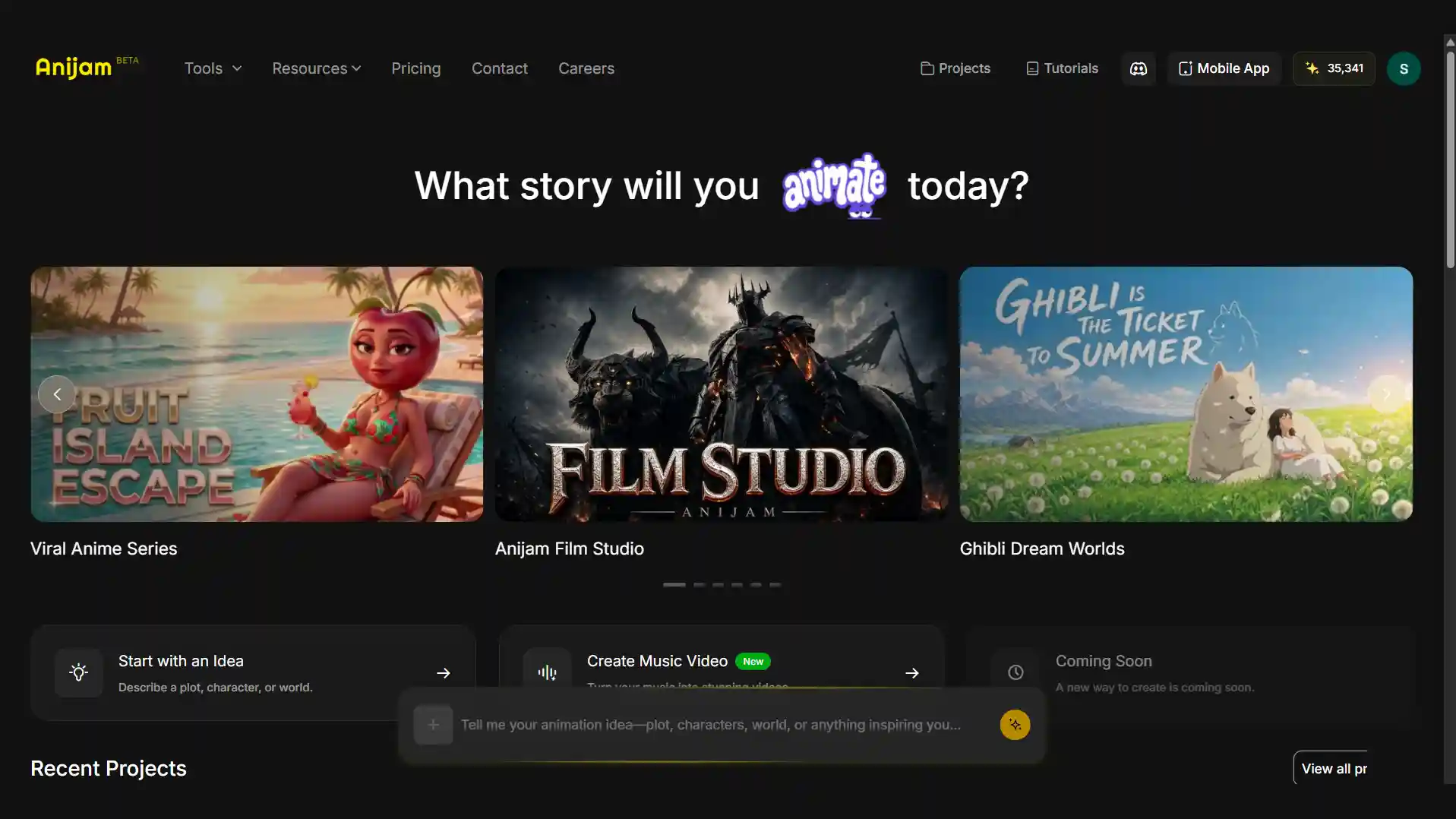
- Anijam AI - an all-in-one platform covering the full workflow: story-to-scene generation, a style library that includes cartoon and 3D looks, consistent characters, automatic lip-sync, and a mobile app with regularly updated AI kids video templates
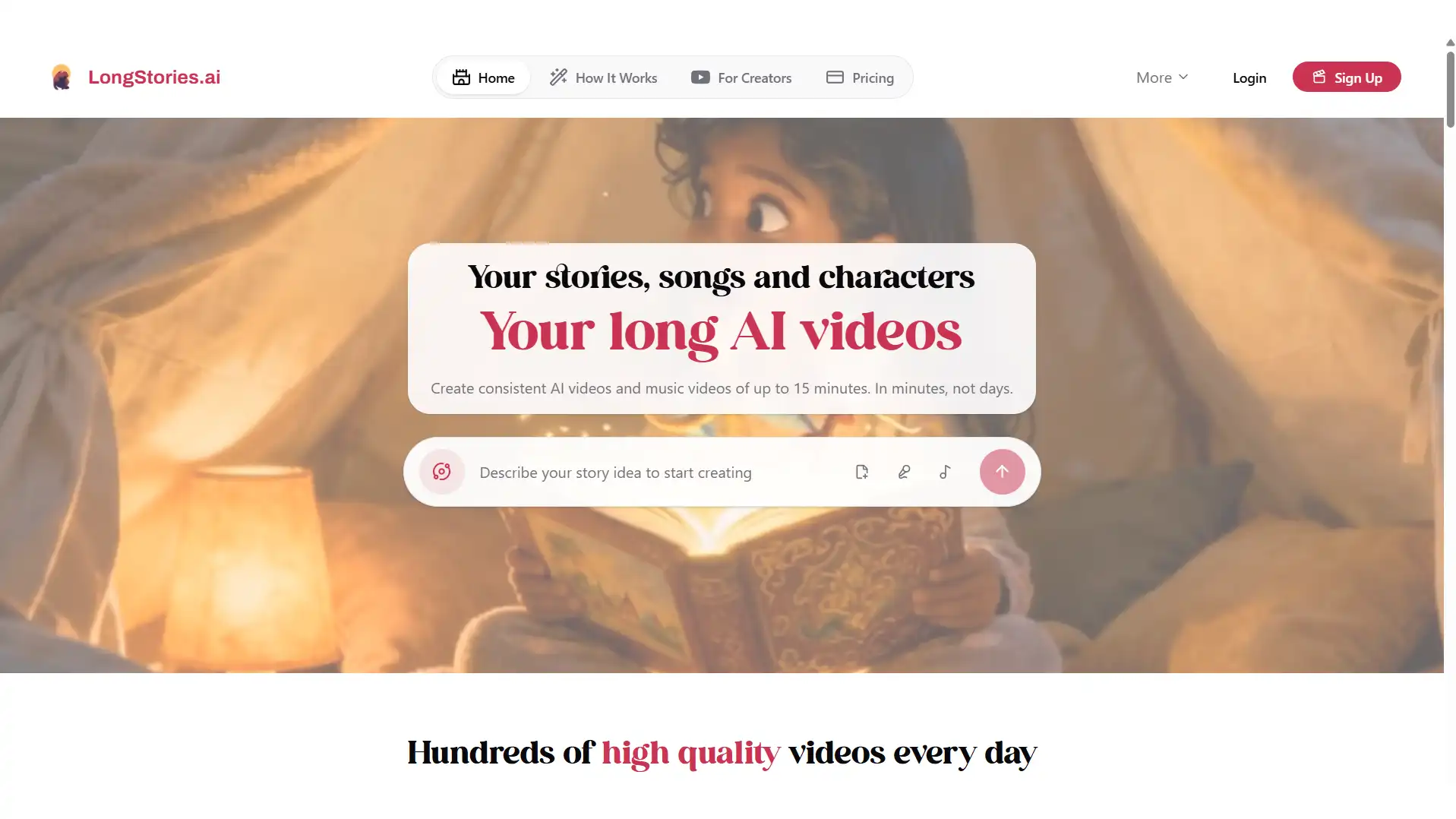
- LongStories.ai - built specifically around long-form, character-consistent story videos; creators set up a reusable character “Universe” once and carry it across episodes, with dedicated modes for bedtime stories, fables, and fantasy narratives
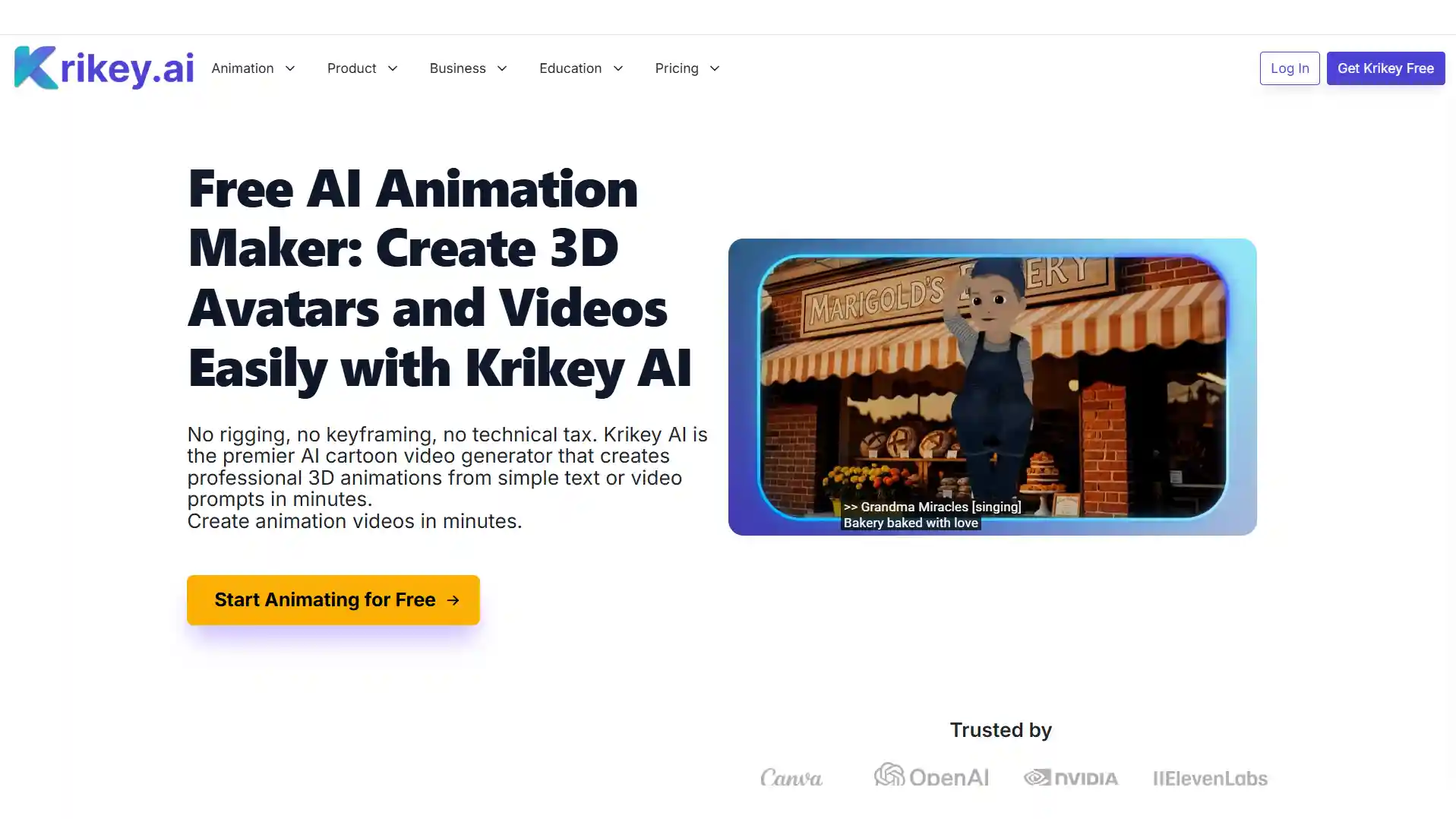
- Krikey AI - best known for 3D cartoon characters and avatar-style animation, leaning toward playful, interactive character work
There’s no single “best” AI kids video generator for every use case - it depends on whether you need a quick clip, a narrated storybook, or a full episodic series with the same characters returning scene after scene.
How to Make Your First AI Kids Video with Anijam AI (Step-by-Step)
If an all-in-one workflow is what you’re after, here’s what the process looks like, from a blank page to a finished video, with Anijam AI:
Two Ways to Start
Anijam AI gives you two starting points, depending on how much direction you already have.
Way 1: Start from a Template
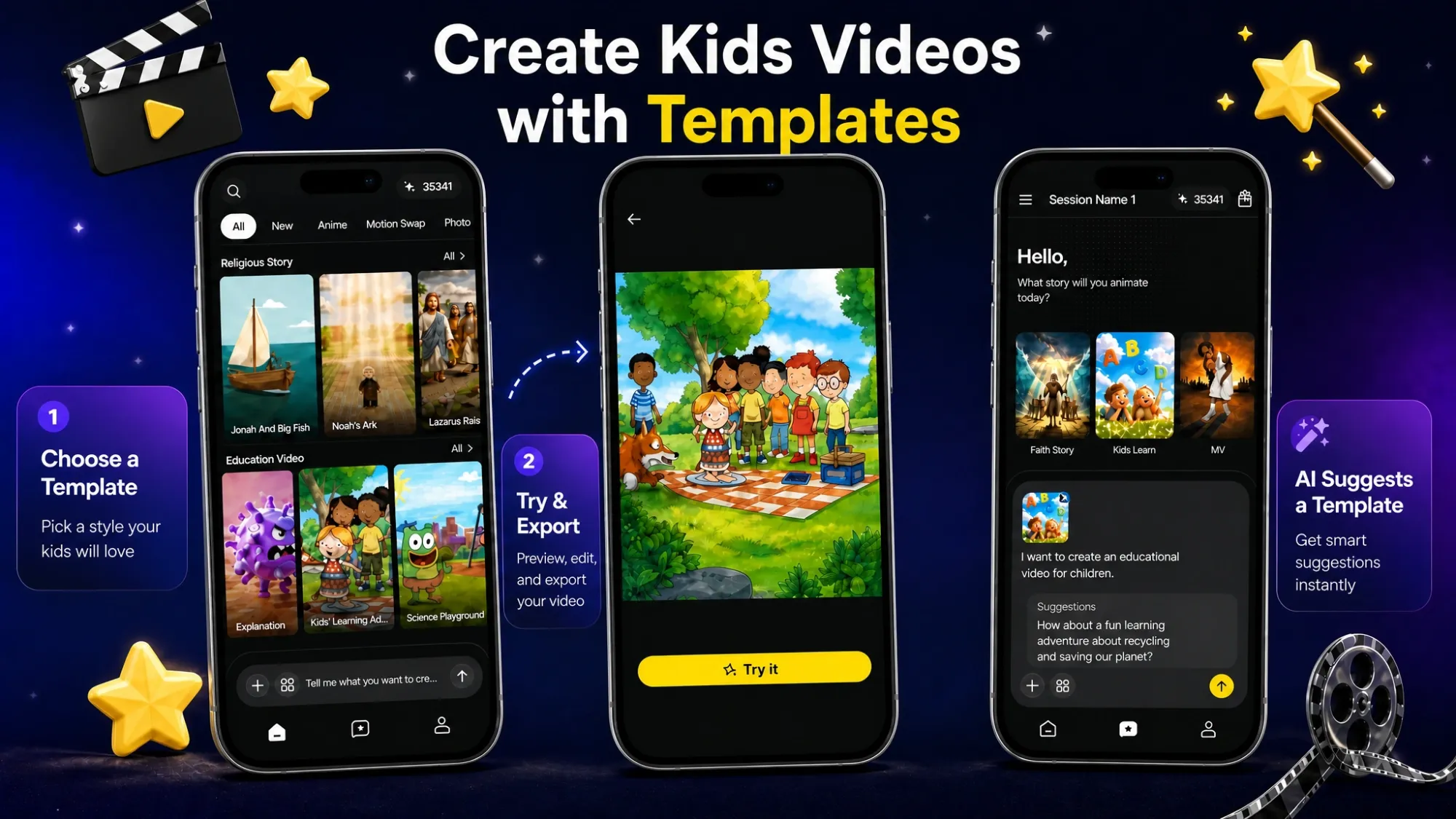
Browse Anijam AI’s Inspiration Gallery on the mobile app for ready-made templates sorted by use case, including a dedicated Education Video section and a Kids Learn template built specifically around children’s content.
Pick one that’s close to what you’re picturing, then swap in your own characters, story details, or narration to make it yours - a fast way to get a finished video without starting from a blank page.
Way 2: Chat with the AI Video Agent
If you’d rather build something from scratch, describe your idea directly to Anijam’s AI video agent, and it walks you through the rest of the process step by step - starting with the story itself.
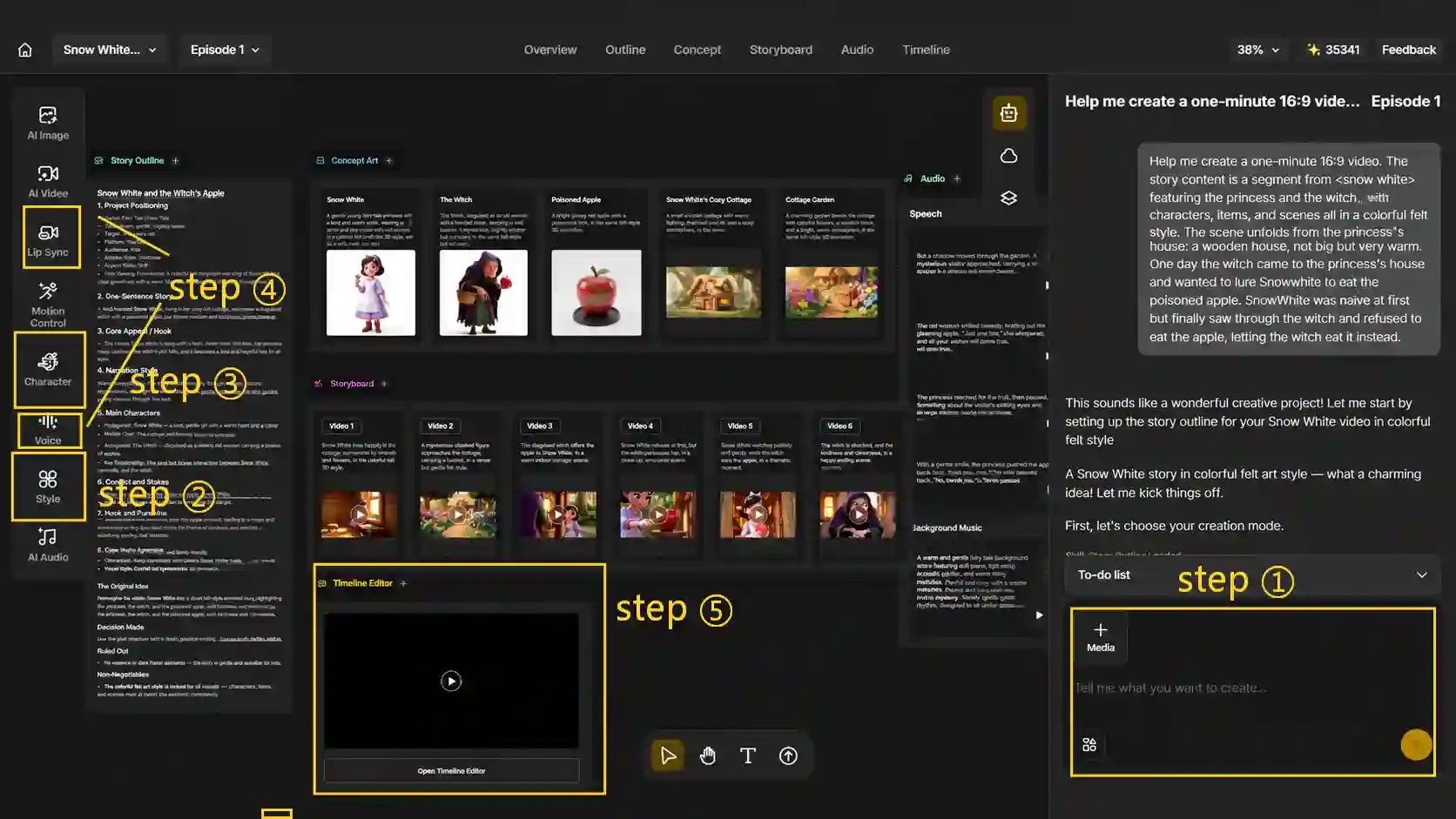
Step 1: Describe Your Story (or Upload a Reference)
Pick your creation mode, then tell Anijam AI agent what you want in plain language - something like “a bedtime story about a shy dragon who makes a new friend, in a soft 3D storybook style.” If you already have a character in mind, you can upload a photo, drawing, or reference image instead.
Step 2: Pick a Style
Browse the style gallery - Cartoon, 3D, Ghibli-inspired, and more - to set the visual identity for the whole video. This one decision shapes everything that follows, so it’s worth a proper scroll before locking it in.
Step 3: Lock In a Consistent Character
Once a style is chosen, Anijam AI’s Character Animation Toolkit keeps your character’s face, outfit, and personality consistent from the first scene to the last - solving exactly the scene-to-scene drift covered earlier in this guide, without any manual reference-sheet work on your end.
Step 4: Add Voice and Lip-Sync
Upload your own narration or song, or generate one directly in Anijam AI, and its automatic lip-sync engine matches mouth movements to the dialogue or lyrics on its own.
Step 5: Edit the Timeline and Export
Head to the Timeline tab to review pacing scene by scene, nudge timing where needed, and preview the video before exporting it - ready to publish.
Tips for Making Your AI Kids Videos for Social Media
Once you’ve exported a finished video, getting it in front of kids and parents is its own separate skill. A few things hold true no matter where you publish: bright, expressive visuals with a recognizable character face outperform text-heavy thumbnails, a consistent look across episodes, and shorter attention spans among younger viewers reward tighter pacing everywhere. From there, a few details are worth tailoring by platform.
For YouTube
- Use standard horizontal (16:9) format for long-form storytime or episodic content, ideally in the 3–8 minute range
- Use YouTube Shorts (vertical, under 60 seconds) as a companion format for teaser clips, single-song moments, or highlights from a longer episode
- Design bright, expressive thumbnails built around a recognizable character face rather than heavy text
- Write clear, descriptive titles that help both parents and YouTube’s search understand what the video is about
- Keep branding and thumbnail style consistent across episodes so the channel reads as a recognizable show
For TikTok and Instagram Reels
- Use vertical (9:16) clips, generally under a minute
- Lead with a strong visual hook or a familiar character in the first second or two, since that’s what earns the watch
- Lean on trend-aware sounds or music where it genuinely fits the content
- Post more frequently than you would on YouTube, since both platforms tend to reward a steadier upload pace
- Repurpose a single longer AI kids video into several short, self-contained clips instead of producing separate content from scratch for each platform
Across Any Platform: Keep Kids’ Content Age-Appropriate
- Review YouTube’s COPPA-related “made for kids” setting before publishing, since it affects personalized ads and comments
- Check TikTok’s and Instagram’s own youth-safety policies too, rather than assuming YouTube’s rules cover everything
- Know that YouTube’s AI-disclosure requirement targets realistic content that could be mistaken for a real person, place, or event - not stylized, clearly animated content like most AI cartoon or 3D kids videos, though it’s worth a quick check in YouTube Studio if you’re ever unsure
- Give any AI-generated story a final human review for tone, pacing, and humor that’s genuinely appropriate for the age group you’re making it for
Conclusion
Making an AI kids video used to mean choosing between a full production budget and a rough, DIY-looking result. That gap has mostly closed. Whether you’re animating a cartoon-style bedtime story, a 3D storybook adventure, or a sing-along nursery rhyme, the tools now exist to take a simple idea all the way to a finished, publish-ready video without a studio behind you.
If you’re ready to make one, Anijam AI Video Maker brings story generation, consistent characters, style options, and lip-sync into one workspace - so you can go from an idea to a finished AI kids video in an afternoon instead of a month.
Frequently Asked Questions
What is an AI kids video generator? It’s a tool that turns a written story, script, or song into an animated children’s video using generative AI - handling the art, animation, and often the voice, instead of a human animator building it frame by frame.
Is it free to make an AI kids video? Many AI kids video generators offer a free tier or trial, usually with limits on video length, resolution, or the number of generations per month. Free plans are generally enough to test a style or a short clip; longer, episodic content usually needs a paid plan.
Can I use AI to make a 3D animated kids’ story video? Yes - tools built around a 3D style, like Anijam’s 3D animation tool, can generate dimensional characters and scenes directly from a written story, without any manual 3D modeling or rigging.
How do I keep AI-generated characters consistent across scenes? The most reliable approach is to lock in a character reference before generating any scenes, then reuse that same reference for every shot. Tools with built-in character consistency handle this automatically, which saves a lot of manual fixing.
Do AI-generated kids videos need an AI disclosure label on YouTube? Generally, AI-generated kids videos do not need an AI disclosure if they are clearly non-realistic or stylized, such as cartoon or animated videos. YouTube’s disclosure requirement mainly applies to realistic or photorealistic AI content that could mislead viewers about real people, places, or events. However, if an AI kids video looks highly realistic, creators should check YouTube’s current disclosure requirements and consider whether disclosure is needed.
Can I create nursery rhymes or kids’ songs with AI animation? Yes. Nursery rhyme and sing-along videos are one of the most common AI kids video formats, since repeating, loop-friendly visuals suit AI generation well. If music-and-lyric timing is your main focus, look for a tool that’s specifically built to sync animation to a song’s tempo.
by Evan
Evan is an AI content creator and video technology writer at Anijam AI, focused on how generative AI is transforming storytelling and video production. He shares social trends, creative workflows, prompt strategies, and practical insights to help creators turn ideas into engaging videos and visual content.