Google Flow AI Review 2026: Features, Updates, Pricing & Alternative
You generate a clip you almost love. The framing works, the light works, and then you spot a coffee cup on the table where no cup should be. In most AI video tools, the fix is another prompt and another round of credits.
Google Flow handles it differently. You can ask it to remove the object or change the camera move on the clip you already have. That idea runs through most of what Google added to Flow in 2026, and it’s the reason this Flow AI review is worth your time.
We’ll cover what Flow is, what its video and image tools actually do, what changed this year, how the credit system works, and who it suits. We’ll also be upfront about where it falls short.
What Is Google Flow AI?
Flow AI is Google’s AI creative studio for making videos and images. Google introduced it at I/O in May 2025 as a filmmaking tool, and it grew out of an earlier Labs experiment called VideoFX. It has since evolved into a broader creative workspace, and Google says it’s now available in more than 140 countries.
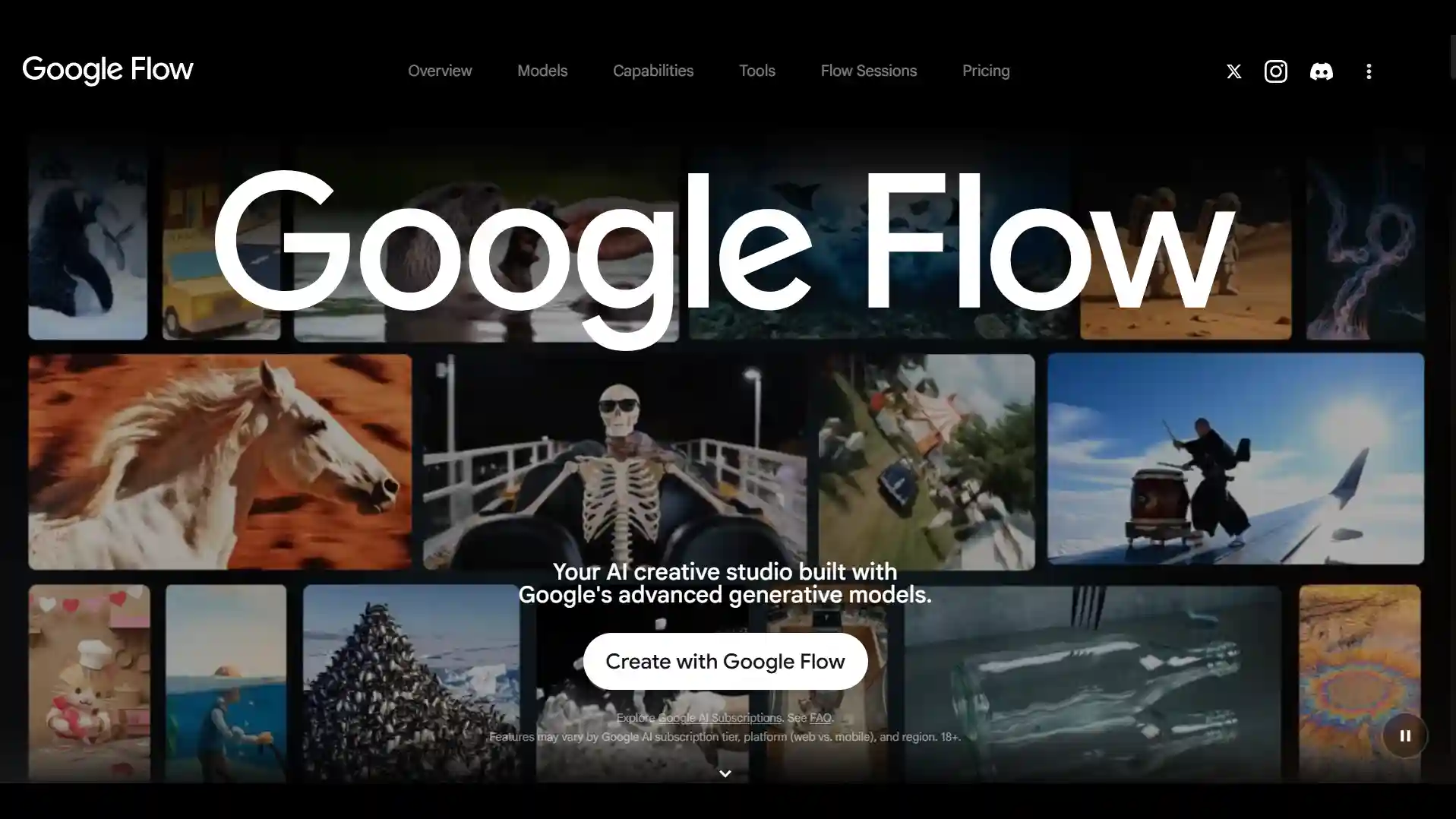
In practice, you use Flow to generate video from text, images, and reference clips, create and edit images, and keep everything organized in one project library. The models behind it are all Google’s: Gemini Omni Flash and Veo 3.1 Lite for video, the Nano Banana family for images, and Gemini powering the built-in Agent.
You can access Flow through its website (flow.google) in your browser. There’s also a Google Flow app for both Android and iOS, so you can start a project on your phone and pick it up on the web. The web version is still the most complete one, and a few features, including Frames to Video and video extension, are web-only for now.
Key Features of Google Flow AI
Flow brings image and video generation, AI-assisted editing, and creative tools into one workspace. Here are the features that make it stand out.
-
Flexible Inputs and Model Choices
Flow supports more than text-to-video generation. You can start with a text prompt, upload reference images or videos, provide a starting frame or both start and end frames, or use Ingredients to guide the output. You can also choose between models such as Omni Flash 1.2 and Veo 3.1 Lite for video, and Nano Banana models for images. Available inputs and editing options vary by model.
-
Reference-Based Character and Voice Consistency
Flow’s Ingredients let you reuse character, object, and style references across generations. You can also create reusable Characters that bundle visual references with a voice, helping maintain a character’s appearance, clothing, and voice across clips. With Omni Flash, you can select preset voices or create custom ones.
-
Integrated Image Generation and Editing
Flow includes image generation powered by Nano Banana models, so you can create visuals directly in a project and reuse them as video references. You can also edit images through natural-language instructions, generate multiple variations, and revisit earlier versions without losing the original.
-
Prompt-Based Video Editing and Scene Building
Rather than starting over every time, you can upload an existing clip and describe the changes you want. Omni Flash 1.2 supports video-to-video editing, while eligible paid subscribers can extend clips with additional footage. For multi-clip projects, Scenebuilder lets you arrange, reorder, trim, preview, and download a sequence.
-
AI Agent, Custom Tools, and Project Management
Flow Agent works as a conversational creative assistant: it can brainstorm ideas, outline storyboards, develop mood boards, refine prompts, generate variations, and edit or organize assets. Flow also lets subscribers build reusable mini-tools by describing what they need in plain language. Projects include searchable assets and collections to keep generated images, videos, characters, and scenes organized.
Pros & Cons
Here’s what works well in practice, along with a few limitations to keep in mind.
Pros
- A broad creative workspace: Image creation, video generation, editing, and project organization are available in one place.
- Flexible creative workflows: You can work directly with prompts or bring in your own visual references and footage.
- More room to experiment: Multiple models and generation variations make it easier to explore different visual directions.
- Less repetitive work: Agent-assisted editing, batch generation, and reusable Tools can simplify recurring tasks.
- An accessible starting point: Free daily video credits and image generation let new users try Flow before paying.
Cons
- Credits can run out quickly, especially when generating longer or higher-resolution clips.
- Free video generation may be restricted during peak hours, depending on demand and availability.
- Results can be inconsistent: Some users report prompt mismatches, visual glitches, or problems when extending clips.
Google Flow AI Pricing and Plans
Flow runs on credits. Every generation costs some, and what you get depends on your Google AI plan.
Without paying, you get 50 credits a day. The daily refresh starts after your first generation, and unused credits don’t carry over. Subscribers keep the daily 50 and get a monthly pool on top, which doesn’t roll over either.
Note: Plans and pricing may change. Please check the official website for the latest details before purchasing. This table reflects pricing and plans as of November 2026.
| Plan | Price (USD) | Flow credits | What you get |
|---|---|---|---|
| Free | $0 | 50/ day | • Clips up to 10 seconds, free image generation, Agent access; • Video generation may be limited at peak hours; • 720p upscaling |
| Google AI Plus | $4.99/ mo | 50/ day + 200/ mo | • Clips up to 15 seconds, video extension, custom tool creation; • 1080p upscaling |
| Google AI Pro | $19.99/ mo | 50/ day + 1,000/ mo | • More credits and headroom, plus the wider Google AI Pro bundle; • 1080p upscaling |
| Google AI Ultra | $99.99/ mo | 50/ day + 10,000/ mo | • Adds 4K upscaling and lower Veo 3.1 Lite credit costs |
| Google AI Ultra | $199.99/ mo | 50/ day + 25,000/ mo | • Same features as the lower Ultra tier, with a larger credit pool |
So what does a credit actually buy? Here’s how much video generation costs with the two models:
- Omni Flash 1.2 (360p): 1 credit per second for the first 10 seconds; 2 credits per additional second from 11-15 seconds (paid plans only).
- Omni Flash 1.2 (720p): 3 credits per second for the first 10 seconds; 6 credits per additional second from 11-15 seconds (paid plans only).
- Veo 3.1 Lite (720p): 10 credits per 4-, 6-, or 8-second clip, or 5 credits for Google AI Ultra subscribers.
What Are the Latest Updates to Google Flow AI (November 2026)?
Flow has changed more in 2026 than in its whole first year. Rather than repeat the features above, here’s what landed, in order, and what each update changed.
| Date | Update | What changed |
|---|---|---|
| Nov 5, 2026 | Gemini Omni Flash 1.2 Integration | • Introduced native video generation up to 15 seconds • Added multi-turn conversational editing • Better reference consistency & natural dialogue and lip sync • Generate drafts at 360p or 720p & upscale clips to 1080p or 4K |
| Nov 12, 2026 | Five new Google Flow Creative Tools designed by visual artists | • Character Poster for designing consistent story visuals; • Character Arc for visualizing characters across different ages; • Pixel Machine for retro and pixel-art effects; • Lucid Glass for optical effects; • Pocket Studio for turning phone footage into polished shots with multiple camera angles while preserving the original performance. |
Flow became a place to build, not just generate. Image generation joined the studio, the Agent arrived, and Tools let creators package their own workflows. Google added eleven creator-made tools in under two months, from Mondo Sónico for layered sound effects to Pocket Studio for multi-angle shots.
Omni Flash 1.2 is the model to know. Google introduced Gemini Omni Flash 1.2 Flash on November 5, 2026, bringing native 15-second video generation to Google Flow.
Keep an eye on the calendar. Veo Extend is already gone, and three more models are going to retire on December 5: Veo 3.1 Fast, Veo 3.1 Quality, and Omni Flash 1.1. Google recommends switching to Omni Flash 1.2 or Veo 3.1 Lite for future projects. If you’re following an older Google Flow tutorial, check which model it uses before spending credits or starting a new project. Some workflows may need to be adjusted to work with the newer models.
How Does Google Flow AI Work?
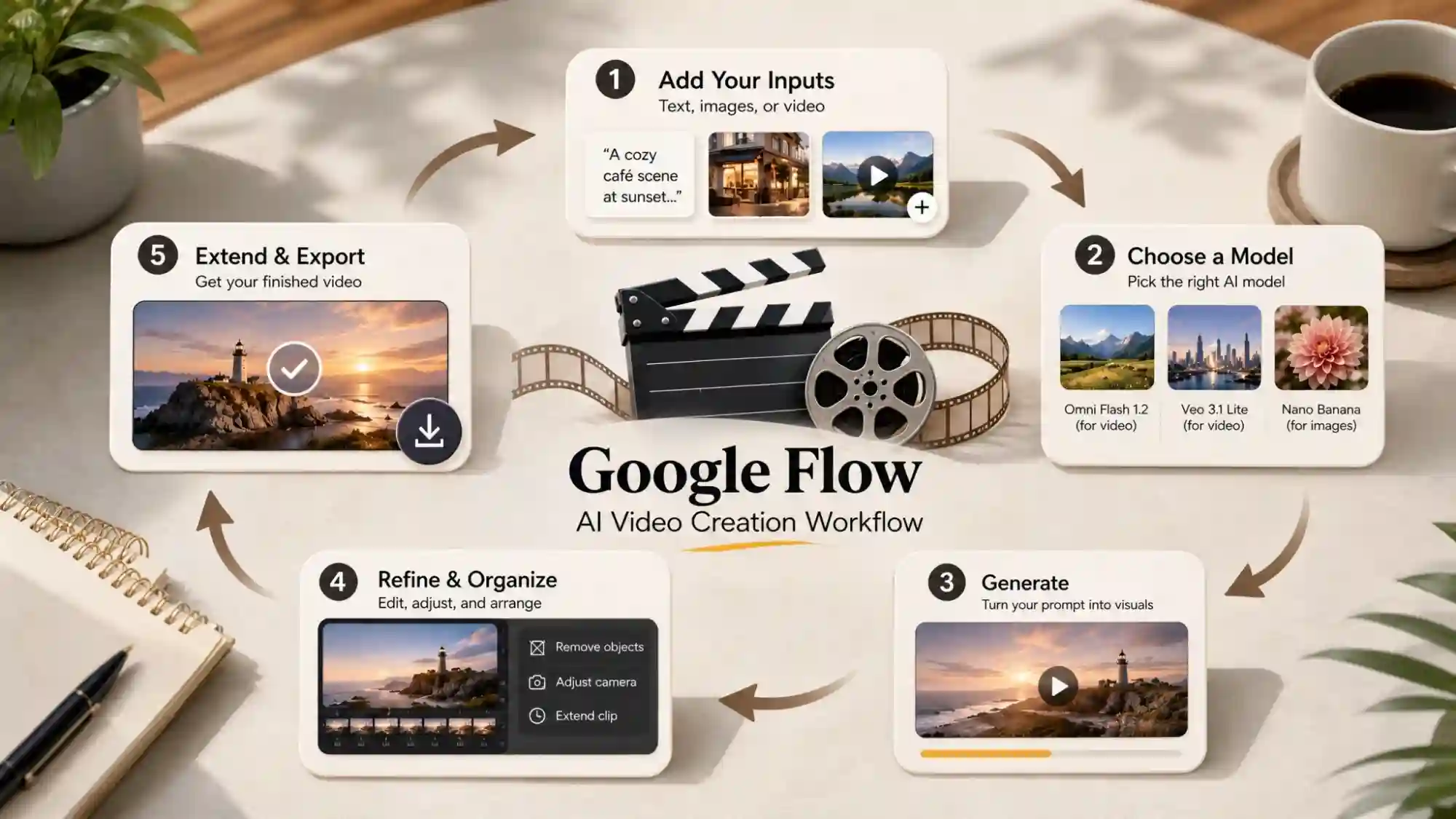
Google Flow brings its capabilities together in a connected creative workflow, from providing inputs and selecting AI models to generating, refining, and organizing visual content. Here’s how the process works in practice.
Understanding Creative Inputs and References
Flow accepts text prompts, images, start and end frames, and existing videos as creative inputs, depending on the selected model and workflow. You can also add reference images, called ingredients, to guide the appearance of characters, objects, and visual styles. To reuse supported assets already in your project, type @ followed by the asset name in your prompt.
These references help the model follow your visual direction across different shots. For example, adding a character reference gives Flow a visual guide to that character’s appearance, rather than relying entirely on a written description.
Routing Tasks to Specialized AI Models
Flow uses different AI models for different creative tasks. Gemini-powered Agent helps understand your requests, plan multi-step projects, and assist with editing, while Gemini Omni Flash and Veo 3.1 Lite handle video generation. Nano Banana models power image creation and editing. The available models and features depend on the task you select.
You can choose a model and adjust generation settings, such as resolution and video length, in the prompt box. Flow also displays the credit cost before generation. Model capabilities differ: Veo 3.1 Lite supports standard text-to-video and frame-based generation but not video-to-video editing or extension, while Omni Flash 1.2 supports both. If a selected model doesn’t support a particular feature, Flow can suggest switching to a compatible one. For a closer look at Veo, see our Google Veo 3 review.
Generating Images and Videos from Prompts and References
You can start by generating an image of a character, product, or scene, then reuse it as an ingredient or starting frame for video generation. Describe the subject’s actions, camera movement, and atmosphere, and Flow uses your prompt and visual references to create a clip. Start and end frames provide additional control over how a shot begins and finishes, helping guide transitions and visual continuity.
For faster experimentation, Gemini Omni Flash offers 360p generation at a lower credit cost than 720p. For example, a 10-second clip costs 7 credits at 360p versus 15 credits at 720p. You can test an idea at lower resolution before generating a higher-quality version, with 1080p upscaling available to eligible subscribers and 4K upscaling available to Ultra subscribers.
Refining and Organizing Content Through AI-Assisted Editing
Flow lets you refine images and videos through different editing tools. You can select areas of an image for targeted changes, while video editing supports adding or removing elements and adjusting camera movements. With Gemini Omni Flash 1.2, you can also make edits through follow-up prompts, refining a result over multiple conversational turns.
The Google Flow Agent handles more repetitive project tasks, including generating multiple variations, applying edits across assets, organizing files into collections, and renaming them. Once your clips are ready, Scenebuilder lets you arrange them into a sequence, change their order, trim their beginnings and endings, and preview the finished scene.
Extending Videos for Longer Scenes
Flow’s video extension feature lets you continue a clip beyond its original ending by describing what should happen next. With Omni Flash 1.2, eligible Google AI Plus, Pro, and Ultra subscribers can extend videos, using up to three image references to help maintain character and environmental consistency.
However, extension is not always seamless. Each new segment builds on the previous footage, so longer chains may need additional review for character movement, camera continuity, and scene transitions. Also, extended clips cannot use other editing modes such as Insert, Remove, or Camera.
Who Is Google Flow AI Best For?
Flow rewards people who like to direct. Here’s who tends to get the most out of it.
Flow AI is a good fit if you:
- Like building a video shot by shot and don’t mind refining each clip
- Make short-form videos, concept scenes, or visual mood boards
- Already work inside Google’s ecosystem and want to try AI video on a free tier first
- Want to experiment with custom tools for your own workflow (paid plans)
It may not be the best fit if you:
- Want a finished multi-scene video assembled for you from an idea or a script
- Plan to work mostly from your phone, since a few features, such as Frames to Video and video extension, are still web-only
Looking for a More Streamlined Workflow? Try Anijam AI
Flow covers a lot of what a script project needs. The Agent can outline a storyboard with you, and Scenebuilder lets you arrange clips into a sequence and preview the whole thing. It’s a toolkit that works best when you like to build a video piece by piece. If you’d rather start from a finished script and have the pieces come together for you, a more streamlined route may suit you better.
Anijam AI is an AI video creation platform built around an AI Agent and a growing library of ready-made templates. Instead of learning timeline software, users describe an idea in plain language and work with the Agent through chat to turn it into a video.
It is an all-in-one platform that keeps everything on one canvas, from script and concept art to storyboard and editing. You can start with any input such as a script, an image, a video or an audio file. Besides, the platform runs on both web and mobile.
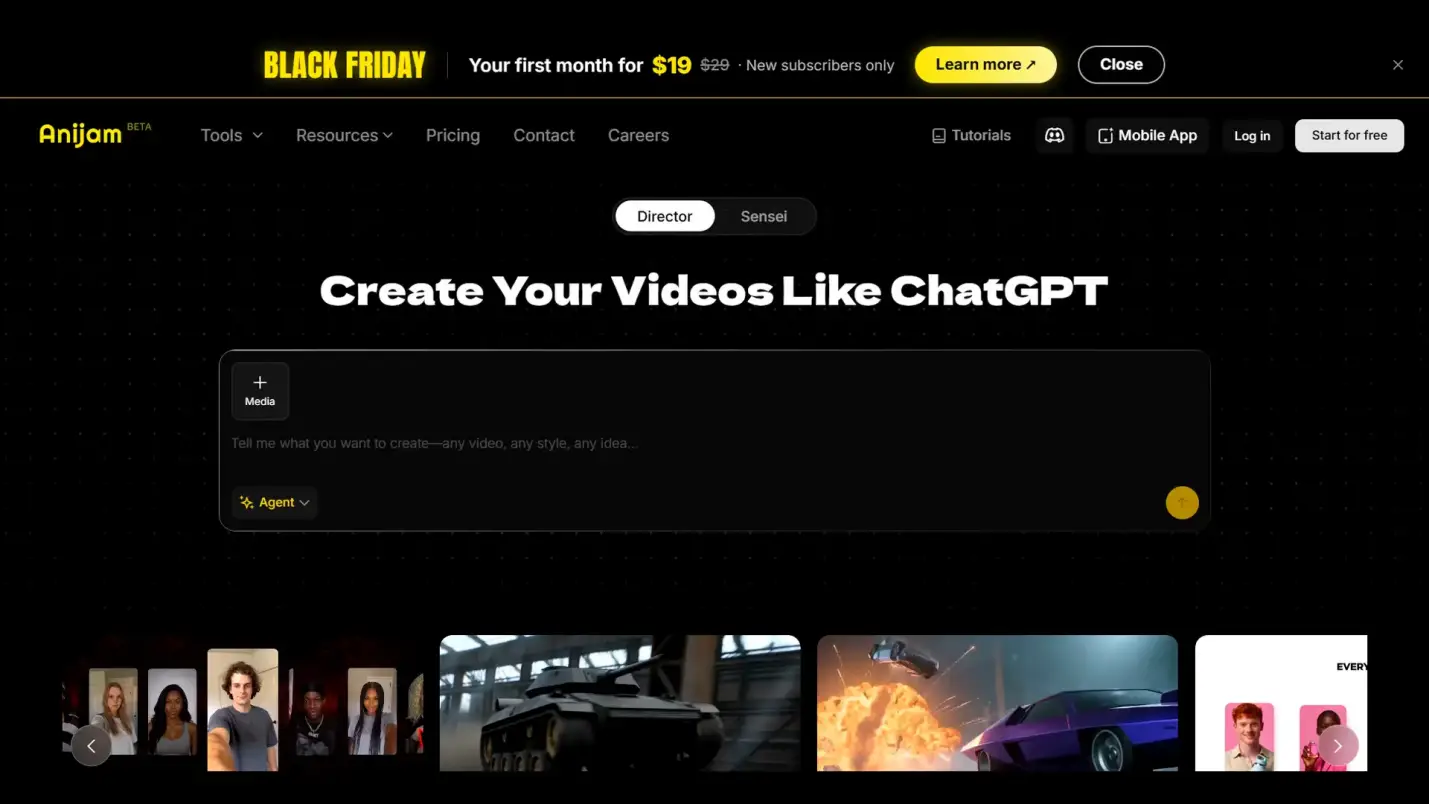
Here’s how the video creation workflow works with Anijam AI:
Step 1: Upload Your Scripts or Ideas
- Upload your script as a .txt, .docx, .pdf, or .md file.
- Let the assistant read it. The AI Story Video Generator breaks the script into scenes and shots, then moves everything into the Outline and Storyboard.
Step 2: Review the Outline and Storyboard
- Review and edit the story outline before anything is generated.
- Check the storyboard. The AI Storyboard Generator lets you plan scenes before generation. Every content block on the canvas can be edited directly. You can also ask the assistant to make changes.
Step 3: Customize Your Characters, Style, and Voices
- Pick a visual style. Choose anime, cinematic, realistic, or cartoon, or use a custom Pro Style on higher plans.
- Set up your characters. Create each one from a description or an uploaded design, and the Image to Video AI brings it to life while keeping their appearance and outfit consistent across scenes.
- Choose the voices. Pick from 200+ voices in 30+ languages, upload your own audio, or turn on lip sync for dialogue.
Step 4: Generate, Refine and Export
- Click Generate. Follow the progress in real time. Generation time varies depending on the scene and settings.
- Review the result on the timeline. Trim clips, reorder scenes, adjust timing, and add captions and music.
- Refine through chat or the Timeline Editor. Describe a change, such as “make scene two brighter” or “extend the intro by two seconds,” and let the AI update the selected shot while keeping the rest untouched. You can also make manual adjustments in the Timeline Editor to fine-tune clips, timing, and scene order.
- Export your video. Choose 9:16 for TikTok, Reels, and Shorts or 16:9 for YouTube, then download.
Is Flow AI Worth It?
For most people exploring AI video creation, Google Flow is worth trying, especially with its free tier. The daily 50-credit allowance gives you room to experiment with prompts, explore its models, and plan visual ideas with free image generation before committing to a subscription.
A paid plan becomes worthwhile when you need more video-generation credits, longer clips, video extension, or upscaling. Pro is a practical upgrade for regular creators, while Ultra is better suited to heavier production needs.
Still, Flow has a learning curve, its credit limits require planning, and creating a polished multi-scene video often involves generating and arranging multiple clips in Scenebuilder. It’s a strong choice if you enjoy hands-on visual direction and shot-by-shot experimentation.
Conclusion
Google Flow has grown from an AI video generator into a broader creative studio, combining video and image generation, AI-assisted planning, and editing tools. It gives creators plenty of flexibility to experiment with visual ideas and direct individual shots.
However, turning an idea into a polished multi-scene video still takes planning, multiple generations, and editing. The experience highlights an important point: a good AI video tool should not only generate impressive clips but also make the entire creation process easier.
If you prefer a more guided, story-driven workflow that takes you from an initial idea or script to characters, scenes, and a finished video, give Anijam AI a try. It offers another approach to AI video creation, especially for creators who want a more connected production process.
Frequently Asked Questions
How long can Flow AI videos be?
It depends on the model and your plan. With Omni Flash 1.2, free users can generate clips up to 10 seconds, while Google AI Plus, Pro, and Ultra subscribers can go up to 15 seconds. Veo 3.1 Lite offers 4-, 6-, or 8-second clips. Paid subscribers can also use Omni Extend to add 3-10 seconds to a video at a time.
Is Flow AI safe to use?
Flow is an official Google product that runs on your Google account, but that doesn’t mean you should upload anything without thinking twice. Avoid uploading private material or other people’s likenesses without permission, and review Google’s privacy settings and terms before using it for commercial work.
Is there a Google Flow app, and is it different from the website?
Yes. Google Flow has official apps for both Android and iOS, and your projects and credits are shared across devices through the same Google account. The mobile app makes it easier to create on the go, while the web version still offers some features that aren’t available on mobile, including Frames to Video and video extension. And don’t confuse it with Flow Music, Google’s separate app for AI music creation.
What is Flow AI good for?
Flow is a good fit for creators who want to make cinematic clips, experiment with visual ideas, or build scenes with detailed control over shots and references. It’s also useful for assembling multi-clip sequences in Scenebuilder. Just keep in mind that a longer, polished video usually takes more than one generation: you’ll need to create multiple clips and bring them together into a scene.
What are the biggest complaints about Google Flow AI?
Users most often complain about credits running out quickly, generated clips not consistently following prompts, and character or scene details changing between shots. Some also find the interface difficult to learn, while audio generation can occasionally produce inconsistent results. These issues may mean extra retries, editing, and time to get the video they want.
by Evan
Evan is an AI content creator and video technology writer at Anijam AI, focused on how generative AI is transforming storytelling and video production. He shares social trends, creative workflows, prompt strategies, and practical insights to help creators turn ideas into engaging videos and visual content.