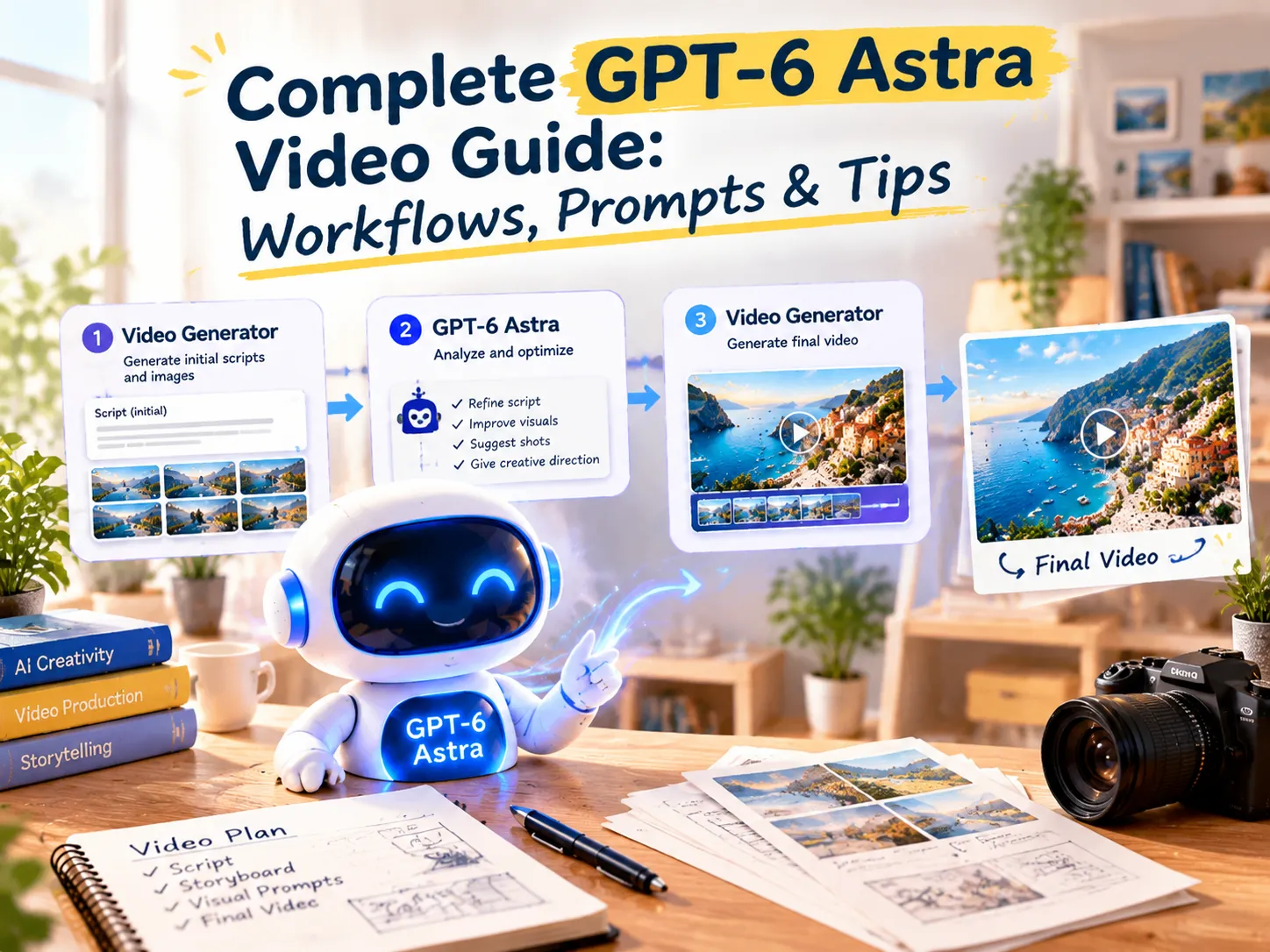
Complete GPT-6 Astra Video Guide: Workflows, Prompts & Tips
A week after launching GPT-6 Astra in September 2026, OpenAI shared a video example of its own: its teams used Astra and Codex to turn three hours of multicamera footage into a first-impressions video, which OpenAI said passed 550,000 views in four days. So how can you use Astra for video work yourself?
This guide sorts out what Astra can and can’t do for video, what it costs, and how to use ChatGPT 6 Astra to plan a project from first idea to final cut. You’ll also get copy-paste prompts, a few GitHub projects creators pair with it, and a simpler Astra-plus-Anijam workflow for anyone who’d rather skip the setup.
What Is GPT-6 Astra?
GPT-6 Astra is OpenAI’s flagship model, launched on September 3, 2026. OpenAI calls it its most capable model for demanding professional work, and says it sets the state of the art on computer use, browsing, software engineering, and professional work, with stronger writing and design judgment.
You can use it in ChatGPT, Codex, and the API, and in the API, it handles up to 1.05 million tokens of context. OpenAI also says it was trained to finish tasks in fewer tokens with fewer retries, which means less rework and lower cost per task. In short, Astra is a general-purpose work model, not a video tool, and that distinction shapes everything else in this guide.
What Can GPT-6 Astra Do?
Based on OpenAI’s announcement and API documentation, these are the abilities that matter most for video work:
- Complex reasoning. Astra is built for multi-step problems, so it can turn a loose brief into a structured plan.
- Writing and document creation. OpenAI says it follows a company’s voice, templates, and design standards more closely, so first drafts need less cleanup.
- Research and browsing. It supports web search and file search, and OpenAI lists browsing among its strongest areas.
- Computer use. In ChatGPT Work and Codex, it can work through the same apps people use every day, even ones that have no API.
- Coding. OpenAI lists software engineering as a top strength, which matters when Codex edits video with code.
- Long context. The API model has a 1.05 million token context window and can return up to 128,000 tokens at once, which is plenty for a full script plus notes.
What it can’t do is generate clips or videos directly. According to OpenAI’s model page, Astra accepts text and images as input and returns text. Audio and video aren’t supported. It also can’t watch a video file, so tools that edit with Astra feed it transcripts and still frames instead.
GPT-6 Astra at a glance
| Astra can | Astra can’t |
|---|---|
| Plan the video and write the script, narration, and shot list | Generate clips or videos directly |
| Write visual prompts for AI video generators | Generate audio or a voiceover |
| Read images, such as reference frames and storyboards | Watch a video file directly |
| Drive editing tools through Codex or computer use | Replace a video generator |
GPT-6 Astra Plans and Pricing
How you use ChatGPT 6 Astra depends on your plan. Here’s where OpenAI’s Help Center says it’s available:
- Plus: Astra is included in ChatGPT Work and Codex. In regular Chat, Plus uses GPT-6 powered by GPT-6 Sol, not Astra.
- Pro ($100 and $200): Astra is available in Chat (as GPT-6 Pro), Work, and Codex. GPT-6 Pro has usage limits, and Work and Codex have separate allowances.
- Business and Enterprise: GPT-6 Pro, powered by Astra, is available in Chat. Enterprise access also depends on your workspace’s model-access permissions, so admins may need to enable it.
- Free and Go: not included. These plans default to GPT-5.6 Luna.
- API: use the model ID gpt-6-astra.
On a ChatGPT plan, your usage is covered by the plan’s limits. Through the API you pay per token, and the price depends on the speed mode and the context length. Here’s the standard price list, per 1 million tokens:
GPT-6 Astra API pricing (per 1M tokens)
| Speed | Short context (input / output) | Long context (input / output) | Cached input (short / long) |
|---|---|---|---|
| Standard | $10 / $50 | $20 / $75 | $1 / $2 |
| Flex / Batch | $5 / $25 | $10 / $37.50 | $0.50 / $1 |
| Fast | $20 / $100 | $40 / $150 | $2 / $4 |
| Ultrafast | $60 / $300 | $120 / $450 | $6 / $12 |
Note: Plans and prices change often. The figures above reflect OpenAI’s pricing page and Help Center as of October 2026. Always check OpenAI’s official website before you buy or budget.
Core Workflow: What GPT-6 Astra Can Do for Video Creation
Think of Astra as your writer’s room and director, not your camera crew. Here’s how it handles each stage, based on OpenAI’s documentation and how creators use it in practice.
Write Scripts, Storyboards, and Scene Prompts
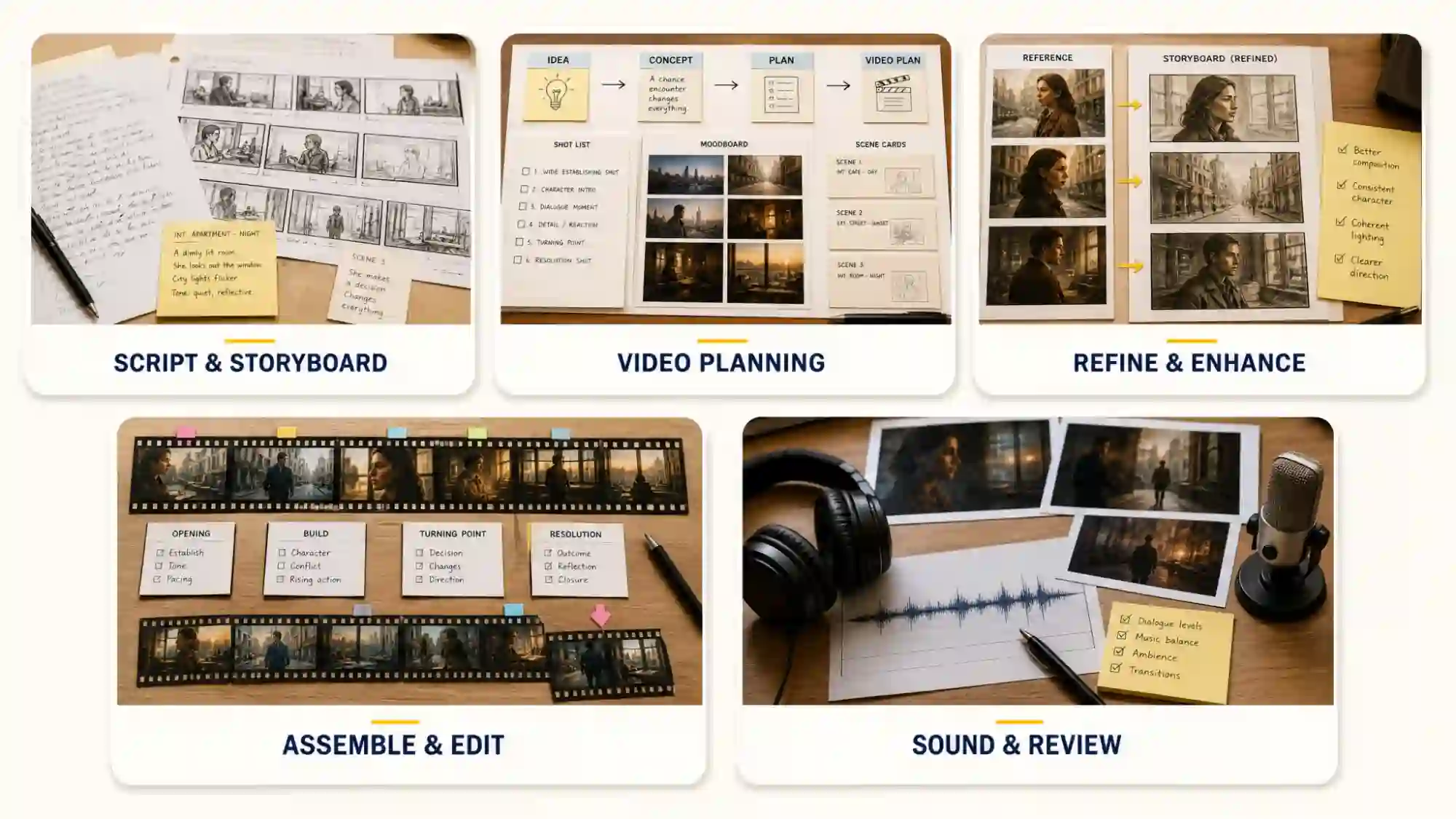
Once the plan is set, Astra turns it into text, because text is what it produces: a script, a scene-by-scene storyboard, and a visual prompt for each scene. It follows templates closely, so it can hold a fixed layout like the one below. With a 1.05 million token context window, it also keeps the full script and character notes in view, which helps scenes stay consistent.
Sample storyboard: a 15-second coastal-town clip
| Scene | What we see | Narration | Camera |
|---|---|---|---|
| 1 | Sunrise over a harbor, fishing boats at rest | ”Some mornings start before the sun.” | Slow push-in |
| 2 | Hands pouring coffee at a dockside stall | ”They smell like salt and coffee.” | Close-up, handheld |
| 3 | Wide shot of the town waking up | ”Welcome to the quiet side of the coast.” | Slow pull-back |
Scene prompts describe only what a camera would see: subject, setting, light, movement, and mood. That’s the language video models respond to.
Turn Your Idea into a Structured Video Plan
Astra starts with reasoning. Given a rough idea, it works out what a video needs, including the goal, audience, platform, length, and tone, and arranges them into a plan with a hook, main beats, and a runtime for each. OpenAI says it fills small gaps from context and asks a short question only when the answer would change the result. Through the API, you can also set how hard it thinks, from low to max.
Refine Scripts and Enhance Image References
Astra can improve existing scripts, dialogue, pacing, and narrative structure while preserving the original creative intent. And it can identify visual details in reference images and turn them into clearer, more consistent creative directions.
Assemble and Refine Your Video with Code or Editing Tools
For assembly, Astra works through code and computer use.
In Codex, it writes and runs commands such as FFmpeg for trims and conversions, or builds clips with open-source video frameworks like HyperFrames, which needs Node.js 22 or newer plus FFmpeg.
With computer use in the ChatGPT desktop app, it can also operate an editing program the way a person would, by clicking through the interface. Since it can’t watch video, it relies on transcripts and still frames to find cuts and check results.
Add Sound and Review Your Final Video
Astra doesn’t produce audio, so voiceover, music, and effects come from other tools. Creator setups often add a transcription service, and some video frameworks include text-to-speech. For review, Astra samples still frames at regular intervals, say every half second, and checks them against the brief. That catches a changed jacket or a warped logo. It can’t catch a stutter, an audio glitch, or a cut that feels off, so a watch-through at normal speed is still the final check.
Putting It into Practice: How to Create AI Videos with GPT-6 Astra and Anijam AI
GPT-6 Astra and Anijam AI can play different roles in the same creative workflow. Instead of asking Astra to plan everything from scratch, start with Anijam’s chat-based AI agent to develop your idea and create initial scripts or visual references. Then use Astra to analyze those visuals, refine your shot plan, and prepare more precise video prompts. Finally, bring the refined plan back to Anijam to generate and edit your video.
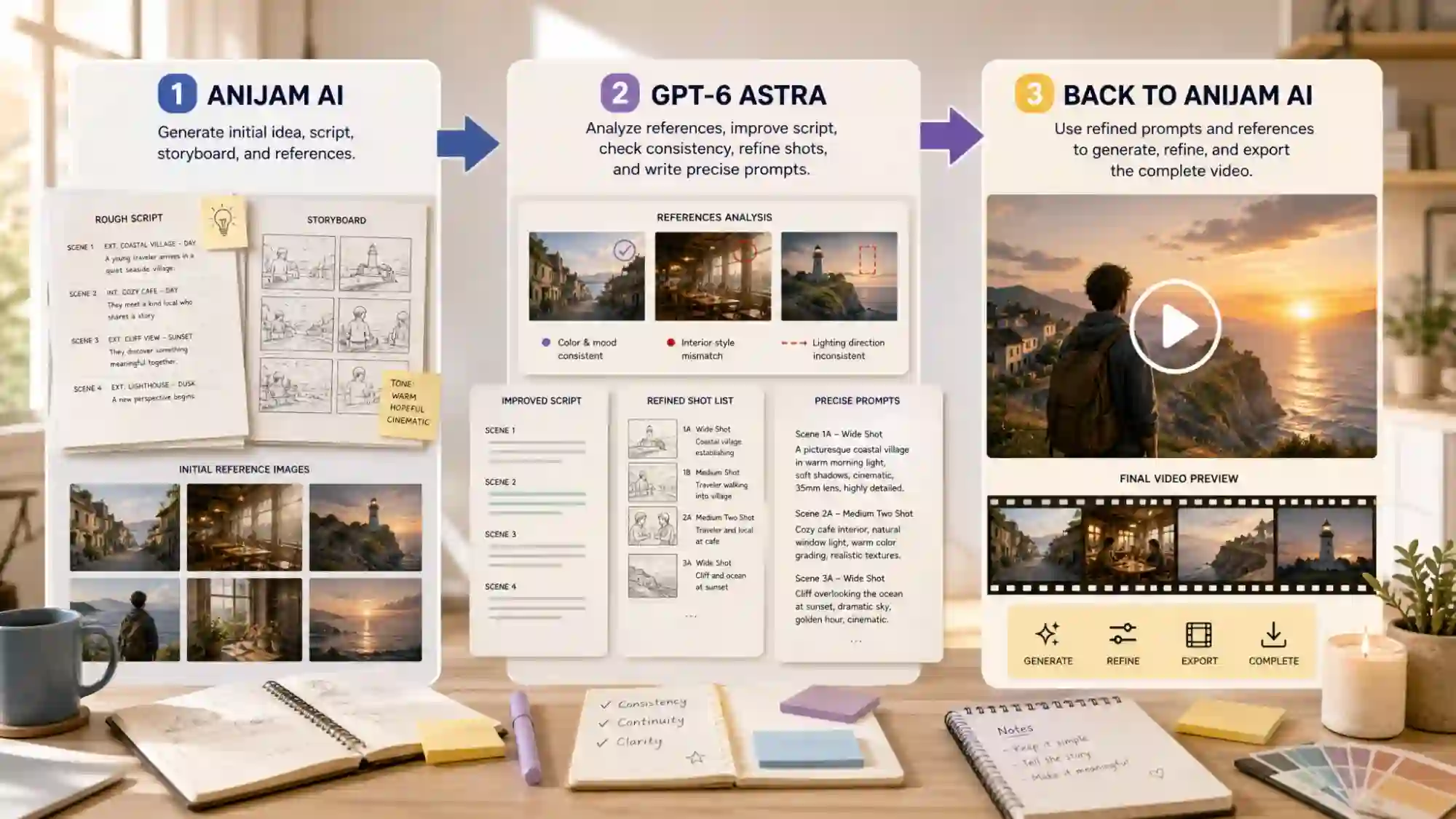
Ready to try it? Here’s the hands-on version:
Step 1: Develop Your Story and Create Initial Visuals with Anijam AI
- Start with a creative brief. Tell Anijam what you want to make, who the video is for, the intended length and aspect ratio, and the visual style you’re aiming for.
- Develop the script and storyboard. Then Anijam AI works as an AI assistant to transform your ideas or concepts into a complete story outline and the AI storyboard generator generates storyboard panels each with a visual frame, character placement, action description, and camera direction.
Step 2: Use GPT-6 Astra to Analyze References and Plan Your Shots
Once you have your initial images and story direction, open GPT-6 Astra in ChatGPT Work or Codex and provide the selected reference images, along with any relevant script or character notes.
- Let Astra help you interpret the references, identify important visual details, and turn your creative direction into a more structured production plan.
Copy-paste prompt:
“Analyze the attached reference images for a short fantasy video about a young explorer discovering a hidden floating city. First, describe the visual style, composition, lighting, color palette, character appearance, and important environmental details. Identify which elements should remain consistent across scenes.
Then create a 5-scene shot plan for a 30-second vertical video. For each scene, provide:
- The scene’s narrative purpose and main visual action.
- Shot type and camera movement.
- Lighting, mood, and environmental details.
- One video-generation prompt of no more than 40 words.
- Any continuity requirements needed to match the reference images.
Keep the explorer’s appearance and the overall visual style consistent. Give each scene one clear primary action, and make the transitions between scenes feel natural. Do not introduce visual elements that conflict with the references unless the story requires them.”
- Review Astra’s output before using it. Check whether the shot sequence makes sense, whether the camera movements are practical, and whether the prompts preserve the details that matter in your references. If a scene changes the character’s outfit or the environment unexpectedly, ask Astra to revise that scene while keeping the rest of the plan intact.
Step 3: Bring the Refined Plan Back to Anijam AI and Finish the Video
Return to Anijam with Astra’s revised shot plan and prompts. Use the Story Agent to continue developing the project, or use the appropriate video-generation workflow to work from your existing script and scene descriptions.
- Update the storyboard. Use Astra’s shot descriptions to refine individual scenes, camera directions, and visual details. Review the storyboard before generating the full sequence.
- Generate and refine the scenes. Use Anijam’s video tools to turn the approved plan into moving scenes. Where supported, use your selected reference images to guide the generated visuals.
- Add voice and lip sync. Generate a voiceover or upload your own audio, then use the available lip-sync workflow for dialogue-driven scenes.
- Refine and Export. Click the “Generate” button and let the agent build your video. Once the preview is ready, watch it through with a critical eye, then fix what’s off. You can chat with the agent or edit in a built-in editor for finer control.
The advantage of this workflow is that you can explore the visual direction before committing to a full sequence. Anijam helps you develop an initial script and produce the video, while GPT-6 Astra helps analyze the references and organize the shot-by-shot plan. Together, they provide a practical way to move from an initial concept to a more deliberate, visually consistent AI video.
GPT-6 Astra Prompts for Video Creation
Every prompt below follows the same five-part skeleton, so you can adapt them to your own ideas:
- Goal: what the video should achieve.
- Audience and platform: who watches it and where.
- Length and format: runtime and aspect ratio.
- Style: the look, tone, and pacing.
- What must stay fixed: the character, product, or setting that can’t change.
Replace anything in [brackets] with your details. Then paste the results into your video tool of choice.
Prompts for Cinematic Story Videos
Copy-paste prompt
Act as a film director and screenwriter. Turn this idea into a 45-second cinematic short: [your idea]. Give me: (1) a one-sentence logline; (2) a 6-shot shot list with shot size, camera movement, lighting, and mood for each; (3) narration or dialogue under 90 words; (4) one visual prompt per shot, 45 words max, describing only what the camera sees. Keep one consistent protagonist: [character details]. No text overlays, logos, or extra characters.
The “only what the camera sees” line does most of the work here. It keeps Astra from writing feelings and backstory into prompts that a video model can’t use.
Prompts for Product Ads and Marketing Videos
Copy-paste prompt
You are a performance-marketing video producer. Create a 15-second ad for [product] aimed at [audience] on [platform]. Include a hook for the first 2 seconds, three benefit shots, and a closing shot with the call to action “[CTA text]”. Give me shot-by-shot visual prompts in [9:16 or 1:1], a voiceover under 35 words, and suggested on-screen text. Show the product clearly in every shot and keep its color and shape fixed. Do not invent claims, prices, or discounts.
That last line matters. Astra writes confident copy, so check every claim, price, and spec against your real product details before anything goes live.
Prompts for Short-Form Social Media Videos
Copy-paste prompt
I’m making a 9:16 short for TikTok, Reels, and YouTube Shorts about [topic]. First give me three hook options, each under 8 words. Then write a full 25-second script for option 1, with a new beat every 3 to 4 seconds, on-screen captions of 4 words or fewer, and a visual prompt for each beat. End with a one-line question that invites comments. Tone: [tone].
Asking for hook options first is a small habit with a big payoff. The first two seconds decide whether anyone stays, so it’s worth choosing deliberately.
Animated and Character-Driven Videos
Copy-paste prompt
Create a 30-second character-driven animated short in a [visual style, e.g. soft hand-painted look]. Start with a character sheet for [character]: age, body shape, outfit, color palette, three personality traits, and one signature prop. Then write 5 scenes. Each scene needs one action, one emotion, a camera angle, and a visual prompt that opens by restating the character sheet in one sentence so the look stays consistent. Add short lines of dialogue, 12 words max each, where they help.
Restating the character sheet in every scene prompt feels repetitive, but it’s what keeps a character recognizable from scene to scene. Short dialogue lines also play nicely with lip sync later.
Tips for Better Astra-to-Anijam Results
A few habits make the handoff smoother:
- Put the character sheet in your first brief. Anijam’s Story Agent builds concept art for each character from it, so you can approve the look before any scene moves. If you generate a single shot by hand later, repeat the key details in that prompt.
- One scene, one action. A scene with three things happening usually delivers none of them well.
- Write what the camera sees. Subject, setting, light, movement, mood. Save the story for the script.
- Write narration for the clock. About 2 to 2.5 words per second keeps voiceover and visuals in step.
- Review the storyboard before you generate more. It’s the cheapest moment to change your mind.
- Know who to ask for which fix. For small visual changes, tell Anijam’s agent or use its manual tools. For script or structure changes, go back to Astra with exactly what failed, such as a color change or a rushed scene, and ask for revised prompts instead of starting over.
- Spend Astra’s budget wisely. If you’re on the API, lower the reasoning effort for simple rewrites and use Batch or Flex for jobs that aren’t urgent, since they cost half. Save the heavy reasoning for story structure.
- Watch the final cut at normal speed. Frame checks catch a lot, but your eyes and ears catch the rest.
Conclusion
GPT-6 Astra won’t hand you a finished video, but it’s an excellent planner: it thinks through ideas, writes scripts, and prepares prompts, while video tools do the rendering. As these models get better at working with creative software, that gap may keep shrinking.
For now, the easiest route is simple: let Astra plan, then bring the script to Anijam AI, an AI video generator that turns it into scenes, voices, and a finished cut. Try it with your next idea.
Frequently Asked Questions
Can I use GPT-6 Astra for free?
No, GPT-6 Astra isn’t directly available on ChatGPT Free or Go plans. Access depends on your subscription, with eligible paid plans offering access through ChatGPT Work or Codex, and Pro users through GPT-6 Pro in Chat. Business and Enterprise access depends on workspace settings. Third-party platforms may offer trial credits, subject to their terms and limits.
Can GPT-6 Astra make videos?
Not directly. Astra takes text and images in and gives text back. It can plan, write, and even drive editing tools, while a video generator or editor does the rendering.
How do I use ChatGPT 6 Astra for video creation?
Pick Astra in ChatGPT Work or Codex (or in chat on a Pro plan), brief it with your goal, audience, length, and style, and let it write the script, storyboard, and scene prompts. Then hand those to a video generator like Anijam AI.
Do I need to code to use these workflows?
Not for the planning part. Asking Astra for scripts, storyboards, and prompts is just a chat. Code only comes in if you want Astra to edit footage through Codex, which means installing tools and sometimes using a terminal.
Can I keep editing after the video is generated?
Yes. Treat it as a finishing stage. In Anijam, you can edit scene text, regenerate a single shot, and fine-tune timing, voice, and lip sync in the editor. If a problem comes from the plan itself, like a rushed scene or a character whose look keeps changing, take your notes back to Astra and ask for revised prompts.
by Evan
Evan is an AI content creator and video technology writer at Anijam AI, focused on how generative AI is transforming storytelling and video production. He shares social trends, creative workflows, prompt strategies, and practical insights to help creators turn ideas into engaging videos and visual content.