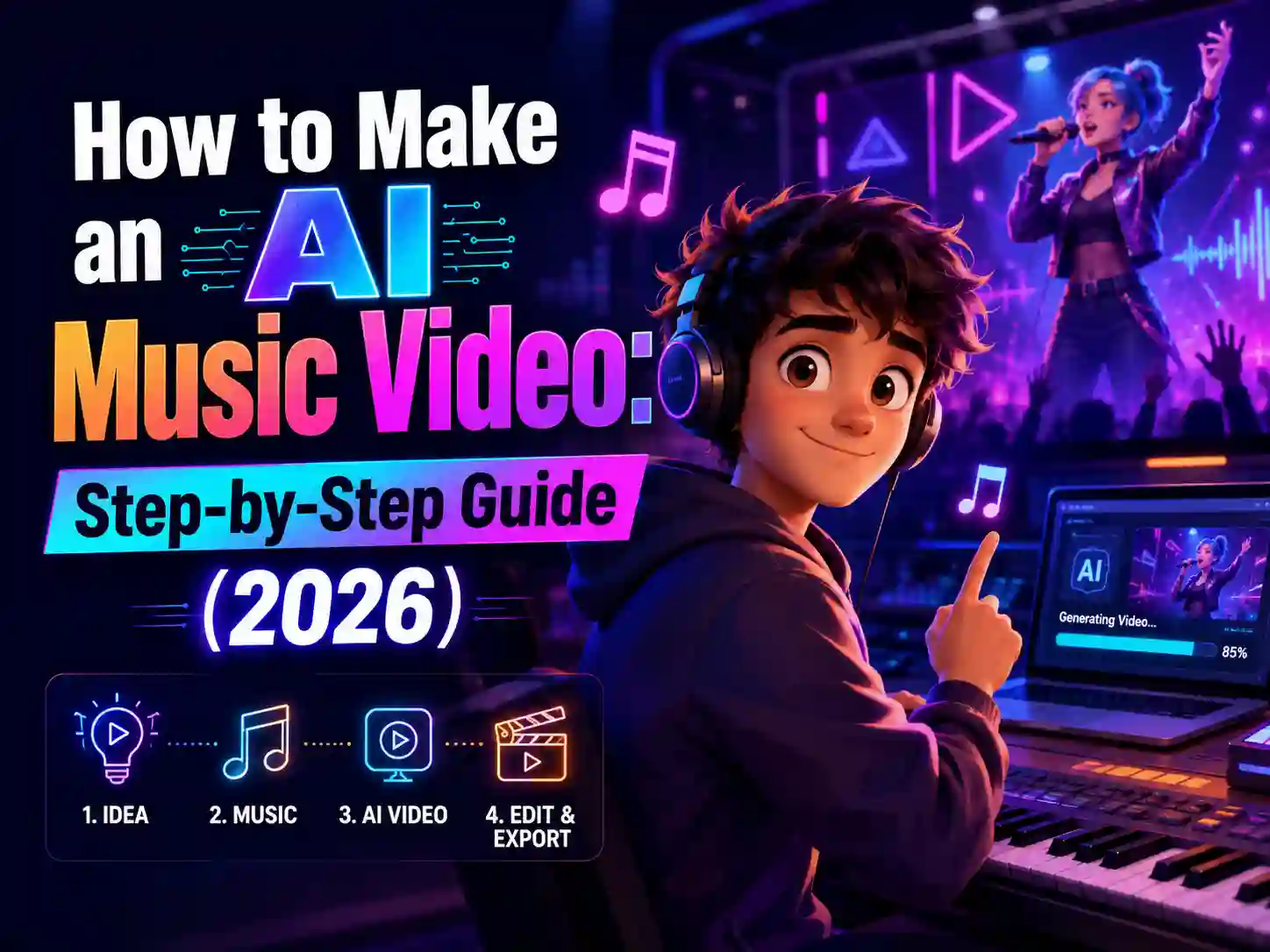
How to Make an AI Music Video: Step-by-Step Guide (2026)
Making a music video used to mean booking a studio, hiring a crew, and hoping the final cut actually matched the song. Even a simple lyric video meant hours in editing software, lining up captions frame by frame. That’s not the bar anymore.
In 2026, you can turn a song, a lyric sheet, or even just an idea into a fully animated AI music video - no camera, no crew, no filming, and no editing experience required. Independent artists, cover channels, and brands are already using it to release singles, build a recognizable character, and turn campaign songs into shareable content in an afternoon.
If you have an idea for creating a complete AI music video but don’t know where to start, this guide is for you. We’ll break down what makes an AI music video work, what you need before you begin, the complete creation process with Anijam AI, and how to overcome the challenges creators often run into.
What Is an AI Music Video?
An AI music video is a video generated - fully or mostly - by artificial intelligence from a song, lyrics, or a text description, instead of being filmed with a camera and crew. you describe or upload what you want, and an AI model handles the character design, scene generation, motion, and - in tools built specifically for music - lip sync or choreography that follows your song’s structure.
There’s a real difference between a basic AI video generator and one built for music specifically. A generic tool treats your song as background noise, reacting to volume or a rough beat and handing you disconnected clips you still have to stitch together yourself.
A proper AI music video generator reads the song itself: where the verse ends, where the chorus lifts, where the drop hits - and builds scenes, motion, and performance around that structure.
What You Need to Make an AI Music Video
You don’t need much to get started - that’s most of the point. Before you open any tool, it helps to have:
- A song, in MP3 or WAV - a finished track, a rough demo, or something exported from other music platforms, or your DAW.
- Or just your lyrics - if you don’t have those either, the agent can help write them once you describe the vibe.
- Or just an idea - a genre, a mood, a vibe you can describe in a sentence.
- A reference photo (optional) - if you want the video’s character based on your own face or a specific look.
- A rough sense of visual style - anime, 3D, cartoon, or something moodier - though you can also decide this once you see the template options.
That’s it. No storyboard, no shot list, no crew to coordinate.
How to Create an AI Music Video with Anijam: Step by Step
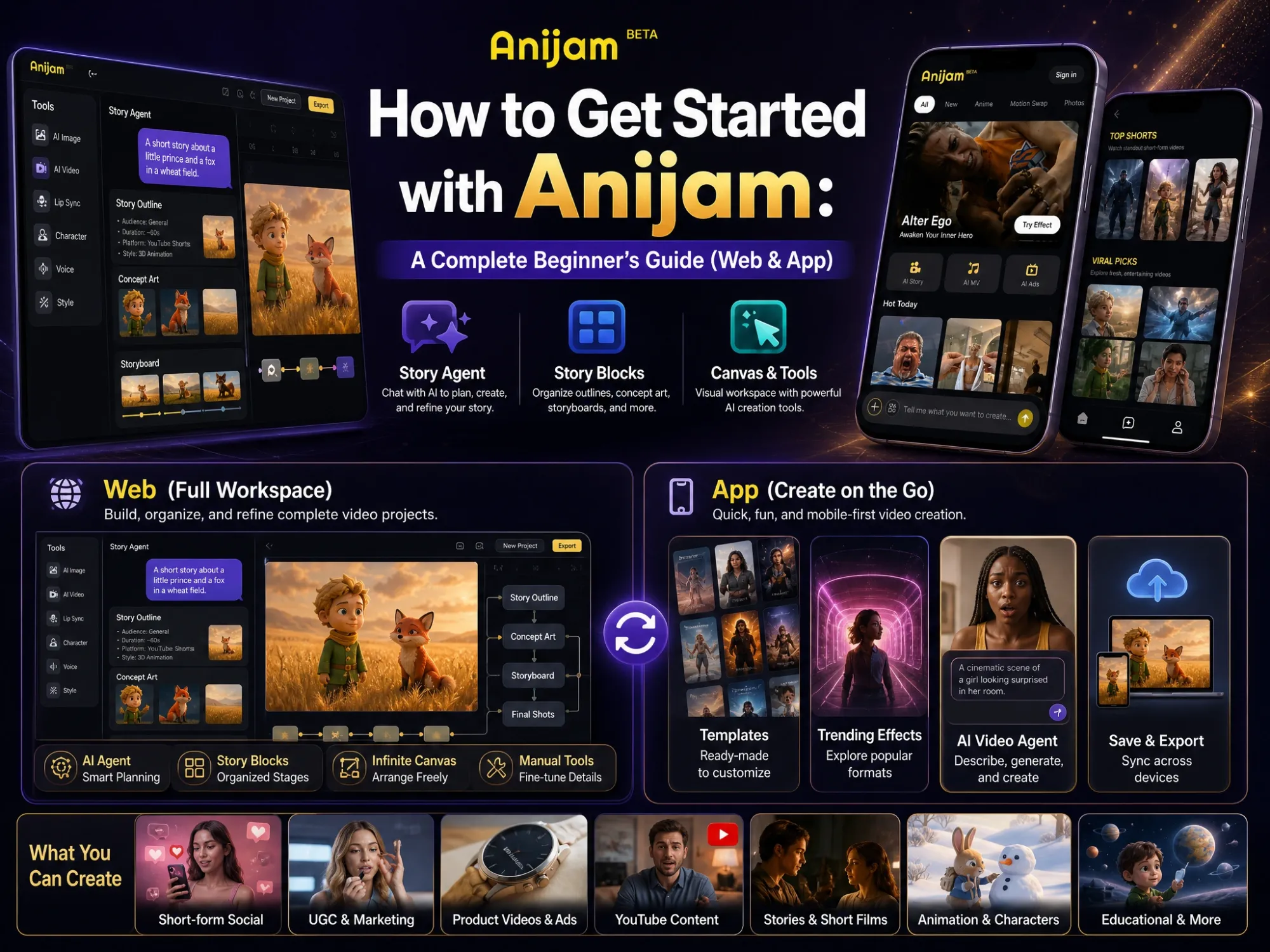
Anijam is an AI music video generator built for exactly this - turning a song, a lyric sheet, or a vibe into one finished, cohesive video instead of a pile of disconnected AI clips.
Anijam’s AI music video generator reads your track’s structure, builds a consistent character, and syncs lip movements or beat-locked choreography into a video that actually plays like a music video. The same character carries across every scene, and every future video you make.
In addition, Anijam app regularly updates trending AI music video templates, making it easier to explore new styles, follow creative trends, and start your next project faster.
Sing, dance, or both - Anijam handles the performance either way, and you can start a project on the web and keep working from the Anijam app, so the work travels with you.
Here’s exactly how it works, step by step:
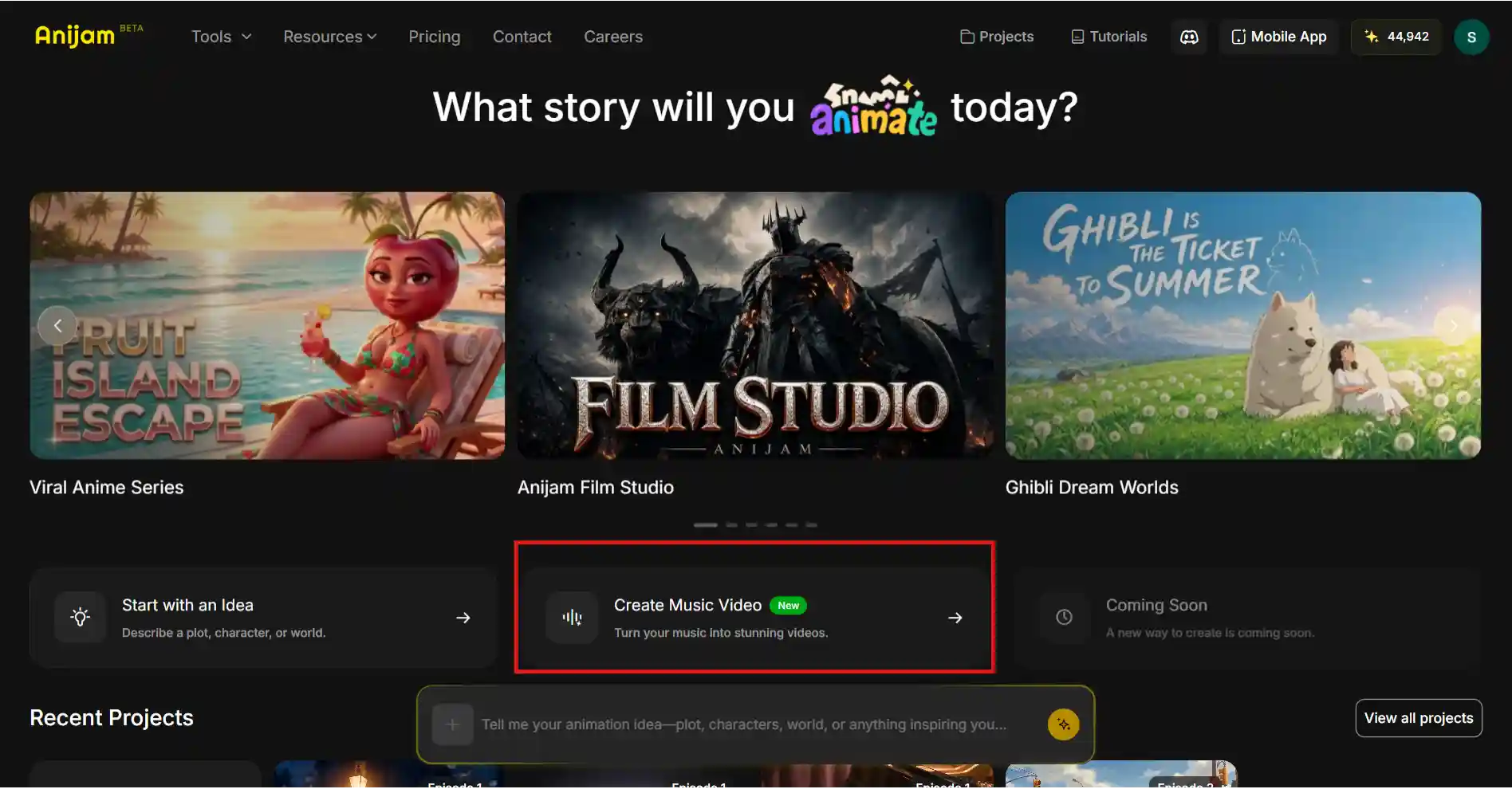
Step 1: Go to Anijam AI’s Homepage
Go to Anijam AI’s homepage and click the featured Create Music Video tool - no download, no setup, just your browser.
You’ll land on a simple canvas that asks for one thing first: your song, your lyrics, or just an idea.
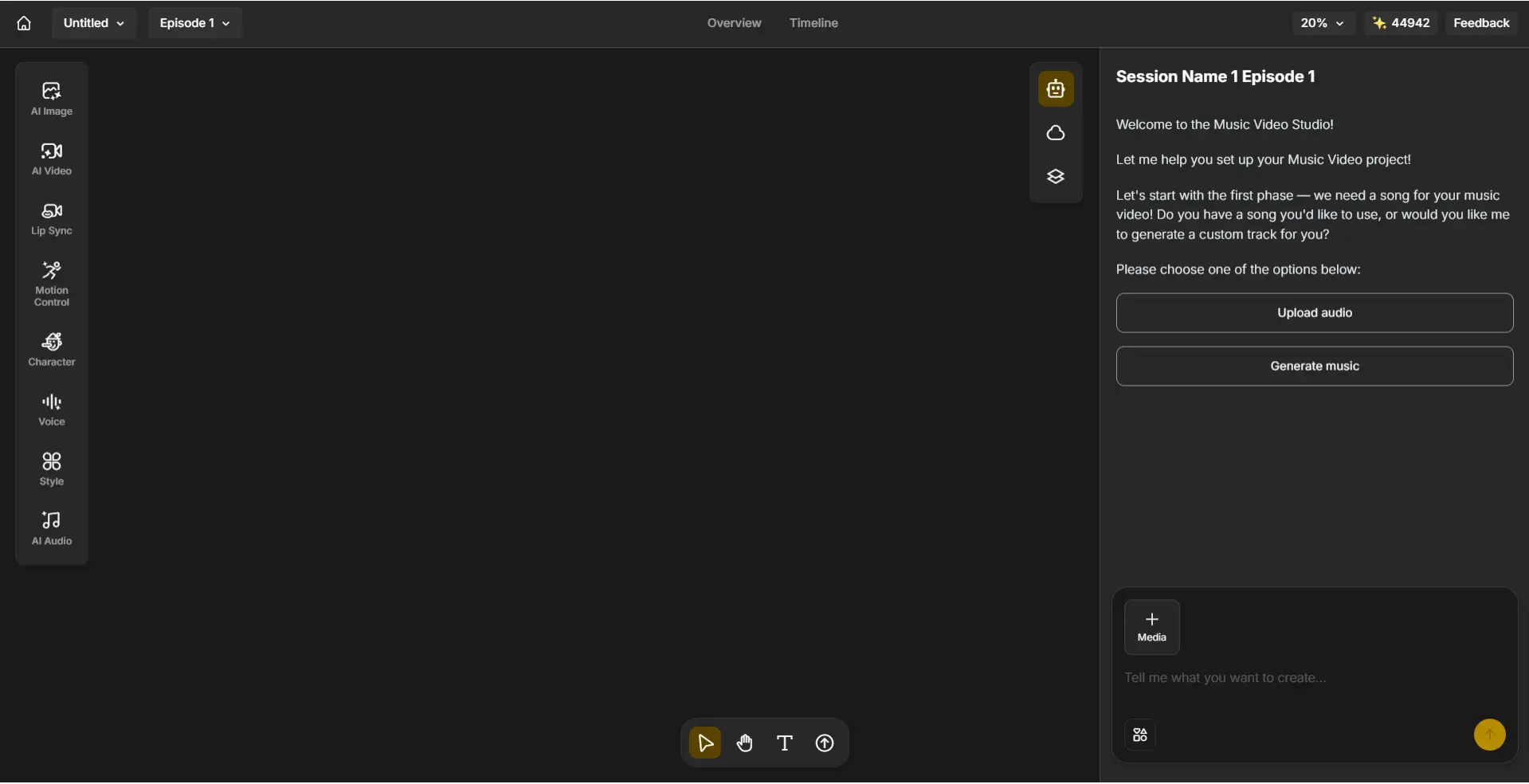
Step 2: Upload Your Audio, Generate Music, or Describe Your Music Idea
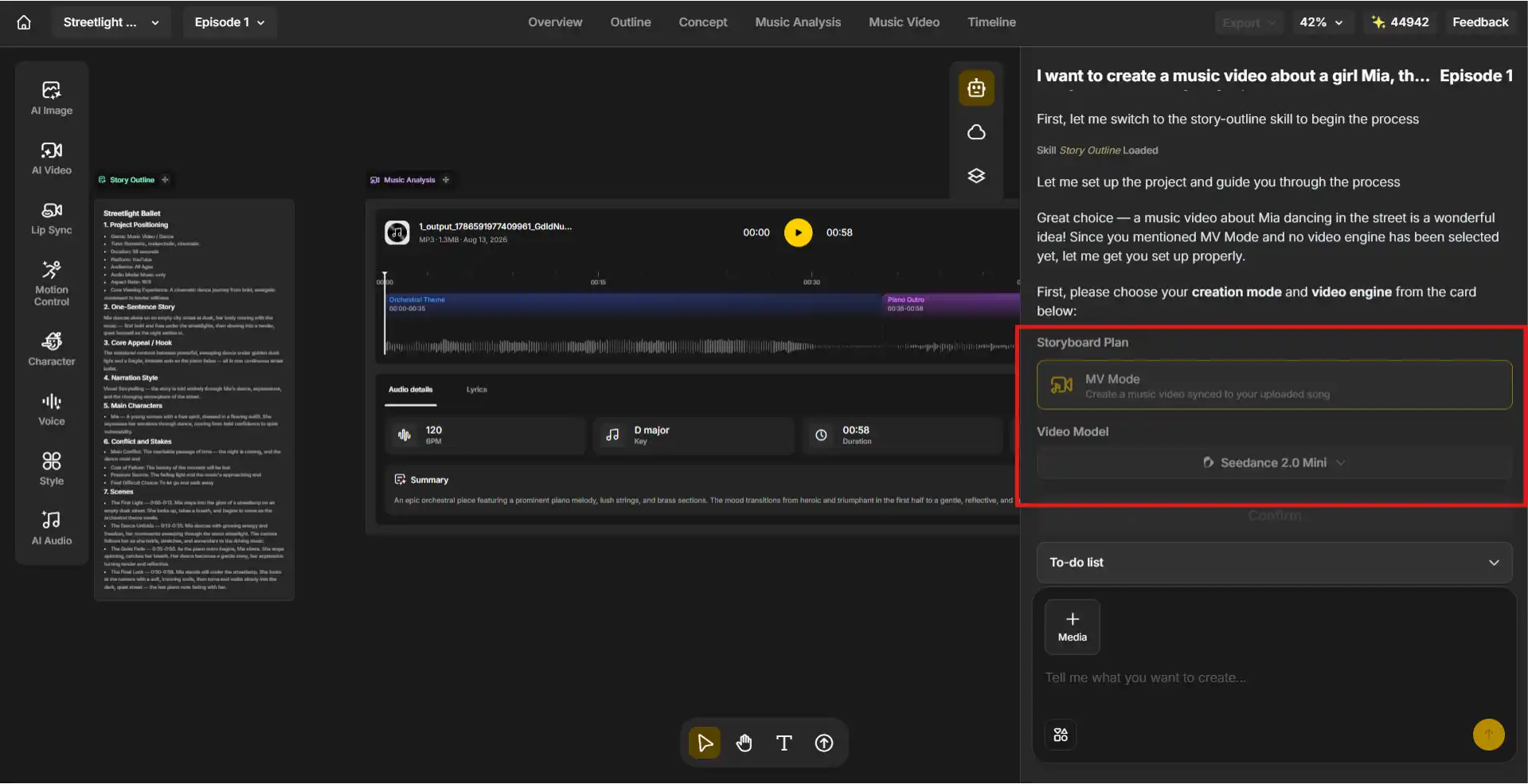
Choose “Generate Music” if you don’t have a song yet, and then, you can see the MV Mode and pick a video engine - Seedance 2.0 Mini or Seedance 2.0, for example.
Or you can type a one-line description of what you want. For example, “a music video about a girl dancing in the street.” Anijam’s AI agent switches into MV Mode and starts setting up the project around it. After that, you need to click “Confirm” to start the next step.
Then, the agent may ask a few quick questions about the music, from vocal or instrumental, genre, mood, to instruments, pacing, and duration.
Step 3: Choose a Visual Style & Design Your Character
Once you’ve answered the music questions, the agent generates your track, then analyzes both the song and its structure to plan out the MV. From there, it pitches a few different video concepts to choose from.
After picking one, you can set your audience, platform, aspect ratio, and how much your character should appear on screen, and then you come to the style design.
Anijam AI has a style library packed with a wide range of styles to choose from. If you don’t find any look you want, you can describe your own style with a text prompt.
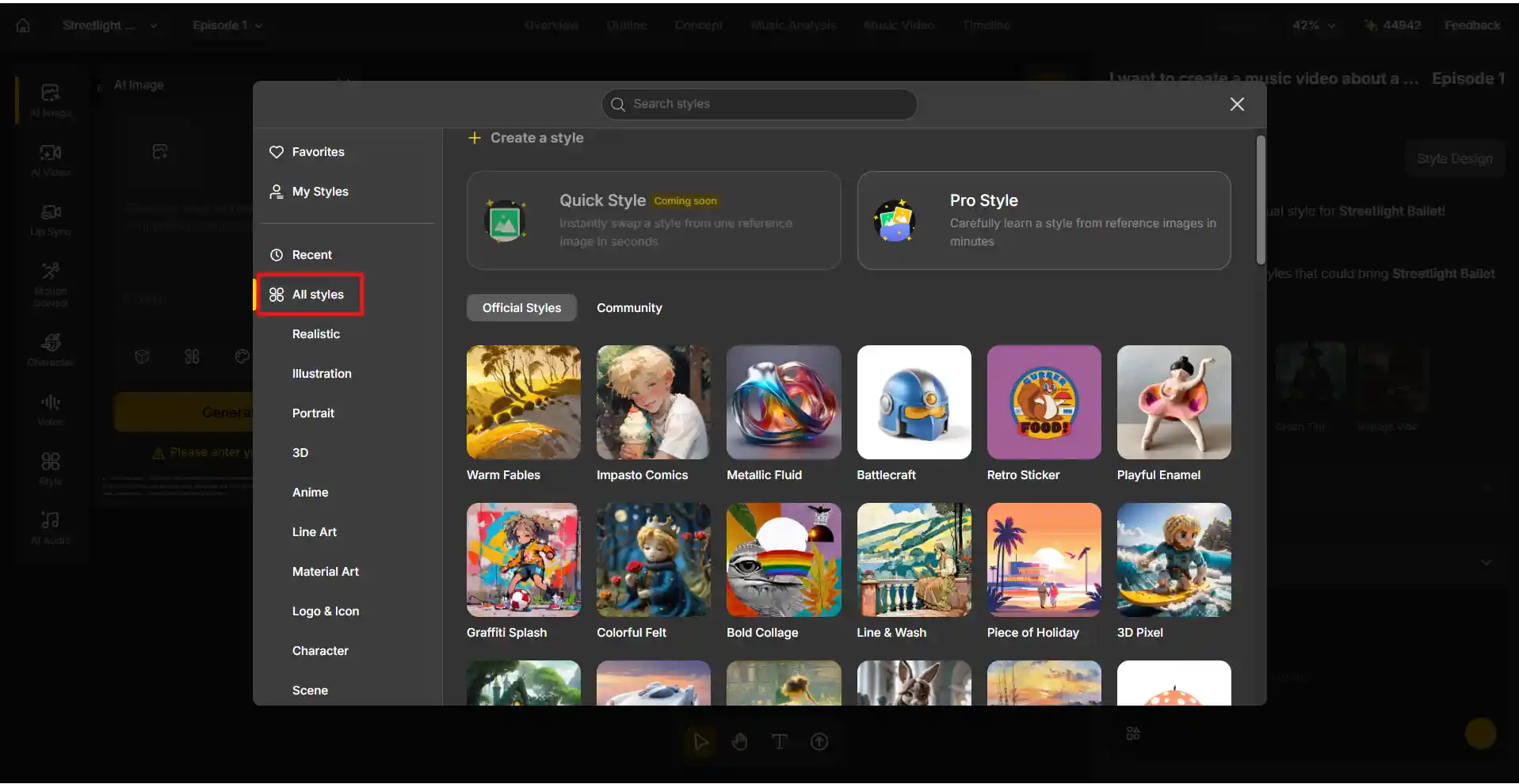
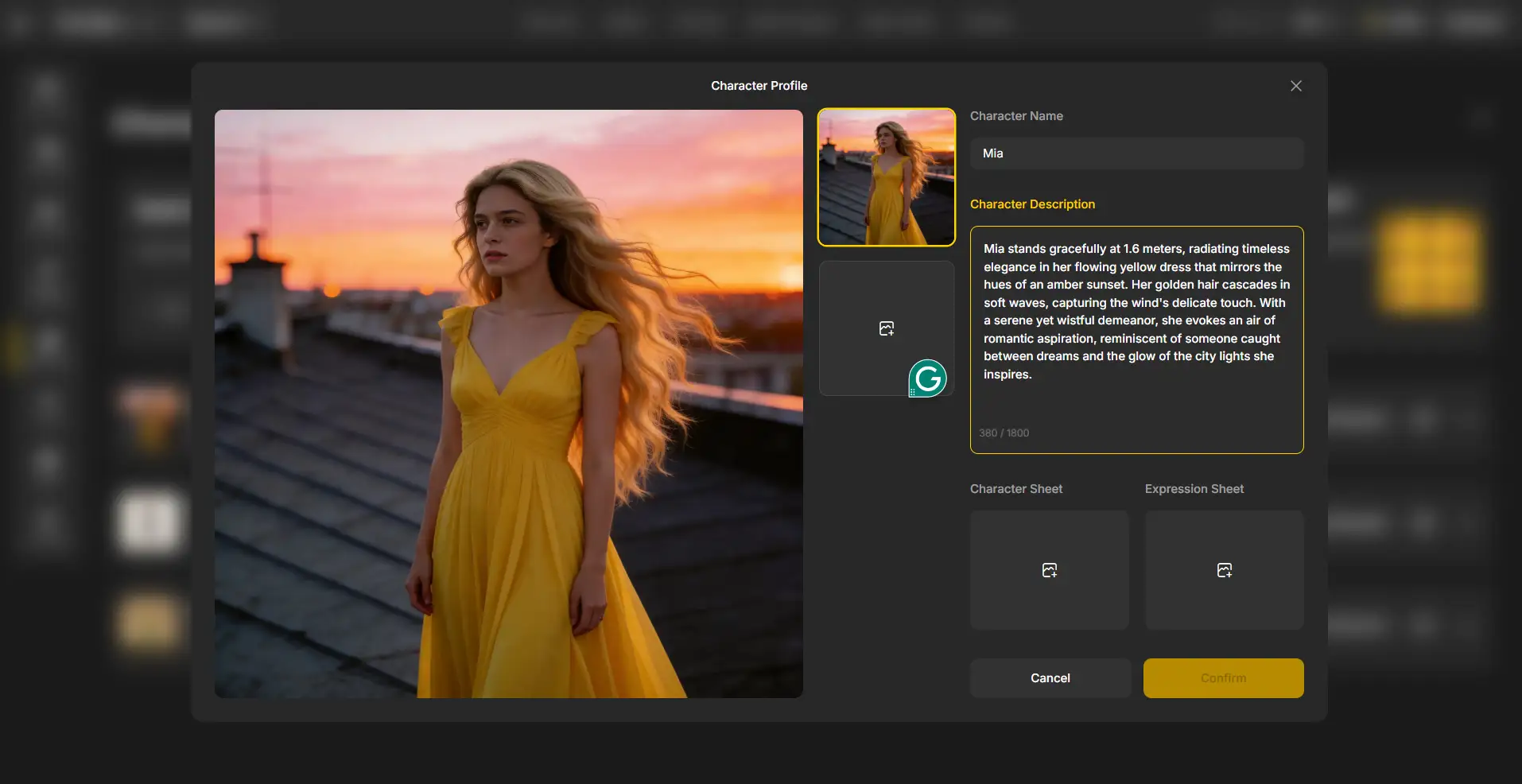
Describe your artist or upload a photo, and Anijam AI turns it into a consistent animated character in the style you pick - anime, 3D cinematic, cartoon, illustration, Ghibli-inspired, realistic and more.Of course, you can also create and replace a certain character image. In addition, you can add more characters in one music video.
Step 4: Generate Shots, Clips and Video
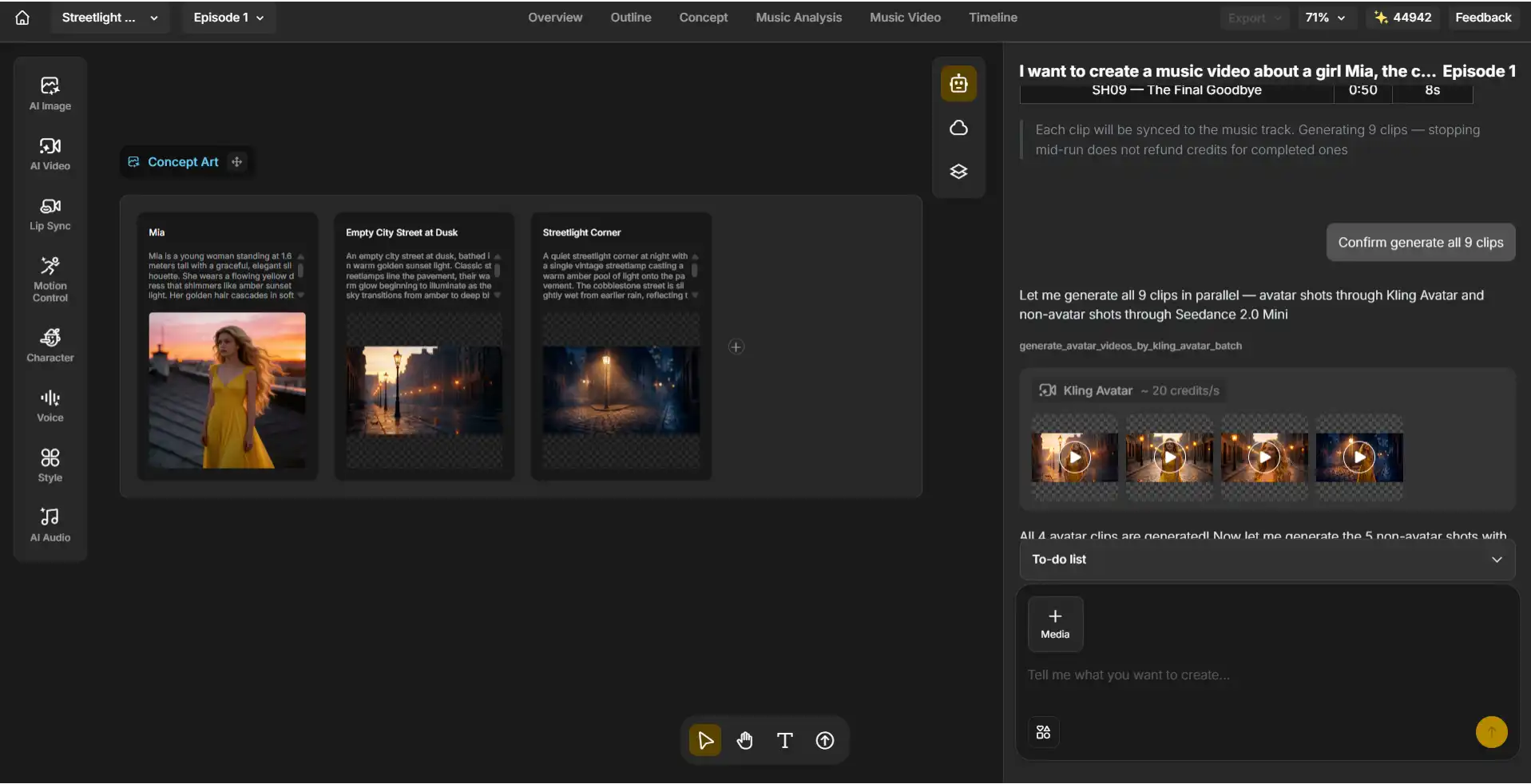
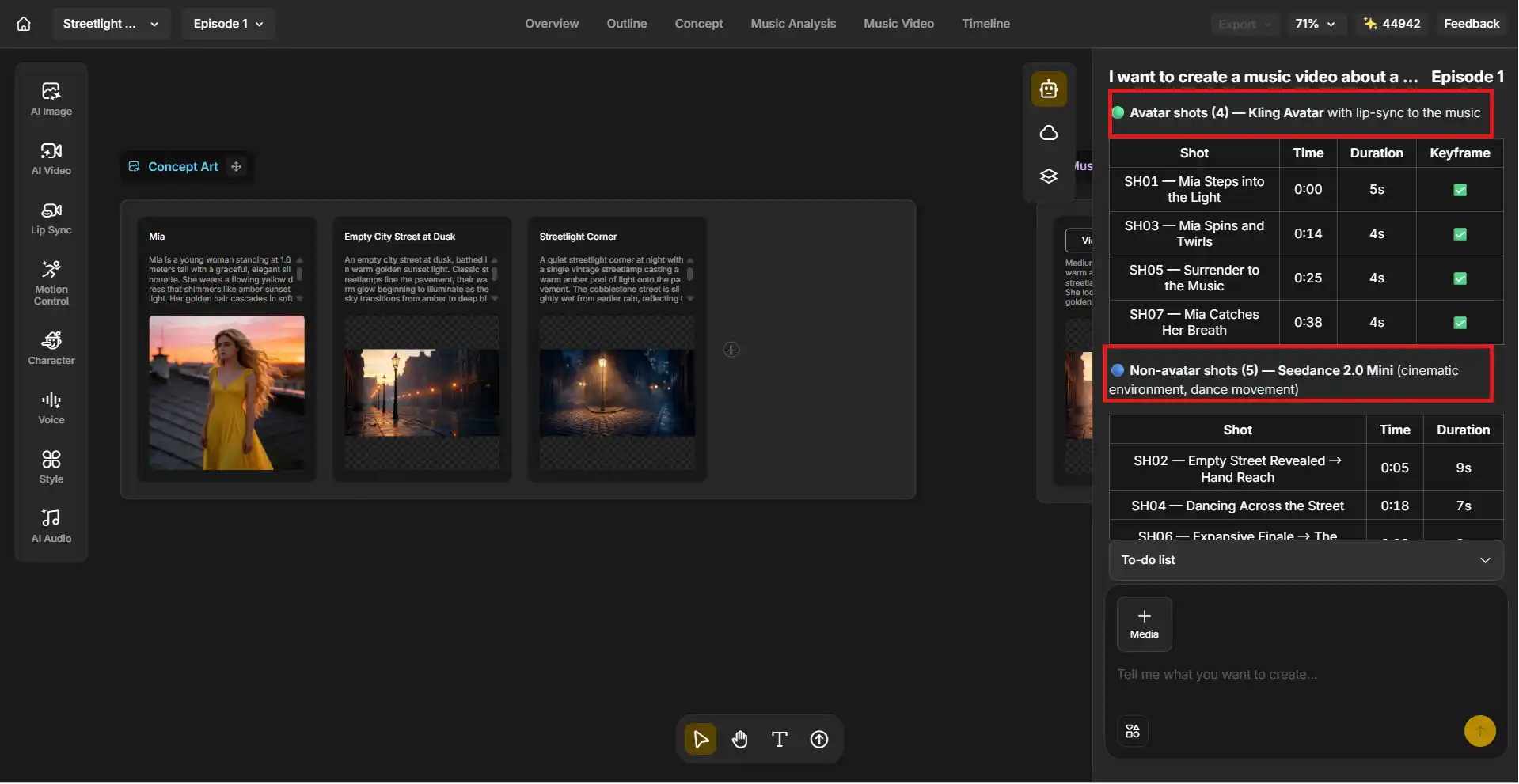
The agent breaks your song into a frame-accurate shot list, in one run - mapping out timing, scene, and camera movement for each one.
It then generates the actual clips: close-up performance shots with your character lip-syncing to the vocals, and wider scene or dance shots to fill out the rest of the video.
When generating clips, Anijam AI splits them into two groups and hands each to a different engine built for the job. It goes to Kling Avatar to handle lip-sync to the music; go to Seedance 2.0 Mini to handle the cinematic environment and dance movement.
Step 5: Edit timeline, Export or Start your Next Episode
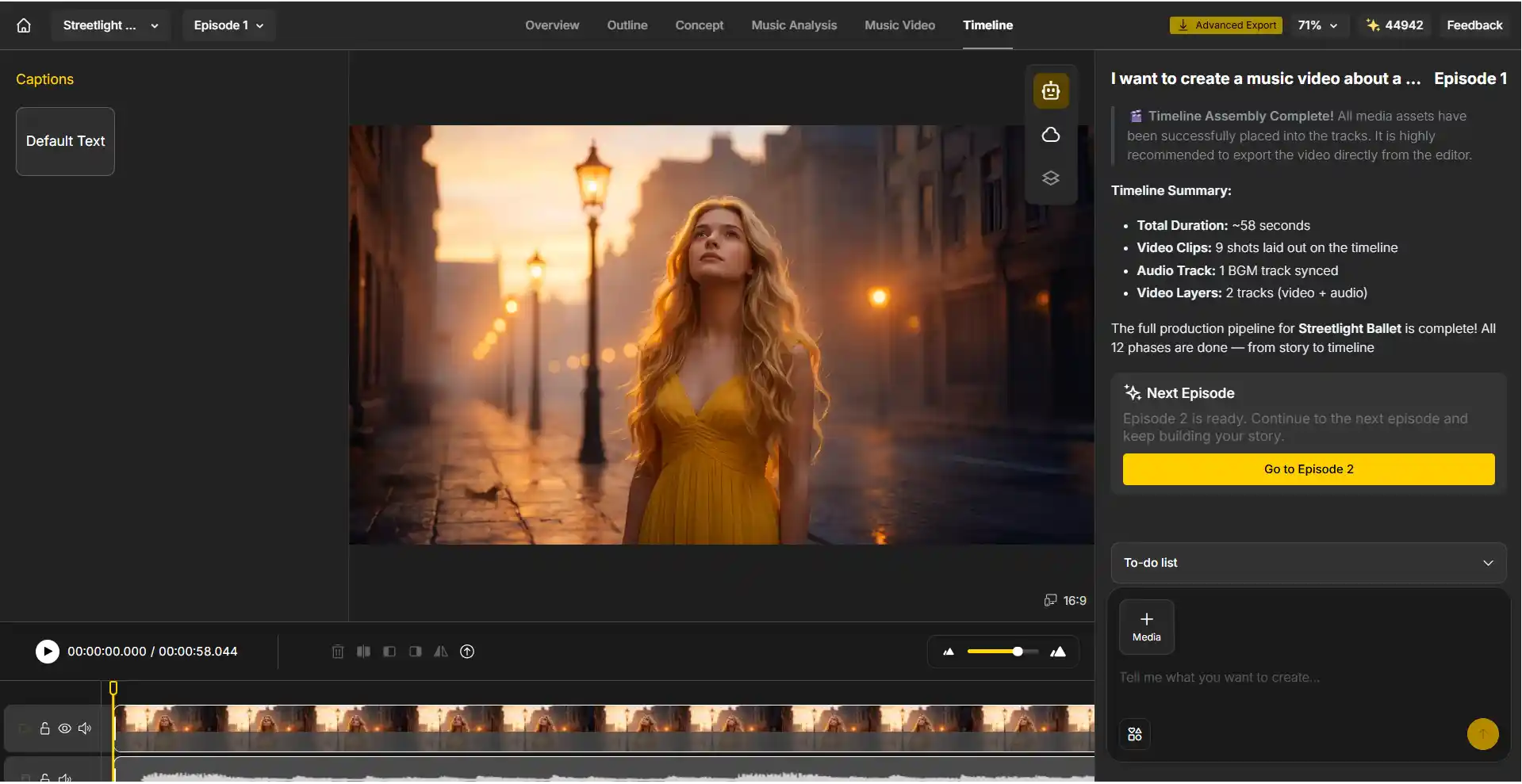
Once your clips are generated, Anijam AI assembles them straight onto the timeline - captions, video, and a synced audio track all lined up and ready to review, with a quick summary of total duration, clip count, and audio layers.
From here, export your finished, watermark-free music video with a paid plan, or hit “Go to Episode 2” to keep building on the same character and story without starting from scratch.
What Makes Anijam Different From a Basic AI Video Generator
Not all AI music video tools are solving the same problem. Here’s what actually sets Anijam apart:
-
Full Music Video Generation: Most AI video tools generate a handful of pretty, disconnected clips and leave you to assemble them into something that resembles a music video. Anijam’s AI agent analyzes your song’s structure, plans scene direction, and organizes an actual story arc - a beginning, a build, and an ending - so what comes out is one finished video, not a folder of clips.
-
Lyrics-to-Music-Video Generation: Upload a song, type your lyrics, or describe an idea, and Anijam doesn’t just layer visual effects on top of the audio - it reads what your lyrics are actually saying, breaks them into scenes, and builds a story direction from there. That’s the difference between Music → Visual Effects and Music → Story → Scenes → Animation, and it’s exactly what makes it possible to make an AI music video from lyrics even before you have a finished track.
-
Beat-Synced Dance Animation: Not every music video is about singing. Anijam’s AI dance engine reads a song’s structure - rhythm, beat, and build - and generates choreography, formation, and performance scenes to match, the same format behind today’s biggest AI idol and K-pop-style performance videos.
-
Consistent Character AI: Once you design a character, Anijam locks their face, outfit, proportions, and visual style, and keeps them consistent across different scenes, camera angles, and movements. This is the feature that makes building a recurring animated artist, a virtual idol, or a whole series of music videos actually realistic instead of a one-off experiment.
-
Lip Sync and Singing Character Animation: A music video needs your character to perform, not just stand there. Upload your song, and Anijam’s lip sync animation generates matching mouth movement, facial expression, and emotion, synced to your actual vocal track - so the performance looks like a real singer, not a puppet.
-
Cross-Device Creation: Start a project on desktop, keep editing on mobile, export and share from wherever you are. That flexibility matters most for TikTok, Instagram, and other short-form creators who need to move fast.
Common Challenges When Making AI Music Videos (and How to Solve Them)
Most rough AI music videos don’t come from a bad tool - they come from a few avoidable habits. Here’s what tends to trip creators up.
Inconsistent Characters or Visual Styles
The fastest way to make an AI music video look artificial is a character whose face, outfit, or proportions shift between scenes.
Solution: describe your character the same way every time, and use a tool with a real character-consistency engine - not just “similar-looking” outputs - so your artist looks like the same person from the first shot to the last.
Or choose an AI music video generator like Anijam AI music video tool that locks your character’s profile once you confirm it. So every shot pulls from that same locked reference instead of reinterpreting your description from scratch each time.
AI Videos That Lack Storytelling
A pile of pretty clips isn’t a music video - it’s a highlight reel with no through-line.
Solution: choose a tool that plans scene direction around your song’s actual structure - verse, chorus, bridge - instead of one that treats every few seconds as a disconnected shot.
Matching Visuals with Music and Lyrics
Visuals that don’t move with the emotion of the song - a calm ballad cut like a high-energy anthem, for example - break the illusion fast.
Solution: match pacing to the moment - slower, more spacious scenes for a verse or bridge, more energy and faster cuts on the chorus or drop. Anijam’s shot list already varies by design - close-up performance shots for the moments that need presence, wider cinematic or dance shots for everything else.
Tips for Better AI Music Videos
1. Write Better AI Prompts
Vague prompts produce generic results. “A singer on stage” gives the AI almost nothing to work with. “An anime pop idol on a neon concert stage, holding a mic, warm pink stage lighting” gives it something to actually build.
2. Plan Your Parameters Before Generation
Decide your visual style, your character’s look, and whether you want lip sync, dance, or both before you start generating. Changing direction mid-project usually means redoing scenes you already liked.
3. Choose the Right Character and Animation Style
Match the style to the song, not the other way around. A lo-fi acoustic track suits a cozy, hand-painted look; a K-pop-style track suits sharp, high-energy 3D or anime.
4. Review and Refine Scenes Before Exporting
Treat your first generation as a draft, not a final cut. Watch it back, fix the scene that doesn’t quite land, and refine before you export instead of after.
Conclusion
Making a music video no longer requires a studio, a crew, or a production budget most independent artists and creators simply don’t have. The AI music video tools have closed that gap - what they haven’t replaced is the creative judgment behind a good video: the character, the story, the way the visuals actually feel like the song.
Anijam AI video maker handles the execution - the character, the scenes, the lip sync, the choreography. You bring the song and the idea. Start with one track, one character, and see where it takes you.
Frequently Asked Questions
Can I make an AI music video for free?
Yes. Anijam offers free daily credits that you can get by signing up and checking in daily, allowing you to try AI music video creation and generate a real, shareable music video before spending anything.
Can I put my own face or photo in an AI music video?
Yes. Upload a selfie, portrait, or character reference photo, and Anijam uses it as the visual identity for your character - keeping your recognizable features consistent across every scene while you pick the animation style.
Can I export my AI music video without a watermark?
Yes, on a paid plan. Free exports include a watermark; paid plans remove it and unlock 4K export along with full commercial usage rights.
How long does it take to make an AI music video?
A short, simple video can come together in minutes using a template and a quick generation. A longer, more detailed video - multiple scenes, fine-tuned lip sync, a full song structure - will naturally take more time to generate and refine.
Can I add more than one character to my AI music video?
Yes. Anijam supports up to 4 consistent characters in the same scene, each performing independently, so every member of a band, duet, or idol group actually sings or dances their own part.
Can I use my AI-generated music video commercially? Yes, on a paid plan. Paid plans unlock full commercial usage rights and watermark-free export, so you can use your video for releases, paid promotion, or monetized platforms.
by Evan
Evan is an AI content creator and video technology writer at Anijam AI, focused on how generative AI is transforming storytelling and video production. He shares social trends, creative workflows, prompt strategies, and practical insights to help creators turn ideas into engaging videos and visual content.