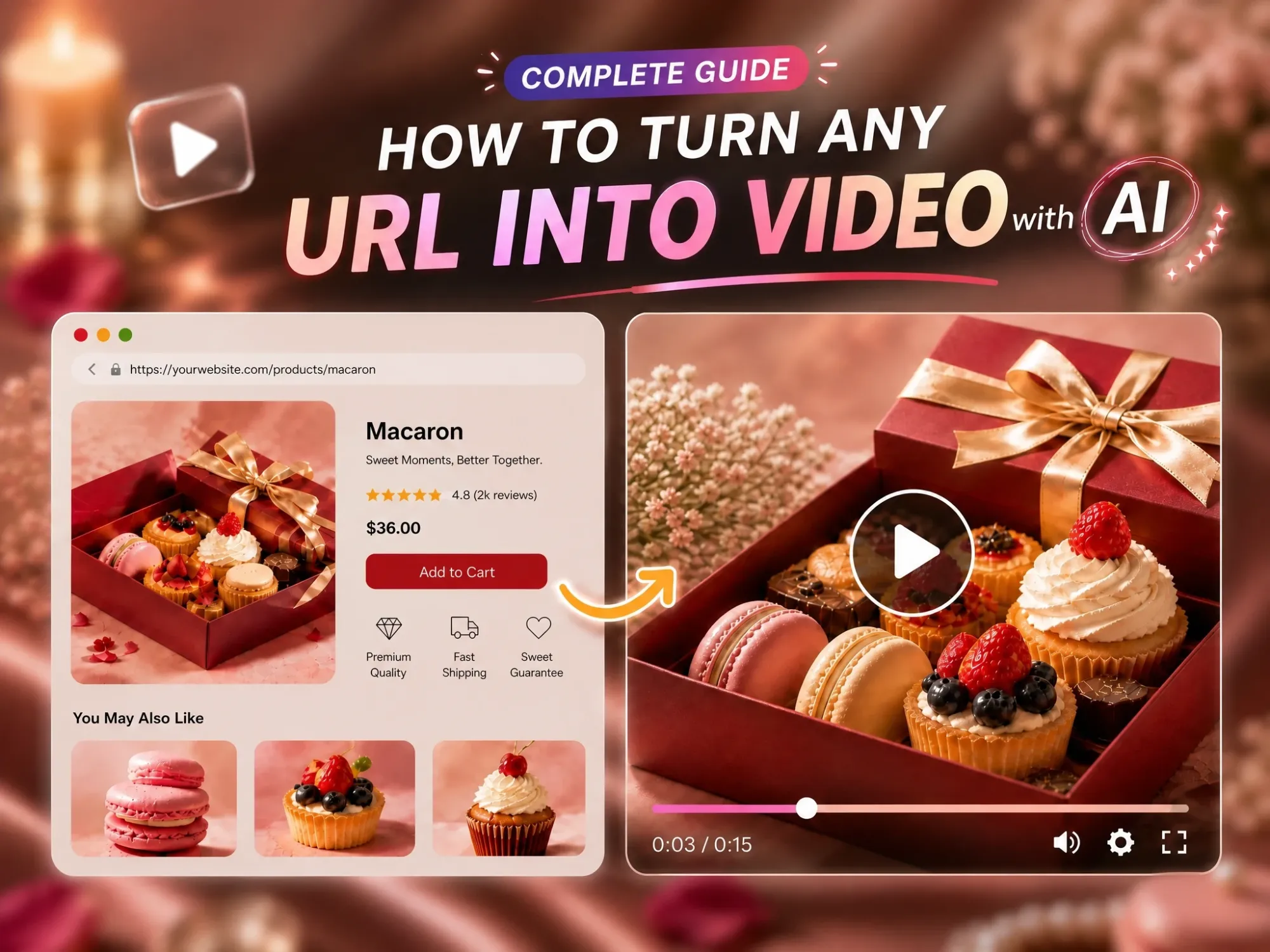
[Complete Guide] How to Turn Any URL into a Video with AI
For many product teams, the situation is familiar: a product page is live, a blog post is published, and campaign details are ready to share. But when you need a video to showcase the product, explain an idea, or bring a campaign to life, that usually means creating another piece of content from scratch. Producing videos consistently across launches and channels can quickly become time-consuming and costly.
URL-to-video offers a simpler way to close that gap. Paste a URL, and AI can read the content, research the details, turn the key points into a script, and build a video with narration, visuals, and captions. If you’ve been looking for a way to turn a URL into a video without opening a video editor, this guide walks you through the process from start to finish.
Here’s what we’ll cover: what URL-to-video actually means, which types of links work best, how the different approaches compare, and how to turn a URL into a video with Anijam Sensei in four steps. We’ll also share a few practical tips for getting better results.
What Is URL to Video?
URL to video, also called link to video, is a way of making videos where the starting point is a web link instead of a script or a prompt. The link might lead to an article, a product page, a business website, a research paper or another supported source. An AI tool reads or interprets what’s there and helps turn it into a concept, a script, scenes and finally a finished video.
It isn’t one fixed production method, though. Some tools extract the written content and summarize it. Others use the page as a creative reference, and a few treat the source as research for an AI-directed video.
Best Use Cases for URL to Video
Product teams already have plenty of content to work with: product listings, landing pages, blog posts, and launch announcements. These pages contain the product details, messaging, and offers that can be turned into videos. Turning that content into videos gives it another format for social, ads, and other channels. Here’s who tends to get the most out of it:
- Online sellers and e-commerce brands: A product page becomes a short product clip or ad, and every new listing can get one too.
- Content and SEO teams: A blog post gets a second life as a social video, reaching people who would never click through to read it.
- Marketers and agencies: A landing page can become multiple ad variations, from a polished product-focused version to a faster, more playful angle, making it easier to test different creative approaches.
- Founders and product teams: A launch page or announcement turns into a video for social media, product updates, pitches, or outreach without waiting on a dedicated video team.
What Types of URLs Work Best for Video Conversion?
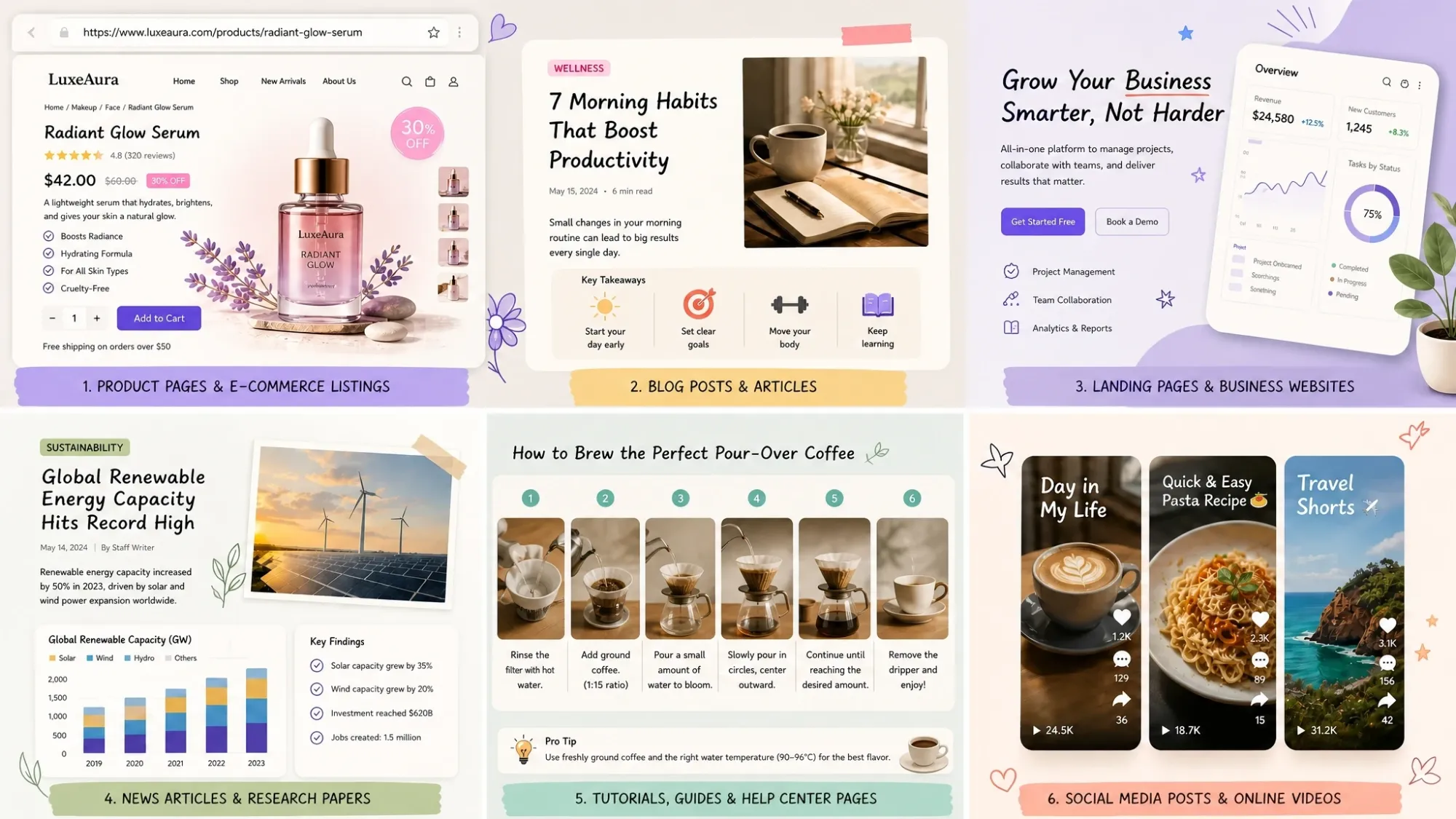
An AI works with what’s on the page, so the best source material has clear text, one main idea and some kind of structure. Here are the types that tend to work well, with a note on what to watch for in each.
Blog Posts and Articles
Blog posts are the natural starting point. Headings give the AI a ready-made outline, and a clear argument gives the video a spine.
Pay attention: a 3,000-word article won’t fit in a 60-second video. Decide which single point matters most and say so up front, rather than hoping the AI picks the right one.
Product Pages and E-commerce Listings
Product pages already hold what a good promo video needs: what the product is, who it’s for, the key features and the price. That makes them a strong fit for short explainers and ad-style videos.
If you only have product photos and no live page yet, the AI Product Video tool is built for exactly that. It turns product photos into videos.
Landing Pages and Business Websites
A launch page or company homepage usually has one sharp message and a few supporting points, which is just what a 30-second video wants. It’s a quick way to get a launch clip, a pitch intro or an “about us” video out of a site you’ve already built.
Pay attention: pages loaded with pop-ups and heavy scripts can be harder for an AI to read, so a clean, public URL gives you the best shot.
News Articles and Research Papers
News articles put the key facts up top. Research papers bury the interesting finding under a lot of jargon. Both benefit from a video that boils them down, and Anijam AI can read a paper and explain it. A plain-language explainer for people new to the topic is a good way to use that.
Pay attention: with these two, accuracy matters more than anywhere else. Always check names, figures and quotes before you publish.
Tutorials, Guides, and Help Center Pages
Step-by-step content turns into scenes almost on its own: one step, one scene. Help center articles, how-to guides and documentation all follow that pattern, and Anijam AI can get excerpts of docs and GitHub repos too.
The result is a short walkthrough you can embed on the original page, so readers don’t have to scroll through a wall of text.
Social Media Posts and Online Videos
Social links are where many people most want to try this, and the answer depends on the platform.
-
TikTok and Instagram links. Paste the link to a single video and Anijam Sensei reads it and listens to it before building from it. TikTok is the most reliable platform of all. Instagram is supported for single videos too, but expect it to fail more often, since much of Instagram needs a login. If your goal is a TikTok video, the AI TikTok Video is also worth a look.
-
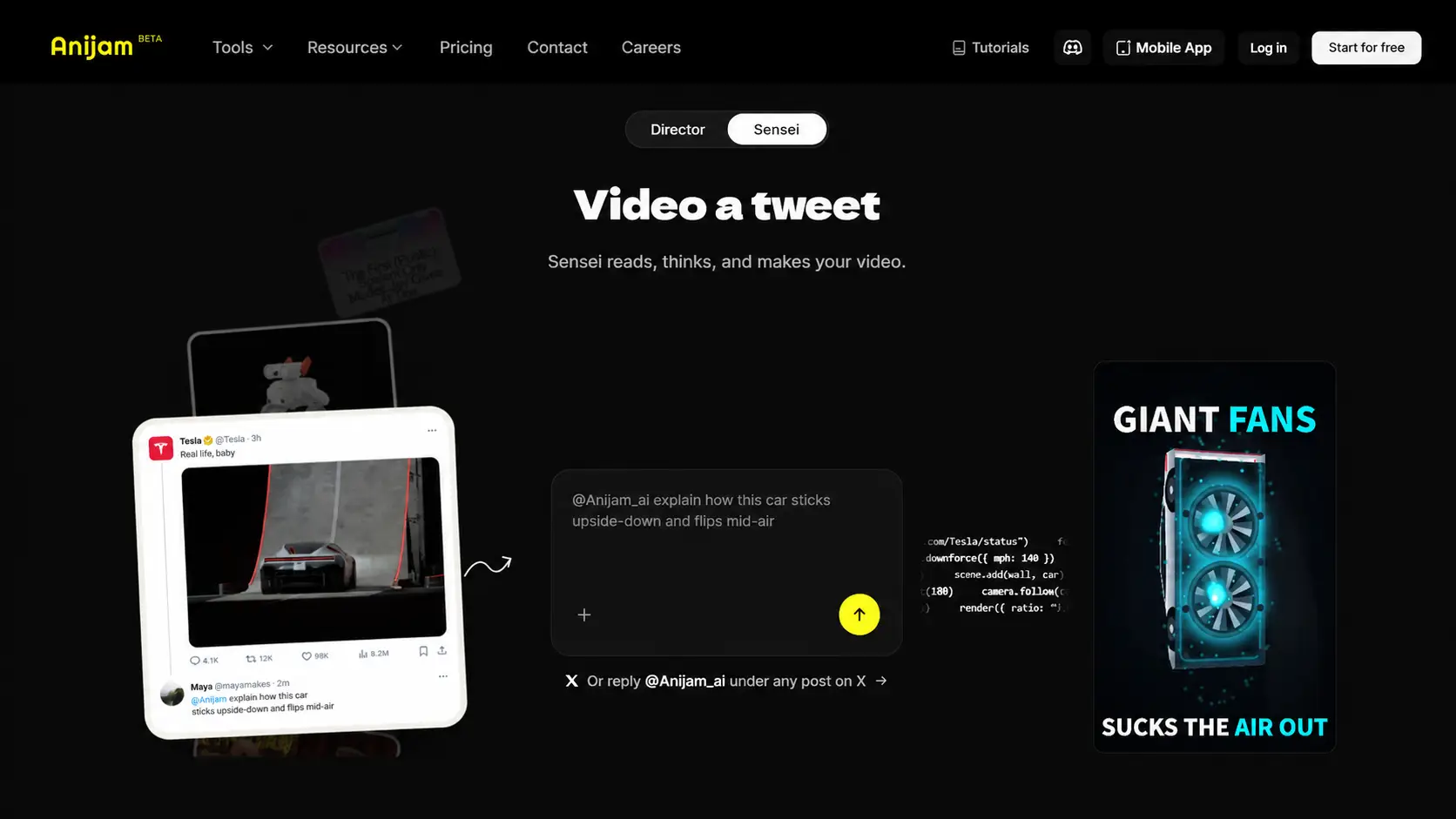
Twitter (X) links. Want to turn a Twitter (X) link into a video? Paste the tweet link into Anijam Sensei, or reply to the post on X with @Anijam_ai and say what video you want. Anijam AI replies with the video in the thread.
-
YouTube links. To turn a YouTube link into a video, paste it in like any other URL. Long videos work too, so the link can be the starting point for a shorter, tighter version. Stick to videos you own or have permission to reuse.
Pay attention: private accounts won’t work, and live streams, playlists and profile pages aren’t supported, so always send the link to the individual video. If a link fails, upload the video file instead and Sensei will work from that.
One more thing about how Anijam Sensei treats the source: by default, the video is used as a reference for structure, pacing and look, and Anijam AI recreates the visuals itself. If it’s your own video and you want the actual footage in the new one, say so when you paste the link. As with any source, stick to videos you own or have the right to reuse.
How Does URL to Video Work?
Behind the paste box, link to video tools tend to follow one of three approaches. They differ in how much the AI actually understands your source versus how much it simply rearranges. None of them is wrong, but each suits a different job.
Content-Based Video Creation
This is the most common approach. The AI tool reads the page, pulls out the main points, writes a short script, splits it into scenes and matches each scene with stock footage or images. Voiceover and captions go on top.
It’s quick, and it works well when you need a straightforward draft from a single article. The trade-off is that the video is only as specific as the page itself. Generic visuals and flat summaries are the most common complaints, so a quick script edit goes a long way.
Reference-Guided Video Generation
Here, the link or its media acts as a reference. The tool looks at images, footage or visual style from the source and uses them to guide newly generated scenes, so the video stays closer to the original look of your product or subject.
This can make visuals feel more tailored. It tends to depend on how strong the reference material is, though, and it cares more about how things look than about what the topic is really about.
Research-Driven Video Creation with AI Agents
The third approach treats a link as a starting point rather than the whole story. An AI agent downloads the video through the link, plans the project, gathers information, makes decisions and checks its own work, a bit like a small production team. This is how Anijam Sensei works.
In Sensei, Anijam AI moves through six stages:
-
Research. It gets information from papers, posts, videos and docs through your links.
-
Outline. It writes the story beat by beat, timed to the second, before anything is drawn.
-
Style. It picks a look that fits the idea, or follows one you mentioned.
-
Shots. It plans every scene, cut and camera move.
-
Code. It builds the motion in real code, including 3D, vector and data animation, so every frame stays editable.
-
Review. It watches its own video, checks facts and timing, and fixes what’s wrong before you see it.
How to Turn a Link into a Video with Anijam Sensei
Anijam Sensei is a research-first AI video creation tool that helps turn online content and ideas into finished videos. Instead of jumping straight into video generation, it first explores the source material, gathers relevant information, develops a structured narrative, and plans the visuals before building and reviewing the final video.
Whether you’re working with product page, articles, research papers, podcasts, or other online sources, Anijam Sensei streamlines the process from research to video creation. Here’s a step-by-step look at how to turn a URL into a video with Anijam Sensei.
Note: Anijam Sensei is currently available on desktop only, so please access Anijam AI from your computer for the best experience.
Step 1: Paste Your Link and Choose Your Settings
-
Switch to Anijam Sensei at the top of the homepage, paste your link into the input box and add a sentence or two about what you want. The goal, the audience, the style and the key points are all worth mentioning.
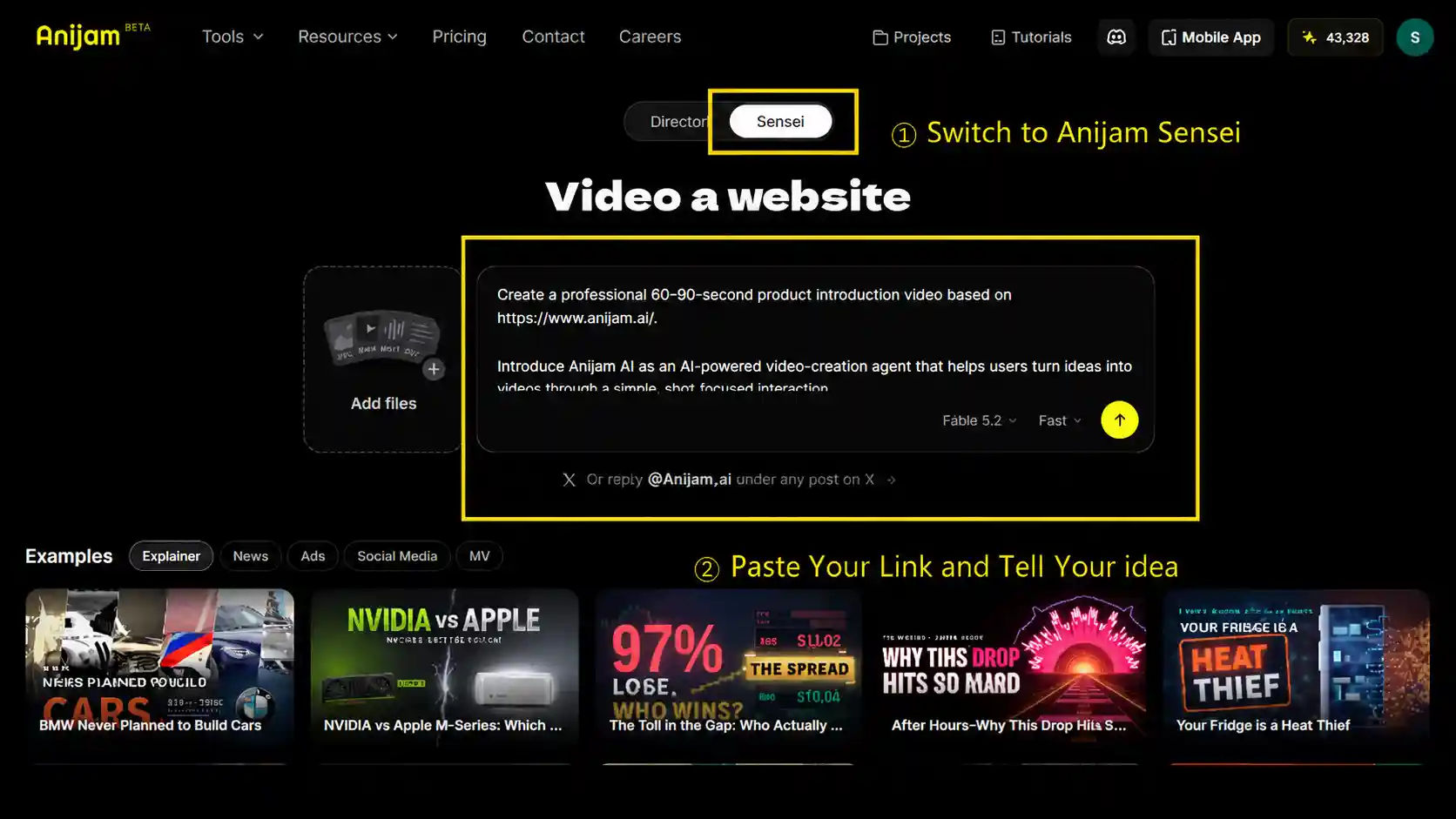
-
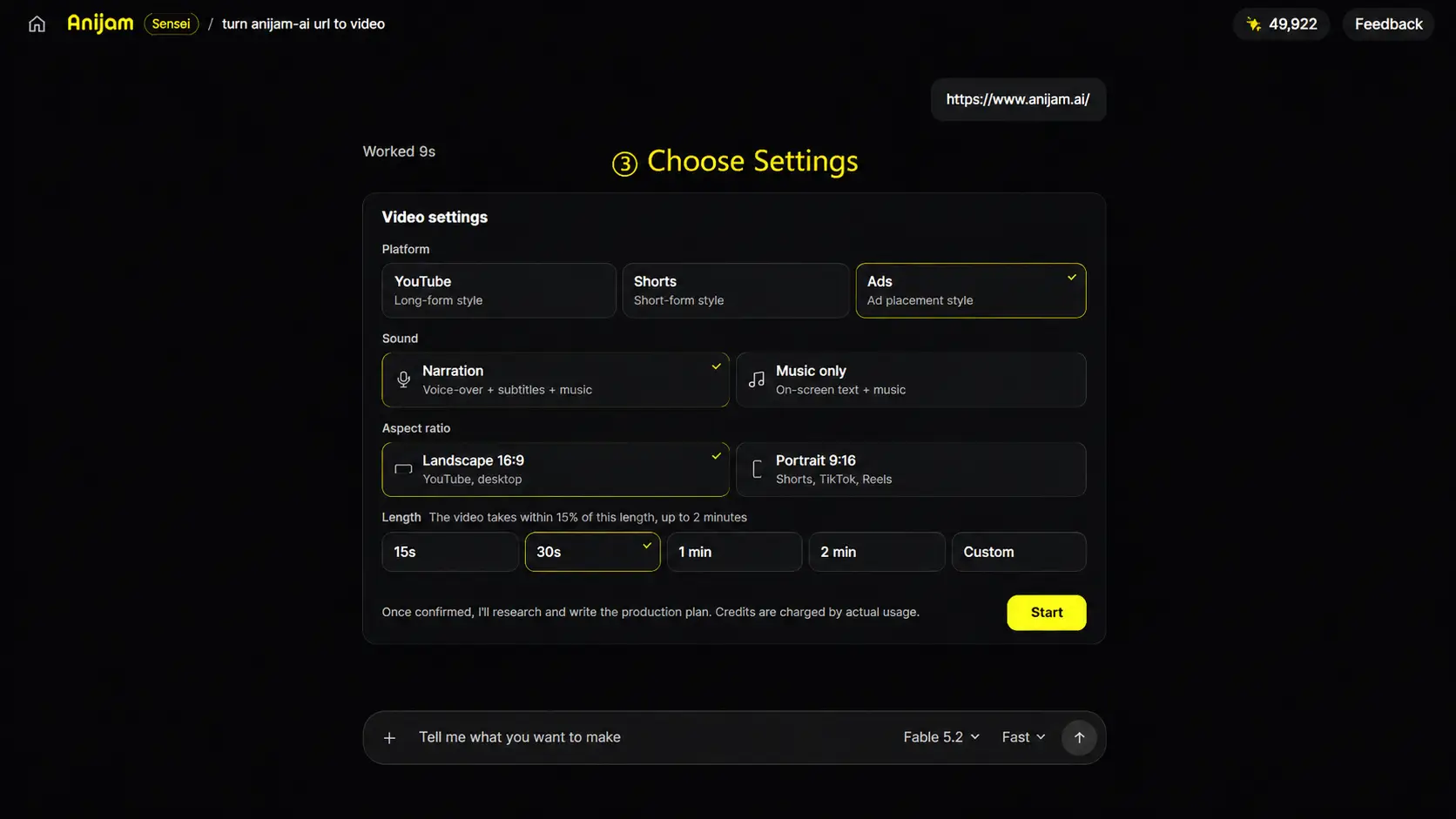
Once you send it, Sensei opens a Video settings card, where you choose the platform, sound, aspect ratio and length.
-
Click start, and Anijam Sensei will research the page and write a production plan.
Step 2: Review and Edit the Production Plan
-
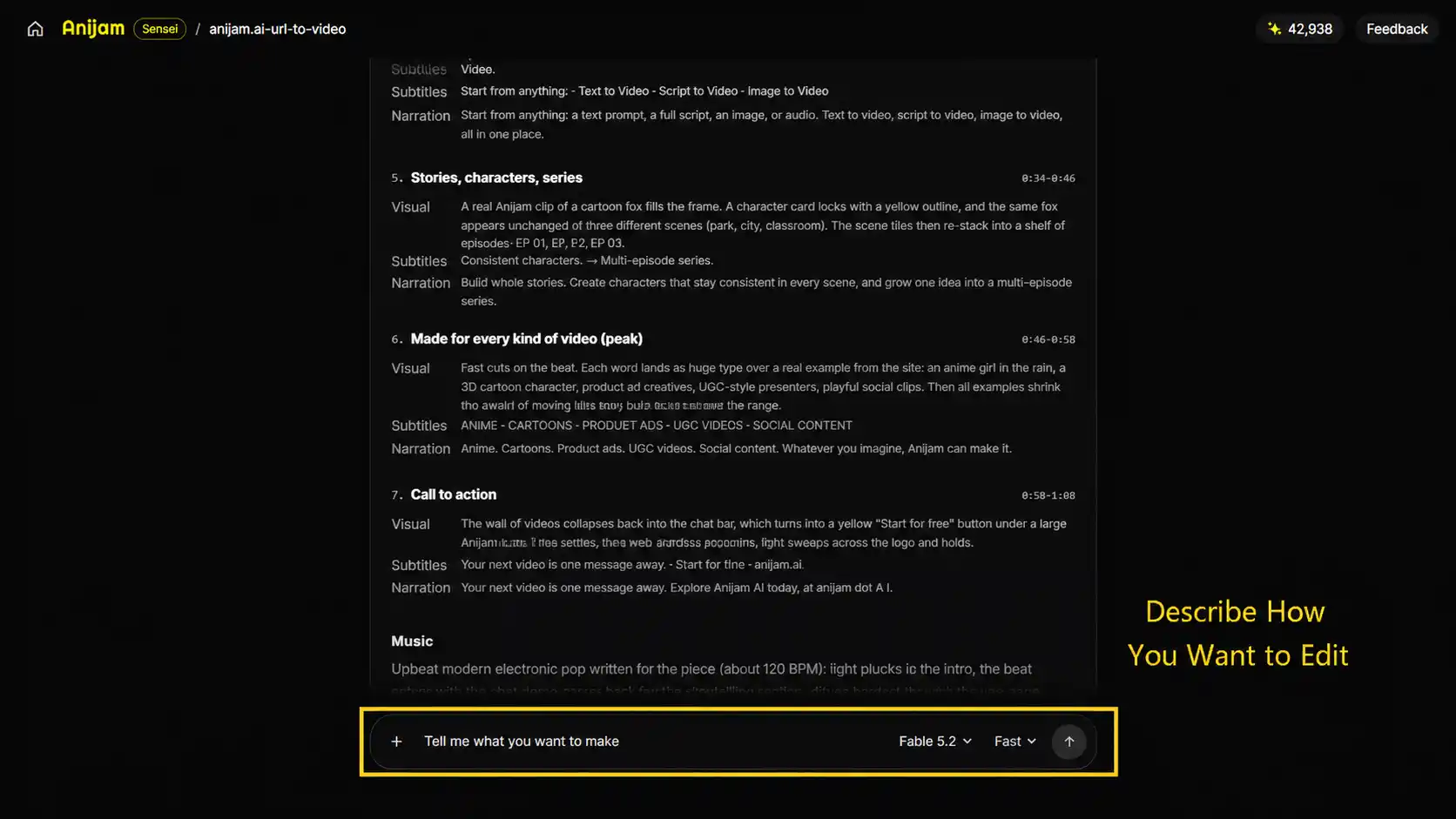
Check each scene. Every scene lists its timing, visuals, subtitles and narration, and the plan ends with the music direction.
-
Type any changes into the chat, such as the script, scenes, voice or length.
-
Approve the plan and start production.
Step 3: Check the Narration, Voice and BGM
-
Play the voice card and listen for pace, tone and wording, then tell Anijam Sensei what to change, or reply OK to keep the voice.
-
Play the background music card that follows. Each card shows an estimated credit cost. Then tell Anijam Sensei what to change, or reply OK to keep the music.
Step 4: Preview, Refine and Download Your Video
-
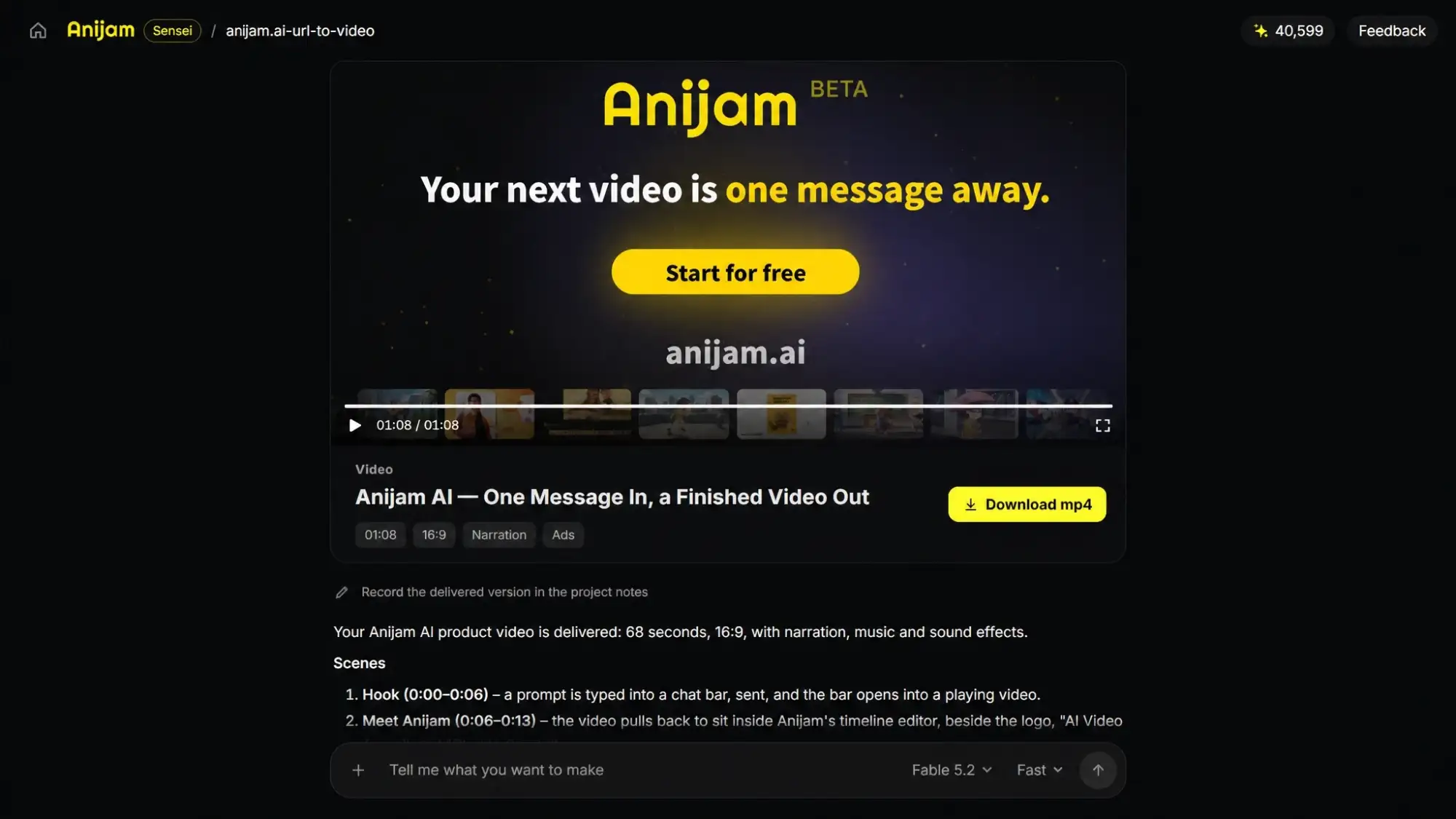
Watch the finished video in the player and check the details such as on-screen text, logos, visuals and how the music fits the scenes, and make sure the facts match your page.
-
Type what you want changed in the chat, such as a shorter scene or a different tone.
-
Click “Download mp4” when you’re happy with the result.
Tips for Better URL-to-Video Results
The AI tools does most of the work, but a few habits separate a video you can post right away from one you have to redo.
Choose Publicly Accessible and Well-Structured URLs
-
A tool can only use what it can read: Pages behind a login or paywall, or ones buried under pop-ups, can come back thin. A quick test: open the link in a private window. If you can read it without logging in, the AI probably can too.
-
Clear headings and real text help as well: If a page is mostly images with a few captions, the AI has little to work with, so add the key points in your prompt. If the content is gated, upload it as a file instead. Prefer to write the narration yourself? Script to Video AI turns a full script into scenes.
Define Your Video Goal, Target Audience, and Key Messages
A vague request gets a vague video. Compare these two:
-
Vague: “Make a video from this link.”
-
Better: “Make a 45-second video for first-time buyers that explains the three main features on this page. Keep the tone friendly.”
Review the Script and Storyboard Before Video Generation
Changing a plan is much cheaper than changing a finished video, so don’t rush this stage. Read each scene’s narration and subtitles out loud. If a line sounds clunky or the order feels off, fix it now.
Give Specific Feedback When Refining Your Video
“Make it better” doesn’t give an AI much to work with. “Shorten scene 3 to about four seconds and open with the main benefit” does.
Ask for one or two changes at a time. That way you can see what each edit did, and it’s easier to walk one back if it doesn’t work.
Review Key Details and Information Before Publishing
Anijam Sensei checks facts against its sources, but you know your subject better. Before you post, give names, prices, dates and numbers a final read. A wrong figure is easy to miss when it’s moving across the screen.
Rights matter too. In Anijam AI, you own the video you make, sources are credited, and any music you upload has to be yours to use. The full copyright policy isn’t published yet, so check the current terms. As a rule of thumb, only turn content you own or have permission to use.
Final Thoughts
For marketing teams, much of the work behind effective campaigns-researching products, shaping brand messages, and creating content-already exists across blog posts, product pages, and other online resources. Link to video puts that work to use a second time, and the steps above show how little it takes: pick a source with a clear point, read the plan before you approve it, and check the details before you post.
As more content starts life as a link, turning that link into a video will probably become a routine step after publishing, much like sharing a post. It’s worth looking at your own archive that way: every blog post, product page or thread is a possible video.
If you want to try it, paste a link into Anijam Sensei and see what comes back. Choose one you’d like more people to see, and you’ll quickly find out how the plan, the voice and the video fit together.
Frequently Asked Questions
What types of links does URL-to-Video support?
Almost any public direct link can work. including websites, blog posts, product pages, and social media content from platforms such as YouTube, TikTok, X, and Instagram. TikTok links are generally the most reliable, while links that require a login or lead to private or restricted pages may not work.
Can I edit the video after it’s generated?
Yes. Keep chatting with Anijam Sensei and describe the change you want. You can also make changes earlier, at the production plan and voice checkpoints, including the wording, pace, tone or voice itself, which is usually easier.
Is the information in the video accurate?
Anijam Sensei checks its own work. It compares facts against the sources it read, checks captions and voice timing, and fixes what it finds wrong before you see the video. Still, give names, numbers and quotes a quick look in the production plan, because that’s the cheapest place to catch a mistake.
Can I try URL to video for free?
Yes. Anijam Sensei comes with a free minute, so you can try one with your free sign-up and daily check-in credits. Credits are charged by actual usage, so a few choices can help you keep a first try cheap: choose a short length, such as 15 to 30 seconds; pick Music only instead of Narration, which skips the voice-over; read the plan carefully before you approve it, since regenerating audio or rebuilding after changes costs more.
Who owns the video I make?
In Anijam Sensei, you own your video and sources are credited. Music you upload has to be yours to use. The full policy is still to come, so check Anijam AI’s current terms before publishing.
by Evan
Evan is an AI content creator and video technology writer at Anijam AI, focused on how generative AI is transforming storytelling and video production. He shares social trends, creative workflows, prompt strategies, and practical insights to help creators turn ideas into engaging videos and visual content.