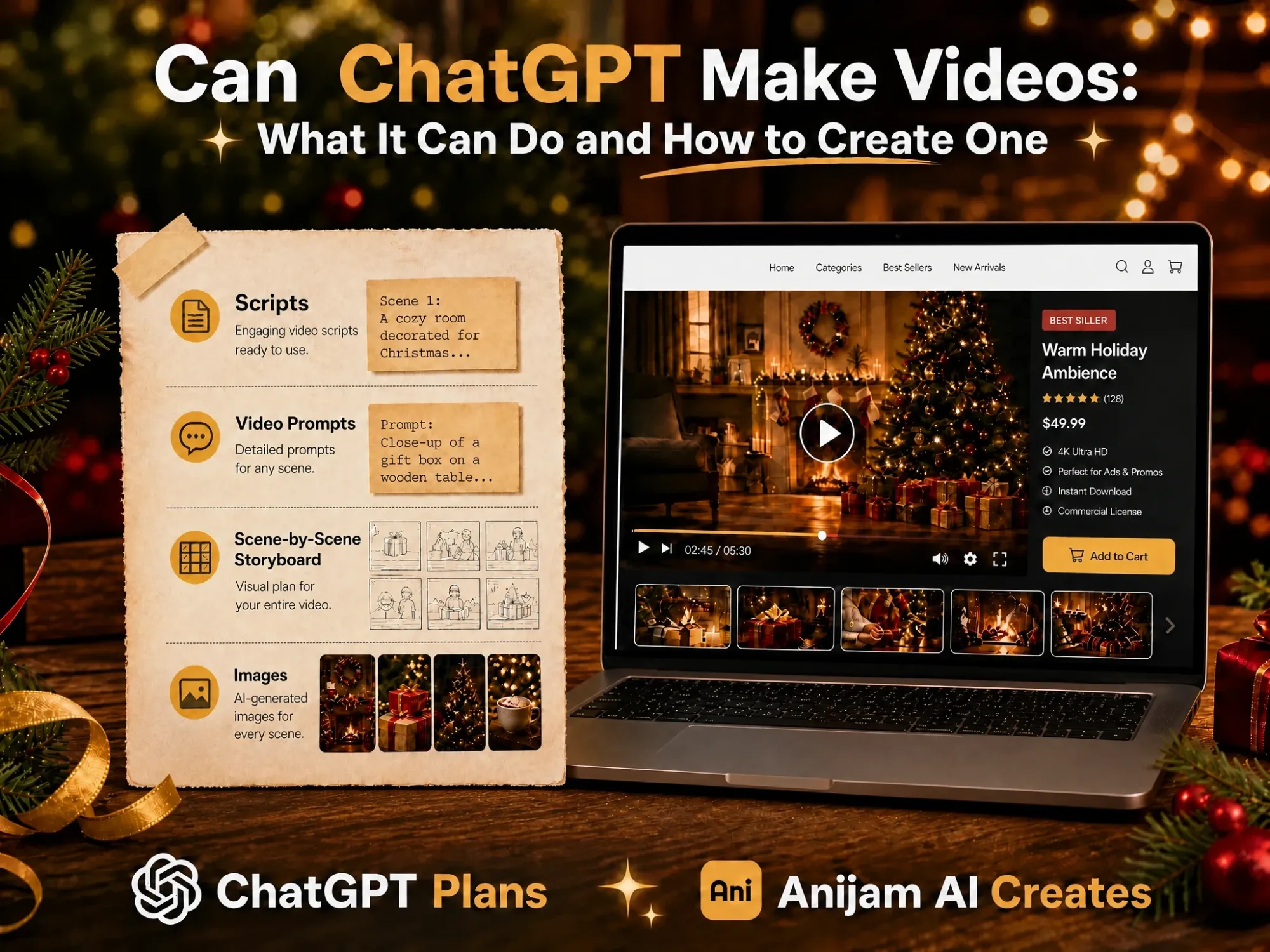
Can ChatGPT Make Videos: What It Can Do and How to Create One
Type “make me a 30-second video about my bakery” into ChatGPT and you’ll get something useful back: a hook, a script, visual style and maybe a shot list. What you won’t get is a video you can click play on.
So, can ChatGPT make videos? The short answer is: not on its own. It plans the video, and a separate tool has to render it. That gap is what people mean when they look for an AI ChatGPT video generator: a way to take what ChatGPT writes and turn it into footage.
This guide covers what ChatGPT can and can’t do for videos, three ways to connect it to a video generator, and how to make an engaging video using ChatGPT and Anijam AI.
Can ChatGPT Create Videos?
Quick answer: No. ChatGPT can’t produce a video file on its own. OpenAI discontinued Sora, its dedicated AI video generation service, on April 26, 2026, so ChatGPT now can help with the planning side of video creation, including brainstorming ideas, writing scripts, creating storyboards, and generating prompts and captions. To get actual footage, you need to use a third-party AI video generator, either through an available integration or by uploading materials ChatGPT provides to an external video platform.
Why Many People Assume It Can
The confusion isn’t random. Three things keep feeding it.
- Sora used to be part of the ChatGPT world. OpenAI announced Sora’s shutdown in March 2026, closed its web and app experiences on April 26, and switched off the Sora API on September 24. Plenty of older tutorials still say “just use Sora.”
- Apps make video feel built in. When you tag a video app inside ChatGPT, the clip shows up in the same chat. It looks native, but a partner service rendered it, using the partner’s account and credits.
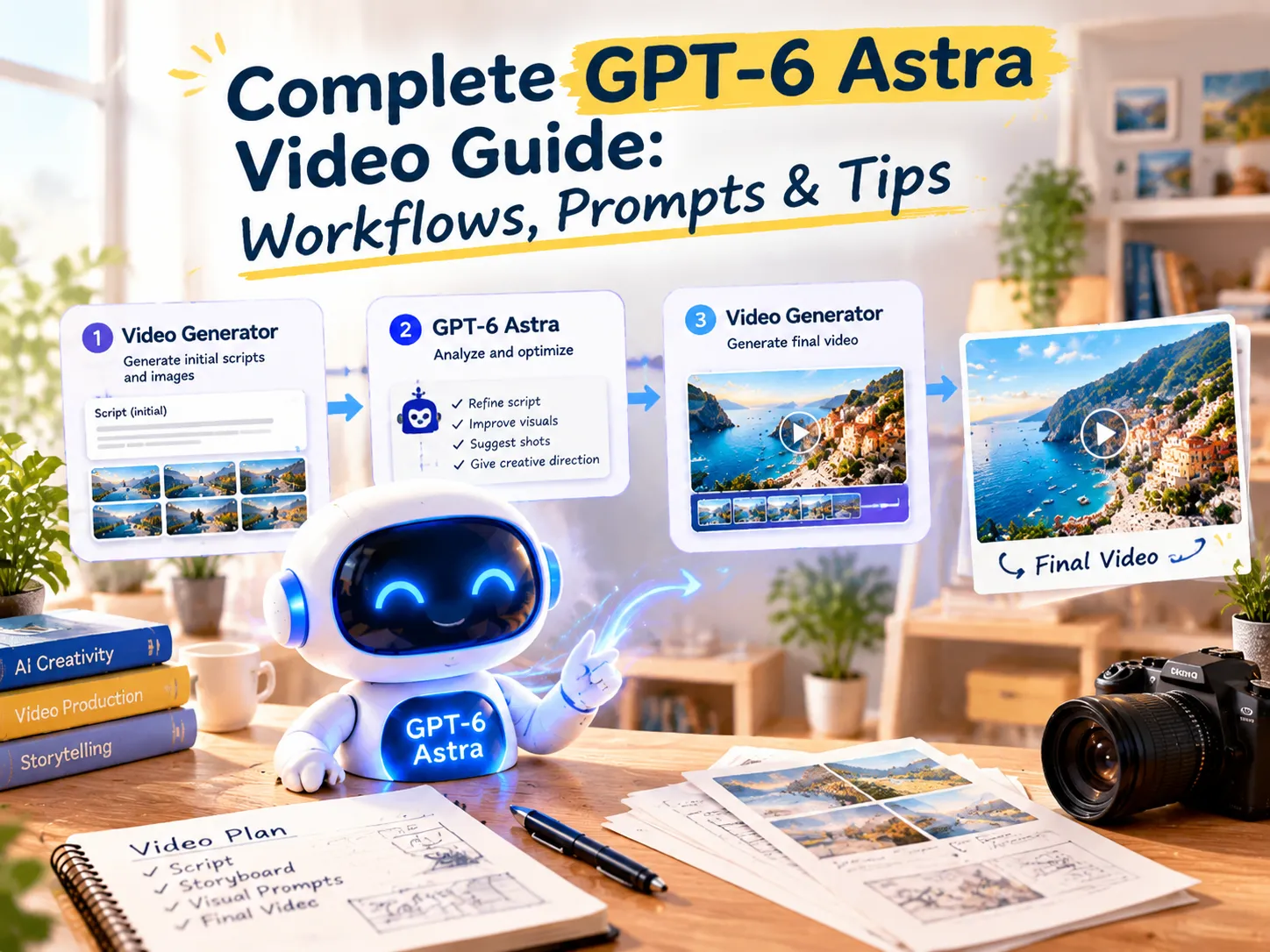
- Newer models can make it seem like they can do everything. GPT-6 Astra, OpenAI’s flagship model introduced in September 2026, is excellent at planning and writing. It still takes in text and images and gives back text, not video. For a closer look at Astra’s role in video creation, check out our GPT-6 Astra video guide.
What ChatGPT Actually Outputs Instead
Ask for a video and ChatGPT answers in the formats it knows. Here’s what you really get, depending on where you start:
| You start with | ChatGPT gives you |
|---|---|
| Text | • video scripts • scene breakdown • Storyboard • visual prompts • still images |
| Image | • image analysis • image edits • additional visuals • motion prompts |
| Audio | • Transcriptions • cleaned-up narration • Summaries • captions as text |
| Existing footage | • video analysis • editing suggestions |
What Can ChatGPT Do to Support Video Creation?
Think of ChatGPT as your writers’ room. It’s quick, it never runs out of ideas, and it does its best work when you give it firm constraints. Here’s where it earns its place.
Developing Video Ideas and Creative Concepts
Start with a brief, not just a topic. Tell ChatGPT who the video is for, where it will run, how long it should be, and what you want viewers to do afterwards. Then ask for options instead of a single answer.
Example:
“I run a small bakery. Give me 8 concepts for a 20-second Instagram Reel that sells our weekend cinnamon rolls. For each one, write a hook for the first two seconds and a line on what the camera shows. Provide multiple creative versions for me to choose from.”
Pick two you like, then push them: ask for a funnier version, a calmer one, or a different opening.
Writing Video Scripts and Storylines
Once you have a concept, ask for a script with scene markers and a target runtime. Spoken narration runs at roughly 2 to 2.5 words per second, so a 30-second video needs about 60 to 75 words.
Ask for the hook, the middle and the closing line separately. That makes it easy to swap one part without rewriting everything, and reading the result out loud will catch anything that sounds stiff.
If you’d rather write and produce in the same place, Anijam AI script writer drafts scripts for social videos, short-form clips and ads, then sends them straight into video production.
Generating Scene-by-Scene Storyboards
A storyboard turns the script into shots. ChatGPT is good at laying one out as a table: what we see, what’s said, and how the camera moves. For a 20-second bakery Reel, it might look like this:
Scene 1 (0-3s): Steam rises from a fresh tray of cinnamon rolls.
Narration: “Saturday starts here.”
Camera: Close-up, slow push-in.Scene 2 (3-7s): Icing drizzles over warm, golden rolls.
Narration: “Gooey, golden, gone by noon.”
Camera: Overhead shot.Scene 3 (7-12s): A customer picks up a cinnamon roll.
Narration: “Your weekend treat is waiting.”
Camera: Medium shot, slight pan. …
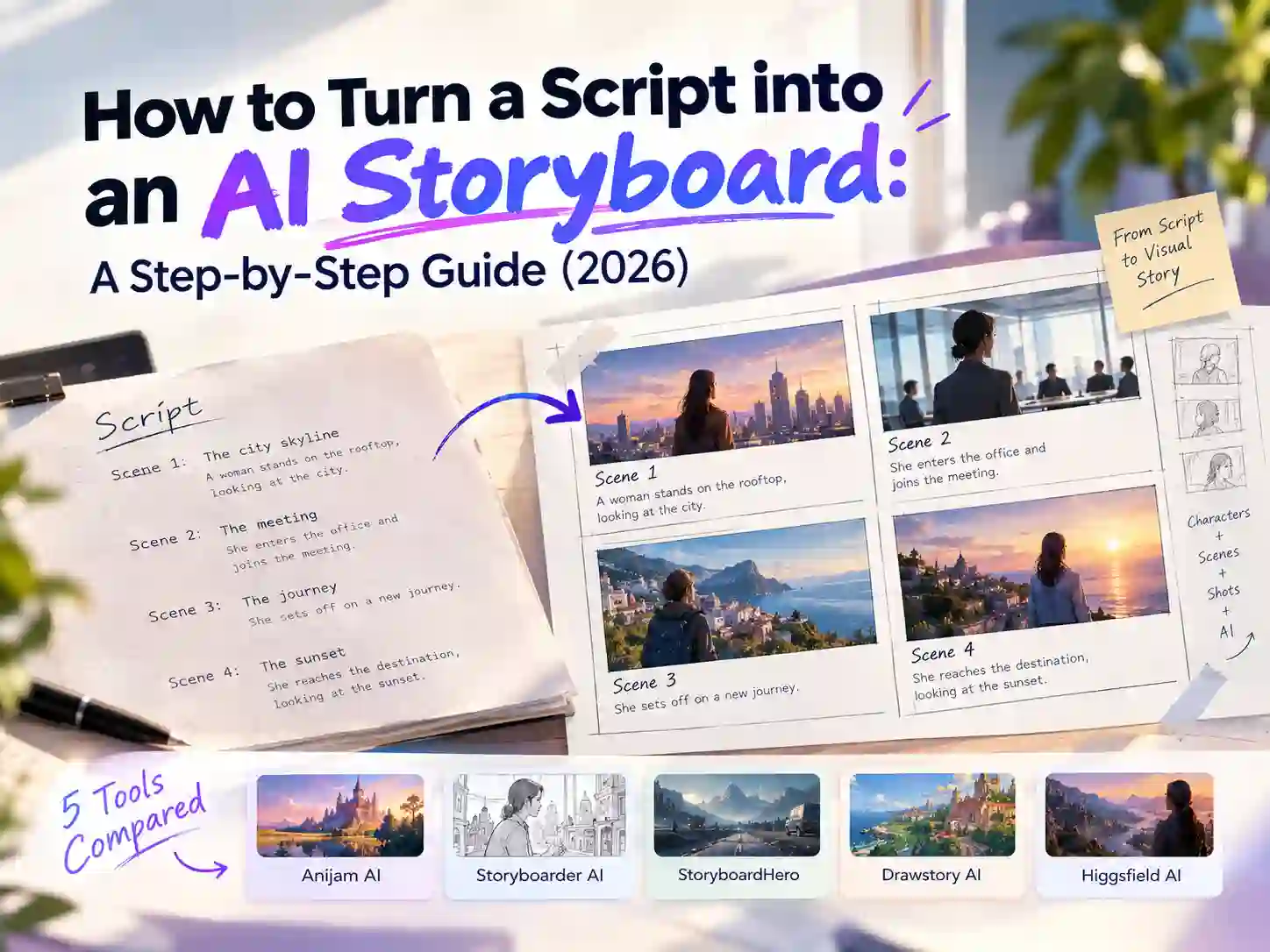
It’s a text storyboard, though, so you still have to picture the frames yourself. If you want visual panels with the same characters in every shot, Anijam’s AI storyboard generator turns a script into shot-by-shot storyboard panels, allowing you to edit each scene afterward.
Creating and Optimizing Detailed Video-Generation Prompts
This is the step that decides how your video looks. A good ChatGPT video prompt describes only what a camera could see, and it names what has to stay the same from shot to shot. A reliable structure:
Video Prompt = Subject + Setting + Action + Camera + Light & Mood + Format + Fixed Elements
Here’s the difference it makes:
Weak: “A bakery video, cozy and cinematic.”
Stronger: “A close-up of a tray of freshly baked cinnamon rolls on a wooden counter inside a cozy bakery. Steam rises gently from the rolls as warm morning light streams through the bakery window. Slow push-in, soft and inviting atmosphere, 9:16 aspect ratio, 5 seconds. Keep the tray of cinnamon rolls and the wooden counter consistent across every shot.”
Planning Camera Movements, Transitions, and Visual Styles
ChatGPT knows film language, so you don’t have to. Give it your storyboard and ask it to plan how each shot moves, how the scenes connect and what the whole video should look like. And you’ll typically get a plan like this:
Scene 1: Fresh from the oven
• Camera: Close-up, slow push-in on the tray
• Transition: Hard cut on the beat
• Why: The push-in pulls the eye to the steam and builds appetiteScene 2: Icing drizzle
• Camera: Overhead, static
• Transition: Whip pan to the storefront
• Why: A fast pan covers the jump from kitchen to street…
Style options
• Option A, warm and realistic: soft morning window light, golden-brown palette, shallow depth of field
• Option B, hand-painted: soft illustrated look, warm palette, gentle paper textureStyle note for Option A: “Warm, cozy bakery look, soft morning window light, golden-brown palette, shallow depth of field. Keep the tray and wooden counter the same in every shot.”
Drafting Captions and Titles
Once the video exists, ChatGPT is useful again. Give it the script and the platform, then ask for five title options, a short caption, on-screen text of four words or fewer, and a few hashtags. Ask for different tones, such as curious, direct or playful, and keep the one that sounds like you.
How Can ChatGPT Work with Third-Party AI Video Generators?
ChatGPT can’t render video, but it can hand the job to something that can. There are three ways to connect them, and they mostly differ in how much copying and pasting you do.
Some chatbots ship with video generation built in. Grok, for example, has its own Imagine feature for making video inside the Grok app. ChatGPT doesn’t, which is why the connections below matter.
| Method | How it works | Where the video is made | Best for |
|---|---|---|---|
| Alongside ChatGPT | You write prompts in ChatGPT and paste them into a video platform | On the video platform | Full control and the freedom to pick any tool |
| Apps inside ChatGPT | You tag a video app in the chat | On the vendor’s servers, then returned to the chat | Quick clips without leaving ChatGPT |
| MCP and APIs | ChatGPT connects to an editor, or a script calls a video API | In the connected editor or your own workflow | Editing existing footage and automated pipelines |
Method 1: Using Third-Party AI Video Generators Alongside ChatGPT
This is the simplest setup. ChatGPT writes the script and the scene prompts. You open a video generator in another tab, paste them in and render there. There’s nothing to install and no permissions to grant, and it works with any generator you like.
The trade-off is that you do the carrying. A platform that keeps your script, scenes, characters and voice in one project saves you from stitching separate clips together later.
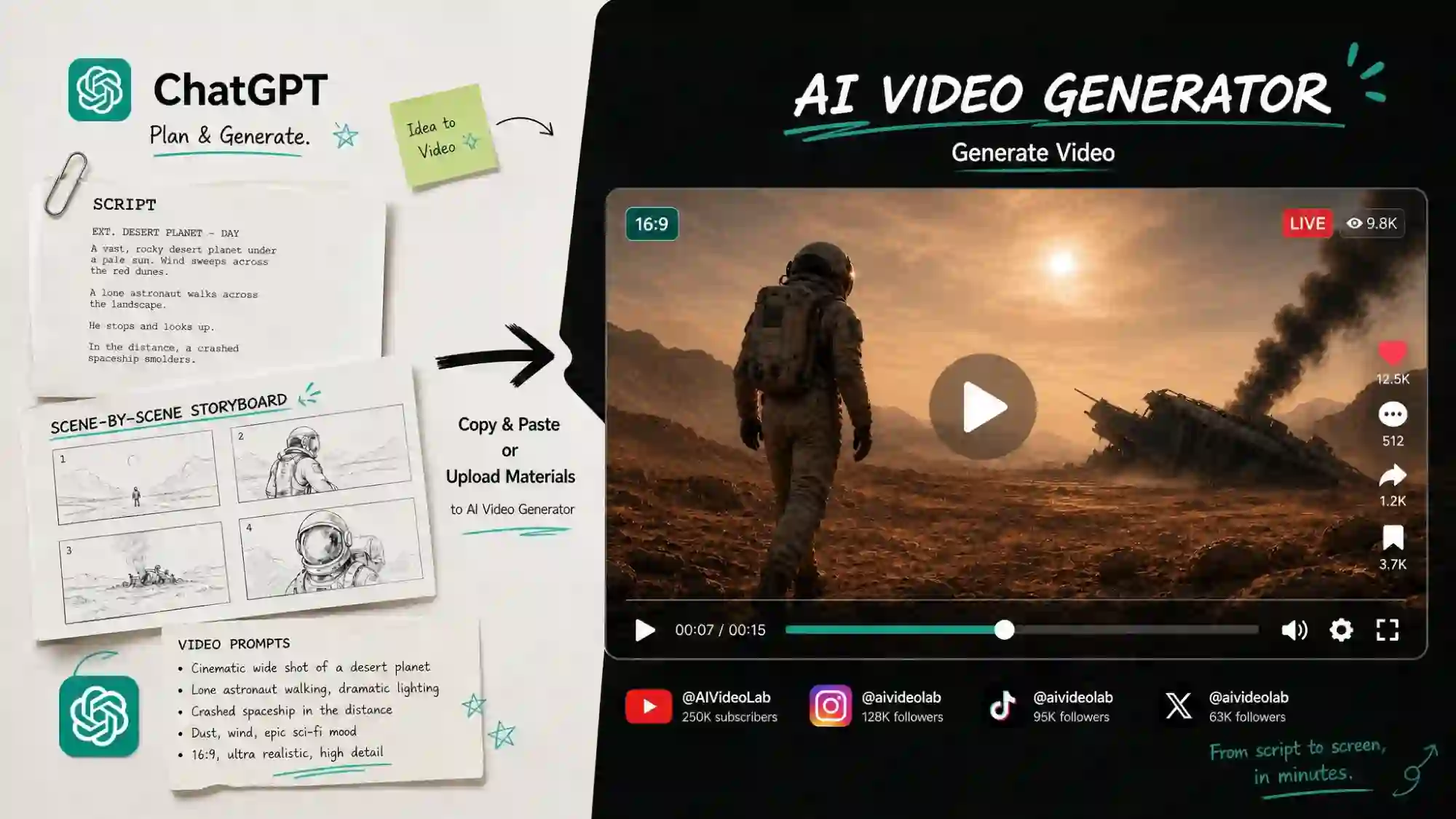
How to Create AI Videos with ChatGPT and Anijam AI
Anijam AI is a chat-based AI video maker, with an AI video agent that guides you from idea to finished video. That makes it a natural next step after ChatGPT: ChatGPT does the writing, and Anijam does the producing in one workspace. The Anijam app stays in sync with your web projects, so you can start on a laptop and keep going from your phone.
Here’s the hands-on workflow:
Step 1: Plan and Write the Video with ChatGPT
Use ChatGPT for everything that happens before the footage exists. You can ask it for a clear brief, a script with scene markers, a style note and character details, or one visual prompt per scene.
Copy-paste prompt:
“I’m making a 30-second vertical (9:16) Instagram Reel for a small bakery to sell our weekend cinnamon rolls. Give me: (1) a script with scene markers and about 70 words of narration; (2) a one-line description of any recurring character or product detail that must stay the same in every scene; (3) a short style note I can reuse across the video; (4) one visual prompt per scene, 40 words max, describing only what the camera sees. Put everything in one clean document with no commentary.”
Step 2: Turn the Script into a Storyboard in Anijam AI
Open Anijam AI and bring the ChatGPT output in. This is where the video starts to take shape:
- Upload or paste the script. Anijam AI script to video AI accepts .txt, .docx, .pdf and .md files, or you can paste text into the chat.
- Choose the look. Pick a style such as anime, cinematic, realistic, cartoon or a custom Pro Style, and paste ChatGPT’s style note into the chat so the agent starts from your look.
- Set up characters. Add ChatGPT’s character descriptions and any reference images, so recurring characters keep the same appearance from scene to scene.
- Add voice. Choose from 200+ voices across 30+ languages, or upload your own audio. For dialogue scenes, lip sync matches the voice to the characters’ mouth movement.
- Review the storyboard before generating. Edit the text in any block, drag shots on the canvas to compare or reorder scenes, and redo, add or delete any AI image. It’s the cheapest moment to change your mind.
Step 3: Generate, Refine and Export
Click Generate, and the AI video generator builds the scenes. Tell the agent what to change or fine-tune on the timeline. Once you’re happy with the result, export and share. Export in 9:16 for TikTok, Reels and Shorts, or 16:9 for YouTube, then publish.
Method 2: Using Third-Party Video Generation Apps Inside ChatGPT
Some video-generation services offer apps that work directly within ChatGPT. Once an app is available and connected, you can invoke it in a conversation to generate or edit videos.
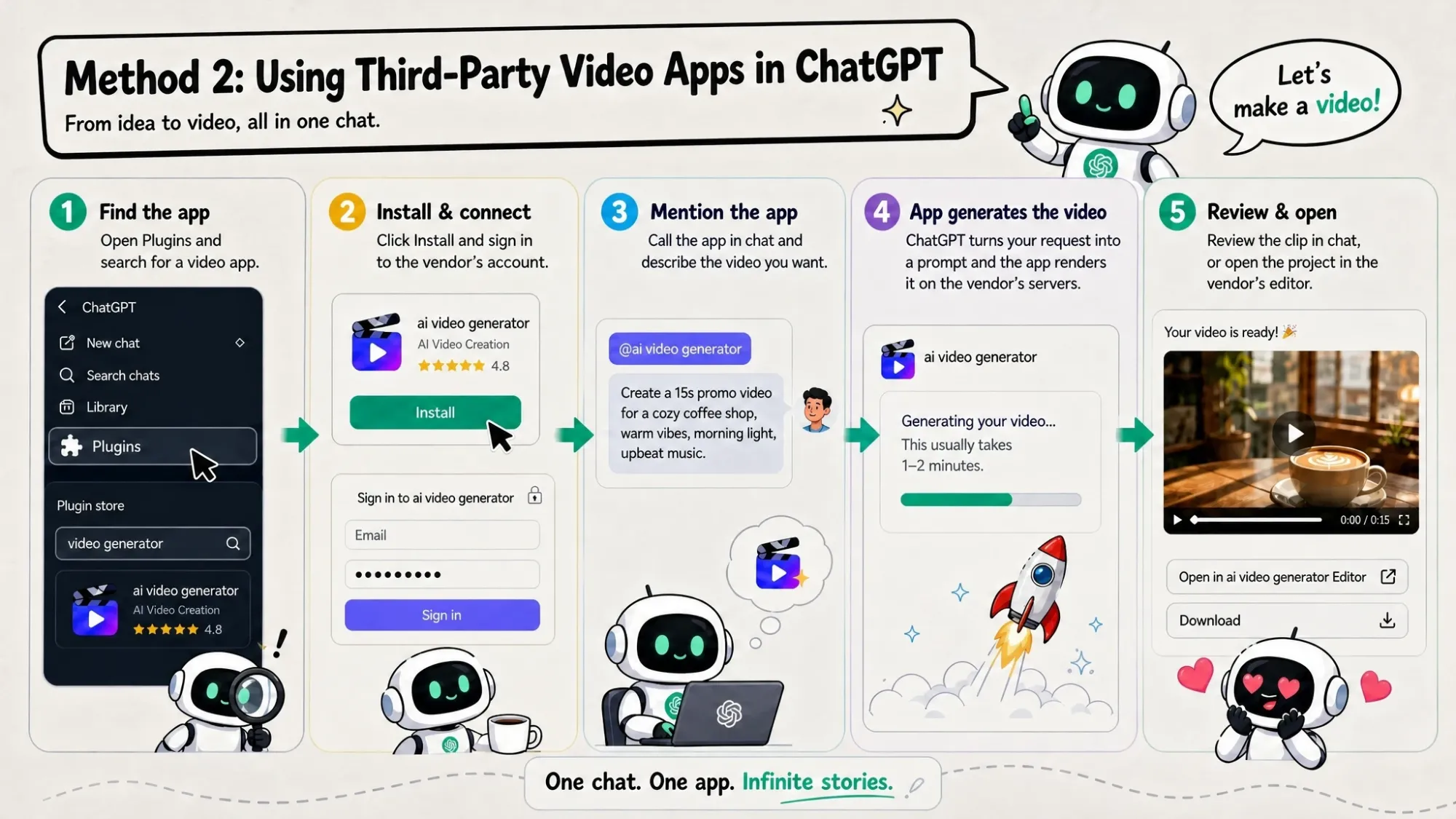
Workflow:
- Open Plugins in ChatGPT sidebar (or go to
chatgpt.com/plugins) and search for the video app. - Click Install, and sign in to the vendor’s account if it asks.
- Mention the app in a chat, for example @[app name], and describe the video you want.
- ChatGPT turns your request into a prompt and passes it to the app, which renders the video on the vendor’s servers.
- Review the clip in the chat, or open the resulting project in the vendor’s editor, depending on the app.
A few things to know before you commit. Each app has its own account, credits and export rules, and your ChatGPT subscription doesn’t cover them. Availability also depends on your plan, workspace and region. And some listings note that ChatGPT may share relevant chats with the app for context, so think twice before pasting confidential material.
Method 3: Connecting ChatGPT to Video Generators Through MCP and APIs
If the video tool you need isn’t available in ChatGPT’s app directory, you may be able to connect it through MCP or build a custom API-based workflow.
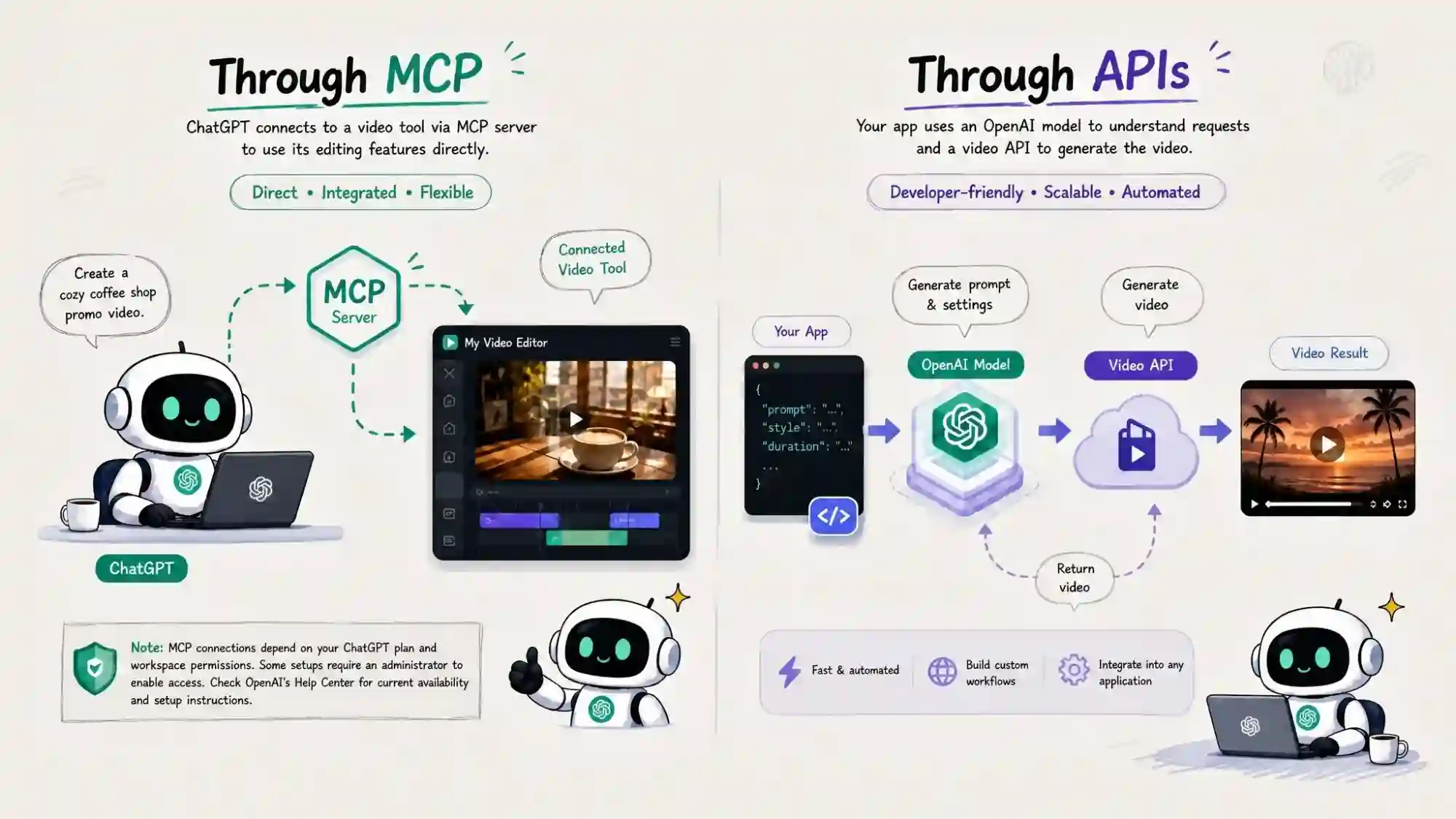
- Through MCP
MCP (Model Context Protocol) is an open standard that lets ChatGPT interact with external tools. If a video editor provides a compatible MCP server, ChatGPT can use its editing features directly.
Workflow:
- Find the video tool’s MCP server and connection instructions.
- Add it as a custom app in a supported ChatGPT workspace.
- Describe the video you want to create or edit.
- ChatGPT sends your instructions to the connected tool, which carries out the requested actions.
- Review the result in the editor and make further changes.
This approach works well for: editing footage you already have, and using a video tool that isn’t in the plugin directory.
Note: Custom MCP connections depend on your ChatGPT plan and workspace permissions. Some setups require an administrator to enable access. Check OpenAI’s Help Center for current availability and setup instructions.
- Through APIs
Developers can build custom video workflows without using the ChatGPT interface. Their applications can use an OpenAI model to interpret requests and generate prompts, then send those prompts to a third-party video-generation API.
Workflow:
- The app sends the user’s request to an OpenAI model, which generates a video prompt and settings.
- The app passes these inputs to a third-party video API.
- The platform generates the video and returns the result.
- The app displays or saves the finished clip.
This approach works well for: automated tasks, such as generating dozens of product videos from a spreadsheet, but requires coding and separate API billing.
Common Mistakes to Avoid When Using ChatGPT in Video Creation
Most disappointing results trace back to a handful of habits.
- Asking ChatGPT to “make a video” and waiting for a file. Without a connected app, you’ll get a script. Say what you want it to write, and which tool will do the rendering.
- Pasting the whole script in as one prompt. Video generators want one short visual instruction per scene. A wall of narration gives them nothing to draw.
- Letting the look drift. If every prompt describes the style a little differently, your character’s jacket changes colour and the lighting jumps. Reuse the same style note and character description each time.
- Trusting every fact. ChatGPT writes with confidence even when it’s wrong. Check numbers, prices and claims before they end up in your narration.
- Rendering the full video first. Test one short clip before you spend credits on the whole thing. A change at the prompt stage costs nothing, while a change after rendering costs another render.
- Pasting confidential material into connected apps. Some apps can receive context from your chat. Keep client or internal details out unless you’ve read the app’s data notice.
Conclusion
So, can ChatGPT make videos? Not by itself, but it’s a strong partner for everything around the footage: ideas, scripts, storyboards, prompts and captions. The rendering has to come from somewhere else, whether that’s a plugin inside ChatGPT, a connected editor, or a dedicated video platform.
If you’d like the script, storyboard and finished video in one place, try Anijam AI. It’s an all-in-one AI video agent that keeps everything on one canvas, with consistent characters, voices and lip sync. Try it with your next idea.
Frequently Asked Questions
Does Any ChatGPT Plan Generate Videos Directly?
No ChatGPT subscription plan currently includes native video generation. However, you can use compatible third-party apps to generate videos within ChatGPT, depending on availability and workspace settings. Alternatively, you can combine ChatGPT with an AI video generator like Anijam AI. Use ChatGPT to develop your ideas, scripts, and video prompts, then bring them into Anijam AI to generate the actual footage.
Can ChatGPT Write a Full Video Script from a Single Prompt?
Yes. ChatGPT can turn a single prompt into a complete video script, including the opening hook, scene descriptions, dialogue or narration, and closing call to action. For better results, provide details about your target audience, video length, style, and purpose. You can also ask ChatGPT to generate multiple versions so you can choose the one that best fits your needs.
Can I use videos made through ChatGPT apps commercially?
That depends on the video tool, not ChatGPT, so read the app’s terms for your plan. Commercial usage rights vary by provider and subscription tier. Always check the app’s terms before using generated videos in ads, client projects, or other commercial content.
Is it worth using ChatGPT if I already use a video generator with its own script feature?
Yes, if you want more creative control. A built-in script tool is convenient for quick drafts, but ChatGPT can help you explore different storylines, test hooks, adjust the tone, and refine dialogue before generating your video. You don’t have to choose one over the other-use ChatGPT to develop your ideas and your video generator to bring them to life.
by Evan
Evan is an AI content creator and video technology writer at Anijam AI, focused on how generative AI is transforming storytelling and video production. He shares social trends, creative workflows, prompt strategies, and practical insights to help creators turn ideas into engaging videos and visual content.