How to Make AI Videos: A Complete Beginner’s Guide (2026)
You’re scrolling through TikTok, Instagram Reels, or YouTube Shorts when a video catches your eye: a cartoon cat dancing in a chef’s hat, a cinematic scene created from a handful of photos, or a creative trend popping up across your feed. You pause, watch it again, and wonder, “How can I make something like that?”
Or perhaps you already have an idea of your own-a short story, a product video, or a funny scene-but aren’t sure how to bring it to life. That’s where AI video tools come in. You don’t need a camera, professional editing skills, or even a finished script to get started.
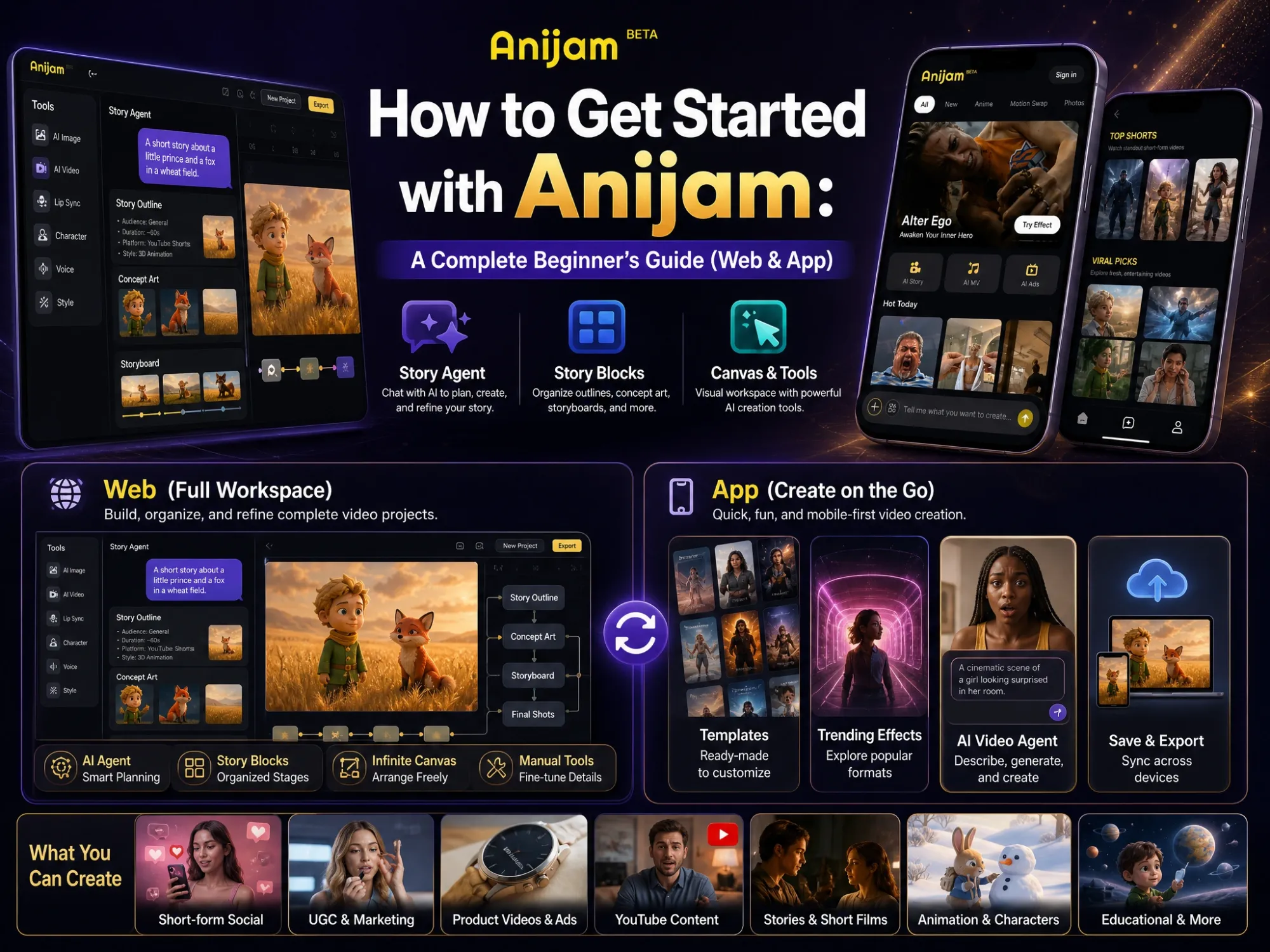
In this guide, you’ll learn how an AI video generator works, the problems most beginners run into (and how to solve them), four tools worth trying, and a first-video walkthrough in Anijam AI. At the end, you’ll find tips for YouTube, TikTok, and Instagram.
What Is an AI Video?
An AI video is a video generated, fully or partly, by an AI model. Instead of filming real footage, you give the model an input, such as a text prompt, an image, a script, or an audio track, and it produces the frames, the motion, and sometimes the sound.
One thing worth knowing early: most tools generate short clips. A single generation usually runs from a few seconds to around 15 seconds, and a few models such as Wan 3.0 and Seedance 2.5 go further and can make clips of up to 30 seconds. Longer videos are built by chaining clips together, which we’ll come back to in the challenges section.
So what can you actually make with it?
What Can You Make With AI Videos?
AI video covers more ground than most people expect. The most common uses:
- Social Media & Trending Videos: Short clips and trend-style videos for TikTok, Instagram Reels, and YouTube Shorts.
- Marketing, Ads and Product Videos: Product demos, UGC-style ads, or promotional clips, without a film crew.
- Series & Storytelling Videos: Short films, animated stories, short drama, and recurring characters.
- Music videos: Visuals matched to a song or a voice track.
- Educational & Explainer Videos: Teachers, trainers and businesses can turn lessons, presentations or onboarding material into explainer videos.
- B-roll and concept previews: Atmospheric shots, product concepts, and rough storyboards before a real shoot.
What You Need to Get Started
The list is shorter than you might think:
- A clear goal. Who’s watching, on which platform, and for how long?
- A starting input. A prompt, a photo, a script, or an audio file.
- An AI video tool. Most offer free credits to try, so you can test before you pay.
- A writing assistant (optional). ChatGPT or Claude can help you draft a script, a shot list, and prompts. They don’t render video themselves, so you’d paste their output into a video tool.
- A simple editor. Many video tools include a timeline. If yours doesn’t, a basic editor is enough for trimming and joining clips.
With that sorted, let’s look at how the video actually gets made.
How Does an AI Video Generator Work?
Behind the scenes, video models learn from huge amounts of footage how words, images, sound, and motion relate to each other. When you give one an input, it predicts a sequence of frames that matches your description: the subject, the setting, how things move, and the overall look.
What changes from tool to tool is where you start. There are four common starting points, and each suits a different kind of project.
Text to Video: Turn a Prompt Into a Clip
This is the one most people try first. You describe a scene in words, and the model builds it from scratch. It’s great for new ideas, since you’re not tied to any existing image. The best text to video generator goes a step further and plans the scenes, characters, and camera moves from a single prompt.
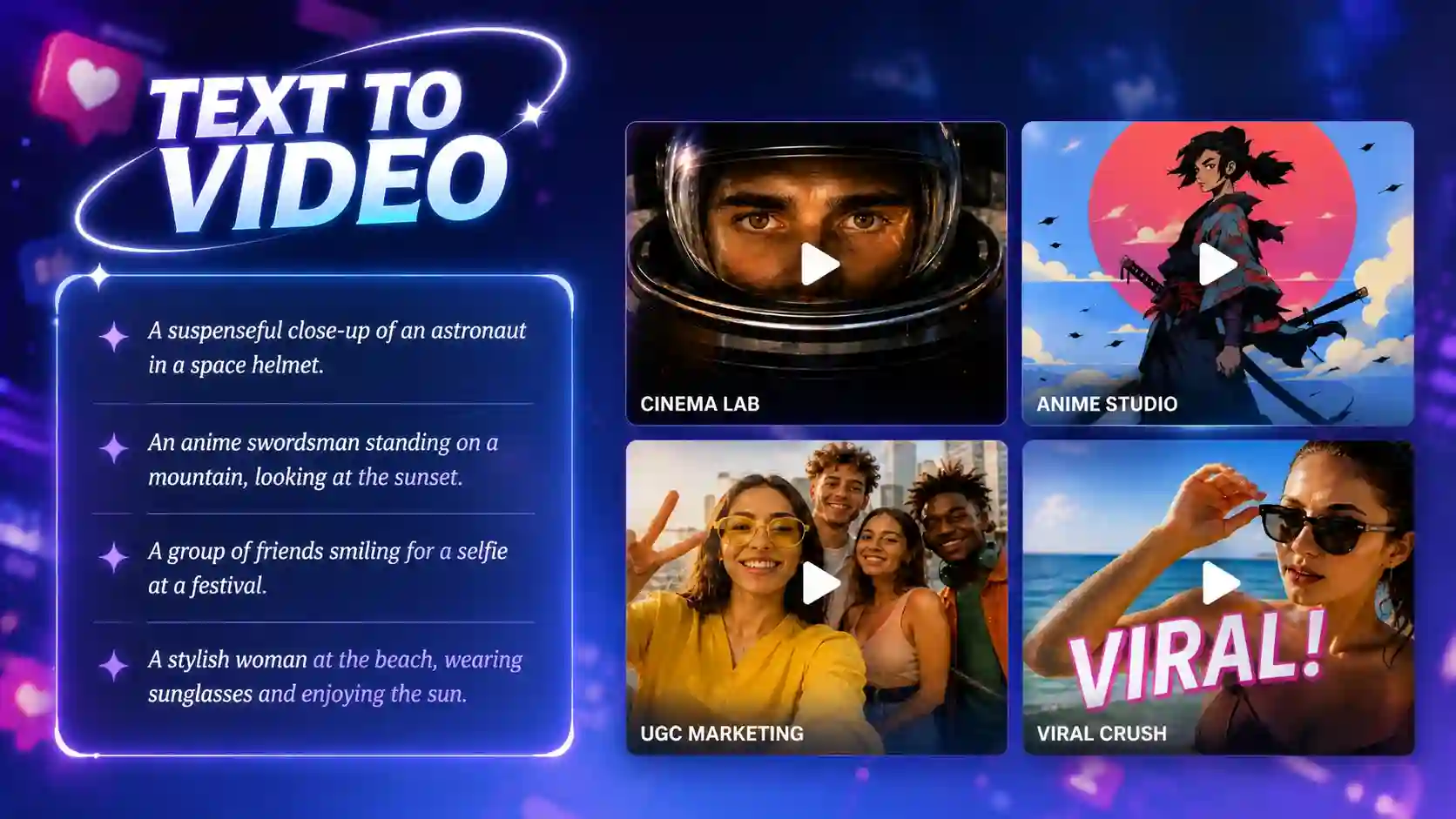
The quality of the clip depends heavily on the prompt. A reliable structure covers five things: the subject, the action, the setting, the camera, and the visual style. Compare these two:
- Weak: “a girl walking in a city”
- Better: “A girl in a yellow raincoat walks down a rainy Tokyo street at night. Neon signs reflect on the wet pavement. Slow tracking shot from behind, cinematic lighting.”
The second one leaves the model far fewer things to guess.
Image to Video: Animate a Photo or Illustration
Here you upload a picture, and the AI adds motion to it. Because the image already defines the subject and the look, you get more control than you do with text alone. It’s also the route to take if you want to make AI videos from a picture.
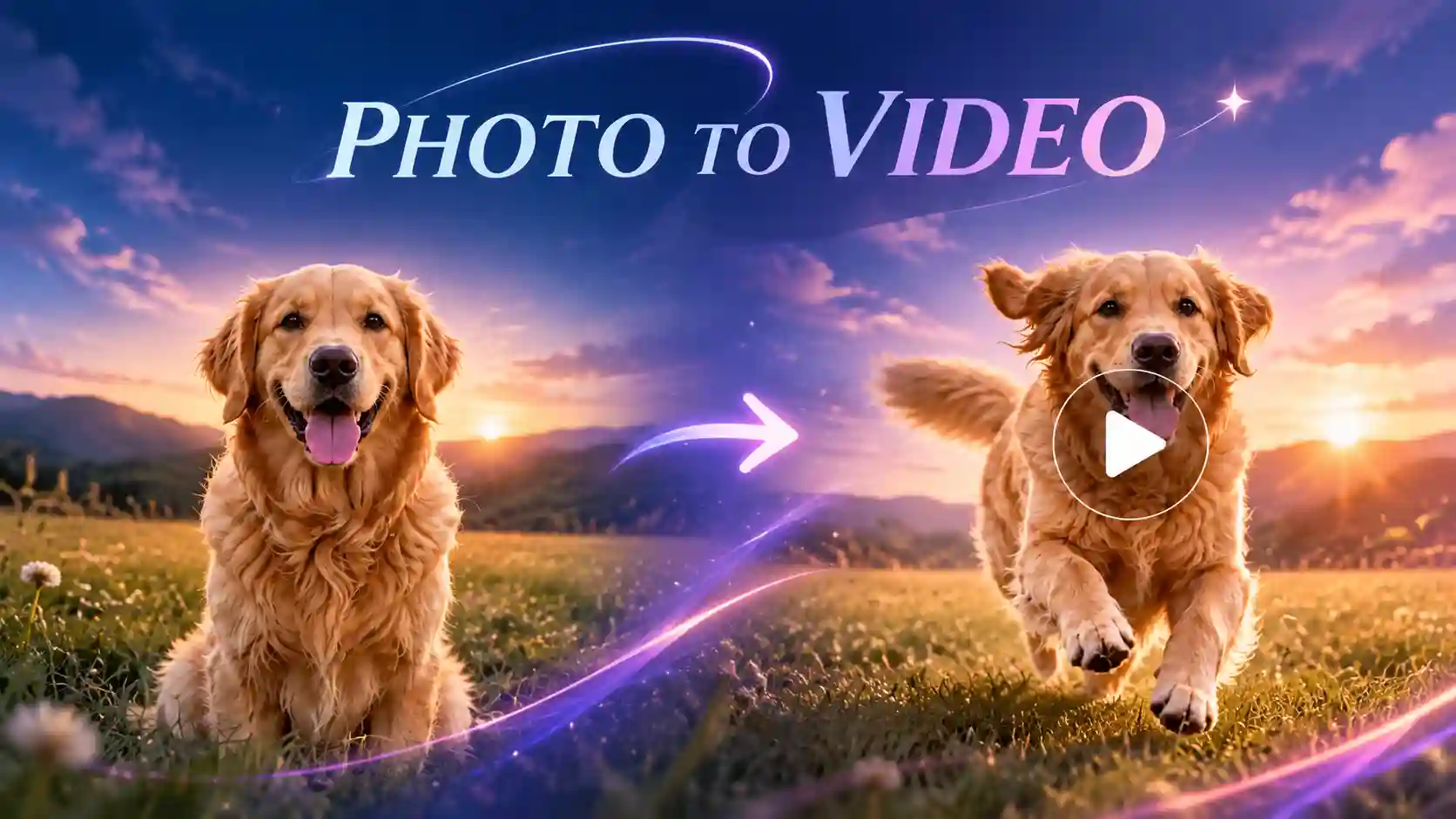
An image to video generator works with photos, illustrations, character designs, and product shots. If you want to make AI videos of yourself, this is usually the easiest way in: start from a clear photo and describe the movement you want.
Tips: Use a sharp, well-lit image, and describe only the motion (what moves and how the camera behaves). The model can already see the rest.
Video to Video: Edit or Restyle Existing Footage
This one starts with a clip you already have. The AI can change its style, relight the scene, swap the background, or add and remove objects, while keeping the rest of the footage as it was.
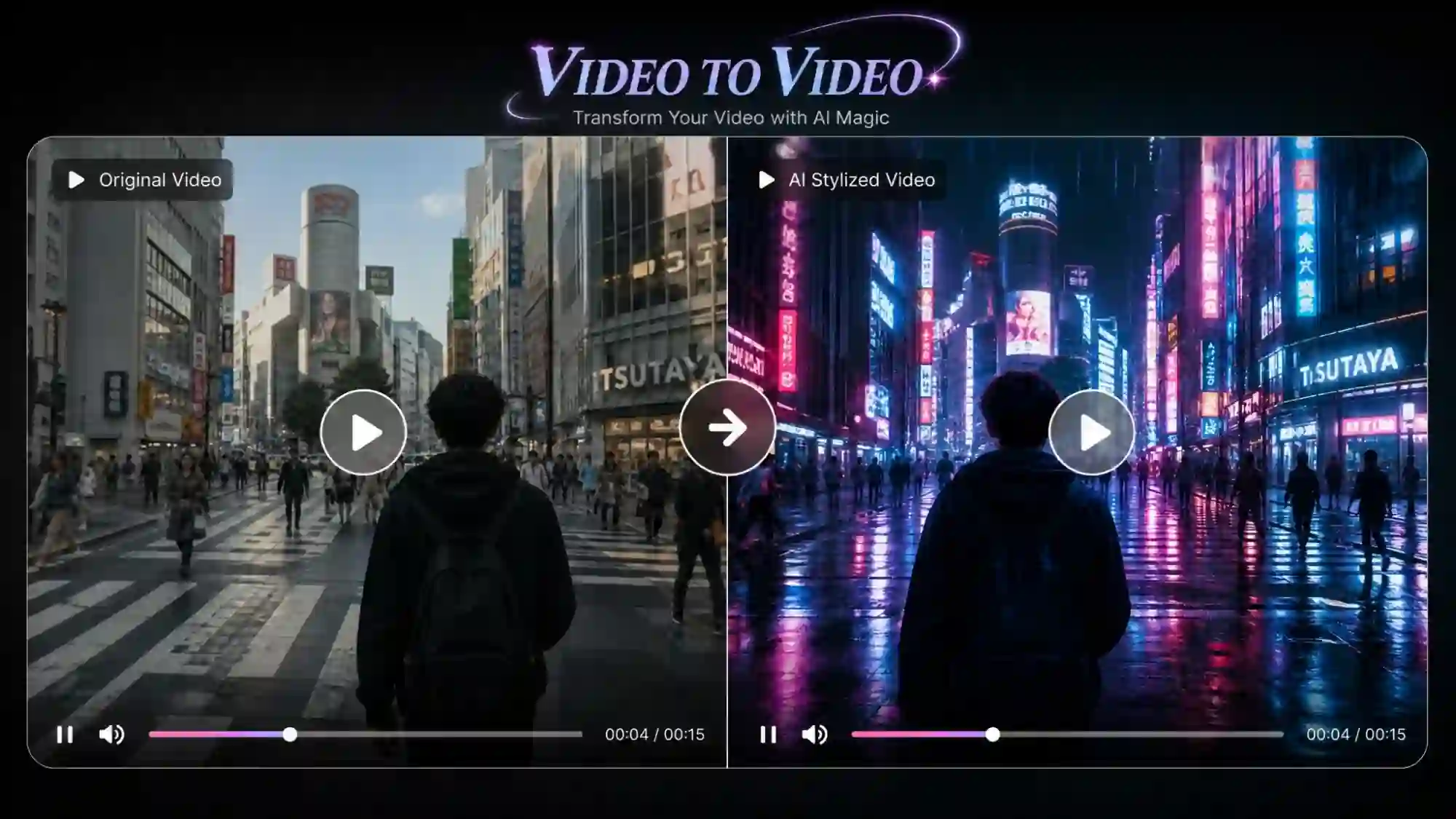
With a video to video AI tool, you can upload a clip and swap in your own reference character, or restyle it as anime, 3D, or cartoon. It’s handy if you’ve already shot something, or if you’d rather not appear on camera.
Audio to Video: Turn Music or Voice Into a Video
This route starts from sound. Upload a song, a voiceover, or a line of recorded dialogue, and the tool builds visuals around it, with scenes that follow the rhythm or characters whose mouths match the words (lip sync). An audio to video AI tool turns audio into talking videos this way.
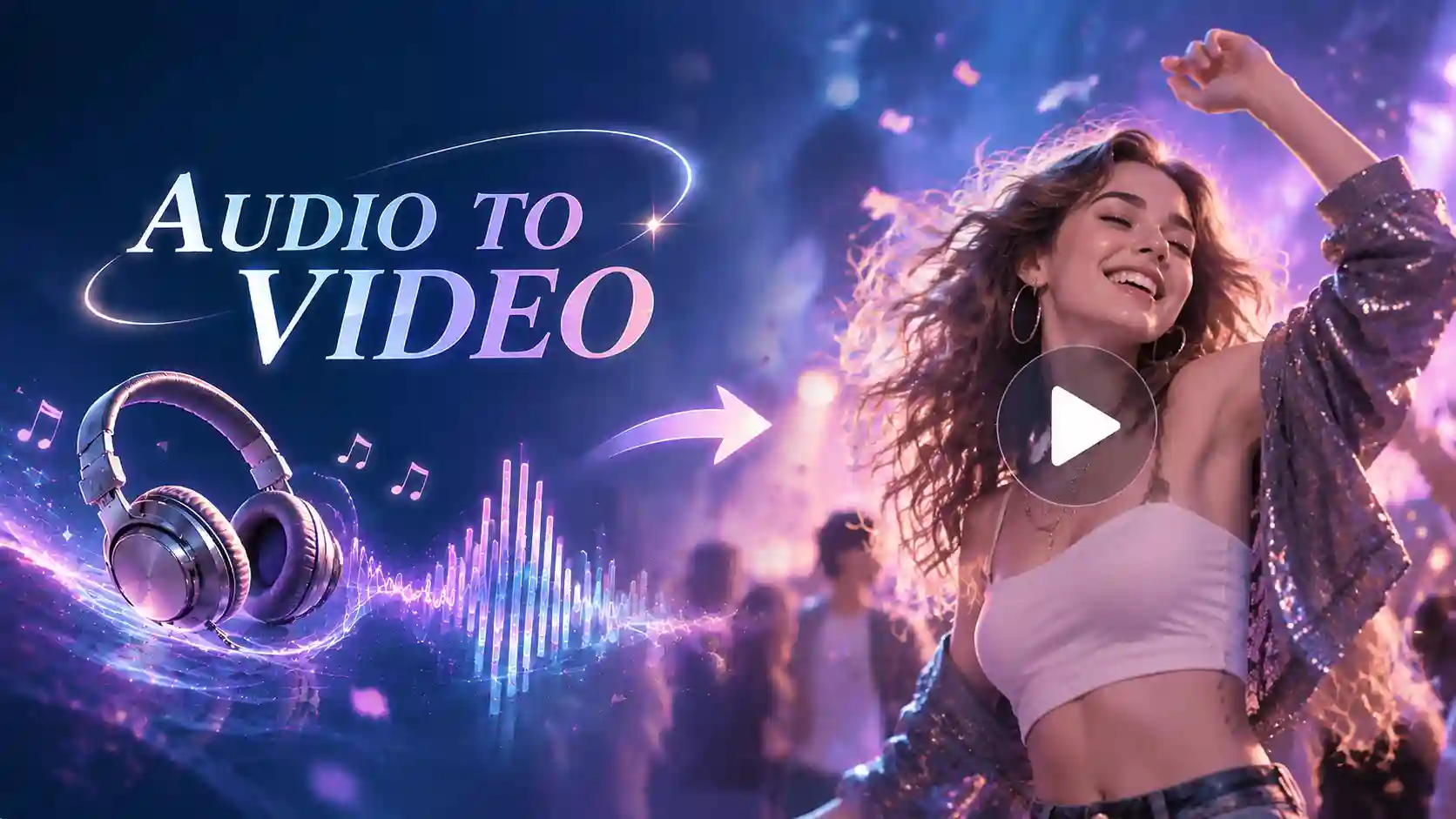
It’s a natural fit for music videos, narrated stories, and talking-character clips. If your video is dialogue-heavy, check how well a tool handles lip sync before you spend credits.
Those four routes cover how most AI videos start. What they don’t tell you is where things tend to go wrong, which is what we’ll look at next.
Common Challenges in Making AI Videos (and How to Solve Them)
Almost every creator hits the same walls sooner or later. Creators are complaining again and again: characters that change from shot to shot, clips that don’t connect, and credits that vanish on retries.
The good news is that most of these problems have practical fixes, and they apply no matter which tool you use.
Inconsistent Characters and Visual Details
The same character shows up with a different face, hairstyle, or outfit in the next shot. A prop changes color halfway through a clip. It happens most when you change scenes, camera angles, or lighting.
How to fix it:
- Start with a clean character reference image and reuse it in every shot.
- Keep the reference itself consistent. Changing the lighting, angle, or crop of your reference can make the output drift, even when the prompt stays the same.
- Repeat a short, fixed description of the character’s key features in each prompt.
- Approve the character image first, then turn it into video.
Tools with built-in reference or character-lock features save a lot of trial and error here.
Unnatural Motion and Physical Inconsistencies
Walking looks a little off. Hands bend the wrong way. Objects float, pass through each other, or change shape mid-clip. AI models learn motion patterns from training data, and they don’t always get physics right, so busy scenes are where it shows.
What helps:
- Give each clip one clear action.
- Describe direction and speed, such as “slowly turns toward the camera.”
- Split complex actions into separate shots.
- Generate a few versions and keep the most natural one.
For example, “a woman dances, spins, jumps, and runs across the room” asks for a lot. “A woman slowly turns toward the camera and smiles, with a gentle push-in” gives the model something it can actually deliver.
Poor Prompt Adherence and Limited Creative Control
You ask for a red jacket and get a blue one. Part of the prompt gets ignored, or the model adds something you never mentioned. A prompt is a description, not a precise camera instruction, so the model has room to interpret it.
What helps:
- Use a clear structure: subject, action, setting, camera, style.
- Cut the pile of adjectives. Clear beats long.
- Change one thing at a time between attempts, so you know what caused the difference.
- Add a reference image when you need a specific look.
- Try a prompt-enhance option if your tool has one.
Flickering, Visual Distortion, and Temporal Inconsistency
Even when every frame looks fine on its own, the clip can still flicker. Backgrounds warp, textures shimmer, lighting shifts, and objects change shape as they move.
This is different from the character problem above. Character consistency is about who appears in the shot. This one is about how stable the picture is from one frame to the next.
What helps:
- Keep backgrounds simple.
- Avoid fast, dramatic camera moves in the same clip as complex action.
- Use shorter clips so errors don’t pile up.
- Start from a stable reference image.
- Watch each clip closely and regenerate just the section that breaks.
Difficulty Creating Longer Videos and Maintaining Story Continuity
One good clip isn’t a video. Most tools generate a few seconds at a time, so a 30-second video can mean several separate generations. When you join them, the character, the lighting, or the setting can shift, and the story can feel disconnected.
The usual route is to extend clips, chain several generations together, and use references to keep characters and locations consistent.
What helps:
- Write a short script and storyboard before you generate anything.
- Break the video into scenes, with the character, place, action, and camera defined for each.
- Reuse the same references and style settings throughout.
- Plan narration and dialogue early, so the audio matches the pacing.
- Fine-tune the order, transitions, and timing in a timeline editor.
Difficulty Rendering Text, Logos, and Accurate Details
On-screen text can turn into gibberish, and logos or packaging labels can shift from frame to frame. This matters most for product and brand videos, where small details have to be right.
What helps:
- Use a clean, high-quality product image as the reference.
- Don’t count on the AI to draw exact words or logos.
- Add text, logos, and subtitles in an editor afterward.
- Check product details frame by frame before you publish.
A good rule of thumb: let the AI create the visuals, and add the exact brand details yourself.
High Generation Costs and Time-Consuming Revisions
Most platforms charge credits per attempt, whether the result is usable or not. Creators often report that a single scene can take several tries before it looks right, and when you’re testing character consistency across multiple clips, those retries add up fast.
What helps:
- Plan the script, storyboard, and style before you generate.
- Test one key scene first, then batch the rest.
- Use structured prompts and reference images to make results more predictable.
- Fix only the part that needs fixing instead of regenerating everything.
- Look for a platform that keeps script, images, video, and audio in one place, so you’re not paying for and juggling several tools.
No tool makes these problems vanish, but the right one can make them much easier to manage. Let’s look at four options that each handle the process a little differently.
4 Popular AI Video Generators Worth Trying
These four cover a good range of approaches: an all-in-one workspace (Anijam AI), a model and editing studio (Runway), a prompt-to-finished-video maker (Invideo AI), and a motion-focused model (Kling AI). Think of this as a guide rather than a ranking. The best choice depends on what you’re making.
Quick Comparison Table
Note: Prices and plans change often, so check each official page before you subscribe.
| Tool | Best for | You can start from | Free option | Worth knowing |
|---|---|---|---|---|
| Anijam AI | • Character-Driven Stories & AI Series • Viral Social Media Content • Animation • AI Marketing Videos & UGC-Style Ads | • Text Prompt • Image • Script • Audio • Video • Template | 500 free sign-up credits & daily check-in bonuses | Credits vary by model; Commercial use is on paid plans |
| Runway | • Cinematic clips • Ad & Product videos • Character Animation | • Text Prompt • Image • Video • Template | 125 one-time credits | Credits vary by model; Monthly plan credits don’t roll over; Free output is watermarked |
| Invideo AI | • Fast Explainers • Short-Form Social Media Content • Marketing & Promo Videos | • Text Prompt • Image • Video • Audio • Template | Free sign-up with limited credits | Credit-based, and unused credits don’t roll over |
| Kling AI | • Realistic Motion & Action Scenes • Cinematic Shorts • Product & Brand Commercials | • Text Prompts • Image • Video • Template • Audio (Partial) | 66 free credits per month (valid for 31 days) | Credits vary by model, resolution, and features; Commercial use is covered under paid plans |
Anijam AI
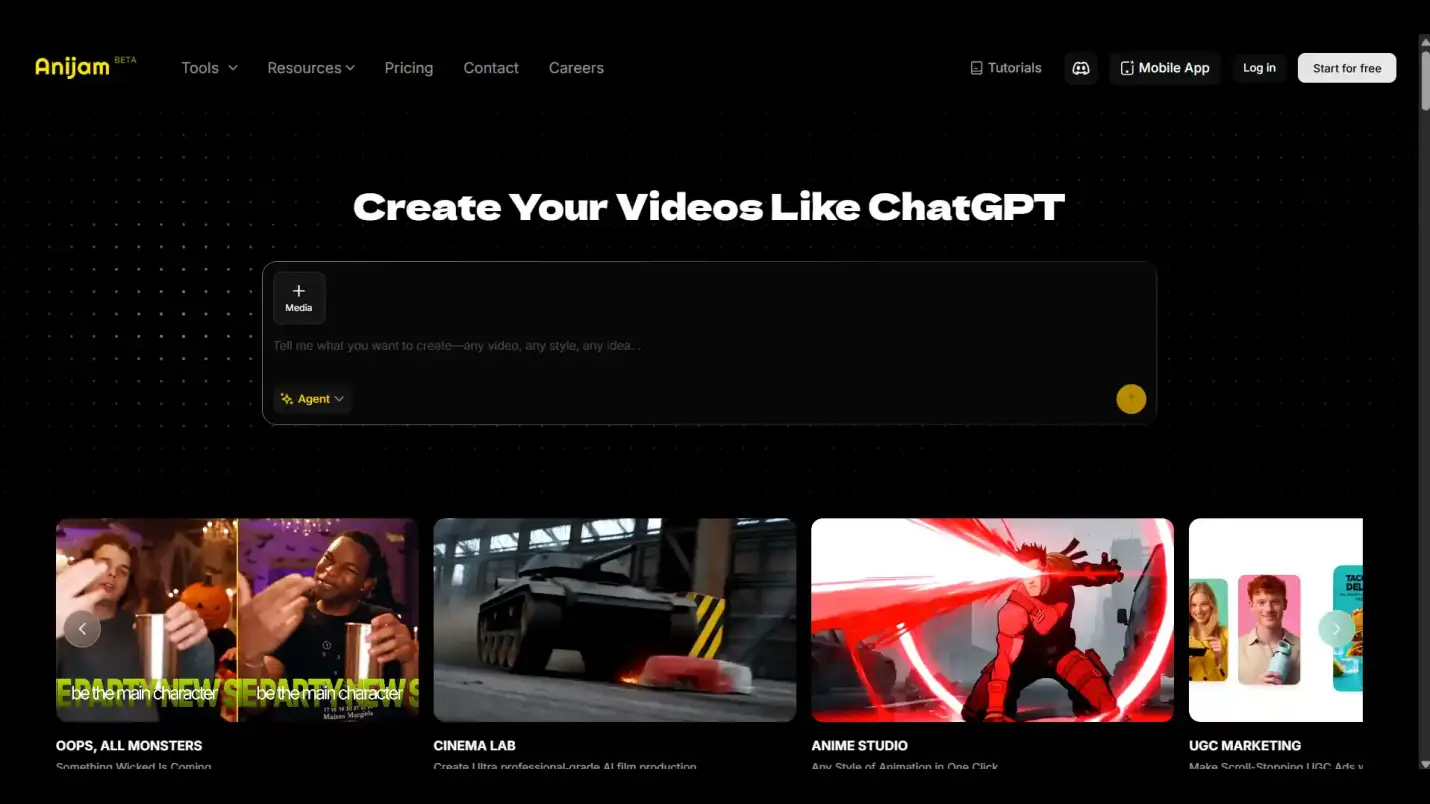
Anijam AI is an AI creative platform on web and mobile, built for everything from short social clips to multi-episode series. Start from text, an image, a script, audio, or a trending template, and its AI video generator plans the story, scenes, and consistent characters for you. Voices, lip sync, and timeline editing live on the same canvas, while the app offers templates for quick trending videos. No filming or editing skills needed.
What stands out:
- Character Consistency: Consistent characters across scenes and episodes
- Multilingual Lip Sync: Lip sync with 200+ voices across 30+ languages, or your own audio
- Diverse Visual Styles: A range of visual styles, from anime, claymation and Ghibli to 3D cinematic, cyberpunk, and realistic
- Regularly Updated Templates: A large and continuously growing library of templates for different platforms and purposes, with new options added regularly.
- Flexible Editing: Edit and refine videos through an embedded timeline editor or by chatting with the AI agent
- Multiple AI Models: A growing selection of AI image and video models, such as Seedance 2.5, Wan 3.0 and Seedream 5.0 Pro
Keep in mind:
- Generation can take longer during peak hours
- The free plan has limited usage; for heavier needs, a paid plan is the better choice
Runway
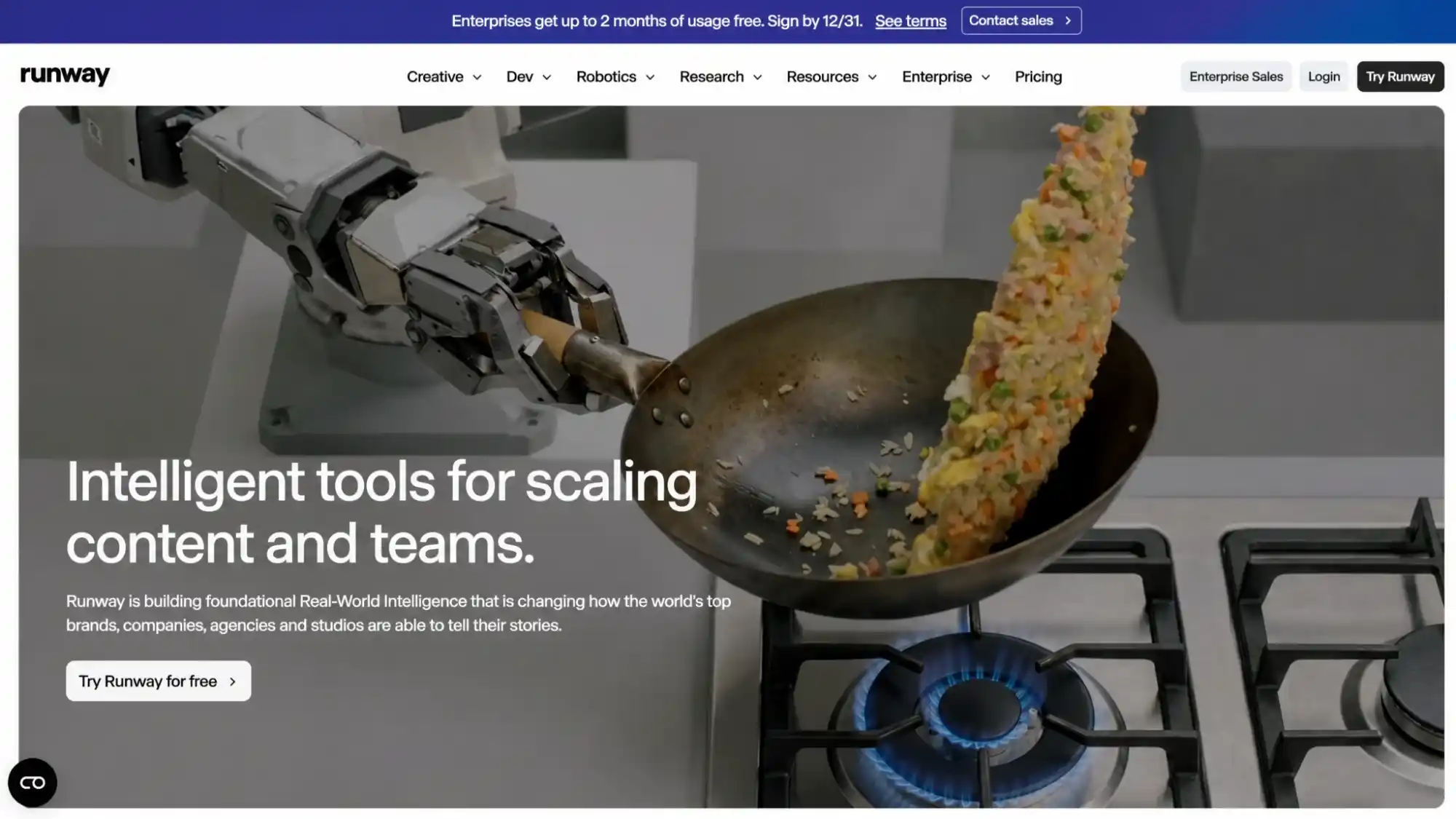
Runway is an AI-powered video generator focused on video generation, editing, and visual storytelling. It combines its own generative models with third-party AI models, giving creators access to different video generation capabilities in one place. You can start with a text prompt, an image, or an existing video clip. Runway is particularly useful for working with real footage: you can relight a scene, replace a backdrop, or add and remove objects without reshooting.
What stands out:
- Multi-Model Access: Access to a range of first-party and third-party AI video models, including Gen-4.5, Veo, and Kling
- AI Video Editing: Edit existing footage with AI by changing backgrounds, adjusting lighting, restyling scenes, or adding and removing objects without reshooting
- Character Consistency: Use reference images to maintain a character’s appearance and visual style across multiple shots
- Character Performance: Bring characters to life by transferring facial expressions, gestures, and movements from a driving performance video
- Video Enhancement: Extend video clips and upscale their resolution, including support for 4K upscaling
Keep in mind:
- Credits are used per second of video, and on monthly plans they don’t roll over, so it’s worth testing prompts on short clips first
- Credits are used per generation and vary by model, so heavier models use them faster
Invideo AI
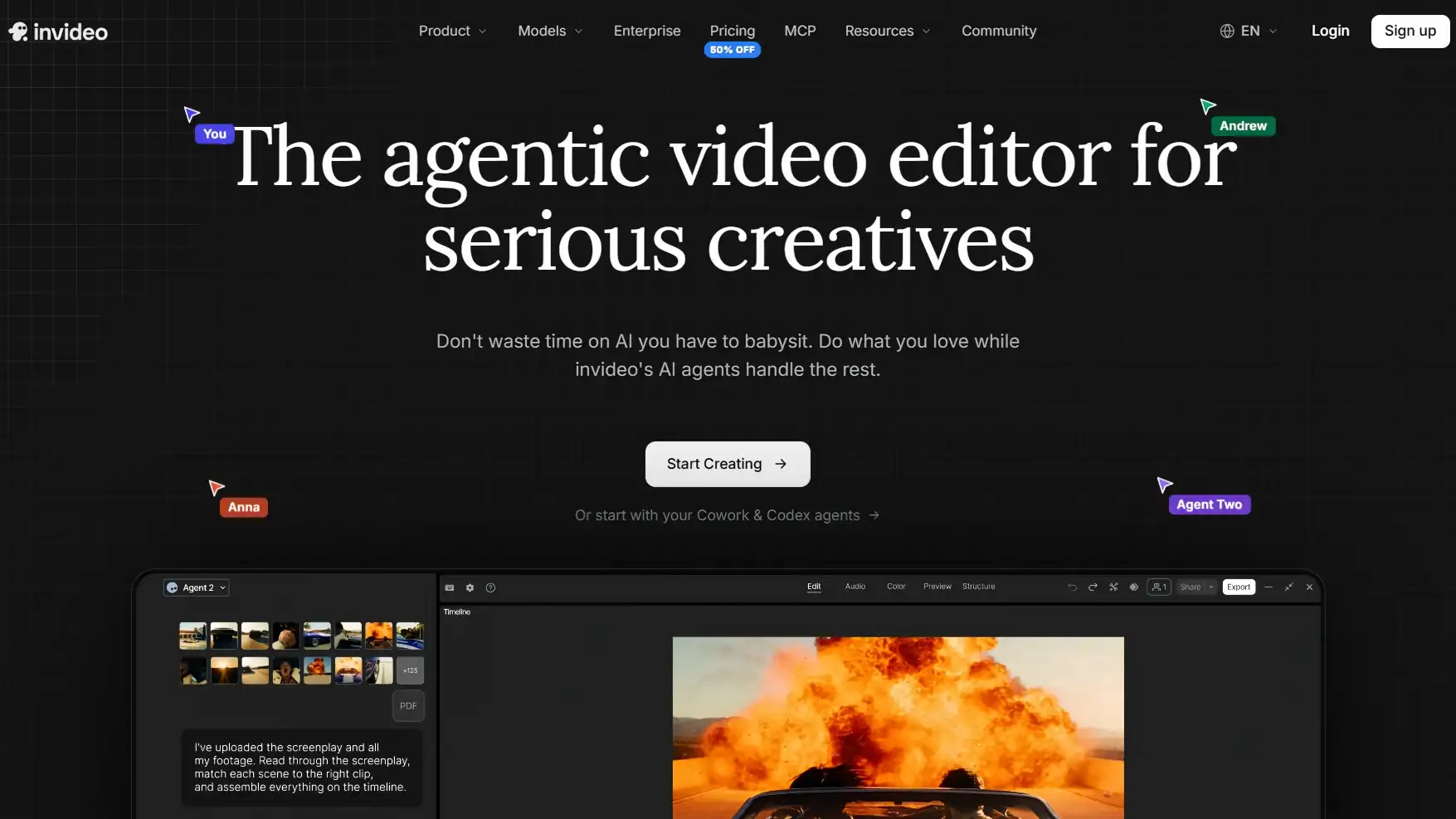
InVideo AI takes a broader approach to video creation, combining AI generation with a workflow designed to turn ideas or scripts into more complete videos. You can edit by typing commands, like deleting a scene, changing the voice, or adding an intro. That makes it a good match for explainers, faceless YouTube content, and marketing videos. Its current platform also provides access to models such as Sora 2 and Veo 3.1 for users who want more advanced generative video capabilities.
What stands out:
- Automated Script-to-Video: Turn text, scripts, or articles into complete videos, with AI-generated scripts, matched visuals, voiceovers, and transitions
- Multi-Model Access: Access 200+ AI image, video, and audio models in one platform, including models from providers such as Kling, and MiniMax.
- AI-Powered Editing: Use natural-language instructions to edit videos and remove pauses and mistakes
- Extensive Stock Media & Templates: Access millions of stock videos, images, and music tracks, along with ready-made templates for different formats and purposes
- Professional Timeline Editing: Refine projects with a multitrack timeline editor, with tools for trimming and team collaboration
Keep in mind:
- Repeated edits and regenerations use additional credits
- Generating a complete video from one prompt may offer less direct control over individual shots during the initial creation process
Kling AI
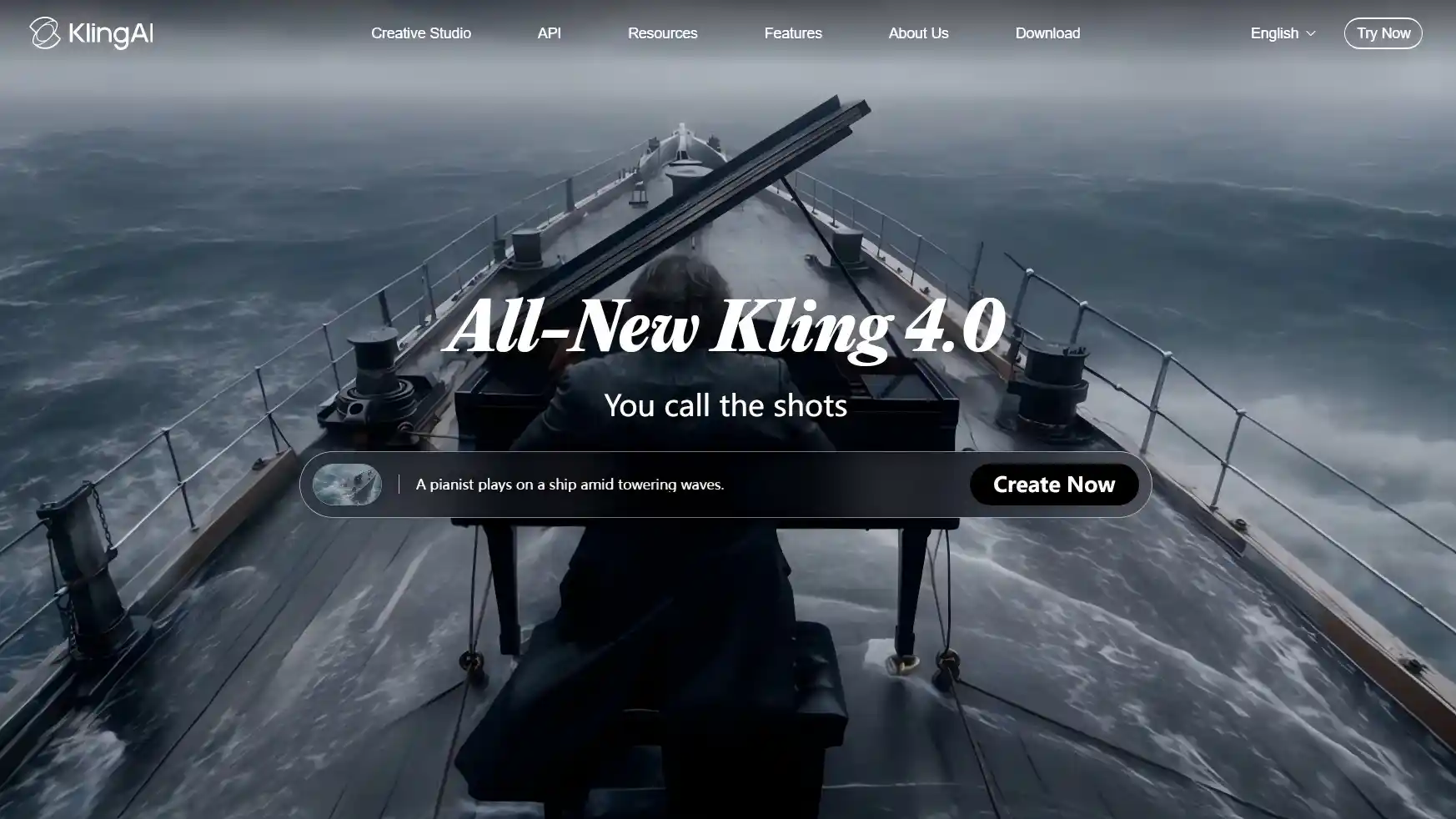
Kling AI is a generative video and image platform known for realistic motion. Since launching in June 2024, it has evolved through over 30 model iterations. Its latest Kling 4.0 model supports clips up to 30 seconds and 10 keyframes, offering greater creative control. Motion Control transfers movements and expressions from reference videos to characters, while Omni Reference supports up to 15 reference items for visual consistency. Kling also features built-in audio generation and lip sync.
What stands out:
- Realistic Motion: Generates natural-looking movement and cinematic visuals
- Advanced Motion Control: Transfers movements and expressions from reference videos to characters
- Visual Consistency: Omni Reference supports up to 15 reference items to help maintain consistent characters and visual elements
- Multi-Keyframe Generation: Supports up to 10 keyframes for more precise control over scenes and transitions
- Built-in Audio Generation: Generates audio and supports lip sync within the platform
Keep in mind:
- Repeated generations and refinements can use credits quickly
- Complex movements and fine details may still require multiple attempts
Step by Step: How to Make Your First AI Video with Anijam AI
If you’d like to see the whole process in action, here’s a first video in Anijam AI, from blank page to export.
Step 1: Start with an Idea, Image, Script, or Template
Type an idea, upload an image or a script, add an audio file, or pick a template. If you already have a platform and video length in mind, include them in your prompt.
Step 2: Choose Your Style, Character, and Voice
Pick a look (anime, cartoon, 3D, Ghibli, realistic, and more), set up your character so it stays consistent, and choose a voice or upload your own audio.
Step 3: Generate and Check the Scenes
Preview every scene as it comes out. If one misses, redo that scene instead of the whole video, and change one detail at a time so you can see what made the difference.
Step 4: Polish, Export, and Share
Reorder scenes, fine-tune pacing and transitions in the timeline editor, then export. Feel free to share it on YouTube, TikTok, or Instagram Reels.
Tips for Making Your AI Videos for Social Media
A good clip isn’t automatically a good social video. Each platform has its own format, pace, and audience habits, so a few small choices at the start make a big difference.
Start With the Platform, Not the Prompt
Setting the ratio up front saves you from awkward cropping later. Shorter videos are also easier to keep consistent, since every extra clip is another chance for things to drift.
One more thing before you publish: YouTube and TikTok both have rules about labeling realistic AI-generated content, so check the current policies.
- TikTok, Instagram Reels, and YouTube Shorts: vertical 9:16
- Standard YouTube videos: horizontal 16:9
- Feed posts: square (1:1) or 4:5, on platforms that support them
How to Make AI Videos for TikTok
TikTok rewards fast, vertical videos. A few habits help:
- Hook early. Grab attention in the first second or two.
- Keep scenes short. Quick cuts hold viewers.
- Follow a trend. Trending templates already set the style and structure.
- Add text in your editor. AI-drawn captions are often unreliable.
Anijam’s AI TikTok video generator is built for this kind of vertical short.
How to Make AI Videos for Instagram Reels
Reels use the same vertical format, and a clean, consistent look works well here.
- Open with a strong first frame.
- Keep the motion simple.
- Stick to one visual style, so your videos feel like a set.
- Keep faces and captions off the edges and bottom, where app buttons can cover them.
How to Make AI Videos for YouTube
YouTube has two formats, so the approach depends on which one you’re making.
- Shorts: Follow the TikTok approach: vertical, short, hook first.
- Standard videos: Go horizontal (16:9), write the script first, and generate scene by scene. Keep characters and style consistent throughout, and don’t skip the voiceover, since audio matters as much as the visuals.
Conclusion
Making an AI video comes down to a handful of steps: pick your starting point, write a clear prompt, check the result, fix what’s off, and put the clips together. The tools will keep changing, but that process stays about the same.
Most of the frustration, from inconsistent characters to burned credits, comes from jumping straight into generation. A little planning, like a script, a storyboard, and a few reference images, goes a long way.
If you’d like to try it, Anijam AI lets you start for free and handles the story, characters, voices, and editing in one place. Pick an idea and make your first video today.
Frequently Asked Questions
Can I make AI videos for free?
Yes. Most AI video tools offer free credits or a free plan, so you can test them without paying. Anijam AI, for example, gives you free sign-up and daily check-in credits. The catch is that free exports often carry a watermark and are limited to personal use.
Can ChatGPT or Claude make AI videos?
Not by themselves. Both work with text and images, so they’re best for the writing side: a script, a shot list, or prompts. You then paste those into a video tool to generate the footage. Some chat assistants can connect to video models through plugins, but the video itself is still produced by the video model.
How can I make an AI video from a picture or of myself?
Use an image-to-video tool. Upload a clear photo, describe how it should move, and generate a short clip. For talking videos, add a voice track so the tool can sync the lips. Only use images and voices you have permission to use.
Can I make money with AI videos?
Many people do, through YouTube channels, short-form content, ads, and client work. But results depend on your content and consistency. Before you publish commercially, make sure your plan includes commercial rights, and that you have permission for any images, music, or logos you upload.
How long does it take to make an AI video, and how long can it be?
It depends on the tool, the model, and how complex your video is. On Anijam, short template-based clips on the app can be ready in seconds or within a few minutes, while longer multi-scene videos made with the AI agent take more time. A single video generation typically produces a short clip, so longer videos are created by combining multiple scenes within one project.
by Evan
Evan is an AI content creator and video technology writer at Anijam AI, focused on how generative AI is transforming storytelling and video production. He shares social trends, creative workflows, prompt strategies, and practical insights to help creators turn ideas into engaging videos and visual content.