![How to Make an Episode with AI Online [5 Best AI Episode Generators 2026]](https://static.anistudio.ai/www/blog/how-to-make-episode-with-ai/make-episode-with-ai-cover.webp)
How to Make an Episode with AI Online [5 Best AI Episode Generators 2026]
Every week there’s a new wave of AI-made “episodes” flooding TikTok and YouTube - fake cartoon crossovers, AI-narrated cold opens, entire fan-made shows built without a writers’ room or an animation studio. What used to require a script department, voice actors, and a rendering pipeline can now start from a single prompt.
But “AI episode generator” actually covers two very different categories of tool. Some only write - they give you a logline, a beat sheet, or a full script and stop there. Others go all the way from that script to a finished, animated, lip-synced video you can publish. Knowing which one you actually need is the first decision, and it changes everything about which tool is worth your time.
This guide breaks down what an AI episode generator really does, compares five of the more established tools in 2026, walks through exactly how to turn a script into an animated episode with Anijam, and covers the AI-generated fan-episode trend (and the copyright line you shouldn’t cross) - plus the mistakes that make AI episodes look unfinished.
What Does “Making an Episode with AI” Actually Mean?
An AI episode generator is a tool that uses artificial intelligence to turn a story idea, a logline, or a full script into episode content. That’s a broad definition on purpose, because the tools sold under this label split into two tiers:
- Text-only generators produce a plot outline, a beat sheet, or a full dialogue script. You still need to record, animate, or film the episode yourself somewhere else.
- Script-to-video generators take that same idea and carry it all the way through - scene breakdown, character design, voice, and camera work - and hand you back a finished video.
If you’re pitching a series bible or brainstorming plot twists, a text generator is often enough. If you actually want a watchable episode to post, you need a tool built for the full pipeline - which is a much smaller list.
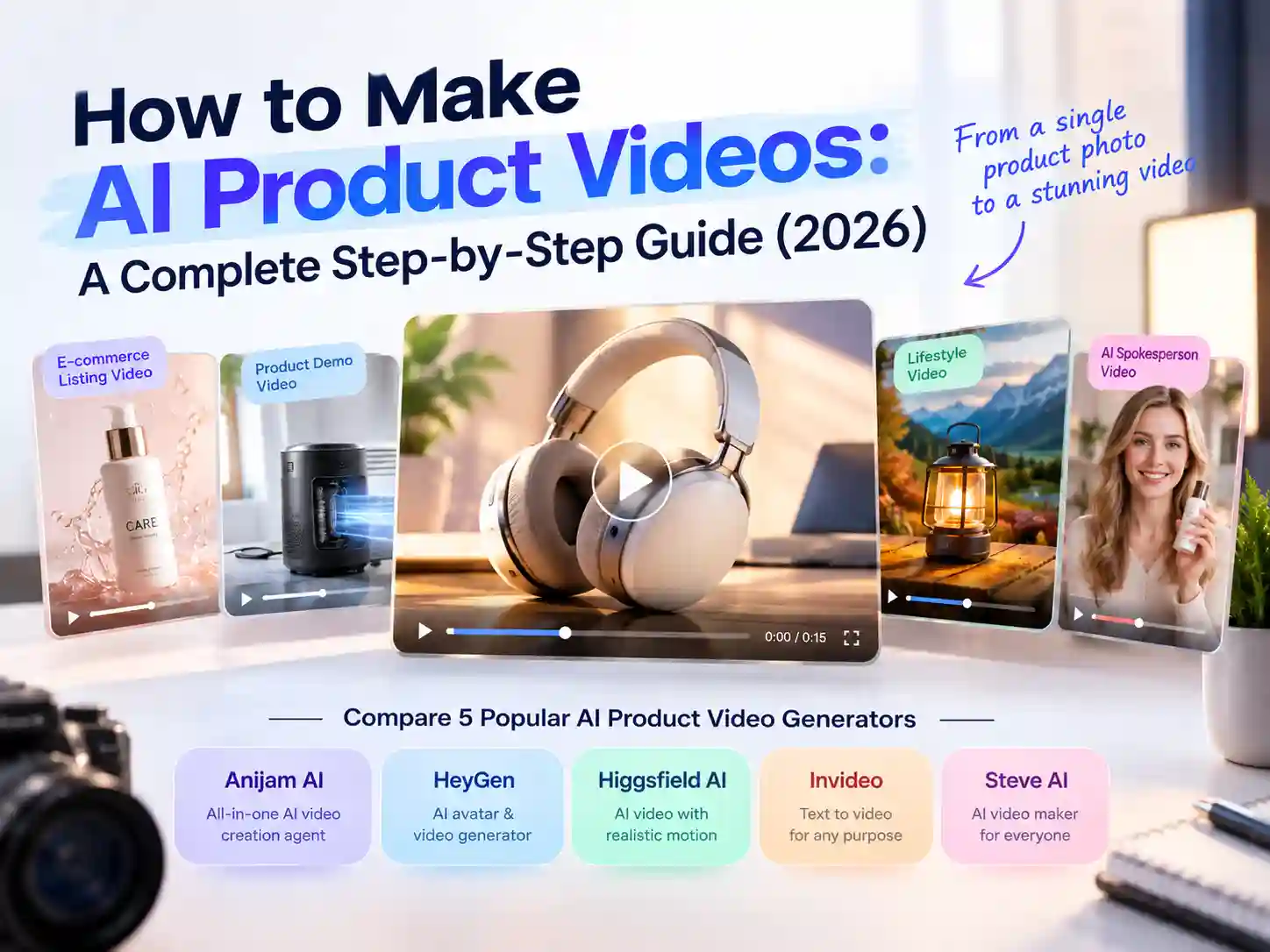
5 Top AI Episode Generators Compared
Here’s how five of the more established options stack up, from full script-to-video platforms to pure writing tools.
| Tool | Best For | Key Features | Free Tier |
|---|---|---|---|
| Anijam AI | Full animated episodes with consistent characters, dialogue & lip sync | Script-to-animation, auto scene breakdown, persistent characters across episodes, AI-directed camera work, multilingual lip sync, ready-made episode templates | Yes - free credits to start, browser-based and mobile app, no download |
| LTX Studio (by Lightricks) | Filmmakers who want granular per-shot control over an episode | Script-to-storyboard-to-video pipeline, character consistency across shots, professional camera controls, full edit suite for music, VFX, and voice-over | Free plan available; paid tiers unlock premium models and faster generation |
| Showrunner (by Fable Studio) | Full animated TV-style episodes with AI-driven writing, voicing & editing | AI agents handle writing, directing, casting, editing, and voicing from a short text prompt; supports original shows and remixable formats | Free to use while in early access; paid credit-based plans ($10-$40/mo) are being phased in |
| Frameo.ai | Short-form, cinematic episodic video for social platforms | Text-to-episode pipeline with character continuity, scene sequencing, and export presets for YouTube Shorts, Reels & TikTok | Free trial available; paid plans for full-length exports |
| Sudowrite | Writers who want a strong episode script, not a video | Story Bible keeps characters, plot, and setting consistent across a multi-season outline; scene-level prose and dialogue generation, rewriting, and brainstorming tools | Limited free trial; paid plans from around $10/mo |
How to Make an Episode with Anijam
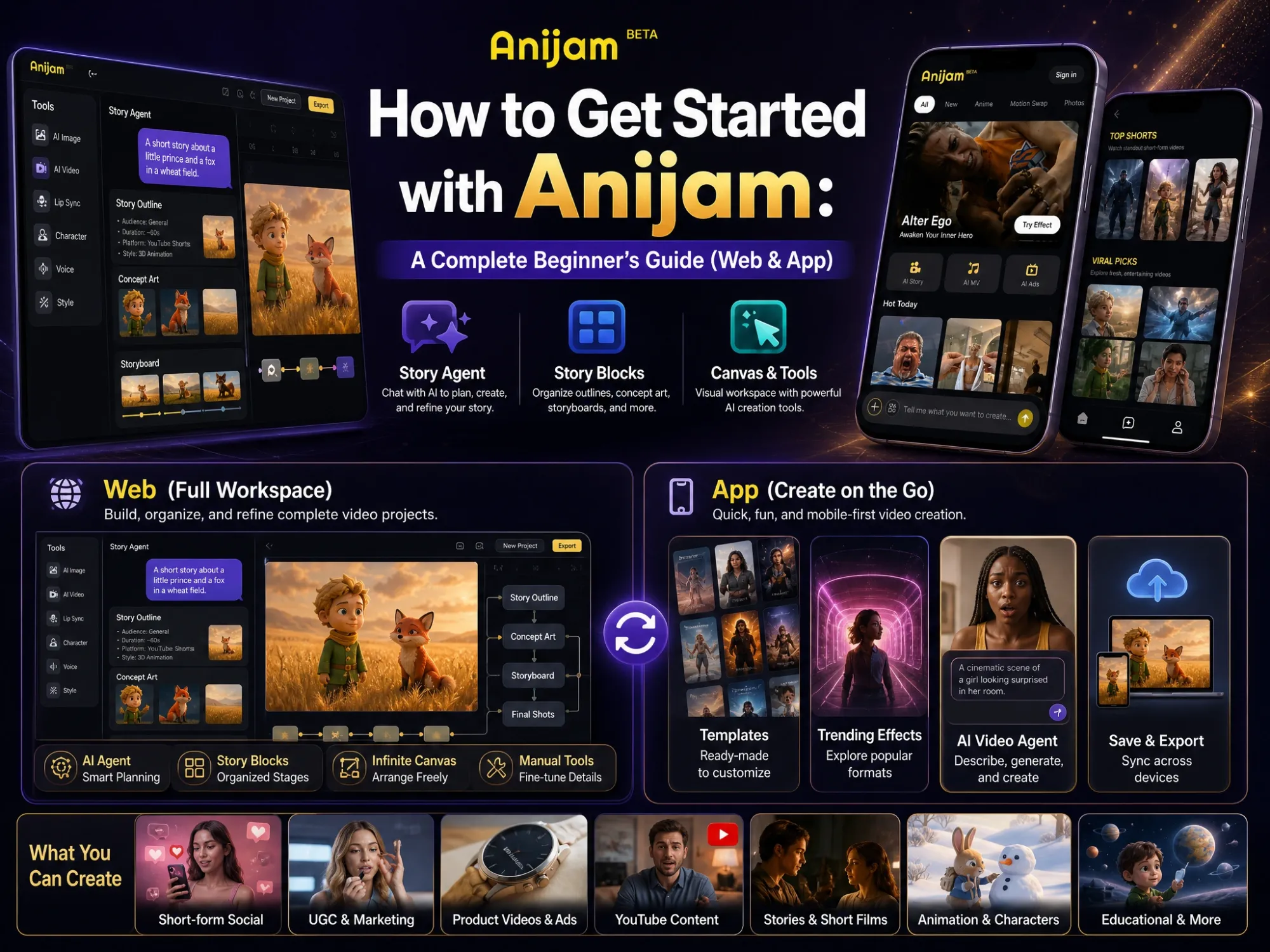
Anijam AI’s AI Episode Generator is built around a project-based workspace: you create a project, add and manage each episode as its own entry, and an AI assistant helps you plan, continue, and animate every chapter without leaving the canvas.
Key Features:
- Trending video templates, updated regularly - the homepage surfaces ready-made styles like Ghibli Dream Worlds, Viral Anime Series, and Anijam Film Studio, so there’s usually a look to start from instead of designing a visual style from zero.
- AI agent you direct by chat - inside every project, a built-in assistant asks what you want to animate, suggests a plot, character, or world to start from, and later offers to continue the previous episode’s plot or add a new twist, instead of leaving you at a blank prompt box.
- Character consistency - design a character once and it’s saved as a reusable asset, appearing with the same face, costume, and style in every scene and every future episode.
- Built-in lip sync - dialogue from an uploaded recording, typed text, or an AI-generated voice is matched to each character’s mouth movement automatically.
- Popular AI video models under one canvas - Anijam orchestrates leading video models, including Kling, Wan, and Seedance, so different scenes can draw on the model best suited to that shot without switching platforms.
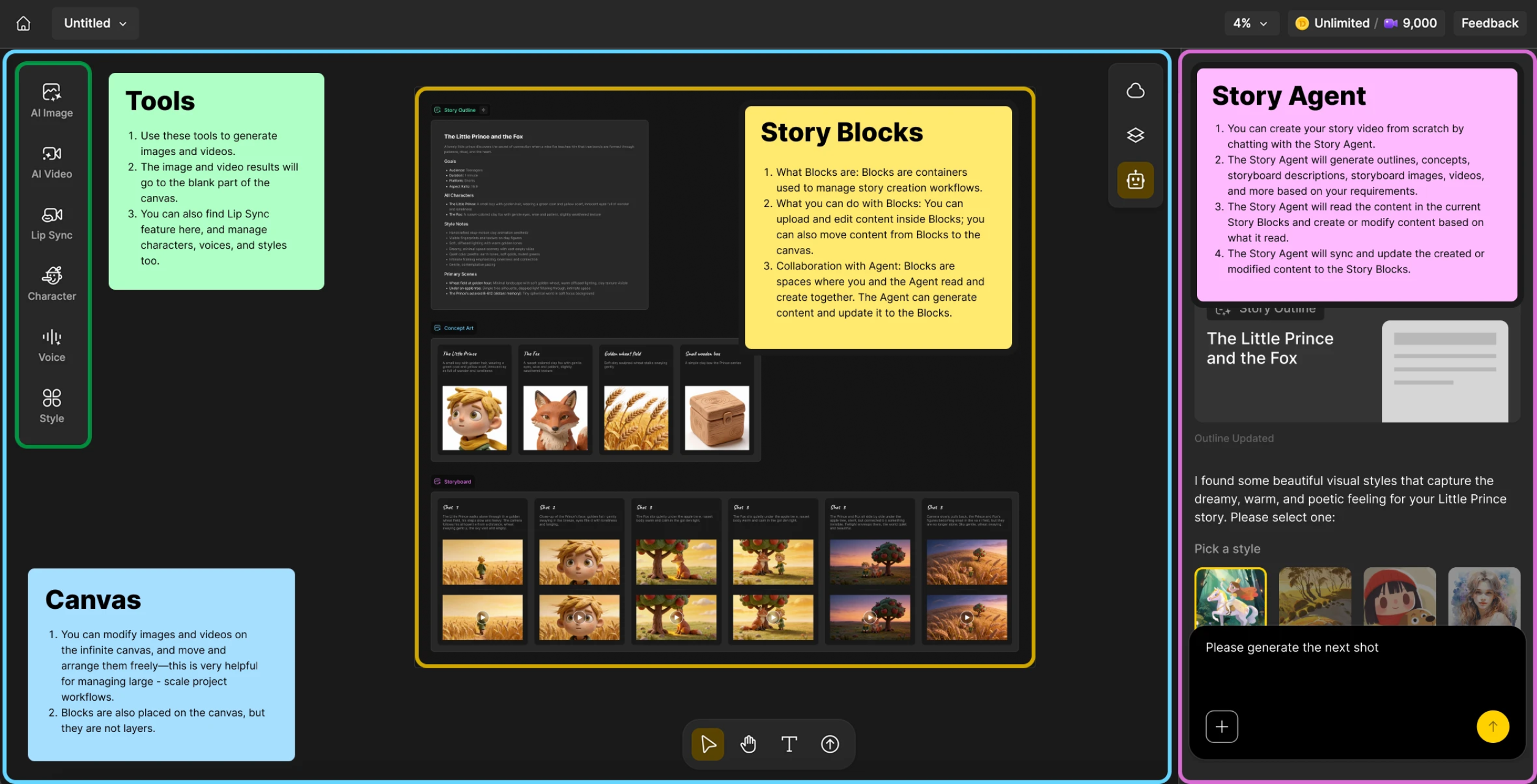
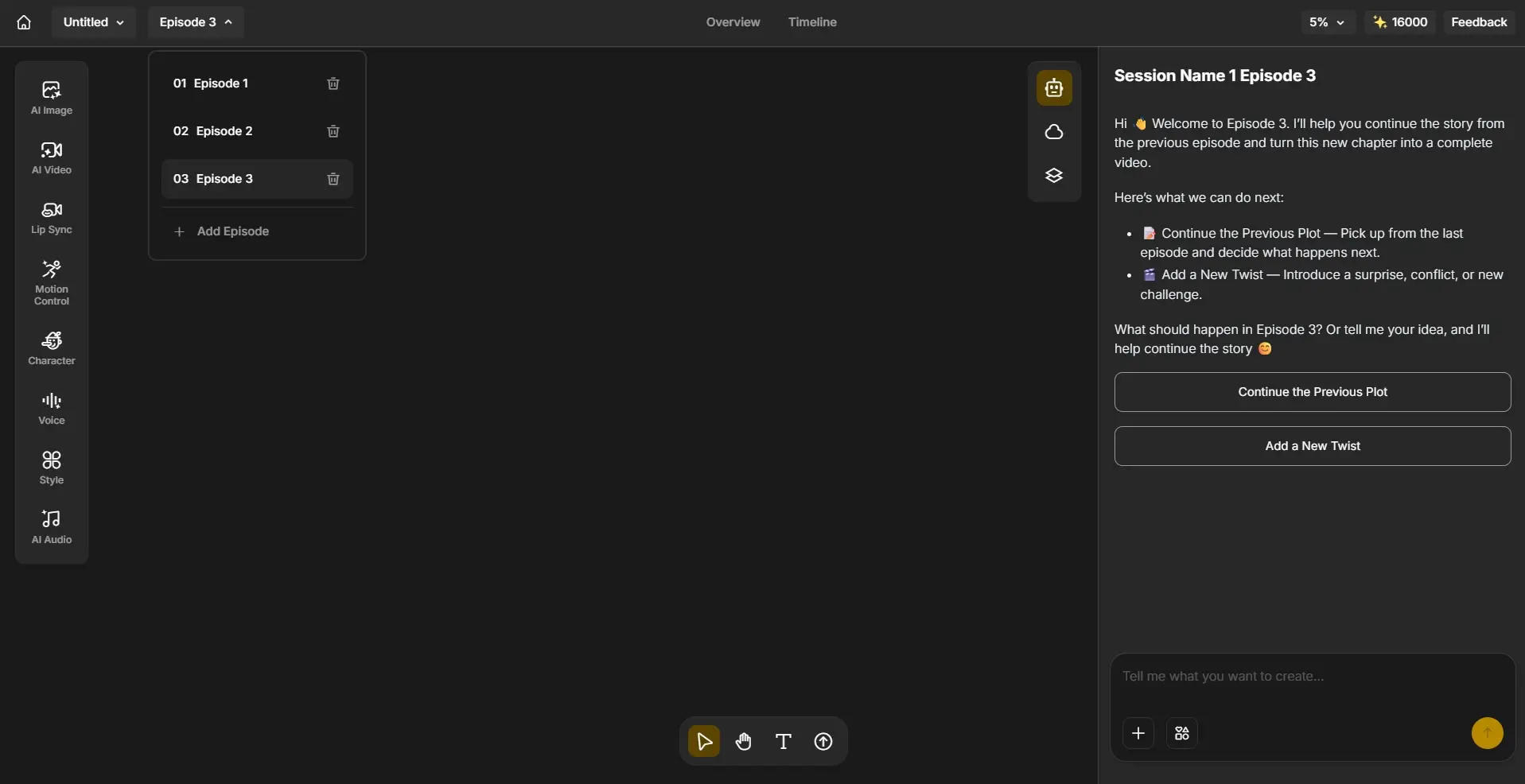
- A full toolset per project - AI Image, AI Video, Motion Control, Voice, Style, and AI Audio all sit in the same sidebar, covering visuals, camera direction, dialogue, and sound without leaving the episode you’re working on.
Here’s exactly how it works, step by step.
Step 1: Start a New Project
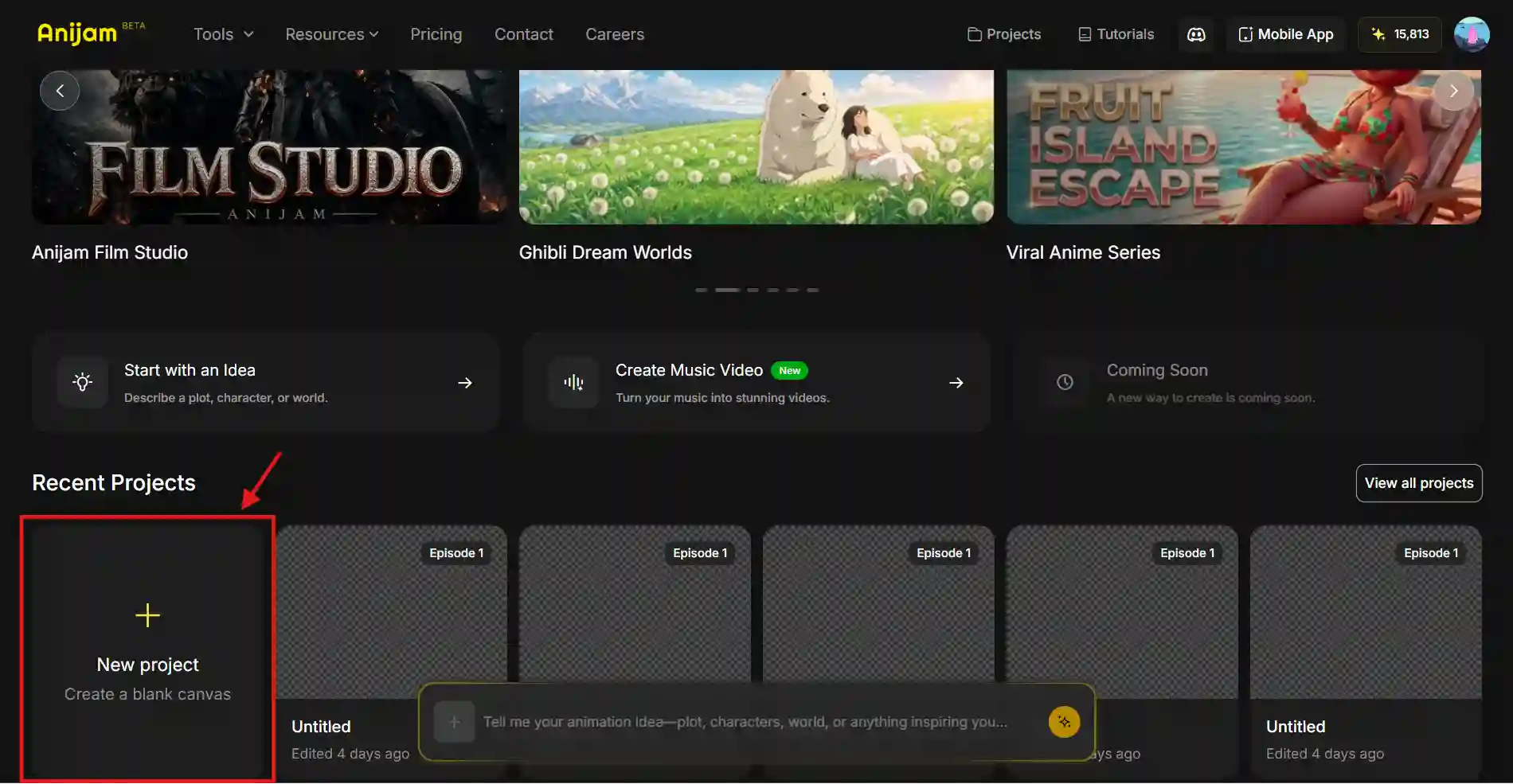
From the Anijam homepage, click New Project to open a blank canvas. This automatically creates Episode 1 for you - there’s no separate setup step, you’re dropped straight into a workspace ready for your first episode.
Step 2: Chat with the AI to Plan Episode 1
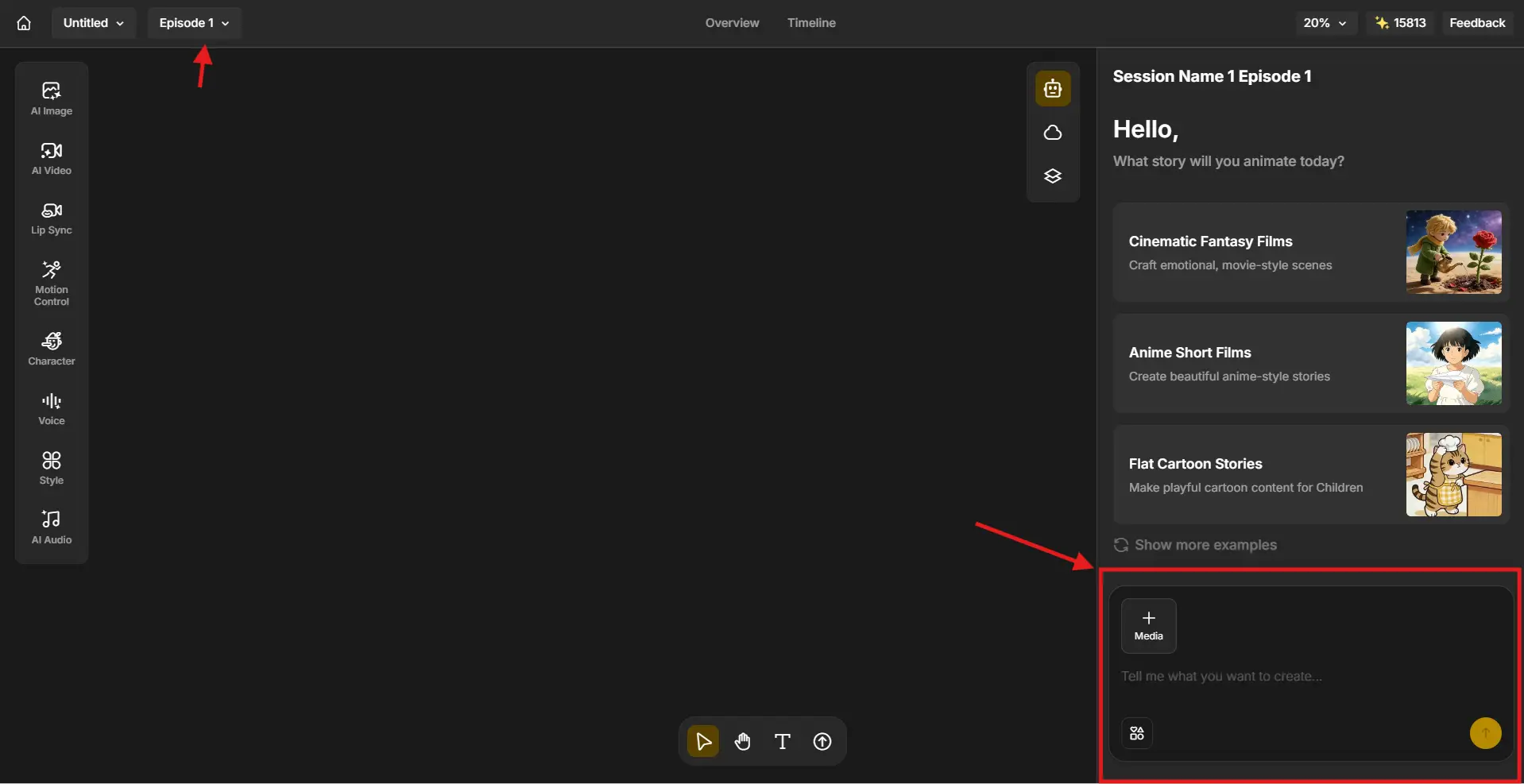
Inside the workspace, Anijam’s built-in AI assistant asks what story you want to animate today. Describe your plot, character, or world directly in the chat, or pick one of the suggested starting points - like Cinematic Fantasy Films, Anime Short Films, or Flat Cartoon Stories - to jump-start the idea and set the visual tone before you write a single line yourself.
Step 3: Add and Manage More Episodes
Once Episode 1 is generated, keep building the series from the same project instead of starting over. Use Add Episode to create Episode 2, Episode 3, and beyond, and switch between them anytime from the episode list. For each new episode, the AI assistant already knows what happened before and offers two starting points: Continue the Previous Plot, which picks up where the last episode left off, or Add a New Twist, which introduces a surprise, conflict, or new challenge.
Step 4: Build Your Characters and Style
Use the tool panel on the left - Character to design and lock in your cast, and Style to set the visual look of the episode. Characters you create here are saved as reusable assets, so the same design carries over automatically into every future episode instead of being redrawn from scratch each time.
Step 5: Generate Images, Video and Motion
With your plot and characters set, use AI Image and AI Video to generate the actual scenes, and Motion Control to direct how characters and camera move within each shot.
Step 6: Add Voice and Lip Sync
Use Voice to generate or upload dialogue, then Lip Sync to match mouth movement to every line automatically. AI Audio covers music and sound effects for the rest of the scene.
Step 7: Review, Assemble and Export
Switch to the Overview tab to see your whole episode at a glance, or the Timeline tab to fine-tune pacing shot by shot. Once everything lines up, export the finished episode - ready for YouTube, TikTok, or Instagram.
Tips for Better AI Episodes
- Write scene-by-scene, not just a summary - “Steve confronts the villain on a rooftop, thunder overhead, slow pull-back camera” gives the AI far more to work with than “there’s a big confrontation.”
- Name your characters and describe them once, consistently - the same physical description across prompts is what keeps a character’s face and costume locked in from Episode 1 to Episode 10.
- One clear beat per scene - cramming a fight, a reveal, and a joke into a single shot usually produces a rushed, jumbled result. Split it into two scenes instead.
- Use the AI director for continuity, not just new episodes - feeding in a short summary of what happened last episode keeps callbacks and relationships accurate going forward.
Copy-and-Paste Episode Prompts
Not sure where to start? Try adapting one of these:
- Anime episode, cold open: a quiet girl discovers a glowing letter hidden in her school locker, close-up on trembling hands, soft lighting, cherry blossom petals drifting past the window.
- Cinematic drama, Episode 1: two rival pilots meet in a broken-down diner on the edge of the galaxy, sharp dialogue, wide shot, retrofuturistic style, tense atmosphere.
- Detective series, Episode 3, Act 2: the detective confronts the villain on a rain-soaked rooftop, thunder overhead, noir style, dramatic shadows, slow pull-back camera.
- Fantasy series, Episode 1: a young mage accidentally summons an ancient dragon instead of a familiar, comic timing, bright cartoon style, castle courtyard setting.
- Web series finale: two childhood friends reunite at the place they buried a time capsule years ago, warm golden-hour lighting, emotional dialogue.
[Trending] AI-Generated Fan Episodes of Existing Shows
A big chunk of the “AI episode generator” space right now is tools promising an AI SpongeBob episode generator or an AI South Park episode generator - fan-made scripts and clips built around existing, copyrighted characters. This isn’t new: back in 2023, Fable Studio (the company behind what’s now Showrunner) used South Park’s cast to demo an early version of this exact “prompt to episode” pipeline, and the trend of fans generating unofficial scripts and shorts around established shows has kept growing since.
It’s easy to see the appeal - people already know and love these characters, so a parody episode gets attention fast. But there’s an important line here: SpongeBob, South Park, and shows like them are owned IP. Generating scripts or clips featuring those exact characters and publishing them - especially for monetized content - risks copyright and trademark problems, and most AI platforms (Anijam included) restrict commercial use of unofficial third-party characters for that reason.
The safer, more durable version of this trend: build your own original characters and world in a similar tone or genre - your own blocky cartoon town, your own satirical animated news desk, your own slice-of-life web series - rather than borrowing a specific studio’s IP. It gets you the same comedic energy and fast production speed, without the takedown risk, and unlike a fan parody, it’s actually yours to grow, monetize, and build a series around.
Common Mistakes When Making AI Episodes
Most AI episodes that look “off” trace back to a handful of avoidable habits.
1. Treating It Like a Single Prompt Instead of a Script
Typing one vague sentence and expecting a full multi-scene episode rarely works well. Episodes need structure - a cold open, a middle, an ending - the same way a written script does.
Fix: outline your episode in scenes before generating, even if it’s just a few lines per scene.
2. Letting Characters Drift Between Scenes
A character whose face, outfit, or proportions change from scene to scene is one of the fastest ways to make an AI episode look unfinished, and it’s the single most common complaint about tools that regenerate characters fresh every shot.
Fix: design and lock in each character once, then reuse that same character asset across every scene and every future episode instead of re-describing them each time.
3. Skipping Dialogue Timing
Voiceover or dialogue added as an afterthought - without proper lip sync - is an easy tell that an episode was AI-made and not carefully finished.
Fix: use a tool with built-in lip sync so mouth movement is generated as part of the animation, not bolted on separately.
4. Overloading One Scene with Too Many Beats
Cramming a fight, a plot twist, and a joke into one generation usually produces rushed, jumbled transitions rather than a clean sequence.
Fix: give each scene one job. Stitch multiple focused scenes together for a longer, better-paced episode.
5. Publishing the First Draft
Many creators generate once, aren’t fully happy, and post it anyway. Regenerating a shot or adjusting a line of dialogue usually improves the result significantly.
Fix: treat the first pass as a draft. Refine specific scenes rather than starting over completely.
Conclusion
Making an episode with AI online in 2026 splits into two real paths: text tools that hand you a script or beat sheet, and script-to-video platforms that carry that idea all the way to a finished, watchable episode. Which one you need depends on whether you’re pitching a story or actually trying to publish one.
If you want to go from an idea, a script, or a single sentence to a finished animated episode - with consistent characters, synced dialogue, and directed camera work - without touching a timeline editor from scratch, Anijam AI is built to handle that entire pipeline in one place.
Frequently Asked Questions
What is an AI episode generator?
An AI episode generator is a tool that uses artificial intelligence to create episode content from a script or story idea. Some tools generate only text - a plot outline or script draft. Others, like Anijam, go further and convert that script into a complete animated video episode with visual scenes, moving characters, cinematic camera work, and synchronized dialogue.
Is there a free AI episode generator?
Yes, most tools in this space offer some kind of free tier. Anijam offers free credits to start - enough to build a project, generate animated scenes, design characters, and try the full script-to-animation pipeline including lip sync, before deciding whether to upgrade. LTX Studio and Showrunner also offer free access to their core generation pipeline, and Sudowrite includes a limited free trial for its script and Story Bible tools.
Can AI make a full anime episode?
Yes. Tools like Anijam AI can turn a single-sentence idea into a full animated episode - script, scenes, characters, and voice all generated automatically.
Can AI keep the same characters consistent across multiple episodes?
On a script-to-video tool built for it, yes. Anijam stores characters as persistent project assets rather than regenerating them fresh each time, so a character looks identical in Episode 10 as they did in Episode 1 - same face, same costume, same style.
Can I make my AI episode’s characters talk?
Yes, on tools with a built-in lip-sync engine. Anijam matches mouth movement to an uploaded voice recording, typed dialogue converted to AI speech, or a voice chosen from a multilingual library, so dialogue looks performed rather than just narrated over a static image.
Do I need scriptwriting or animation experience to make an episode with AI?
No. That’s the core shift from traditional production. You can start from a single sentence and let the AI agent write a full scene-by-scene script, or paste a script you already have - either way, no prior animation or editing skill is required to get a finished result.
How long does it take to make an episode with AI online?
Most script-to-video tools, including Anijam, generate a multi-scene episode in minutes rather than hours, depending on episode length and how many scenes need rendering - a fraction of the time a traditional animation pipeline requires.
by Wendy
Wendy is a passionate writer and AI animation enthusiast at Anijam, exploring creative ways to bring stories to life with AI-powered animation tools. She shares practical tips, prompt ideas, and insights to help creators turn their imagination into stunning animated content.